
Introducing Copilot in PowerPoint
Use Copilot in Microsoft PowerPoint to save time designing and creating presentations with AI.
Design and create professional PowerPoint presentations with AI

Generate AI-powered presentations from simple prompts with Copilot
Prompt Copilot to turn your ideas into a complete AI-generated presentation. Simply describe your topic, and Copilot will generate text, design layouts, and custom visuals allowing you to move from concept to finished slides fast.

Create unique visuals instantly
Create image assets right inside PowerPoint with AI and DALL·E 3. Prompt Copilot to design what you need using AI such as an image, design element, or slide background and get multiple design options instantly, all without leaving the Copilot chat pane.

Deliver with confidence using AI-powered speaker notes
Turn your slides into a seamless story with AI-generated speaker notes. With one prompt, Copilot crafts context-aware notes for each slide, that enhances storytelling and help you engage your audience to present with confidence.
Learn how to prompt Copilot to make presentations in PowerPoint

Make a PowerPoint presentation from a single prompt
Empower creativity by prompting Copilot to make a presentation with AI. Turn ideas into an engaging slide deck with your logo and branding. Chat with Copilot to refine text, reorganize slides, and automatically add new slides. Explore a variety of layout options from Design ideas.
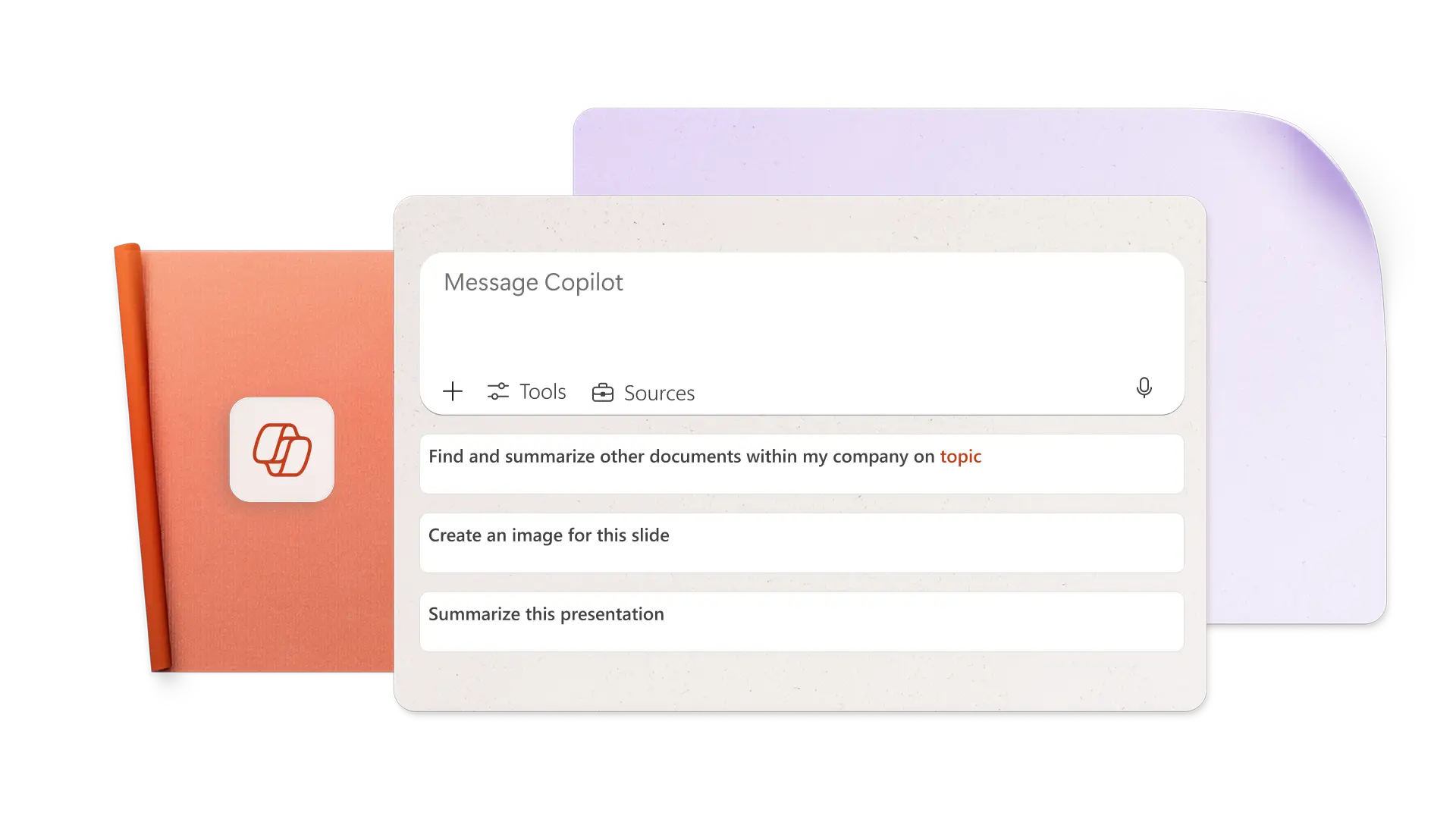
Create AI images from prompts in Copilot
Generate the perfect image for any slide by telling Copilot what you need in your own words. Have Copilot create AI images, slide backgrounds, and icons, or search for stock photography, and then pick your favorite to insert on a specific slide. Copilot can also search your Brand Center assets for images that work with your presentation.

Add speaker notes to present confidently
Produce speaker notes with a single prompt to present with confidence. To modify notes, simply ask Copilot to use a different tone of voice or add image descriptions for presenting. Take preparation further by using Copilot to anticipate audience questions and suggest answers. Finally, time your delivery and have Copilot rewrite speaker notes to match a duration goal.

Collaborate online and share with anyone
Invite team members to co-author PowerPoint presentations in real time. Those with Copilot access can edit, rewrite, generate images, and more with AI. Before finalizing, use Copilot to identify action items from comments. Afterward, share the presentation to a recipient's email or send a OneDrive link. Print a presentation to share it in a meeting.

Learn how to use Copilot to create a presentation with AI
Learn about the many ways Copilot can help create presentations, like generating topic ideas, designing slides, adding stock visuals, and improving presentation formatting.

How to make an AI presentation with Copilot in PowerPoint
Click the Copilot button above a new slide and select Create a new presentation or ask Copilot to create a new presentation in the chat
Attach a OneDrive file or upload a document to ground the presentation
Review the initial outline and insert or delete sections, then generate the presentation
Refine the tone of voice, images, speaker notes, and slide order
Collaborate with others during creation and share the presentation with viewers after you’re done
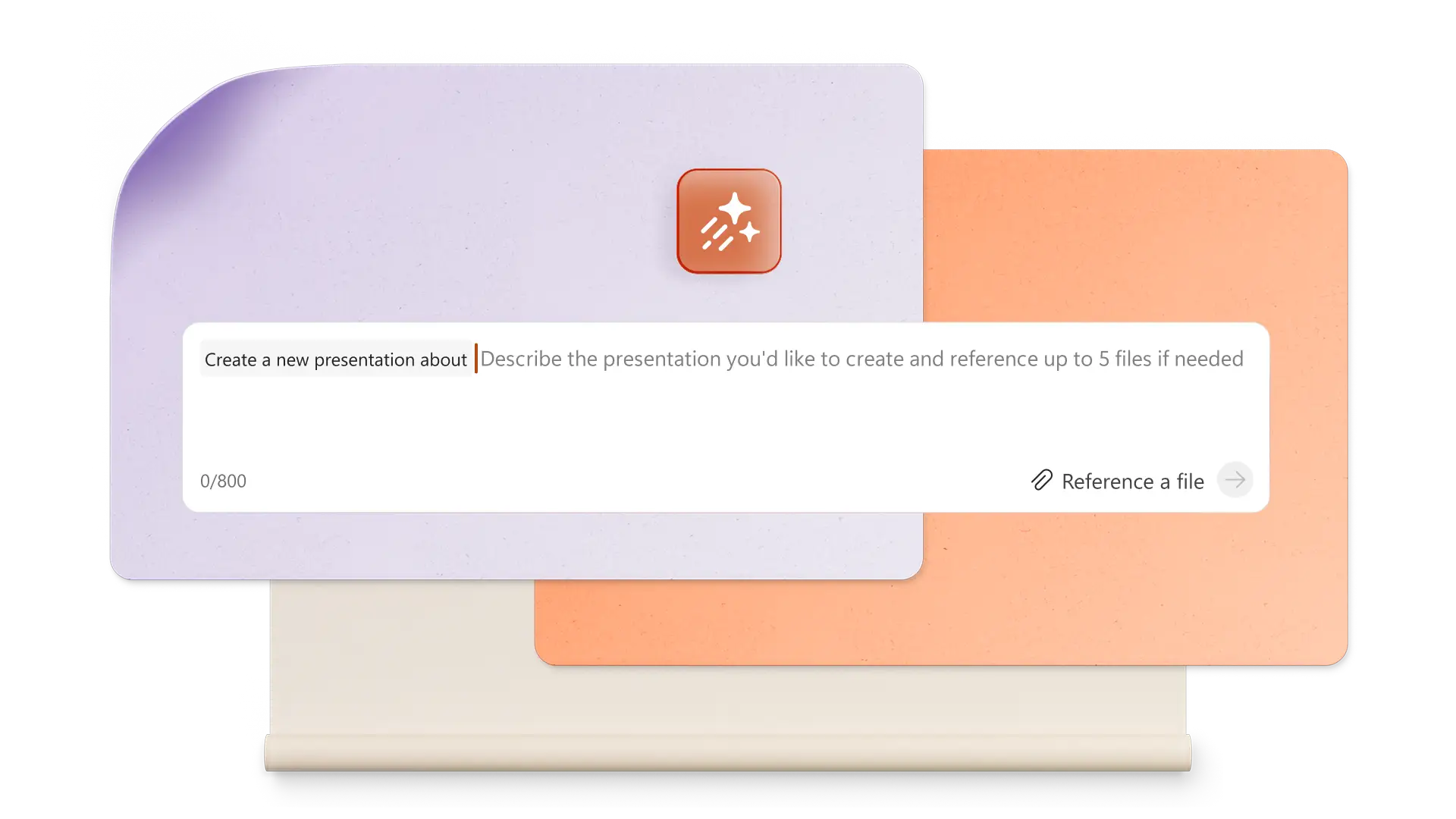
Start with a PowerPoint template for Copilot to expand
Choose from templates for business, creative projects, school, events, and more, then have Copilot customize the template in seconds with text and images based on a prompt.



Frequently asked questions
How to use Copilot in PowerPoint
Start with Copilot in PowerPoint by clicking on the Copilot button in the upper right corner. Tell Copilot what you want to create and add an external file or OneDrive attachment to ground the presentation.
Can Copilot create a PowerPoint presentation?
Copilot can create a PowerPoint presentation with AI based on a topic or document. Provide Copilot with details about the presentation, review an initial outline, then generate the presentation.
How to add Copilot to PowerPoint
Copilot is enabled in PowerPoint for anyone with a Microsoft 365 Personal or Family plan, or with a Copilot Pro subscription. Free plans and some Business plans don’t come with Copilot access. You can get Copilot in PowerPoint by upgrading your plan.
Can Copilot create PowerPoint slides?
Chat with Copilot to quickly create individual PowerPoint slides and add to a presentation. Let Copilot create a new visualization based on a data table, a key takeaways slide, a conclusion slide, or another type of slide.