
Slide backgrounds
Create custom slide backgrounds with colors, images or themed templates to match any presentation needs in Microsoft PowerPoint.
Customize PowerPoint backgrounds easily

Make custom color slide backgrounds
Set the right mood for any presentation with custom color slide backgrounds. Apply solid or gradient colors to reflect brand identity and create a cohesive visual foundation across every slide.

Turn images into slide backgrounds
Enhance any presentation with image slide backgrounds that complement the content. Add a product photo as a subtle watermark or feature a conceptual image to illustrate an idea.

Generate AI image backgrounds
Bring a unique vision to life with AI-generated PowerPoint backgrounds that match presentation content. Open Copilot in PowerPoint, describe a theme or style, and choose from AI-generated image options in seconds.

Capture audience attention with colorful PowerPoint backgrounds
Find the right color for any presentation with pink, purple, blue, green, and red slide backgrounds. Stay on brand and create a lasting impression with colors that grab attention.
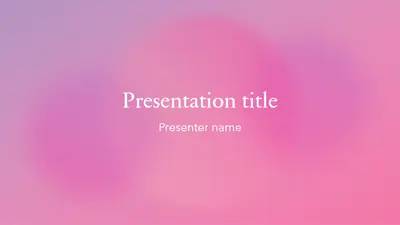





Aesthetic slide backgrounds
Stand out with aesthetic slide backgrounds that look polished and on-trend. Browse cute templates and personalize them in minutes.
Floral slide backgrounds
Bring elegance to slides with floral slide backgrounds. Browse flower-themed templates and tailor them to any creative project.
Abstract slide backgrounds
Spark curiosity with abstract slide backgrounds that stand out. Explore artistic templates and customize bold shapes, patterns, and gradients.
Pink slide backgrounds
Brighten any presentation with pink slide backgrounds. Explore templates ranging from soft blush to bold magenta and customize them instantly.
Holiday slide presentations
Capture the spirit of the season with holiday slide backgrounds. Browse themed templates and personalize them for parties, events, and celebrations.
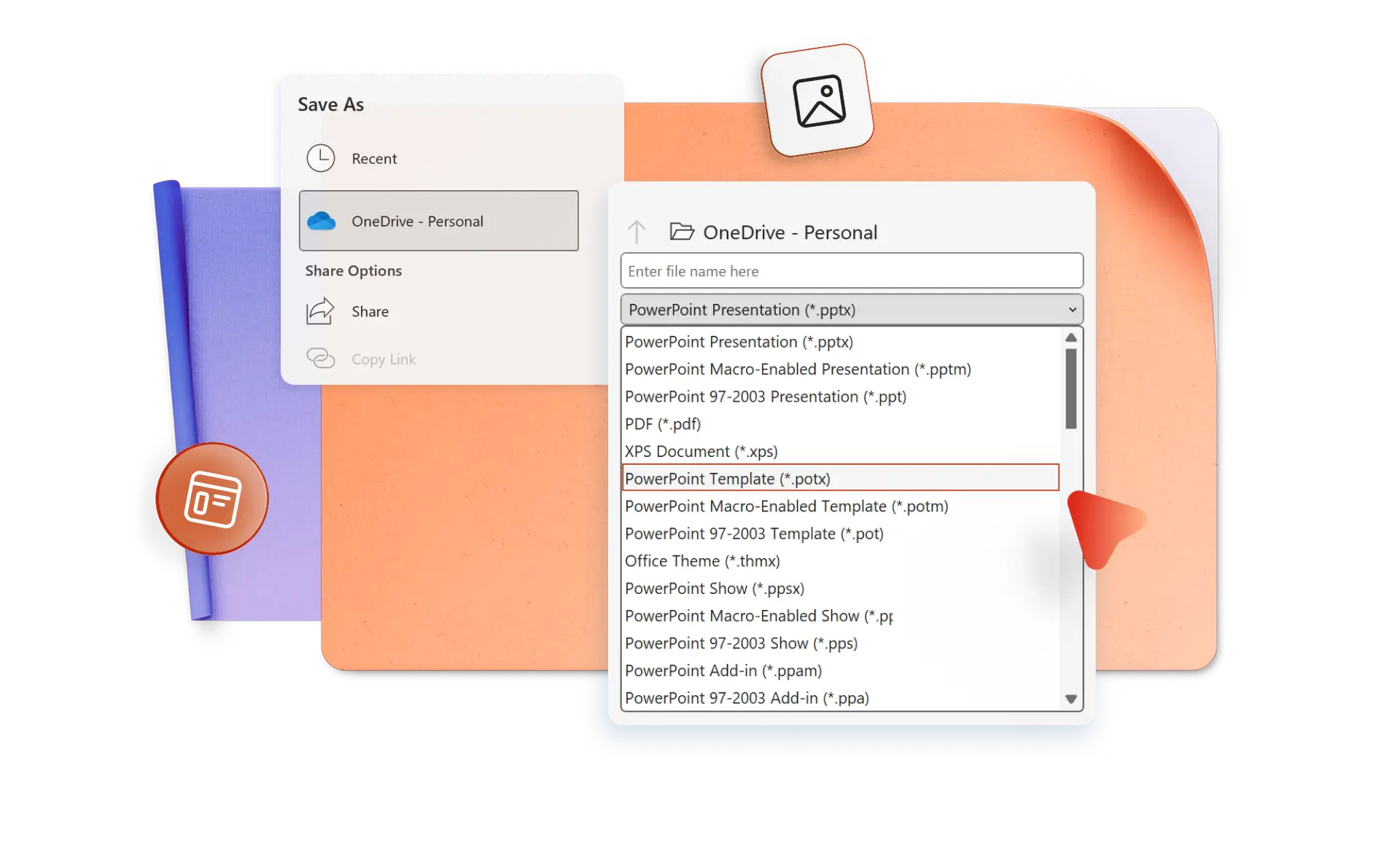
Turn presentation background images into reusable templates
Skip the repetitive work by saving custom slide backgrounds as reusable templates. Microsoft 365 subscribers can save hours on presentation design by saving custom slide backgrounds as reusable templates.
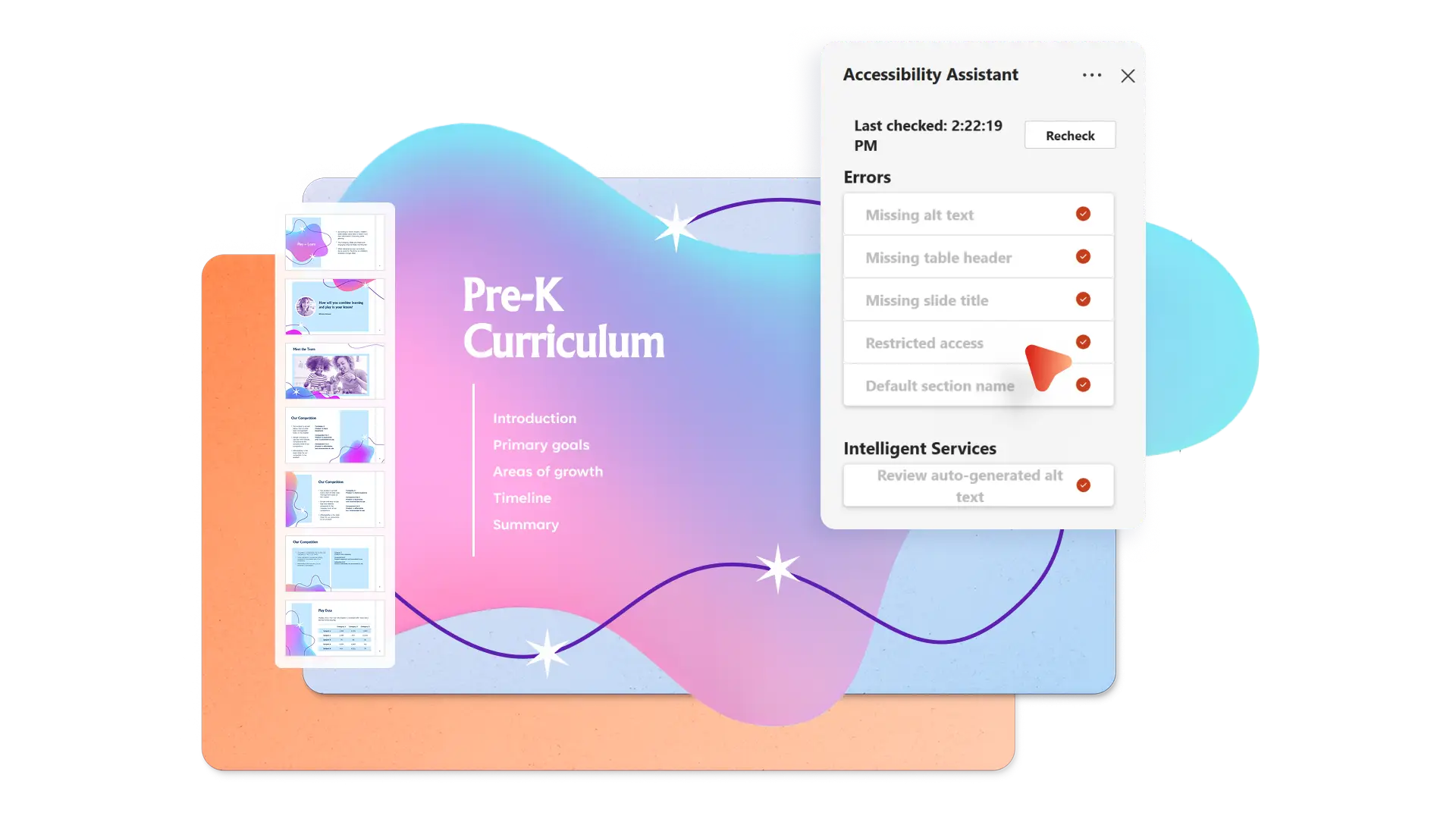
Deliver inclusive presentations for all viewers
Reach every audience member with slide backgrounds that prioritize accessibility. Scan presentations with the Accessibility checker in PowerPoint to flag issues such as insufficient color contrast between text and background, and ensure content remains easy to read for all viewers.
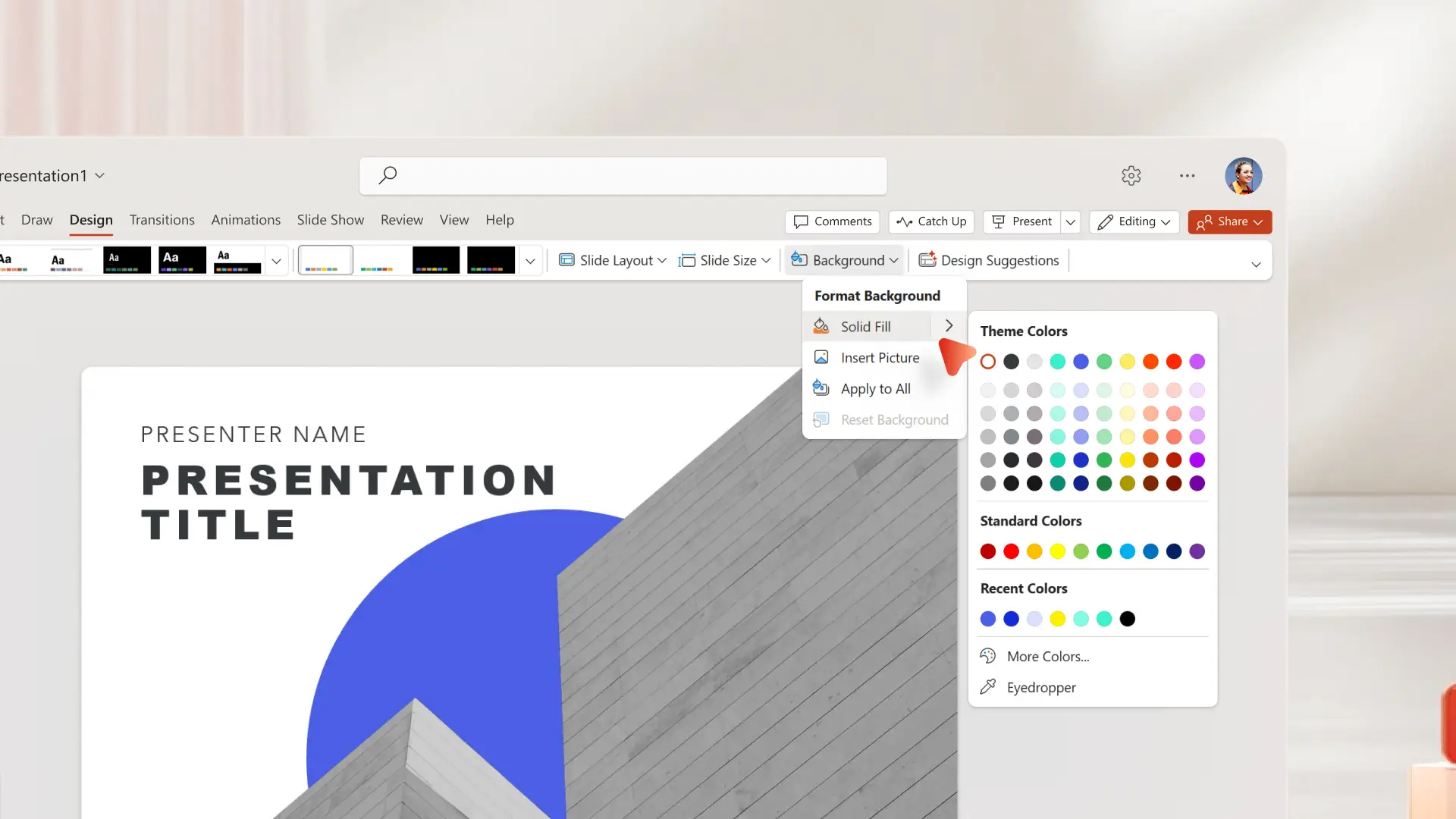
How to add a slide background in PowerPoint
Open PowerPoint online or the desktop app and select a slide
Click the Design tab, then select Format Background
Choose solid fill colors, upload images from device, or choose stock and brand images
Apply to one slide or select Apply to All
Save and share as a PowerPoint file or PDF
Frequently asked questions
What is a good background for a PowerPoint presentation?
A good PowerPoint background is simple, high contrast, and complements the content without distracting from it. Choose colors or images that support the message and meet accessibility standards, such as sufficient contrast between text and background.
How to copy the background of a PowerPoint slide to a presentation?
Right-click the slide, select Format Background, and note the current settings. Apply the same settings to other slides manually, or use Duplicate Slide to copy the entire slide along with its background.
How to design a slide with AI?
Open Copilot in PowerPoint and describe the creative needs. Copilot generates layouts, design styles, and AI images based on the content, making it easy to build professional slides in seconds.