
AI presentation designer
Design new slides, improve layouts, and generate AI images to make impressive presentations with Copilot in Microsoft PowerPoint.
Design professional PowerPoint slides with AI

Generate stylish presentation slides
Chat with Copilot in PowerPoint to explain the new presentation topic, then choose a style like 3D, flat design, or retro. Generate design ideas for key slides like divider, agenda, or title slides. Review suggestions or refine them as needed.

Enhance existing slide layouts
Showcase slide content with impact using the Copilot design suggestions pane. Browse smart layout variations with different text and image placements that improve plain slides. Simply click to apply the new slide structure.

Create high-quality AI images
Generate AI images and graphics that fit perfectly inside PowerPoint. Describe image, infographic, or slide background needs to Copilot, then answer follow-up questions to create the best visual. Download files from the chat, or ask AI to insert it on a specific slide.

Unlock creativity with text-to-slide generation
Build an impressive slide deck quickly by chatting with Copilot to make essential slides like title, agenda, thank you, and more. Overcome design challenges by describing color, layout, and formatting needs per slide. Make business presentations faster by asking Copilot to apply an organization brand template.
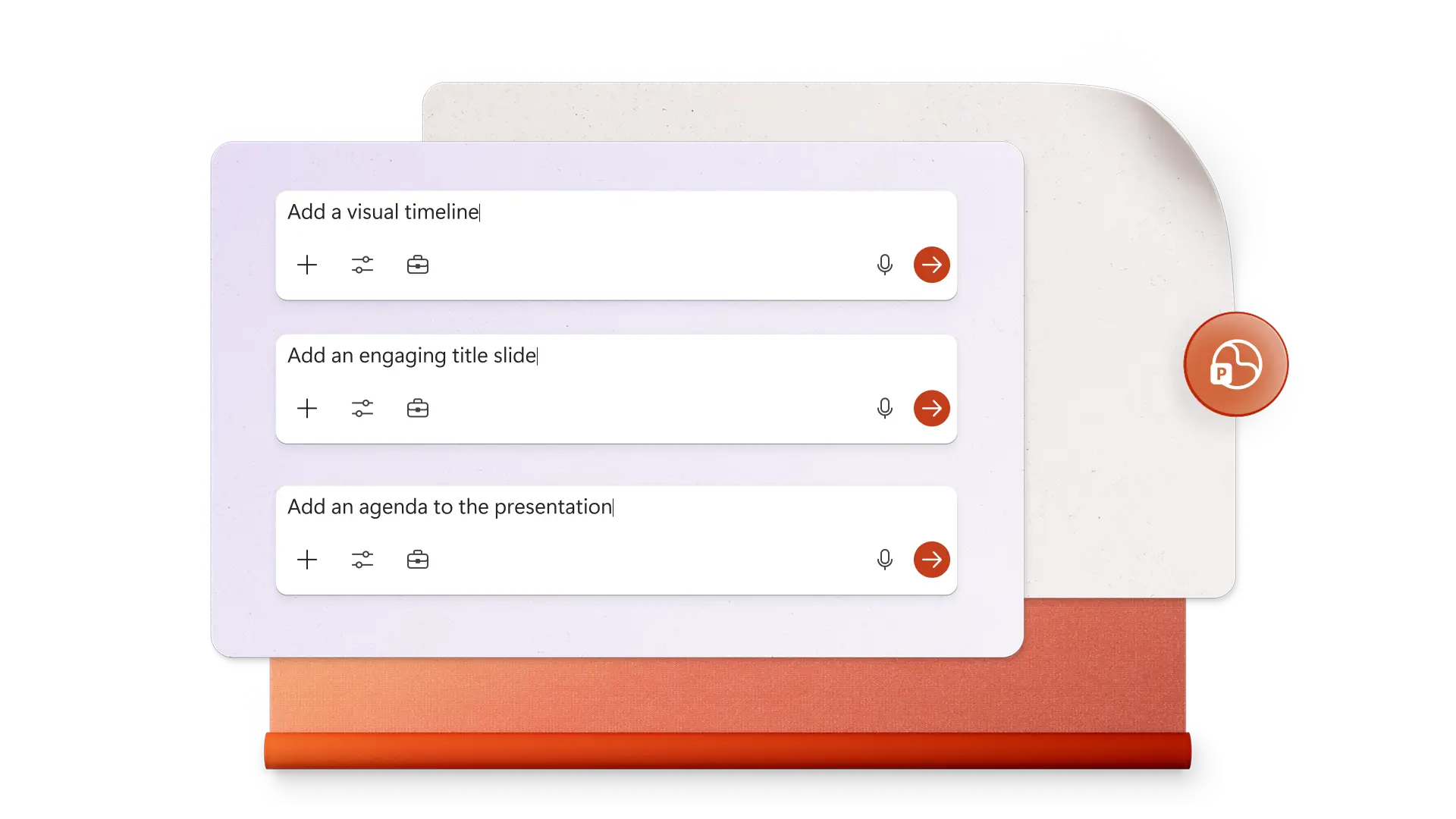
Make images and infographics with AI
Prompt Copilot to create custom slide backgrounds, contextual images, process charts, infographics, and more graphic elements by describing design needs in the chat. AI can also help search and insert approved media and royalty-free stock images from organization templates and libraries, perfect for pitches and marketing presentations.

Improve presentation flow with transitions
Add engagement to presentations with animation and transition suggestions from Copilot. Request Copilot to review the content then share the best transition style and ideal duration that will match the deck. Follow the steps to apply fades, morphs, or other transitions to elevate daily decks, photo slideshows, and portfolios.
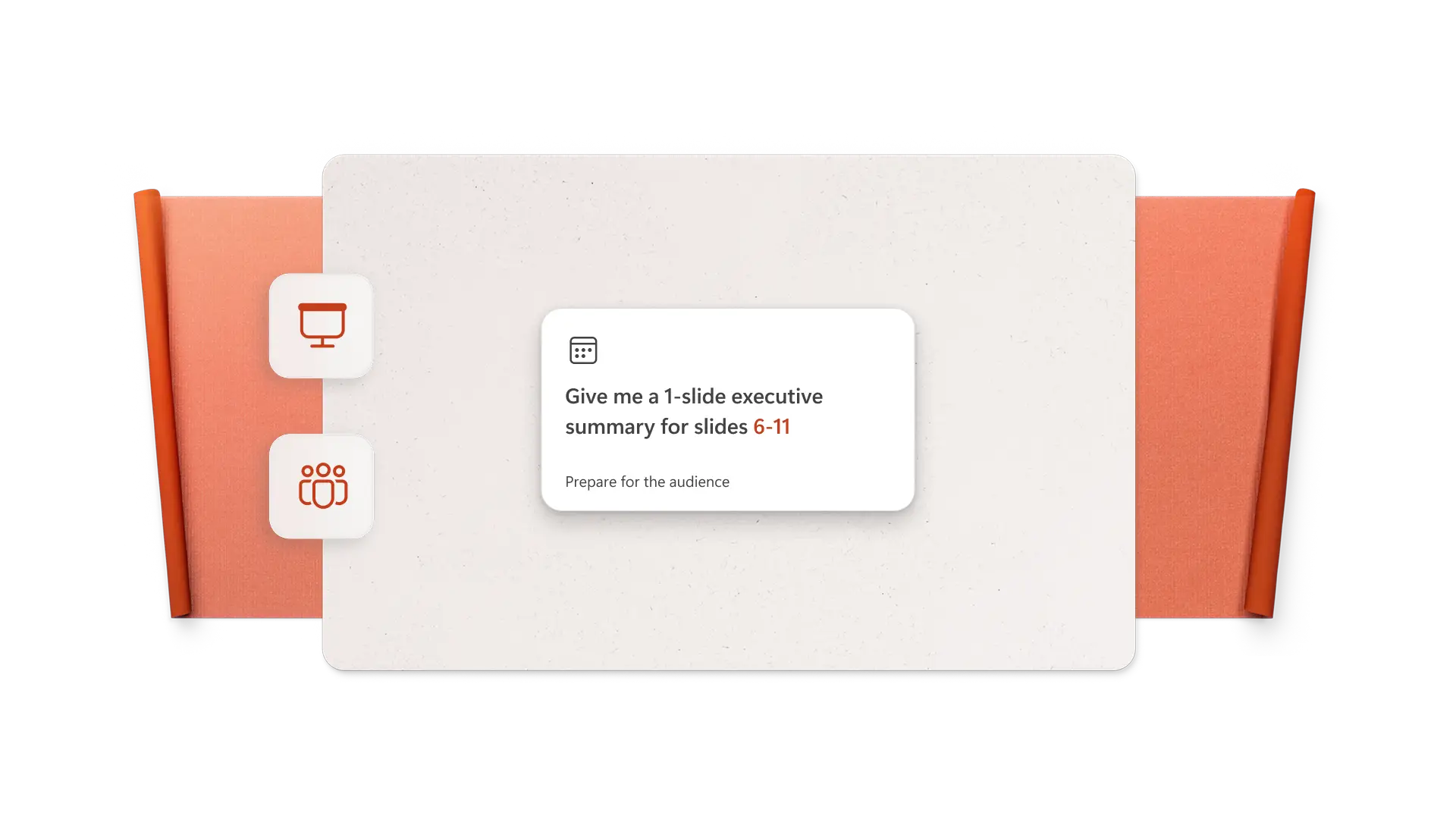
Collaborate and share presentations online
Invite collaborators to review or make design changes in real-time in PowerPoint, then save the final deck. Share the presentation with a secure sharing link to a recipient's email, downoad as PDF, or print to share in investor presentations and board meetings.

How to design a single slide using AI in PowerPoint
Open PowerPoint and click the Copilot button to start a chat.
Describe the specific slide type, like 'about me', then add notes about content, color palette, and image needs.
Review the generated slide design by AI in PowerPoint.
Refine the layout, formatting, or images using the chat.
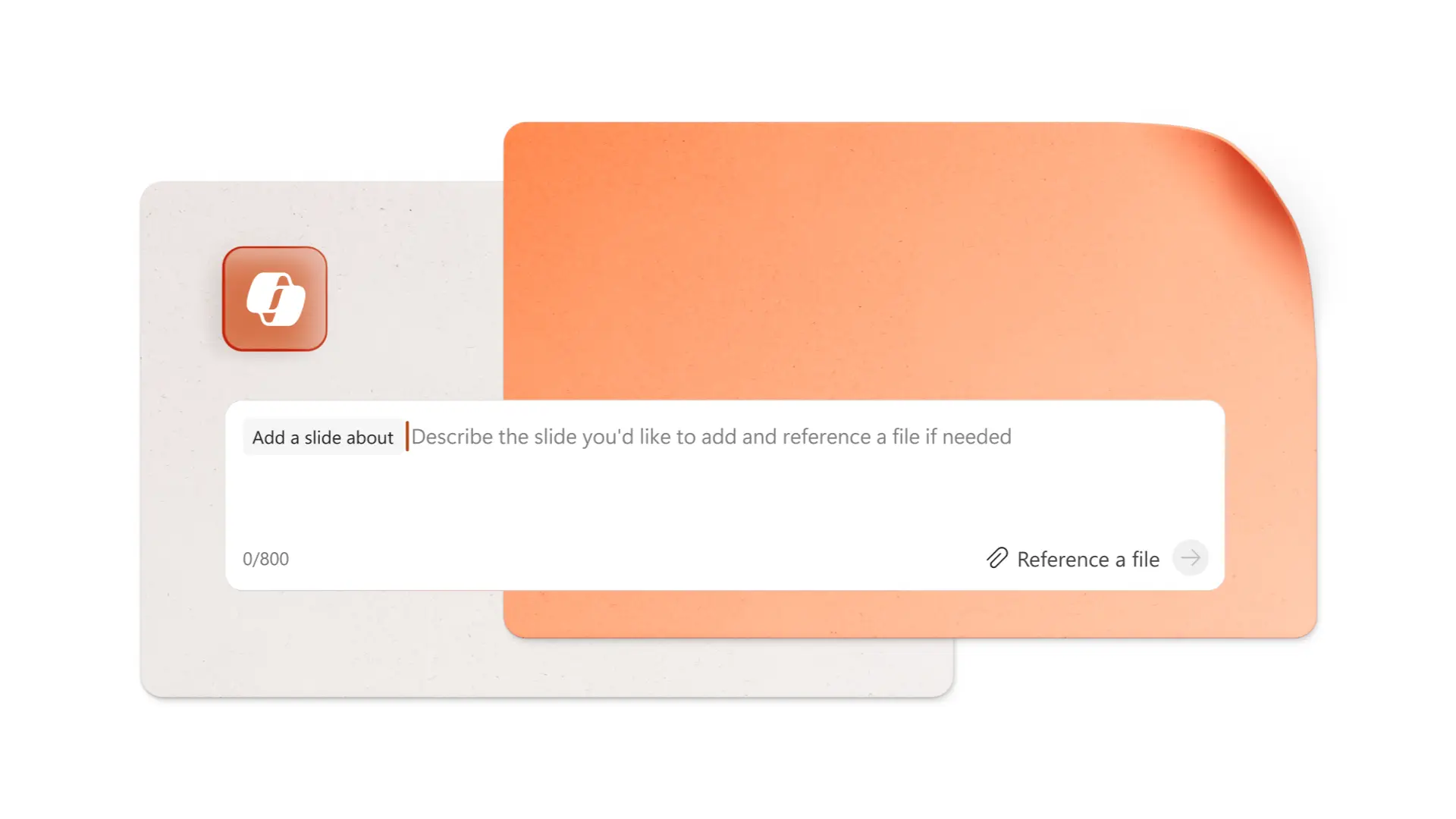
Customize PowerPoint presentation templates with Copilot
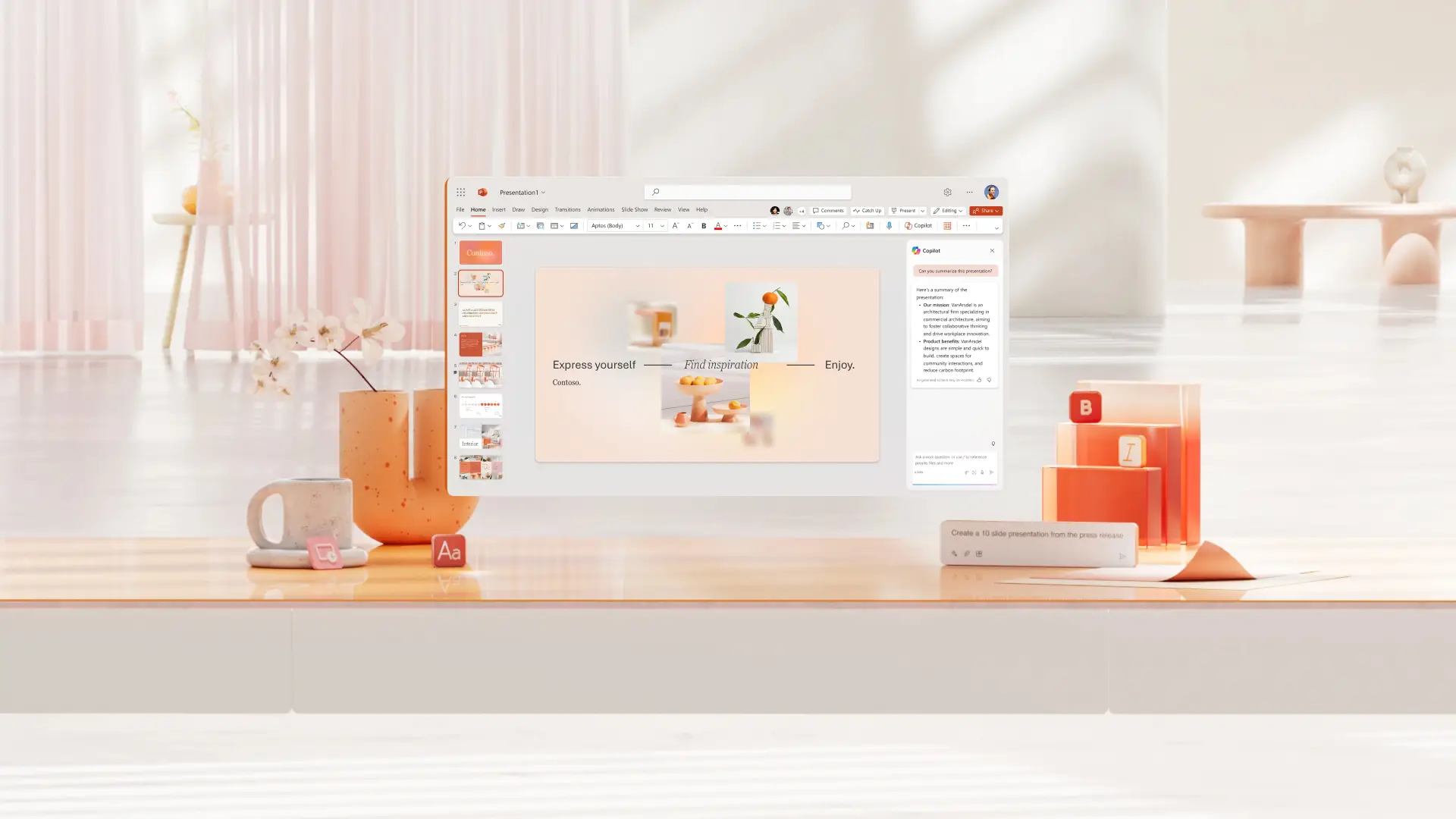
Choose an existing well-designed PowerPoint template and go from blank slides to a professional presentation with a clear flow quickly. Use Copilot chat to further customize the text and visuals to suit the presentation topic.

Frequently asked questions
How to design PowerPoint slides with AI?
Create stylish slides from scratch using Copilot by selecting a design style for images, like minimal, 3D, and more. Update existing slides using the Copilot design suggestions pane that can suggest changes to slide background, layout, and formatting. Review and apply changes or refine slide designs using the chat.
Additionally, request to add branded elements like logos, generate custom images, or ask for transition suggestions.
Can Copilot add branding and logos to a presentation?
Copilot in PowerPoint can help keep presentations on brand by applying organization-approved templates, colors, fonts, and brand images (including logos) when these assets are enabled by an admin. AI can edit a master slide deck and maintain a presentation color palette.
How to create visuals for presentations?
Create visuals for PowerPoint presentations in multiple ways with Copilot. Generate a new image or design, search stock images that fit the slide, create a visualization from a data table, or search a brand library in Microsoft 365 for approved visuals.
Can Copilot edit a PowerPoint template?
Select a PowerPoint template then click the Copilot button to start a chat. Describe the presentation topic and suggest the recommended length of the deck. Copilot will automatically update the template with new AI presentation content. Review and request changes in the chat to perfect the presentation.
How many slides are needed for a 10-minute presentation?
Use about seven to ten slides for ten minute presentation, keeping in mind that a single slide can take about a minute to present, and speakers also need time for an introduction and conclusion section. For longer periods like a 30-minute or 45-minute presentations, presenters can use two or three minutes per slide so the audience isn't overwhelmed by a very long slidedeck.