On this page

It’s a great feeling when you present to an engaged audience who understands your message, but that doesn’t happen by accident. You could present important information, but if the slides lack excitement, viewers can lose interest. With an interactive presentation that includes elements such as audience questions, animations, and visuals, insights can be communicated and presented more effectively.
Microsoft PowerPoint has a range of built-in capabilities to assist in making interactive presentations. Everyone can access useful tools like animations, live quizzes, and SmartArt. And with a Microsoft 365 subscription, use Copilot in PowerPoint and have AI prompt create elements such as images, speaker notes, and full presentations. Let’s talk about some interactive presentation ideas in PowerPoint.

What is an interactive presentation?
An interactive presentation gets the audience involved through engaging delivery and creative design elements that aids the audience to learn and retain key insights and messages. It also helps you compete against distractions an audience might have, like upcoming meetings, the day’s tasks, weekend plans, or simply what to eat for lunch.

Tips for an engaging interactive presentation
Make an interactive presentation by using icebreaker questions, a consistent design, interactive charts, compelling narrative, and audience interaction.
Use icebreaker questions
Get the audience participating from the start with icebreaker questions. You could use a thought-provoking question based on the main topic or present a surprising statistic or personal anecdote. Let people relax while you gain their attention and spark their curiosity.
Copilot tip: ask Copilot to generate icebreaker questions based on the topic and type of audience.

Keep the presentation design consistent
Don't let mismatched designs or information-dense slides interrupt audience engagement. Utilize branded slide designs or a custom color slide background, a cohesive color palette, and simple sans-serif fonts that are both screen and projector accessible. This way, an audience’s attention is retained as you guide them through the presentation.
Copilot tip: organize the presentation to improve flow and audience engagement with AI. Have Copilot generate unique eye-catching imagery to break up text-heavy slides.
Improve presentation flow with slide transitions
Create a compelling presentation flow with seamless transitions that maintain the audience’s focus. Use PowerPoint Morph to transform objects, images, and text to make slides more engaging. Allow text to scroll up between slides or let images glide across the screen, for example. Consider a shape to rotate and highlight key points as you transition slides. Don’t forget to use transition words in the presentation narrative to maintain the flow.
Capture attention with interactive charts, maps, and graphs
Make data and processes more interesting by animating diagrams and infographics with SmartArt. For example, reveal each level of a SmartArt hierarchy with a Fade animation to guide the audience’s focus. If you’re presenting from PowerPoint Live in Microsoft Teams, audience members can click through SmartArt animations, slides, videos, and more at their own pace.
Copilot tip: generate charts and SmartArt to replace data tables for more visual interest with AI.
Create a story for the interactive slideshow
Encourage audience interaction further by giving the presentation a clear story. Set the scene, present the challenge or obstacles to solve, and bring the audience to a solution. Captivate with statistics, surprises, and anecdotes as you develop the story. When you’re ready to rehearse, get real-time feedback from Speaker Coach on presentation skills.
Copilot tip: generate speaker notes that align with the audience and include questions and anecdotes to improve interaction.
Engage with the audience
Finally, remember to engage with your audience throughout the presentation. Vary your tone while speaking and tell relatable stories, asking if anyone feels the same way. Or, create a live poll or ask for show-of-hands responses to direct questions. Ask open-ended questions for audience discussion in person or through online chat.
How to structure an interactive slide presentation
Structure presentations, pitch decks, and portfolio presentations with intention, to help the audience stay engaged and internalize your message. On a macro level, take the audience through basic phases like the introduction, development, and conclusion. On individual slides, take care not to overwhelm the audience with too much information at once.
Greet the audience
Start with a friendly and natural greeting to set the tone. Make eye contact in person or look at the camera to welcome the audience. Pay attention to the camera location if you use a second screen to present digitally. Also, consider starting with an icebreaker question to capture attention.
Introduce yourself and the main topic
Explain your experience and background only as it relates to the presentation. Then, introduce the topic or key issue you’ll solve in the presentation and why it matters to the audience. Finally, give them a quick preview of what to expect by explaining the agenda.
Develop the story or problem to solve
Structure the development portion into logical sections and maintain the narrative flow across slides in each one. Use transitions, visual graphs, examples, and anecdotes to maintain interest. Add in your speaker notes where you’ll include questions, polls, and show-of-hands responses.
Final resolution
Build up to a resolution and provide a summary of why it matters to the audience. Restate the main points of the presentation and end with a key takeaway. Invite the audience to connect with your company, reflect on the key message, or apply learnings to their work or life.
Answer audience questions
Leave some time at the end for questions, since an engaged audience is likely to have them. Repeat the question when you answer so others can hear it (including in online presentations with questions in chat). This provides the opportunity to help people apply the presentation's content to their own lives.
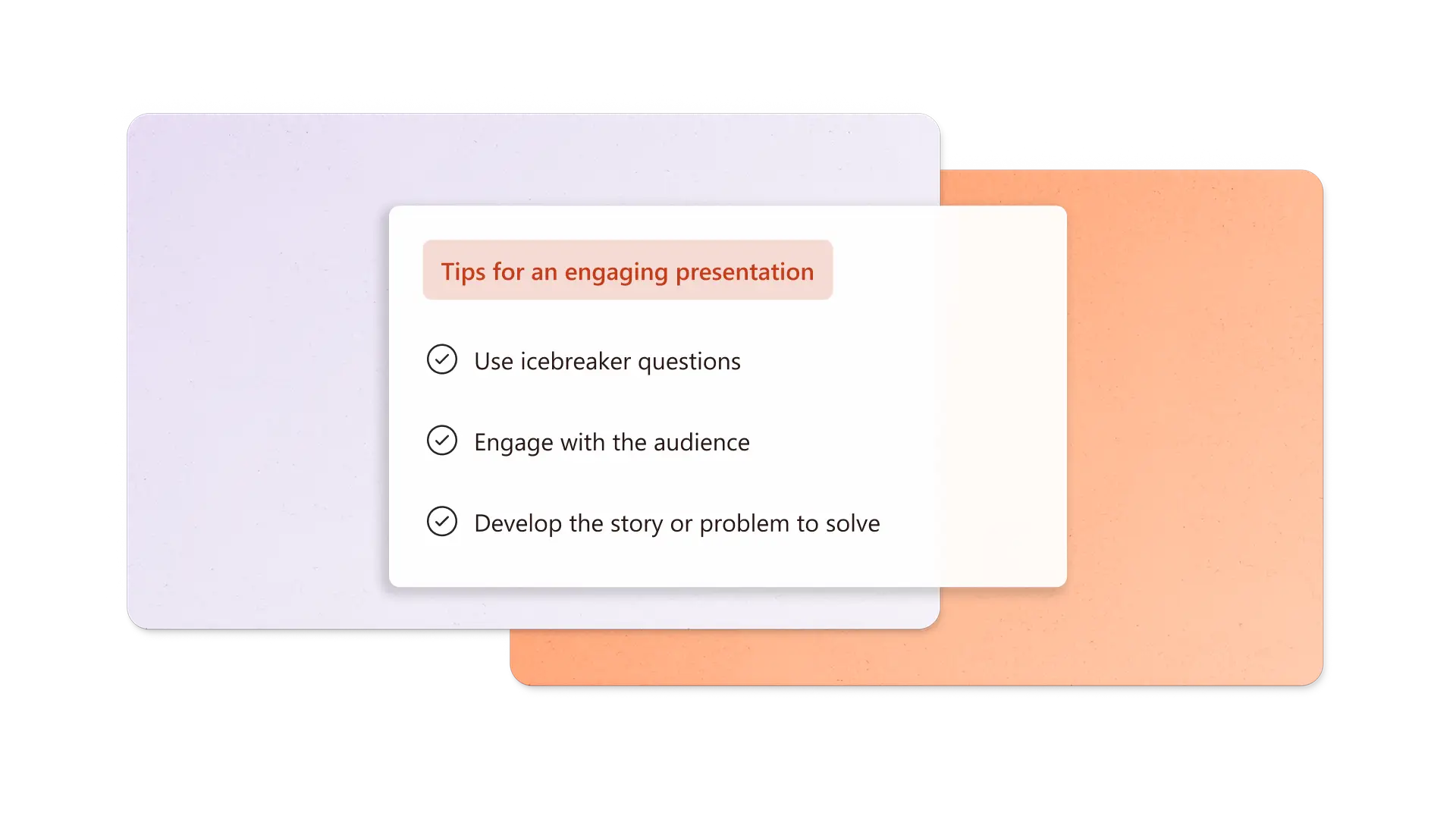
Create an engaging interactive presentation by using icebreaker questions, consistent design, seamless transitions, and interactive charts in a structure that supports your story. Explore Copilot in PowerPoint or start with a new presentation today.
Frequently asked questions
How many slides should I include in a presentation?
A slide can take one to two minutes to present, so five to ten slides for a ten minute presentation would be sufficient. Consider talking speed and the amount of data on each slide when timing a presentation. Below are a few more slide presentation timing examples:
Seven to 15 slides for 15 minutes
Ten to 20 slides for 20 minutes
15 to 30 slides for 30 minutes
25 to 45 slides for 45 minutes
How do I start and end a presentation?
Start confidently by introducing yourself, giving an overview of the topic or main problem, and posing an icebreaker question to the audience. When it’s time to end, recap the important points of the presentation, close with a call to action or inspiring quote, and open the presentation to audience questions.
Which interactive tools work best in a webinar vs in-person?
In webinars, you can use emoji reactions, digital hand raising, polls, questions in chat, and animated SmartArt to keep people engaged. For an in-person presentation, you can use live demonstrations, physical props, and volunteers to boost interaction. Both types benefit from audience questions.
Can interactive presentations be too distracting?
Adding too many creative elements and audience questions to a presentation becomes distracting. The key is to balance interactive slide elements with traditional lecture-style delivery and as a result does not overwhelm the audience.
How can I measure the effectiveness of my presentation?
Ask for audience feedback right after the presentation in a question session or send a survey or poll after the event. Record how many signups, downloads, or sales are generated after the session and how it's contributed to specific goals or outcomes.