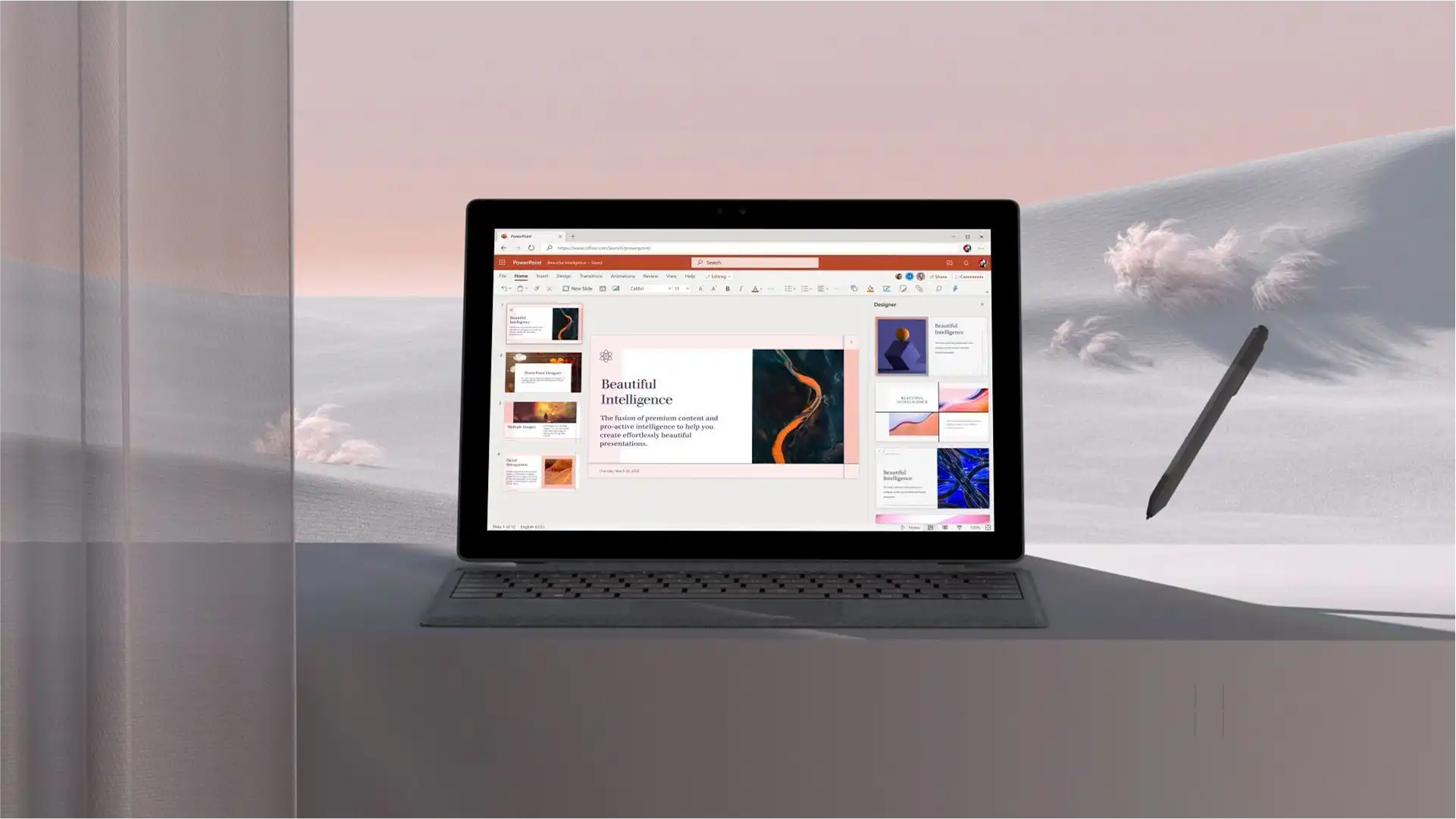
How to create presentations with AI
Create presentations faster using the AI presentation maker in Microsoft PowerPoint...

Create pitch presentations with AI-generated content, images, and slide layouts by chatting with Copilot in Microsoft PowerPoint.

Chat with Copilot in PowerPoint to get a suggested pitch outline from a topic description. Attach existing Word documents, Excel trackers, or reports in the chat, then review recommended slide content to build pitch slides without starting from scratch.

Ask Copilot for layout suggestions to make pitch slides easier to read and understand, then apply recommended designs. Create custom slide backgrounds and AI-generated images in the chat to complement the pitch content.

Get rewrite suggestions from Copilot in the chat to improve clarity and impact of existing slide content. Request changes to structure and adjust language to match the audience, then review and apply the wording that suits the pitch.

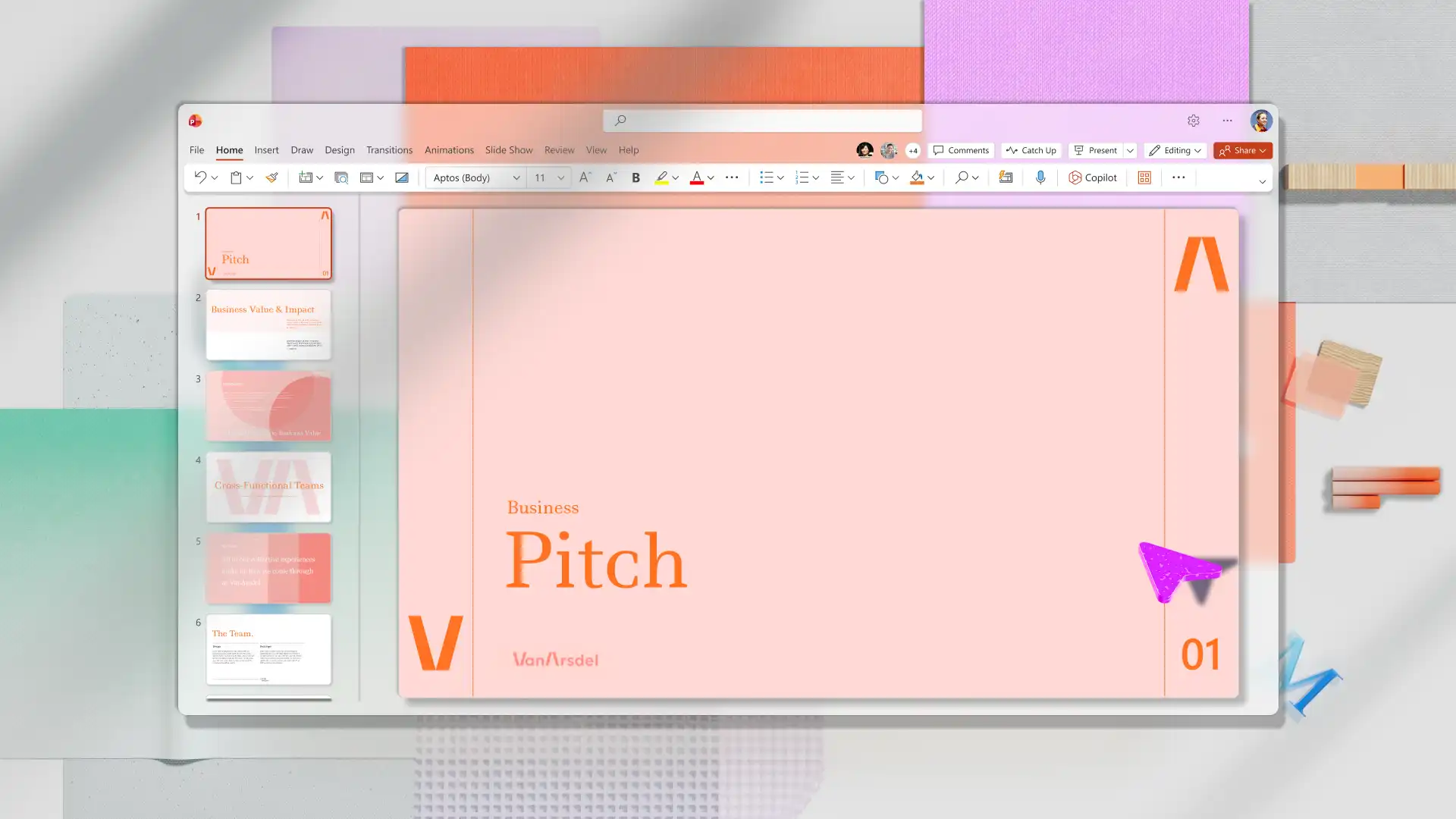
Create a marketing pitch or start up pitch deck for investment using the AI pitch deck generator. Chat with Copilot in PowerPoint to generate a suggested pitch flow from a reference document. Review suggested content and layout ideas in the chat before adding them to slides.
Skip starting from blank slides by attaching a Word document into Copilot chat and asking for a slide outline to review. Copilot can read reports and planning documents and suggest key messages for slides. Use the chat to discuss any gaps, then decide what to add to the deck.
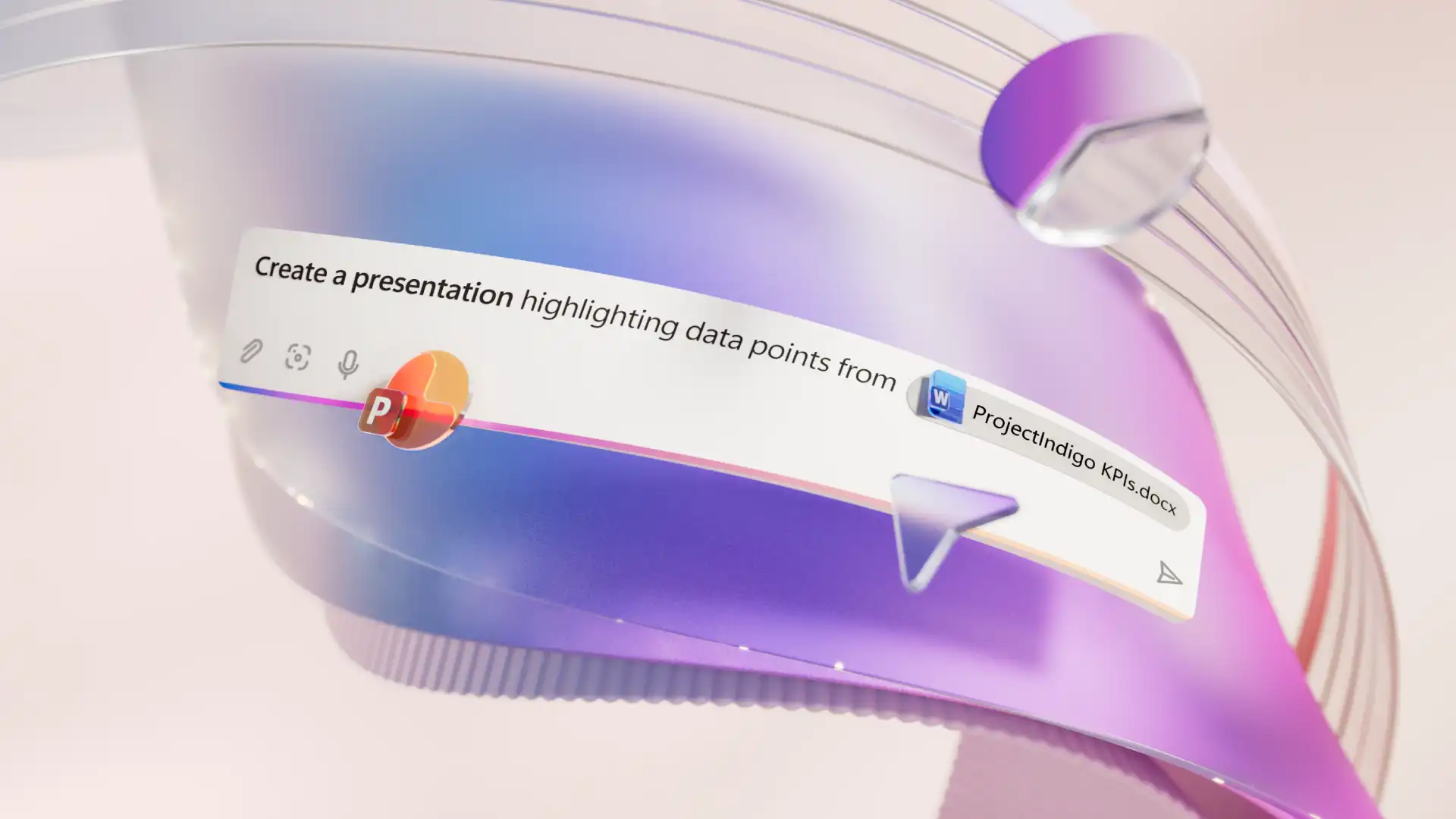
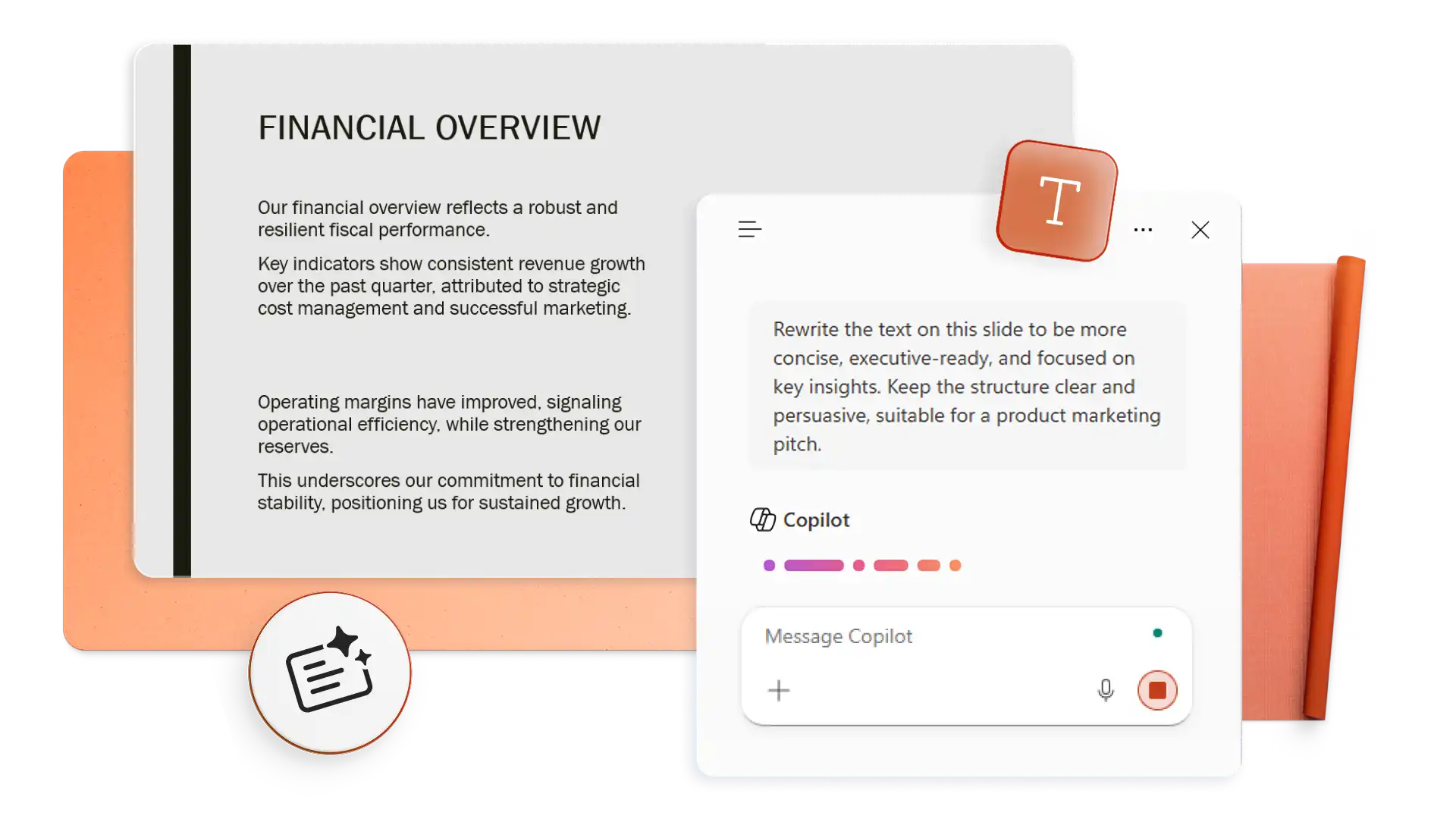
Improve the structure and clarity of pitch content with AI-powered rewriting. Condense complex ideas into bullet points and generate summaries for investors and stakeholders. Ask Copilot for speaker note suggestions in the chat, then copy and add notes to present a pitch.
Make content easier to scan with the AI presentation designer. Browse layout suggestions from Copilot with different text and image placements, then apply the options that improves the slides. Try AI-suggested layouts from the Design tab to engage audiences with clear and stylish slide designs.
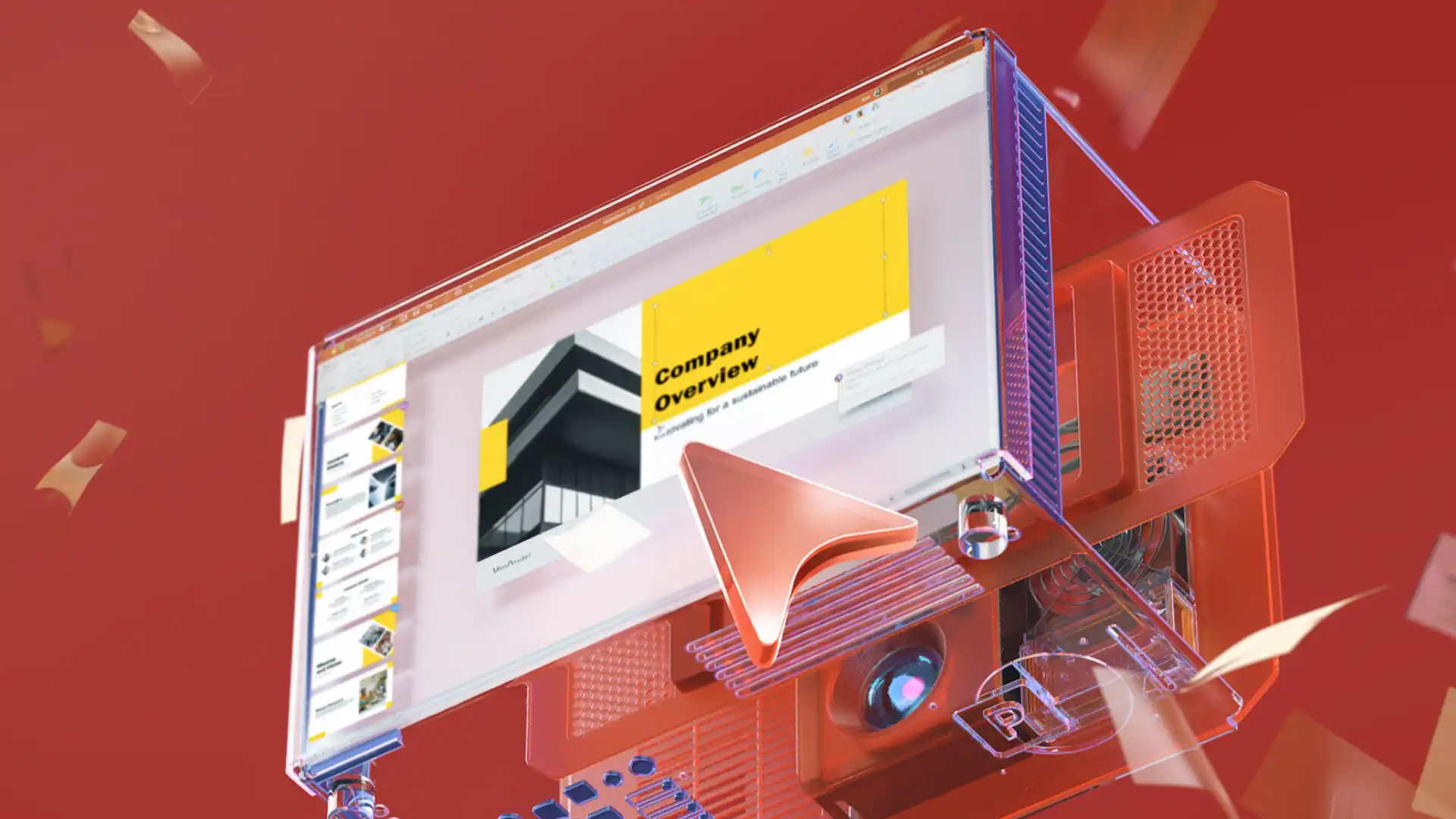
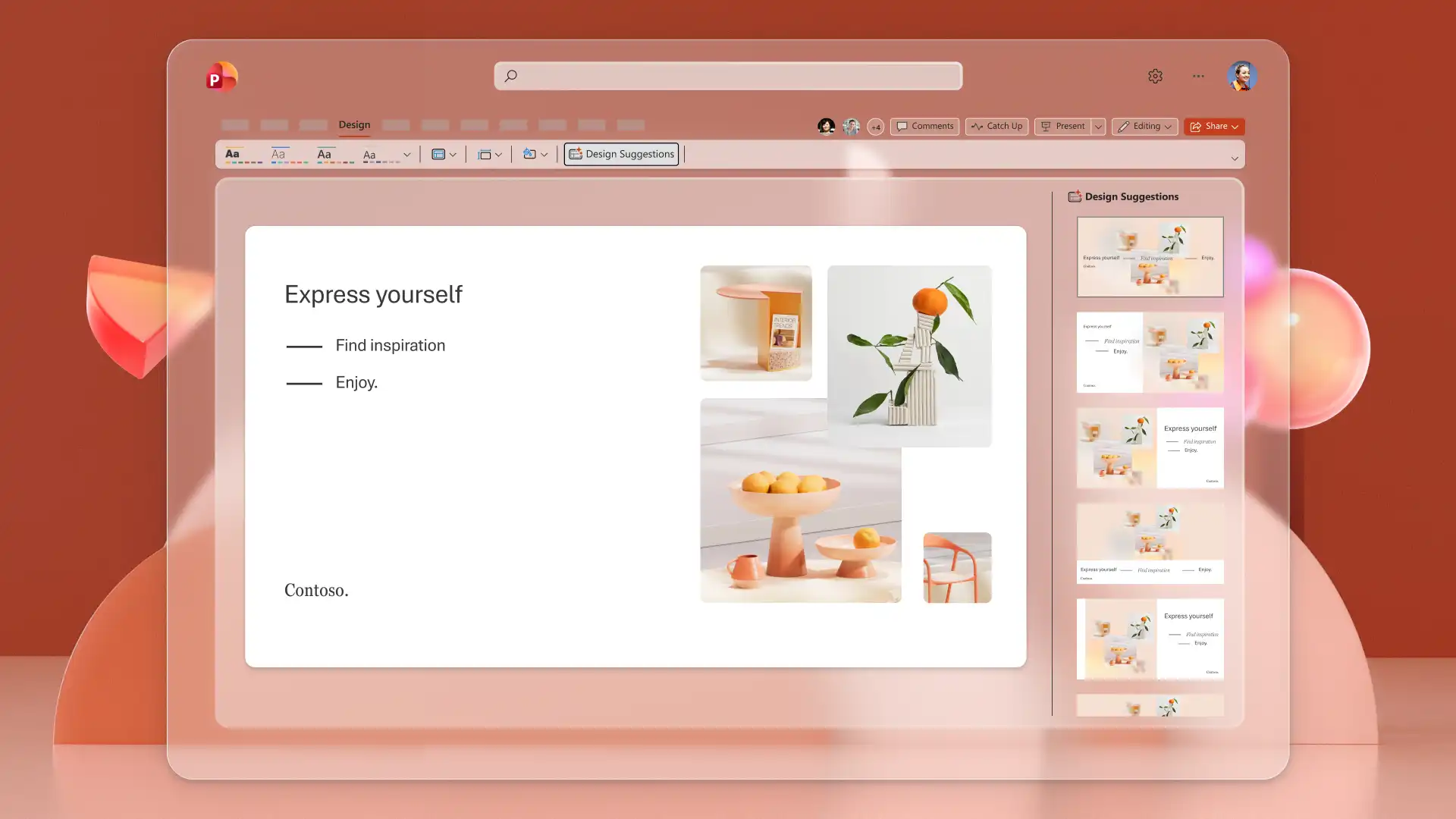
Ask Copilot to search for stock images that fit the pitch theme, or describe an image idea to generate a custom visual directly in the chat. Use AI-generated charts, infographics, and timelines to present data well, then embed videos from YouTube or OneDrive to enhance storytelling.
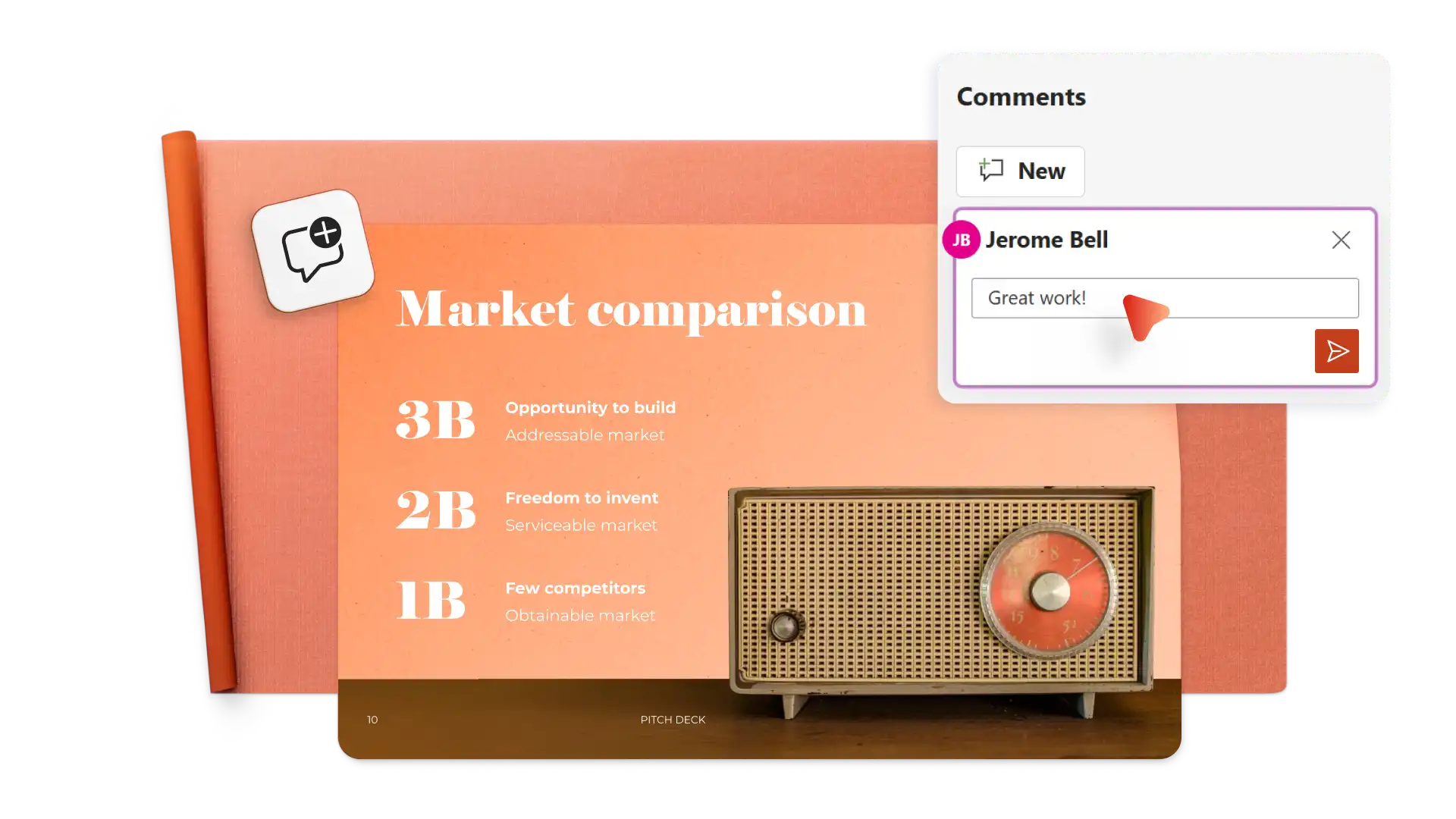
Build and update pitch decks with team members in real-time editing. Share feedback using comments and thread replies to collaborate easily. Use Copilot in the chat to draft suggested text updates based on reviewer comments inside any PowerPoint presentation.

Save and share presentations with investors and clients using secure online links from OneDrive. Convert a PowerPoint pitch deck into PDF to send via email, LinkedIn messages, and even print copies to share during live pitch meetings.
Open PowerPoint and click the Copilot button to start a chat.
Explain the pitch idea or attach a reference document for context.
Review the suggested outline, add or delete sections, then generate the presentation draft.
Create custom AI images, infographics, and add brand color palette.
Download, print, or share pitch decks online for free using email or secure OneDrive links.
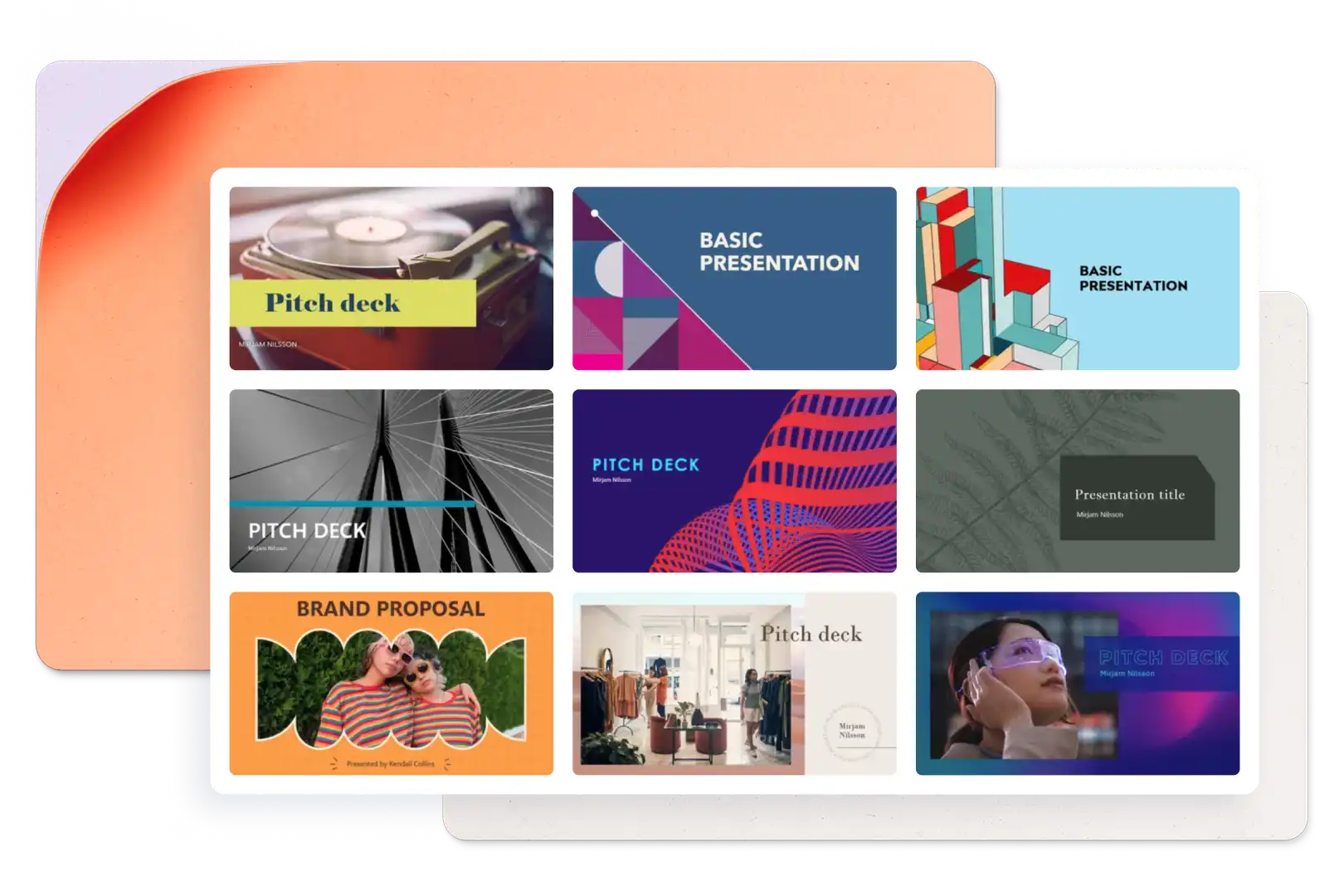
A pitch deck is a short, visual presentation that communicates a business idea, proposal, or plan to investors and stakeholders. The goal is to present key details clearly and persuade decision-makers to take action.
Every element of an AI-generated pitch deck can be customized by editing slides manually or asking Copilot for text suggestions and design options to copy and apply. Adjust text, images, layouts, and branding until the presentation matches the intended message and style.
Pitch decks generally follow a sequence that covers the problem, solution, business model, traction, market opportunity, asks, and next steps. This structure guides the audience through the story and builds a clear call-to-action.
Close a pitch presentation with clear contact information, relevant website links, and social media business profiles. Make it easy for investors or stakeholders to follow up and learn more about the business.