
Presentación de Copilot en PowerPoint
Ahorra tiempo diseñando y creando presentaciones con IA utilizando Copilot en Microsoft PowerPoint.
Diseñar y crear presentaciones profesionales con IA

Generar presentaciones de IA con indicaciones sencillas
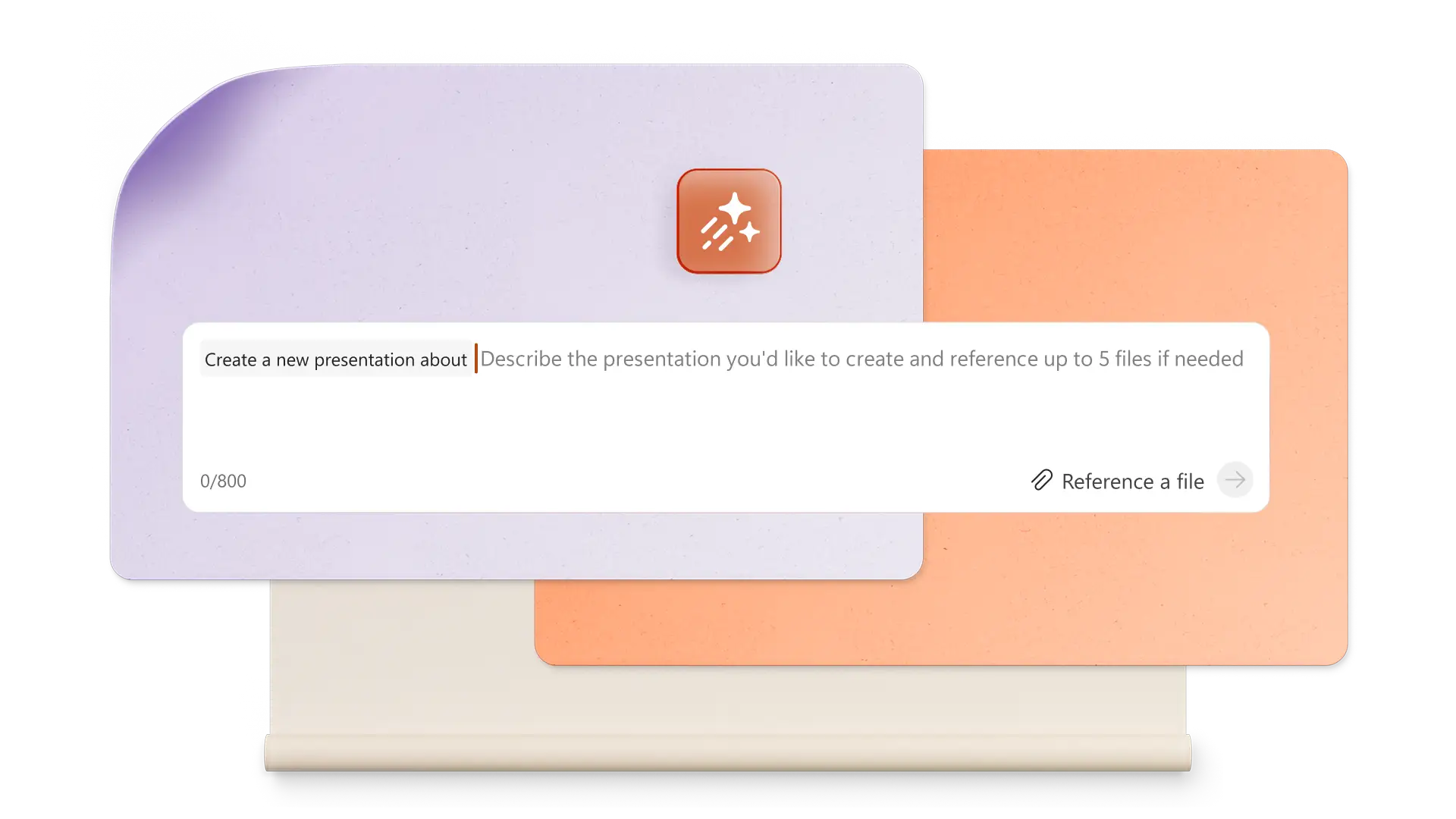
Utiliza Copilot para convertir ideas en una completa presentación generada por IA. Solo tienes que describir el tema y Copilot te sugerirá texto, diseños y elementos visuales personalizados, ayudándote a pasar rápidamente del concepto a las diapositivas terminadas.

Crear imágenes y gráficos de IA únicos
Crea recursos de imagen personalizados de alta calidad dentro de PowerPoint con IA. Pide a Copilot que genere un diseño como una imagen, infografía o fondo, y luego descárgalo y añádelo a las diapositivas fácilmente. Elige entre varias opciones de diseño.

Redactar notas de orador atractivas con IA
Convierte las diapositivas en una historia fluida con notas del orador generadas por IA. Chatea con Copilot para tomar notas contextuales para cada diapositiva, lo que mejora la narración y ayuda a los presentadores a atraer a cualquier audiencia con confianza.
Aprende a utilizar Copilot en PowerPoint para hacer presentaciones increíbles

Realizar una presentación de PowerPoint desde una sola indicación
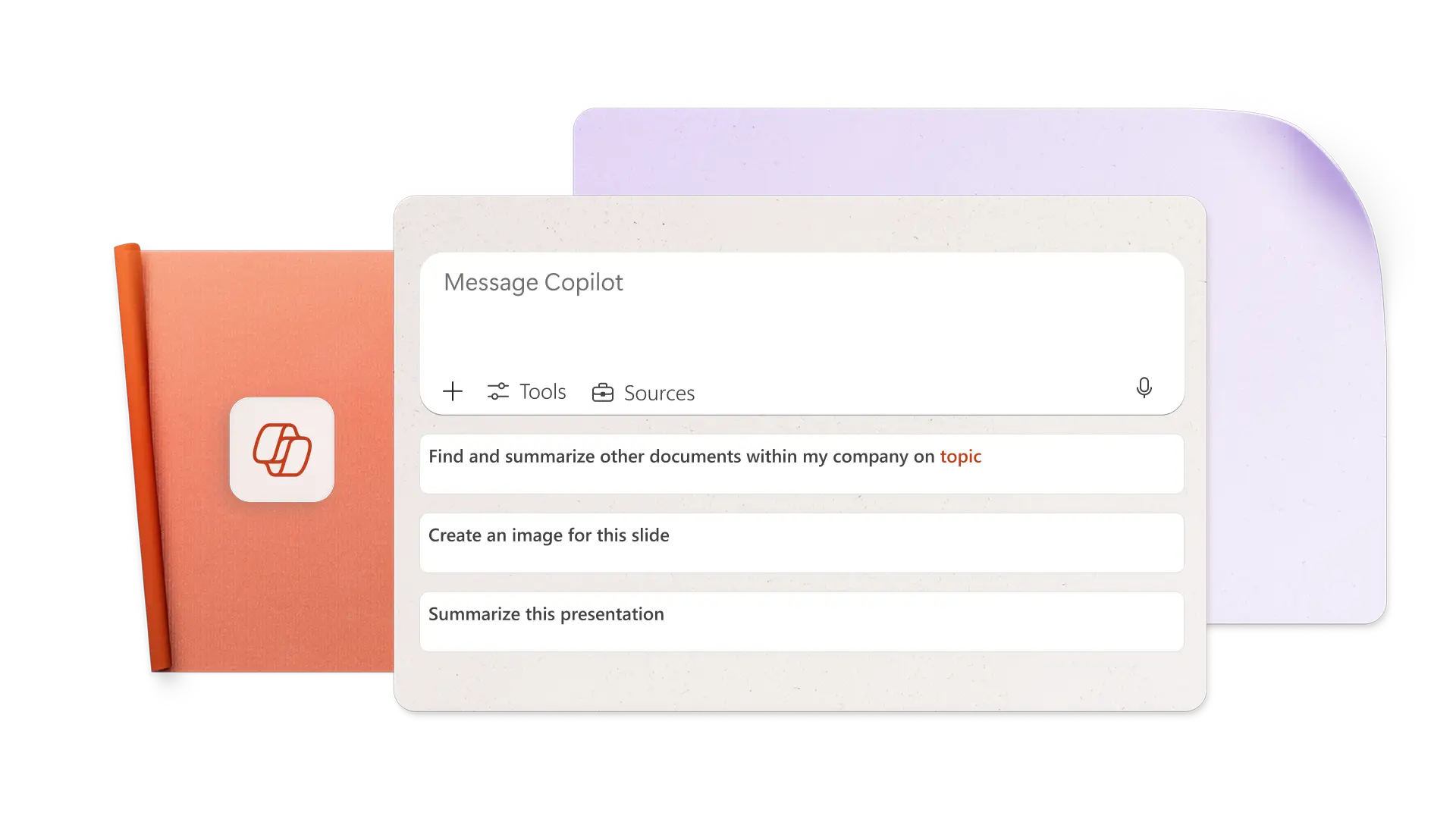
Describe ideas en el chat de Copilot para hacer una presentación con IA. Genera sugerencias de esquemas de diapositivas, y da opciones refinadas para el texto de diapositivas existentes y el contenido de diapositivas personalizadas rápidamente. Revisa las sugerencias de diseño de IA inteligente entre las ideas de diseño para mejorar la presentación. Acelera la creación de propuestas de negocios, presentaciones de ventas y mucho más.
Crear imágenes de IA a partir de indicaciones en Copilot
Genera la imagen perfecta para cualquier diapositiva describiendo los requisitos de la imagen y el estilo artístico con palabras sencillas. Haz que Copilot cree imágenes de IA y fondos de diapositivas, y luego descárgalos y aplícalos fácilmente. También puede buscar imágenes de archivo y sugerir activos aprobados del Centro de marca, perfectos para presentaciones de marketing.

Agregar notas del orador de IA para presentar con confianza
Genera sugerencias de Notas del orador de IA con un clic, añádelas a las diapositivas y presenta con confianza. Para modificar notas, simplemente pide a Copilot que adapte el tono de voz para que se adapte a la audiencia. Anticipa las preguntas de la audiencia y usa IA para sugerir respuestas. Notas perfectas para ajustarse al límite de tiempo total de presentación para la escuela o discursos.
Colaborar en línea y compartirlo con cualquier persona
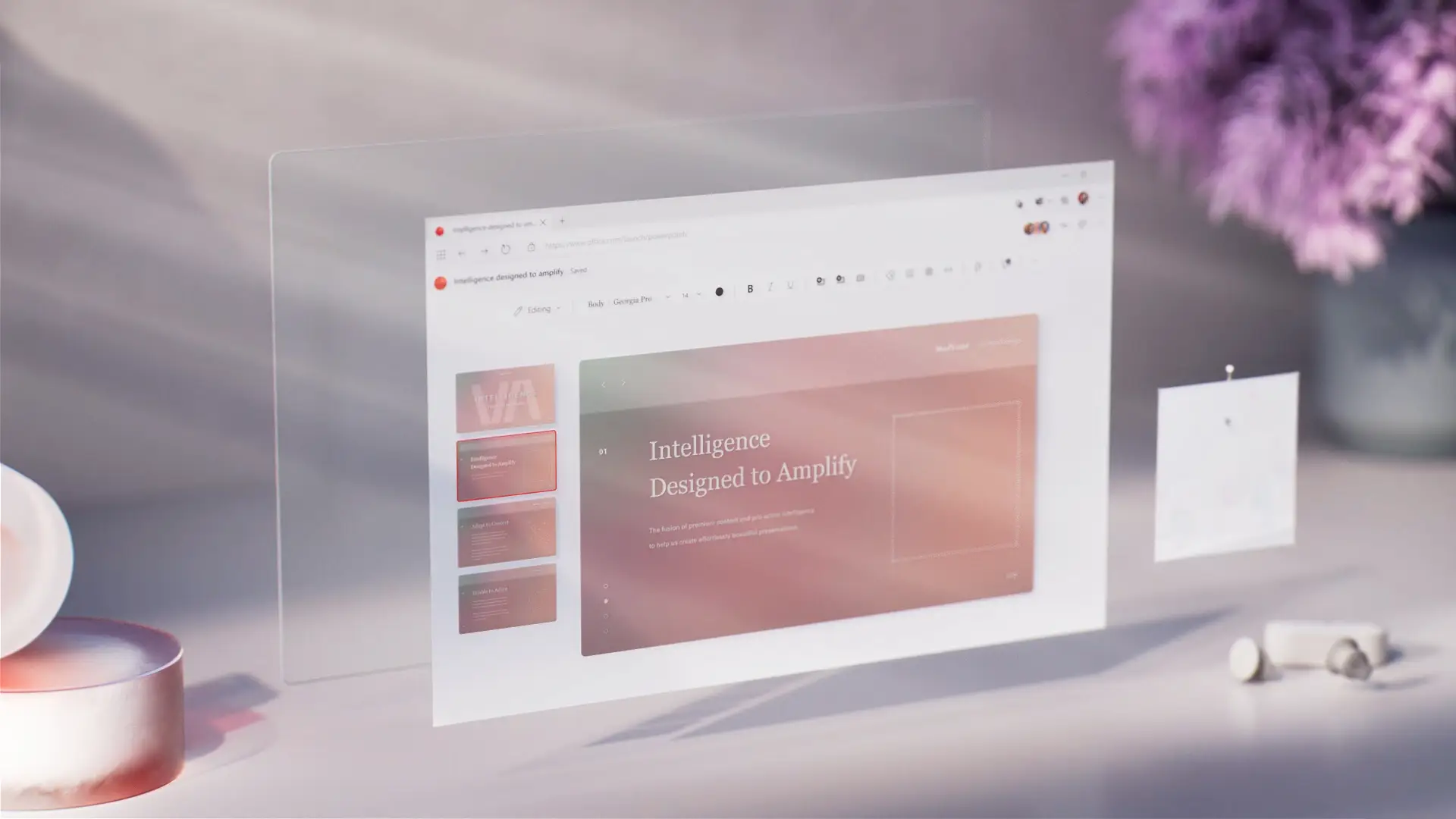
Invita a los miembros del equipo a editar presentaciones de PowerPoint en tiempo real. Revisa sin problemas los elementos de acción pidiendo a Copilot que los identifique a partir de los comentarios. Cuando la presentación esté lista para compartir, envía un vínculo seguro para compartir al correo electrónico del destinatario o imprímela para compartirla en reuniones.

Cómo realizar una presentación de IA con Copilot en PowerPoint
Abre PowerPoint y haz clic en el botón Copilot para iniciar un chat.
Explica la idea del tema o adjunta un documento de referencia o una hoja de cálculo para contextualizar.
Revisa el esquema sugerido, añade o elimina secciones y, a continuación, genera el borrador de la presentación.
Crea imágenes personalizadas con IA y añade notas del orador.
Comparte la presentación con IA usando vínculos seguros de OneDrive o adjúntala como PDF en un correo electrónico.
Comienza con plantillas de PowerPoint para que Copilot las adapte
Elige entre plantillas para negocios, marketing, proyectos creativos, escuela, eventos y más, luego usa Copilot para personalizarlas según las necesidades de la presentación.


Preguntas frecuentes
¿Cómo encontrar Copilot en PowerPoint?
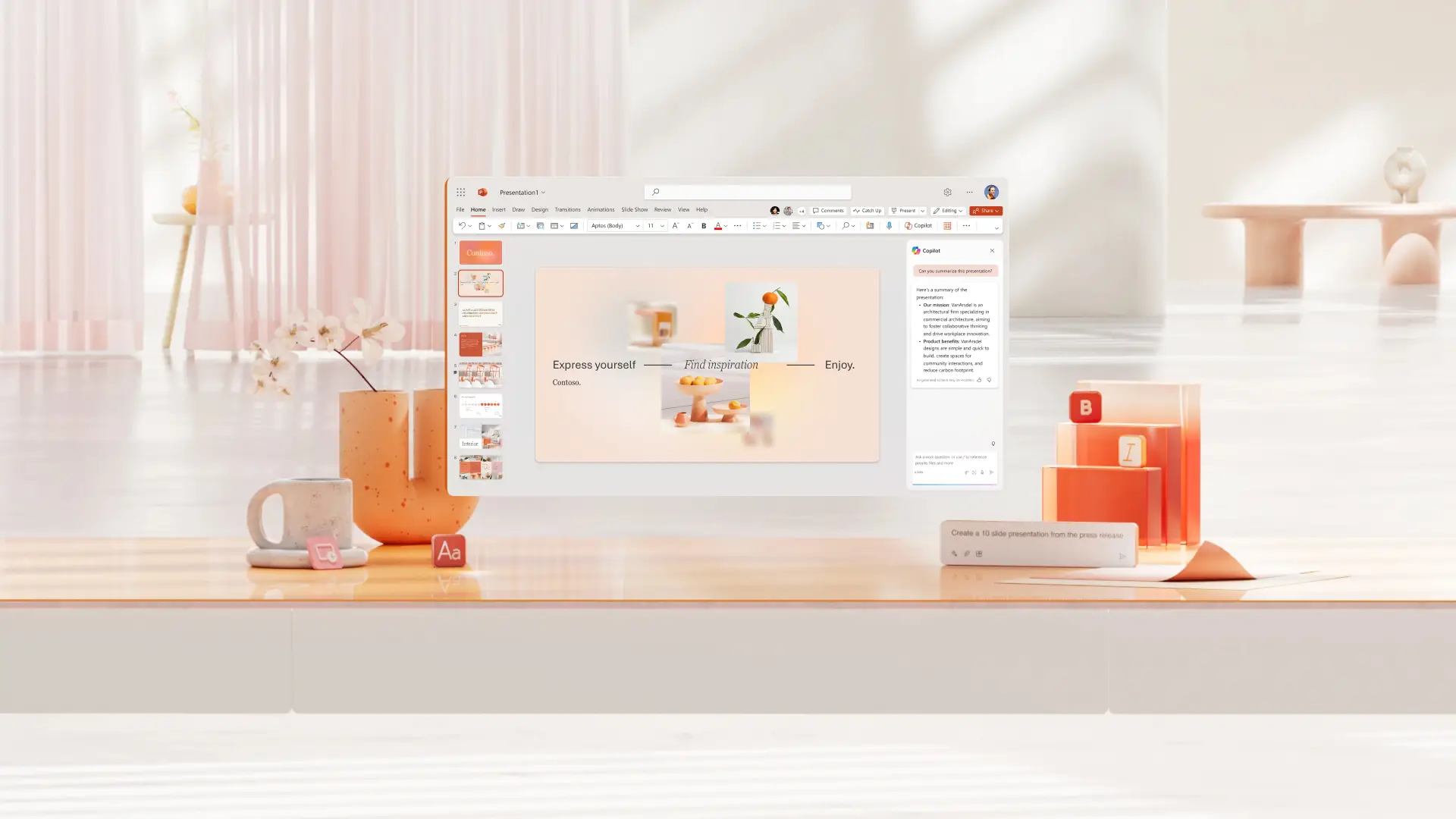
Haz clic en el icono de Copilot en PowerPoint, describe las necesidades de la presentación y adjunta documentos de Word, hojas de cálculo y otros gráficos relevantes para proporcionar contexto y crear la presentación.
¿Puede Copilot crear una presentación en PowerPoint?
Copilot puede crear una presentación de PowerPoint con IA basada en un tema o documento. Proporciona a Copilot detalles sobre la presentación, revisa un esquema inicial y, después, genera la presentación.
Cómo agregar Copilot en PowerPoint
Copilot está habilitado en PowerPoint para cualquier persona con un plan de Microsoft 365 Personal o Familia, o con una suscripción de Copilot Pro. Los planes gratuitos y algunos planes empresariales no incluyen el acceso de Copilot. Considera la posibilidad de actualizar el plan para disfrutar de habilidades de presentación basadas en inteligencia artificial.
¿Puede Copilot crear diapositivas de PowerPoint?
Chatee con Copilot para crear rápidamente diapositivas individuales de PowerPoint y agregarlas a una presentación. Deja que Copilot cree una nueva visualización basada en una tabla de datos, una diapositiva clave para llevar, una diapositiva de conclusión u otro tipo de diapositiva.