
Einführung von Copilot in PowerPoint
Sparen Sie Zeit bei der Gestaltung und Erstellung von Präsentationen mit KI, indem Sie Copilot in Microsoft PowerPoint verwenden.
Professionelle Präsentationen mit KI gestalten und erstellen

KI-Präsentationen mit einfachen Eingaben erstellen
Verwenden Sie Copilot, um Ideen in eine vollständige KI-generierte Präsentationzu verwandeln. Beschreiben Sie einfach das Thema, und Copilot schlägt Texte, Designlayouts und individuelle Grafiken vor, damit Sie schnell vom Konzept zu fertigen Folien gelangen.

Einzigartige KI-Bilder und Grafiken erstellen
Erstellen Sie hochwertige, individuelle Bildressourcen direkt in PowerPoint mit KI. Bitten Sie Copilot, ein Design zu generieren wie ein Bild, eine Infografik oder einen Hintergrund und laden Sie es dann einfach herunter und fügen Sie es zu Folien hinzu. Aus mehreren Designoptionen wählen.

Mitreißende KI-Sprechernotizen entwerfen
Verwandeln Sie Folien mit KI-generierten Sprechernotizen in eine nahtlose Geschichte. Chatten Sie mit Copilot, um kontextbezogene Notizen für jede Folie zu erstellen, die das Erzählen verbessern und Präsentierende dabei unterstützen, jedes Publikum selbstbewusst zu begeistern.
Erfahren Sie, wie Sie Copilot in PowerPoint anweisen, beeindruckende Präsentationen zu erstellen.

Erstellen Sie eine PowerPoint-Präsentation aus einem einzigen Prompt.
Beschreiben Sie Ideen im Copilot-Chat, um eine Präsentation mit KI zu erstellen. Generieren Sie schnell Vorschläge für Folienübersichten und bieten Sie verfeinerte Optionen für bestehenden Folientext und individuelle Folieninhalte an. Überprüfen Sie intelligente KI-Layoutvorschläge aus Designideen, um den Foliensatz zu verbessern. Beschleunigen Sie die Erstellung von Geschäftsangeboten, Verkaufspräsentationen und mehr.
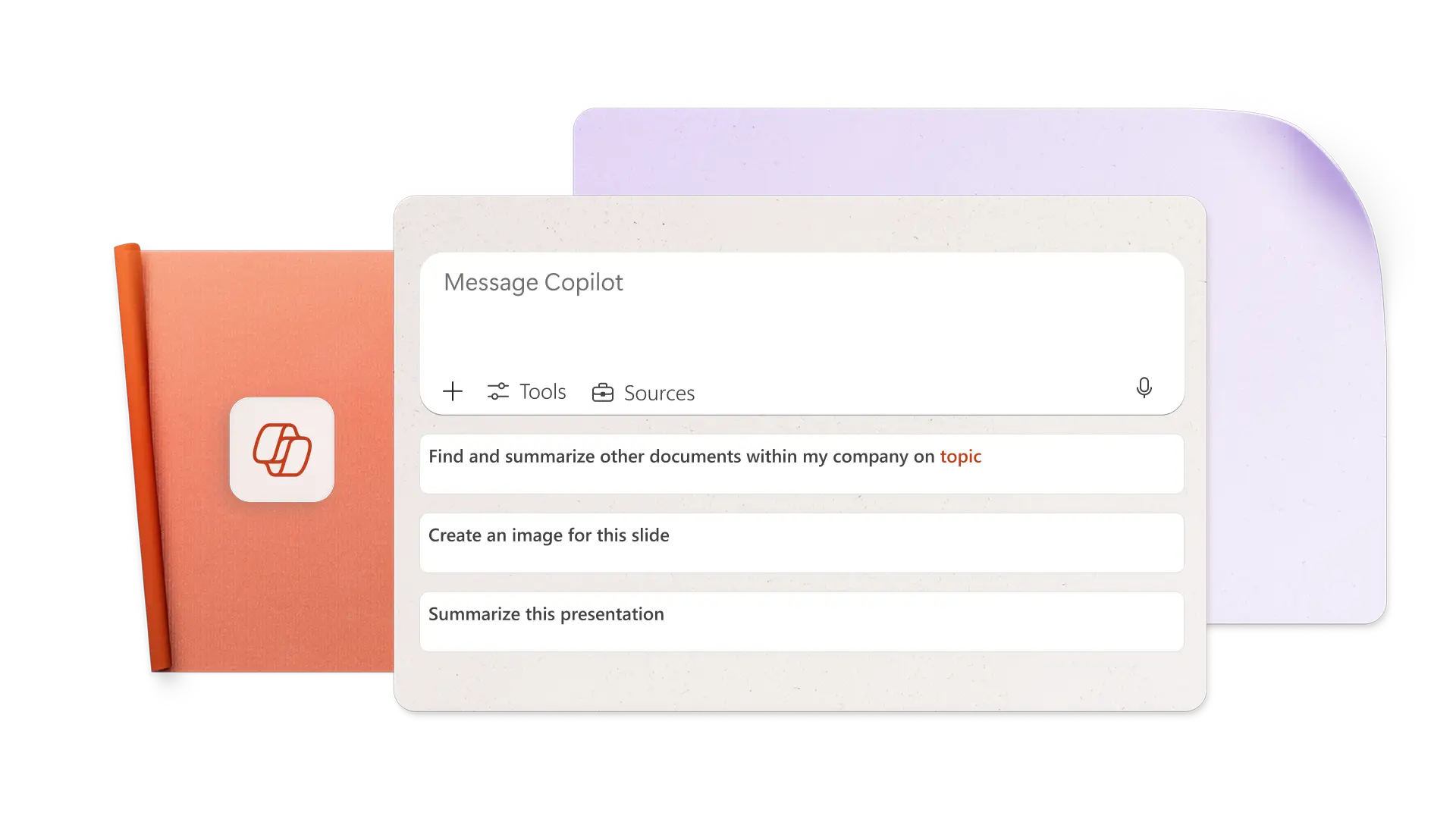
Erstellen von KI-Bildern aus Prompts in Copilot
Erstellen Sie das perfekte Bild für jede Folie, indem Sie die Bildanforderungen und den Kunststil in einfachen Worten beschreiben. Lassen Sie Copilot KI-Bilder erstellen und Folienhintergründe, laden Sie diese dann einfach herunter und wenden Sie sie an. Es kann auch nach Archivbildern suchen und genehmigte Brand Center-Ressourcen vorschlagen, ideal für Marketingpräsentationen.

KI-Sprecherhinweise hinzufügen, um selbstbewusst zu präsentieren
Erstellen Sie Vorschläge für KI-Sprechernotizen mit einem Klick, fügen Sie sie dann den Folien hinzu und präsentieren Sie selbstbewusst. Um Notizen zu ändern, bitten Sie Copilot einfach, den Tonfall an das Publikum anzupassen. Antizipieren Sie Fragen des Publikums und nutzen Sie KI, um Antworten vorzuschlagen. Perfektionieren Sie Notizen, die zur Gesamtdauer der Präsentation für Schule oder Pitches
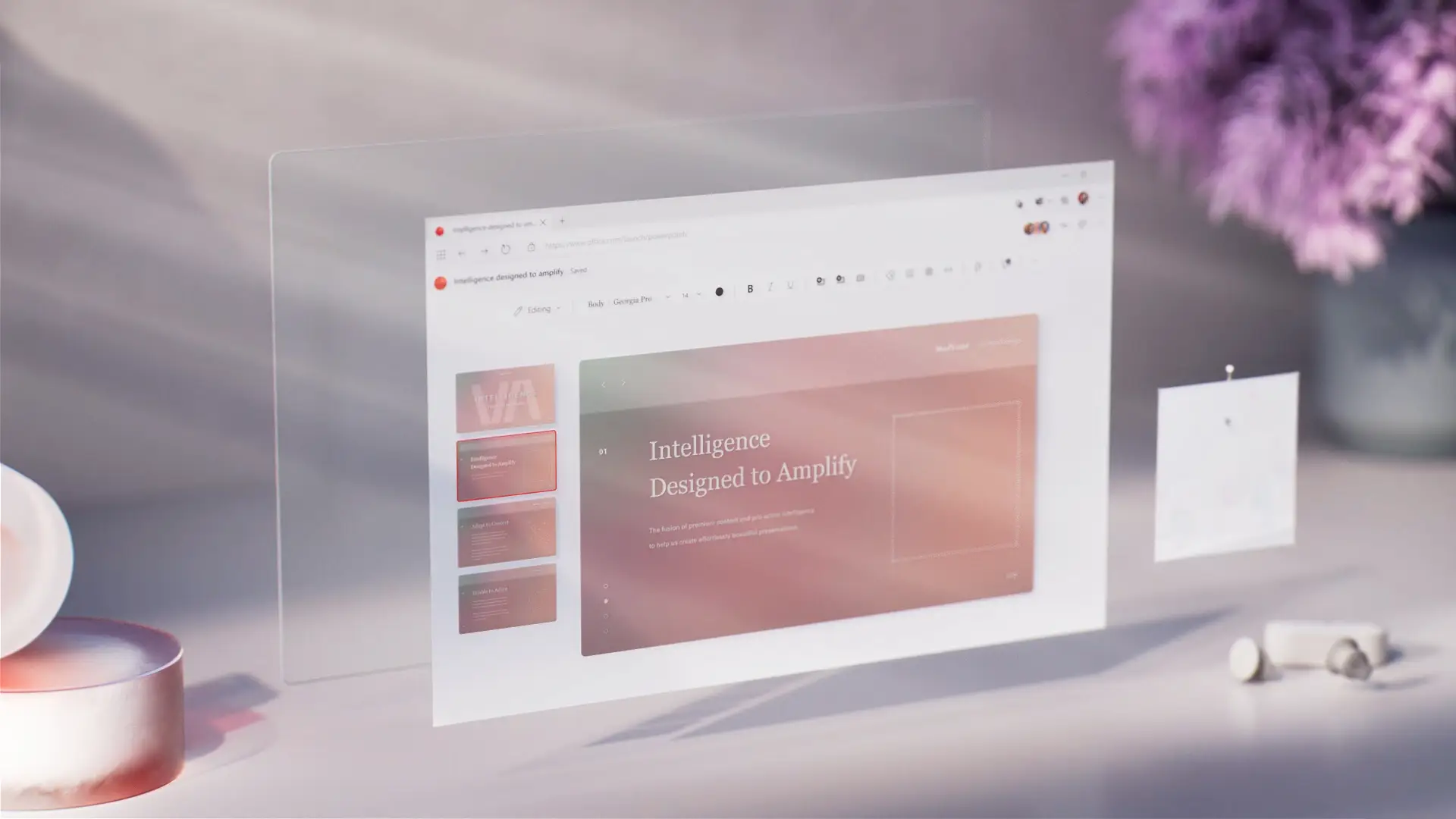
Online zusammenarbeiten und mit allen teilen
Laden Sie Teammitglieder ein, PowerPoint-Präsentationen in Echtzeit gemeinsam zu bearbeiten. Überprüfen Sie reibungslos Aufgaben, indem Sie Copilot bitten, diese aus Kommentaren zu identifizieren. Wenn die Präsentation bereit zum Teilen ist, senden Sie einen sicheren Freigabelink per E-Mail an eine Person oder drucken Sie sie aus, um sie in Meetings zu teilen.

So erstellen Sie mit Copilot in PowerPoint eine KI-Präsentation
Öffnen Sie PowerPoint und klicken Sie auf die Copilot-Schaltfläche, um einen Chat zu starten.
Erklären Sie die Themenidee oder fügen Sie ein Referenzdokument oder eine Tabelle als Kontext an.
Überprüfen Sie die vorgeschlagene Gliederung, fügen Sie Abschnitte hinzu oder löschen Sie sie, und erstellen Sie dann den Präsentationsentwurf.
Individuelle KI-Bilder erstellen und Sprechernotizen hinzufügen.
Teilen Sie die KI-Präsentation über sichere OneDrive-Links oder fügen Sie sie als PDF an eine E-Mail an.
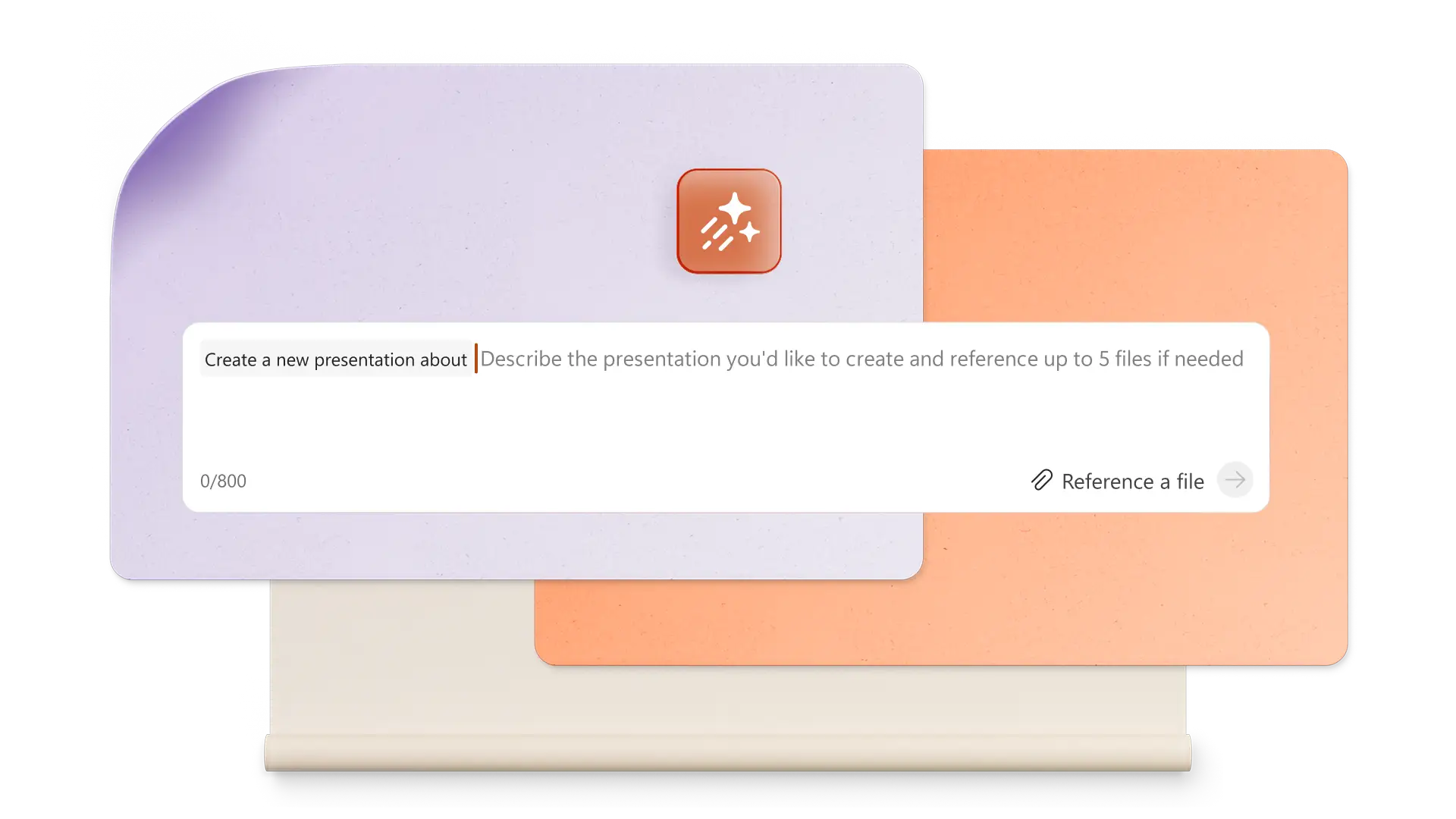
Beginnen Sie mit PowerPoint-Vorlagen, die Copilot anpassen kann.
Wählen Sie aus Vorlagen für Geschäft, Marketing, kreative Projekte, Schule, Veranstaltungen und mehr, und nutzen Sie dann Copilot, um die Vorlagen an die Präsentationsanforderungen anzupassen.
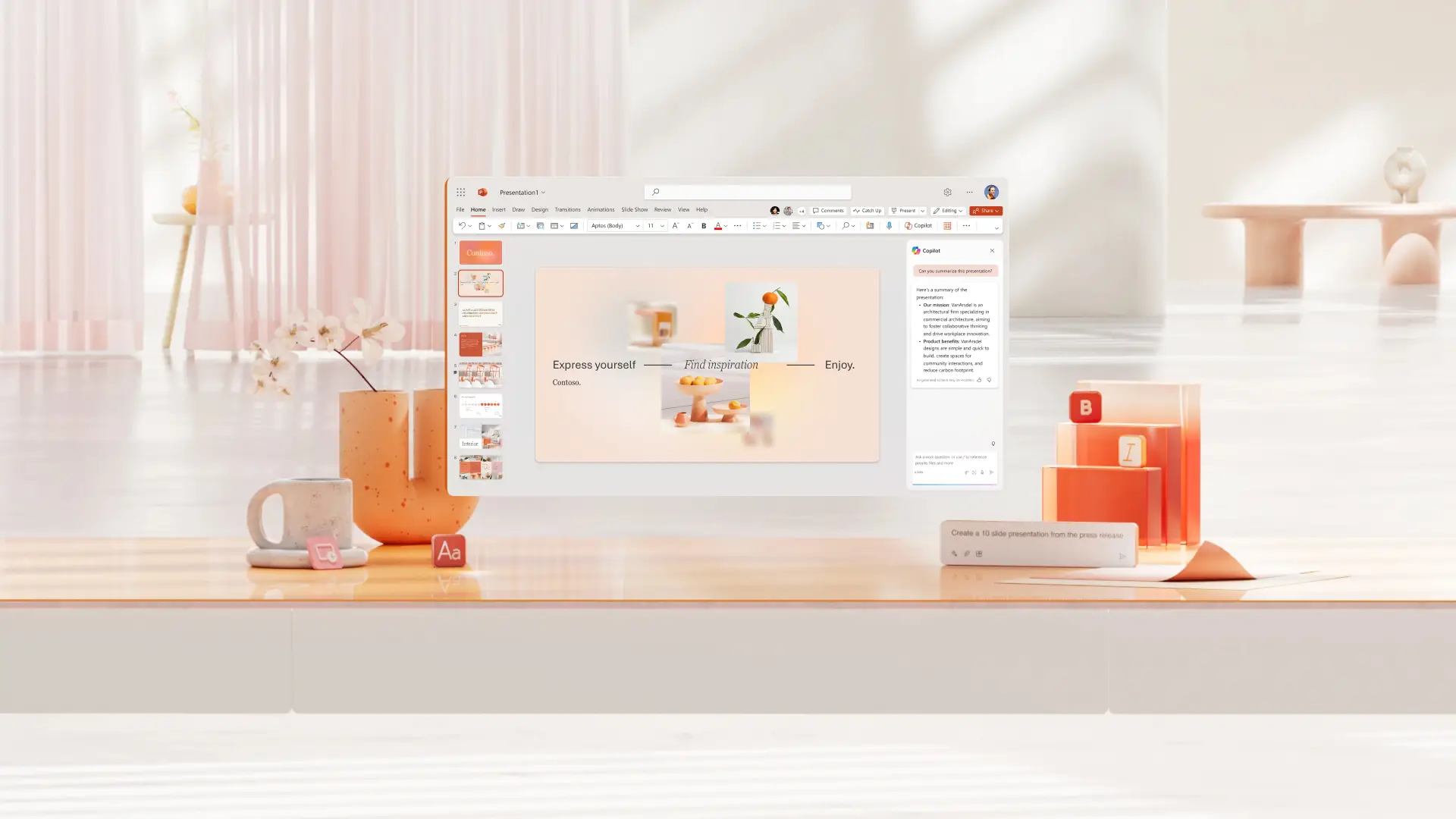

Häufig gestellte Fragen
Wie findet man Copilot in PowerPoint?
Klicken Sie auf das Copilot-Symbol in PowerPoint, beschreiben Sie dann alle Präsentationsanforderungen und fügen Sie relevante Word-Dokumente, Tabellen und andere Grafiken an, um Kontext zu bieten und eine Präsentation zu erstellen.
Kann Copilot eine PowerPoint-Präsentation erstellen?
Copilot kann eine PowerPoint-Präsentation mit KI basierend auf einem Thema oder Dokument erstellen. Geben Sie Copilot Details zur Präsentation, überprüfen Sie eine erste Gliederung und erstellen Sie dann die Präsentation.
So fügen Sie Copilot zu PowerPoint hinzu
Copilot ist in PowerPoint für alle verfügbar, die einen Microsoft 365 Single- oder Family-Plan oder ein Copilot Pro-Abonnement haben. Kostenlose Pläne und einige Business-Pläne enthalten keinen Zugriff auf Copilot. Erwägen Sie ein Upgrade des Plans, um KI-gesteuerte Präsentationsfunktionen zu nutzen.
Kann Copilot PowerPoint-Folien erstellen?
Chatten Sie mit Copilot, um schnell einzelne PowerPoint-Folien zu erstellen und einer Präsentation hinzuzufügen. Lassen Sie Copilot eine neue Visualisierung basierend auf einer Datentabelle, einer Folie mit wichtigen Erkenntnissen, einer Abschlussfolie oder einer anderen Art von Folie erstellen.