Convert a PDF into a presentation with Copilot in Microsoft PowerPoint. Avoid manually extracting, rebuilding, and formatting content by using AI to transform any PDF into a structured presentation draft that’s ready to customize. It’s perfect for turning everyday documents like reports, study materials, and case studies into polished and engaging presentations.
Explore how to convert a PDF into slides and refine the deck with branding, AI-generated images, and speaker notes in Microsoft PowerPoint.
When to use PDF to PowerPoint conversion
PDF to PowerPoint conversion works well when fixed content like reports or training manuals need to move into a presentation format that supports editing and collaboration.
Edit and update locked content: convert read-only PDFs into editable slides to revise text, refresh visuals, or update data.
Enhance visuals and storytelling: add design, animations, and modern layouts to turn static content into a presentation that holds attention.
Support collaboration and feedback: invite teams to comment, edit, and refine slides together in real-time.

How to convert a PDF to presentation with Microsoft Copilot
The PDF to PPT conversion process is quick and beginner-friendly with Copilot. To get started, save the PDF to OneDrive.
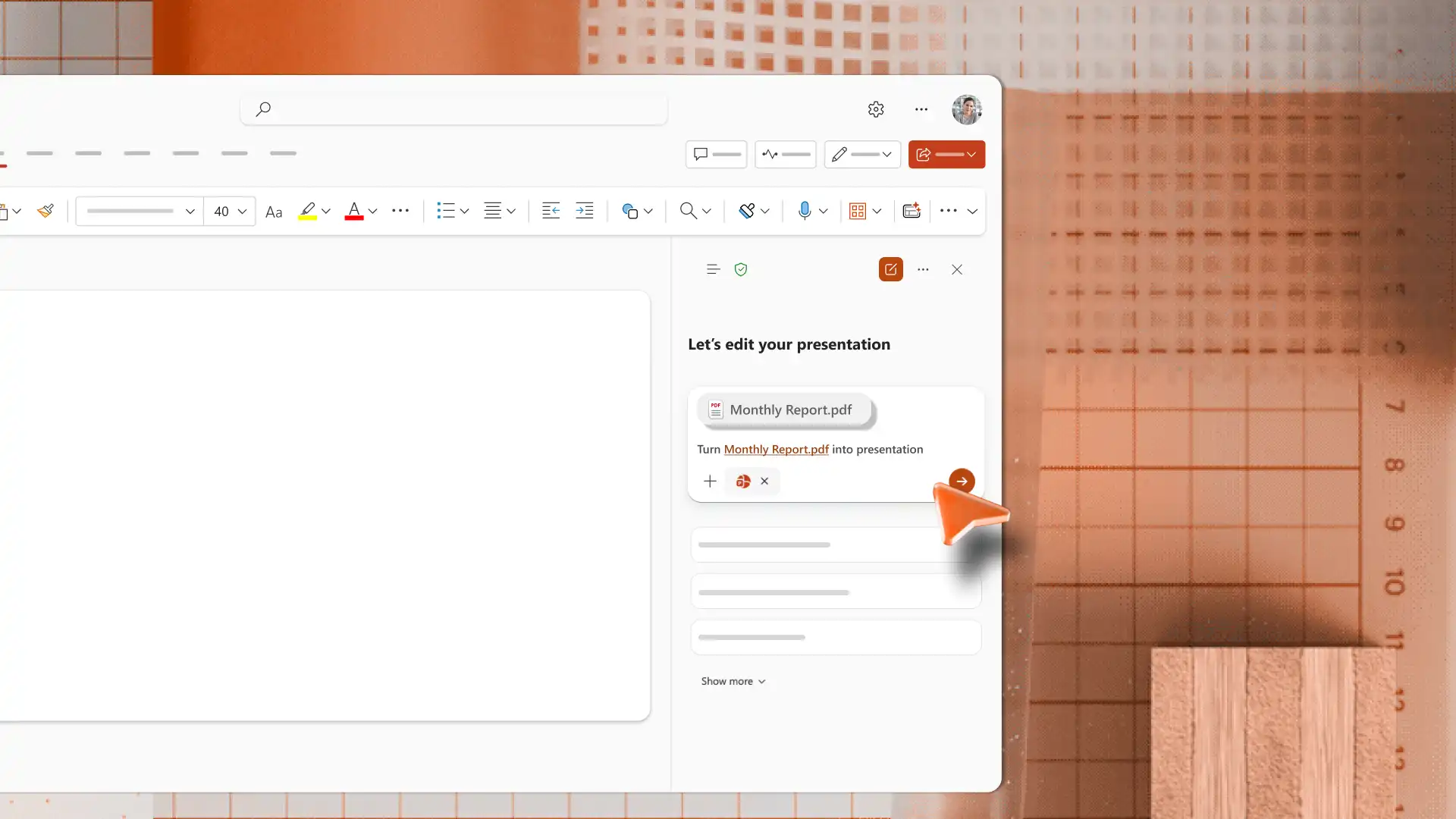
Open a new presentation and select Copilot to start a new chat.
Attach the PDF from OneDrive by clicking on the plus icon to add content into Copilot chat.
Ask Copilot to turn the attached PDF into a presentation. Include details like the number of slides required and audience profile for context.
Answer any clarifying questions from AI in the chat. Copilot then extracts information from the PDF and produces a first draft, typically with grouped slides, titles, and summarized content.
Review every slide for accuracy and tone. Edit text directly on the slide, rearrange slides, or chat with Copilot to add a new slide topic.
Save the .pptx file to OneDrive, then share the presentation by email or a secure OneDrive link.
Note: this workflow is available across PowerPoint for the web, the PowerPoint desktop app on Windows, and PowerPoint on Mac. Once Copilot has generated the draft, the next step is to update and customize the slides.
How to refine converted slides
It's easy to enhance converted slides to improve design, engagement, and brand consistency inside PowerPoint presentation maker.
Add interactivity with animations
Slide transitions and animations help keep a presentation engaging. Pick one transition style and use it across every slide, so the deck feels consistent. Add light entrance animations to the visuals or callouts that need more attention. It’s best to keep the effects minimal, so they complement the content instead of distracting from it. For more ideas on transitions, explore how to make interactive presentations.
Generate custom AI visuals
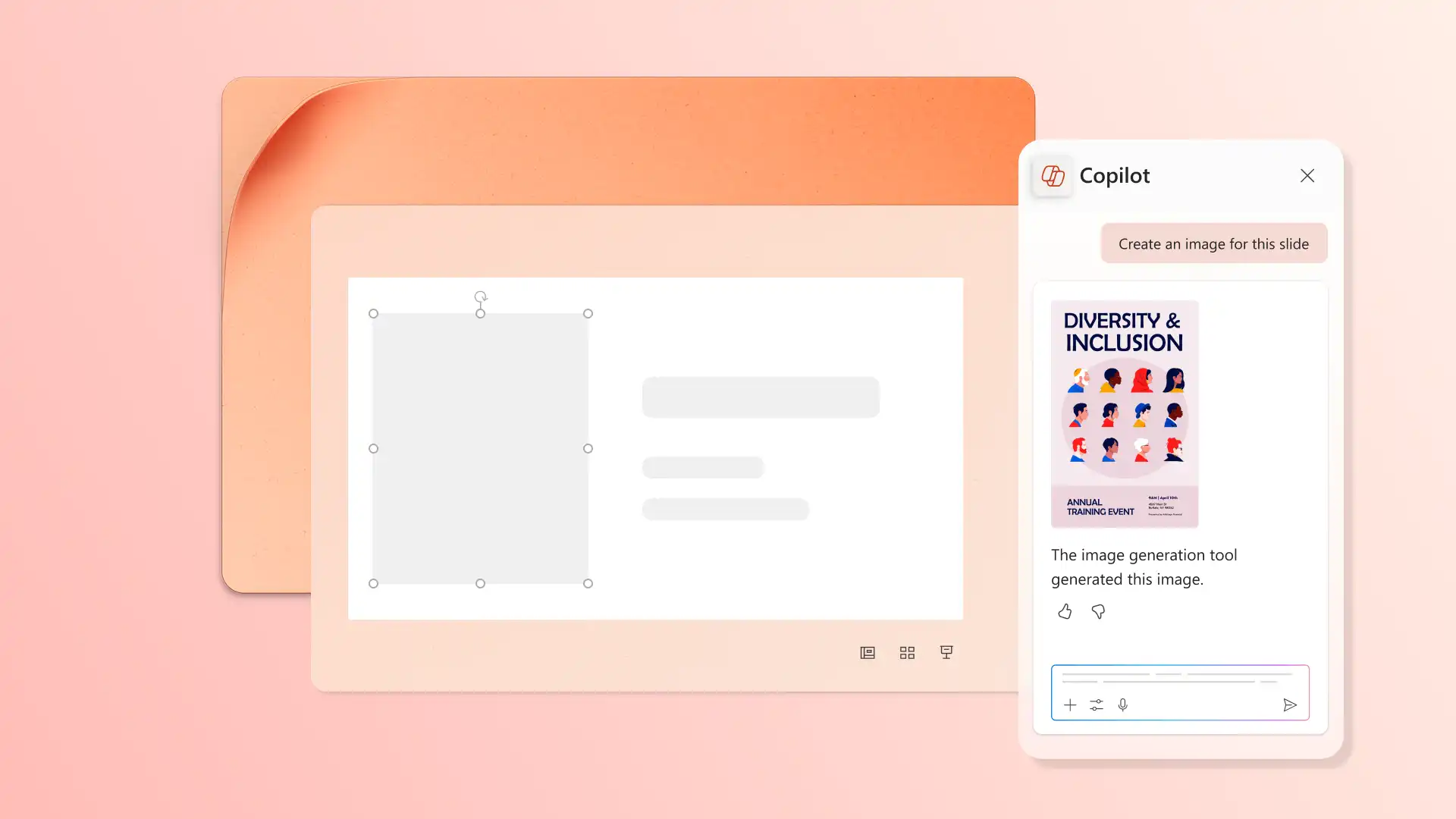
A converted deck will use a basic presentation theme, so adding custom AI visuals helps the message connect with an audience. Open Copilot chat, describe what the slide is about, and pick a style like 3D, flat design, retro, or photographic. Copilot generates an image for review in the chat. Continue chatting to adjust the style, color, or composition. When the image is ready, download and place it on the slide. For a consistent look across the whole deck, try the AI presentation designer.
Apply brand styling
Brand styling is what makes a converted deck look professional. Inside PowerPoint, the Design tab offers built-in themes for brand colors and fonts, a slide background picker, and AI-powered design suggestions. Add a logo to the title slide and section dividers to keep the whole deck visually consistent. For a wider framework on making company presentations, explore how to create brand guidelines.
Generate a summary slide with AI
For longer decks, a summary slide can be used to give the audience an overview of what's coming or a clear recap at the end. Ask Copilot for a summary of the deck, and choose the format that fits the topic, such as an overall presentation summary, a slide-wise list, or a summary grouped by topic. Copilot writes the summary in the chat, and from there it can be copied onto a new slide or pasted into a follow-up email as a written recap.
Add AI speaker notes
Speaker notes give the person presenting a written cue for every slide, which helps the delivery sound natural rather than read off the screen. Ask Copilot to draft speaker notes that match the message of each slide, review what's suggested in the chat, and apply the ones that work. Notes can cover the main points, supporting data, or a hint for transitioning to the next slide.
Convert PDFs into structured, editable presentations in minutes using Copilot in PowerPoint. With the structure already in place, every deck moves faster from first draft to final presentation. For more ways to build polished decks, explore tips to make a presentation with AI or convert Word documents into presentations.
Frequently asked questions
- Can any PDF be converted into a PowerPoint presentation?
Conversion in Copilot works best with PDFs that contain selectable text, such as reports, whitepapers, and proposals exported from Microsoft Word or design tools. Scanned PDFs and image-based documents currently do not convert accurately. Files between one and ten pages give the best-structured results.
- Does PDF to PowerPoint conversion with Copilot require a subscription?
Conversion runs through Copilot, which requires an active Microsoft 365 subscription with the Copilot license enabled. Free accounts and personal plans without the Copilot license cannot upload files inside PowerPoint for the web. Check the current Copilot license status inside account settings before trying this feature.
- Does the PDF need to be uploaded before conversion?
Save the PDF to personal or work OneDrive before getting started. When ready, open the Copilot chat in PowerPoint, then attach the file from OneDrive.
- Will images and diagrams from the PDF appear in the presentation?
Copilot extracts text content from the PDF and structures it into a presentation draft for review. Images, charts, and diagrams with labels from the source PDF cannot be processed during conversion currently. Generate visuals with Copilot after the draft appears for richer, more relevant images.
- Can long PDFs be converted easily?
Short PDFs produce the cleanest results, with one to ten pages as the ideal range. For lengthy PDFs, consider splitting the source into smaller files first and converting each section into its own deck with the AI presentation maker.