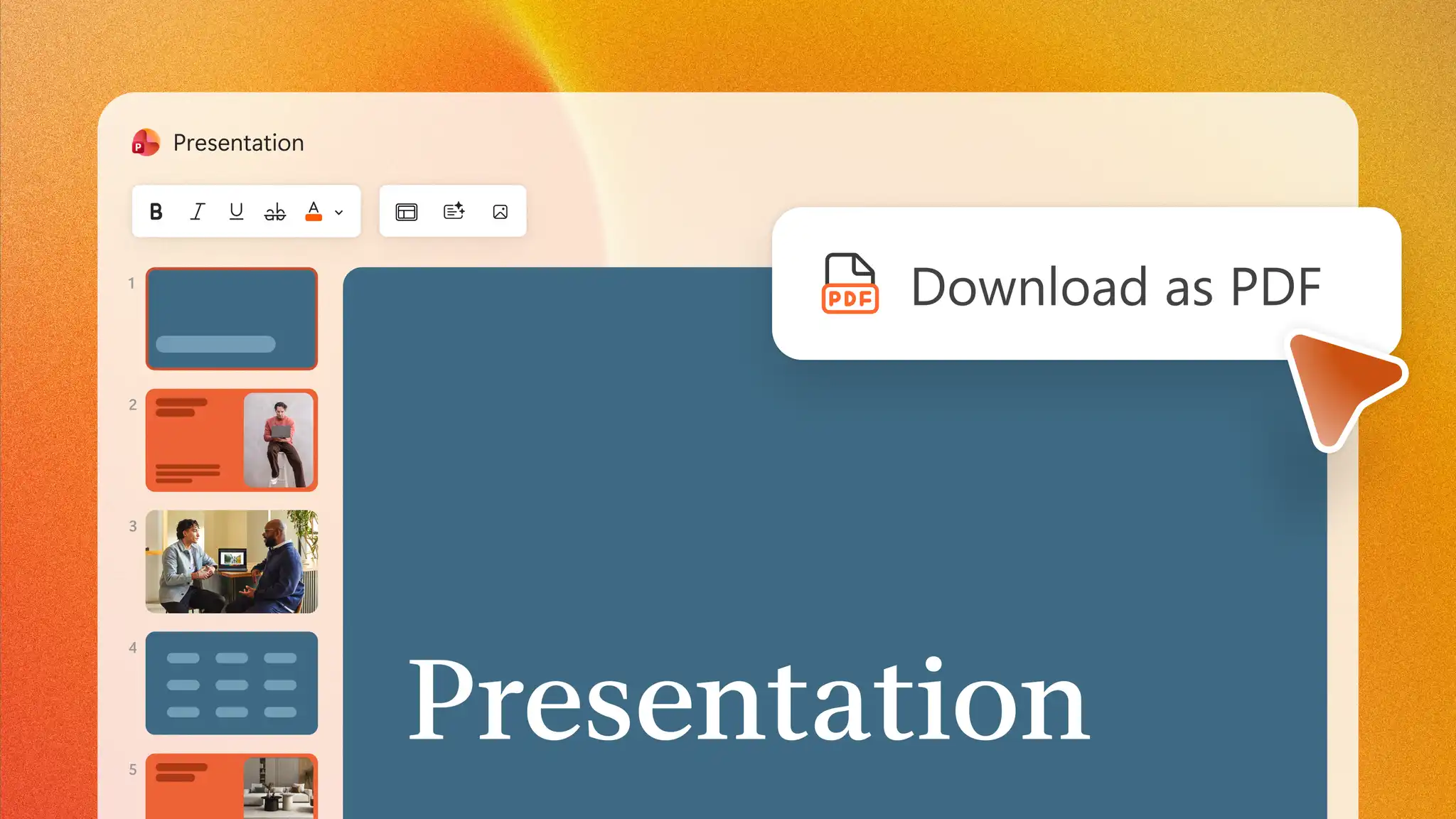
Converting a PowerPoint presentation to PDF makes it easier to share, print, and view across devices while preserving the original layout and formatting. When you save a PowerPoint as a PDF, the original presentation remains unchanged and a separate PDF file is created for sharing.
PowerPoint for the web includes built-in PDF export, so no additional software is required. Learn how to save a presentation as a PDF and understand what happens to during conversion with Microsoft PowerPoint.
How to convert PowerPoint to PDF
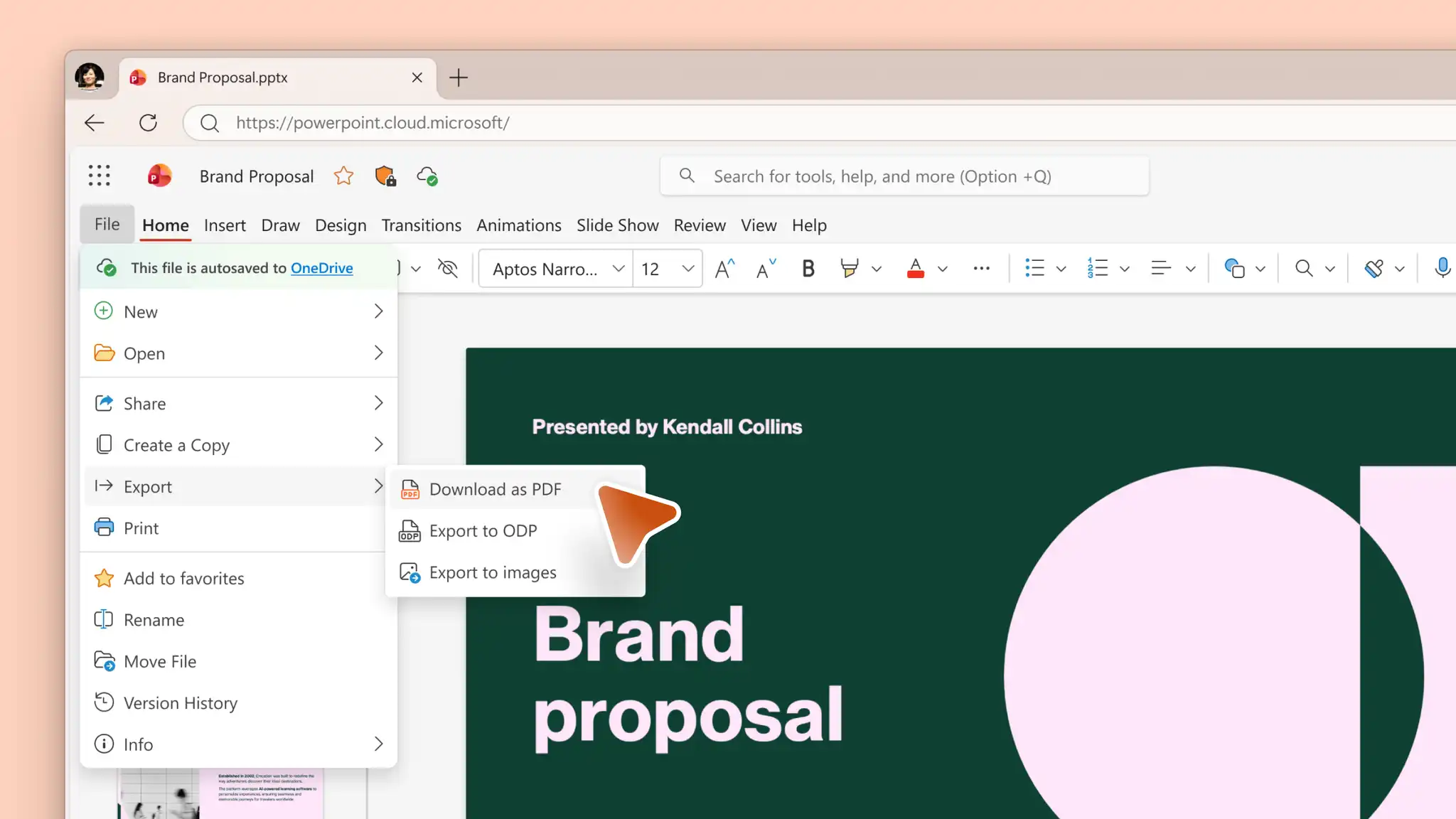
PowerPoint for the web converts PPT and PPTX presentations to PDF through the Ribbon tab.
Open a new presentation in PowerPoint for the web, or upload a .ppt or .pptx file to convert.
Navigate to the PowerPoint ribbon and select File.
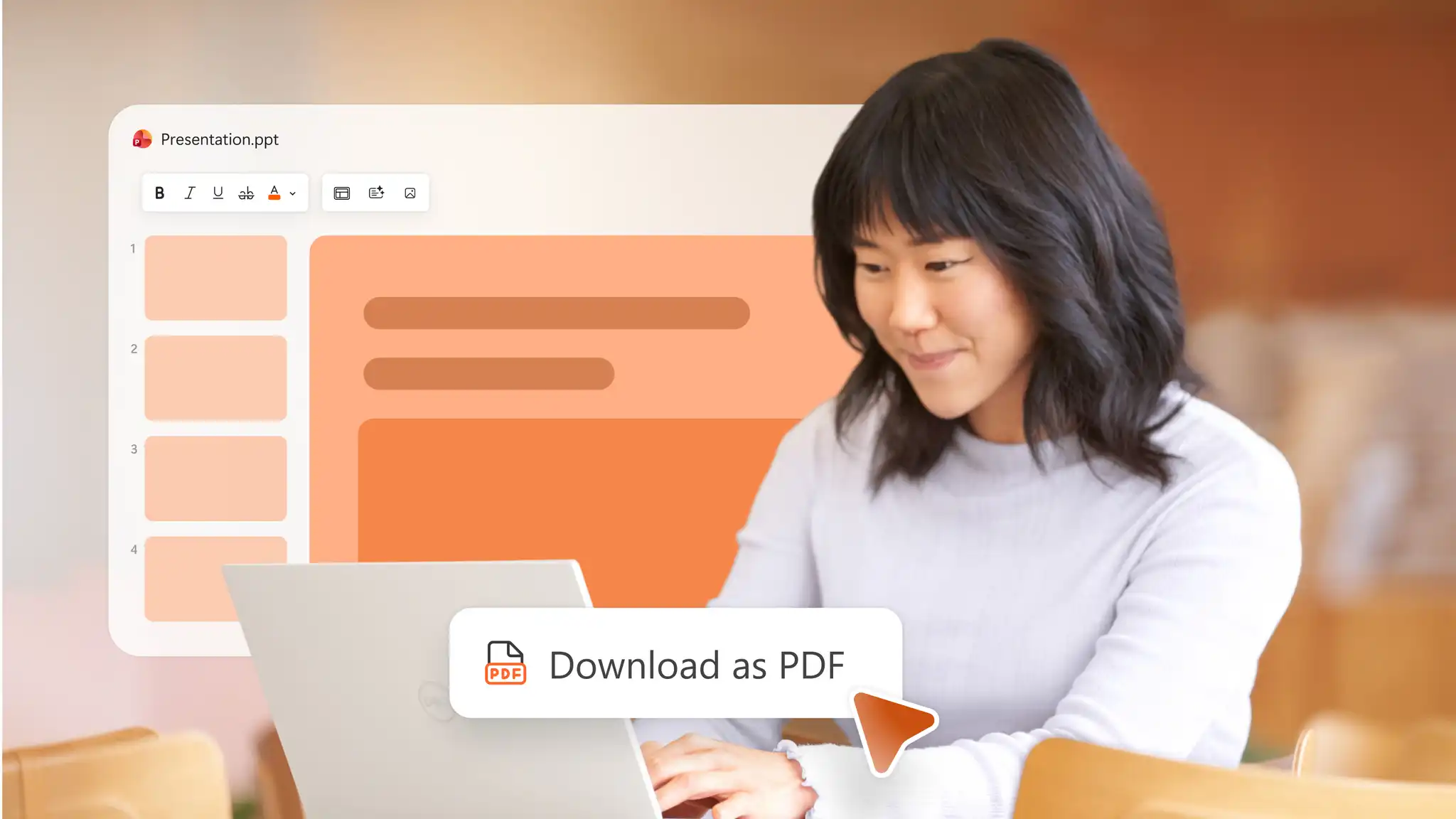
Then select Export, and Download as PDF.
Download the converted .pdf on the device.
Downloading a PDF creates a separate file, while the original presentation stays in OneDrive for easy editing and collaboration.
What happens when PowerPoint becomes a PDF?
PDF conversion creates a separate version of the presentation for viewing and printing. Slide content and layout remain visible, but animations, transitions, audio, and video playback are not preserved in the PDF. The original PPT or PPTX file remains the editable presentation version.
How to create a high-quality PDF from PowerPoint
PDF quality starts with the original presentation. High-resolution images, supported fonts, and consistent slide dimensions help produce a clear, reliable output.
Images: use high-resolution images before conversion to help maintain visual quality.
Compression: avoid excessive image compression, which can reduce image clarity in the PDF.
Fonts: use supported fonts to minimise formatting or layout changes after export.
Dimensions: review slide size, layouts, and spacing before converting.
Notes and slide selection: if notes pages or only specific slides are required, confirm the appropriate print settings before saving.
Final review: check the exported PDF before sharing or printing to ensure quality and accuracy.
How to save a PowerPoint as a PDF with notes or handouts
PowerPoint for the web can prepare speaker notes or handouts for printing as a PDF. Notes pages display each slide with its related speaker notes, while handouts display three slide thumbnails per page with space for note taking.
Save a PowerPoint as a PDF with speaker notes
Open a presentation the includes speaker notes in PowerPoint for the web.
Select File, and then select Print.
Choose the option Print slides with notes.
In the browser’s print settings, select Save as PDF, then Save.
Save a PowerPoint as a PDF with handouts
Open a presentation with handouts included in PowerPoint for the web.
Select File, and then select Print.
Choose the option Print handouts.
In the browser’s print settings, select Save as PDF, then click Save.
How to convert selected or multiple slides to PDF
PowerPoint can create a PDF that includes only specific slides instead of the entire presentation. Slide range controls are available through print settings.
Save selected slides as a PDF
Open the presentation that has multiple slides in PowerPoint for the web.
Select File, and then select Print.
Choose the option Print full page slides.
Click Customized in the Page menu.
Select a slide range like a single slide, provide a slide range, or multiple slide numbers.
Choose Save as PDF, then select Save. Choose a location for the PDF on the device.
Seamlessly convert .ppt and .pptx presentations to PDF using Microsoft PowerPoint online. When a PowerPoint becomes a PDF, the result is a separate copy designed for viewing, printing, and sharing while the original presentation remains editable. The original presentation remains available for presenting and collaboration, while the PDF serves as a separate shareable copy.
Explore more ways to convert a Word doc into PPT with AI for helpful presentation creation workflows.
Frequently asked questions
- Does a PDF keep PowerPoint animations, transitions, audio, and video?
A PDF is a static format. Animations, transitions, audio, and video playback are not preserved after conversion.
- Why does a PDF look different from a PowerPoint presentation?
Incompatible fonts, image compression, and differences in slide layout can affect the exported file. Supported fonts, high-resolution images, and reviewing slides before exporting can reduce unexpected changes.
- Can PowerPoint save only one slide as a PDF?
Use Print settings, choose a custom slide range, and enter a single slide number before saving as a PDF.
- What is the difference between exporting a PowerPoint as a PDF and sharing the original PPTX file?
A PDF is a separate viewing and printing copy. A PPTX file remains editable and can preserve presentation features such as animations, transitions and media.
- Does converting PowerPoint to PDF change the original presentation?
PowerPoint for the web downloads a separate PDF copy while the original presentation continues to save in OneDrive.