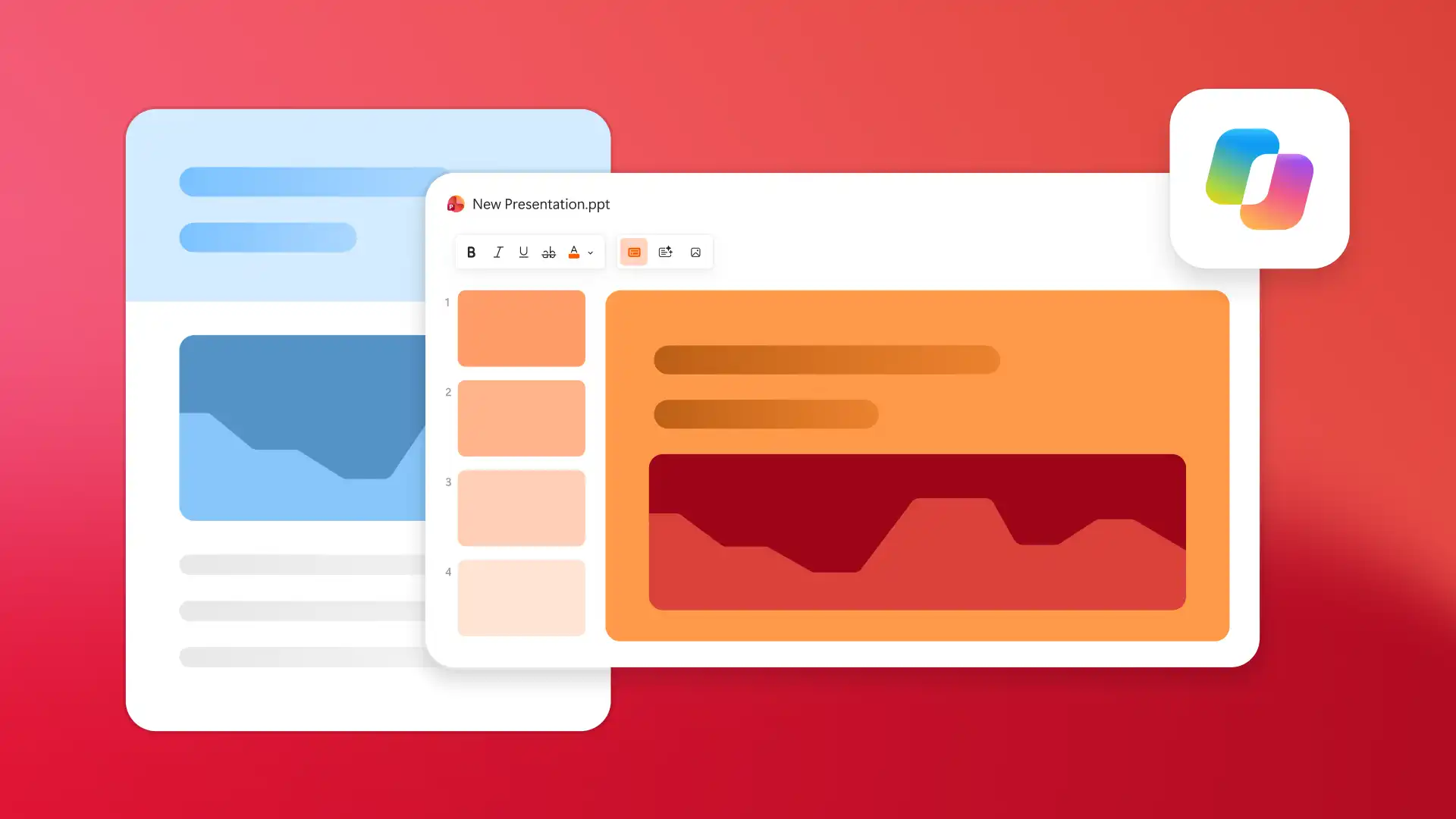
Turning a Word document to a presentation involves a range of formatting tasks, including copy-pasting from different sources and rebuilding information on new slides. Copilot in Microsoft PowerPoint helps convert documents such as reports, proposals, or project updates into editable presentations to save time recreating slides from scratch.
AI can help capture existing information from Word documents to create a structured presentation and provide slide organization and formatting suggestions. As Copilot assists with the conversion process, find more time to focus on refining slides, visuals, and messaging to build polished presentations.
Convert documents into presentation drafts securely and enhance slides in a single PowerPoint workflow, with no need for switching tools. Learn how to convert Word documents into slides and refine drafts with updates, custom visuals, and speaker notes in Microsoft PowerPoint.
Best Word document formats to turn into presentations
With help from AI, it’s easy to turn long documents into presentation slides. Multi-page documents like reports, proposals, and briefs contain the headings, summaries, and details that make them more compatible to create a presentation draft. Explore suitable Word document types below.
Reports: headings, summaries, and supporting data easily translate into slides.
Project updates: milestones, progress updates, and next steps map to sections of a deck for work.
Research summaries: findings, data points, and recommendations flow into insight-driven presentations.
Business proposals: executive summaries, solution descriptions, and pricing strategies align with sections of persuasive pitch decks.
Executive briefings: strategic updates, decisions, and action items fit concise leadership presentations.
Training materials: learning objectives and step-by-step guidance form the outline for workshop-ready slides.
How to convert Word to PowerPoint with Copilot
Converting a Word document into PowerPoint is a simple workflow that’s quick and easy. Before starting, save a structured Word document to OneDrive with clear headings, sections, and key points, then follow the steps outlined below.
Open a new presentation in PowerPoint for the web and select Copilot to start a new chat.
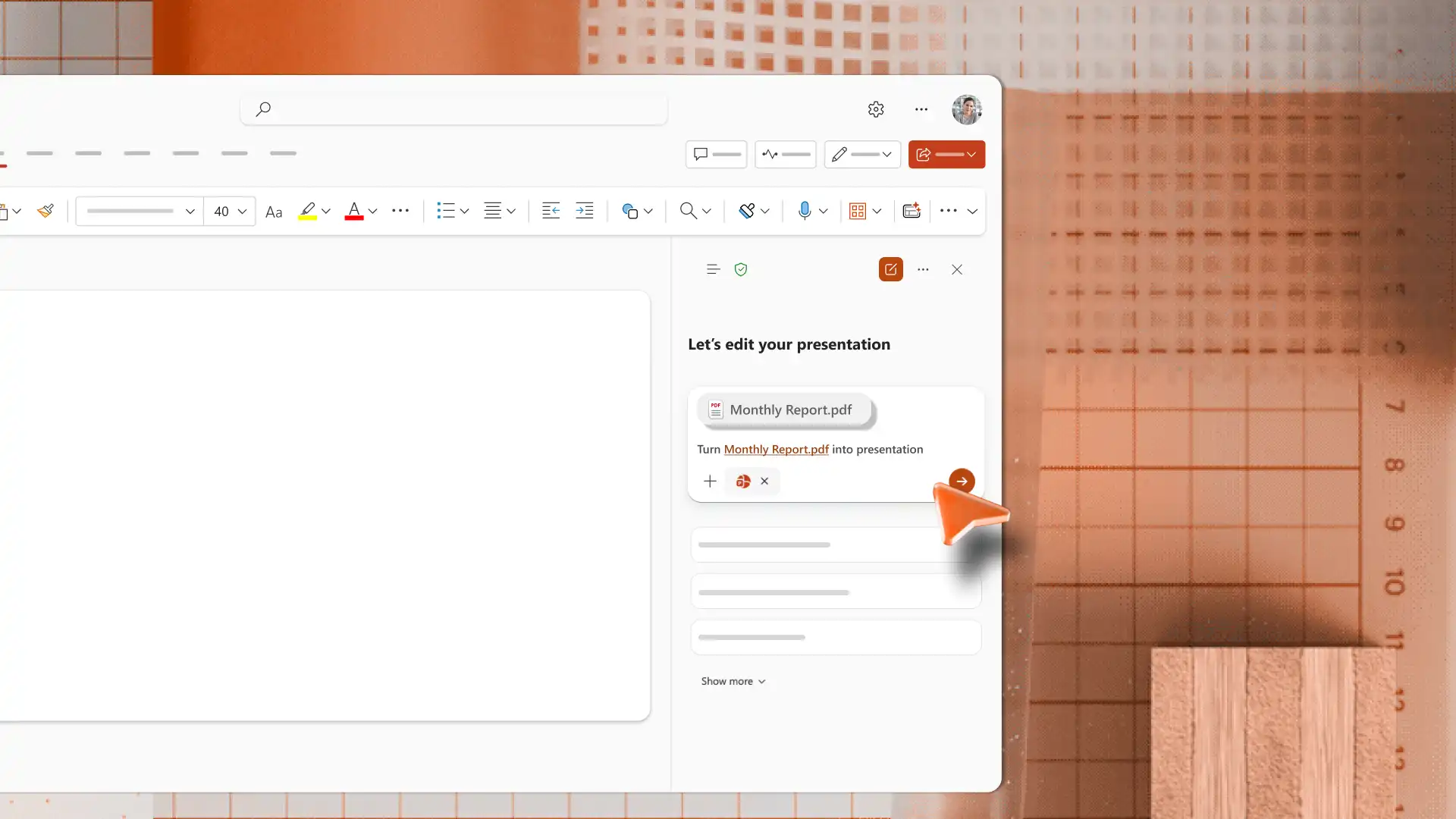
Attach the Word file from OneDrive by clicking on the plus icon, then select ‘upload images and files’ > upload a Word file (docx) into Copilot chat.
Ask Copilot to turn the attached document into a presentation. Include details such as the audience, presentation purpose, preferred tone, and target slide count.
Answer any clarifying questions from AI in the chat. Copilot analyzes the document and creates a presentation draft with suggested slide titles, content summaries, and layouts.
Review PowerPoint slides for accuracy, clarity, and tone. Edit text directly on the slide, rearrange slides, or chat with Copilot to add a new slide topic or generate any infographics.
Save the .pptx file to OneDrive, then share the presentation by email or a secure OneDrive link.
Note: this workflow is available across PowerPoint for the web, the PowerPoint desktop app on Windows, and PowerPoint on Mac. Once Copilot generates a draft, review, update, and customize the slides as needed.

How to enhance AI-generated presentations
After the initial conversion, chat with Copilot to refine slides, enhance formatting, and improve visuals using the AI presentation maker.
Fill content gaps
Copilot uses the information available in the source document and it could simplify or reorganize text. Review slides and add any missing data, examples, or information to maintain accuracy. For sections that need more text, ask Copilot to expand on key points and add examples using the source document and apply to the document.
Rewrite slides for new audiences
The same content can be written differently for a leadership update, a sales pitch, or a training session. Ask Copilot to adjust the tone slide by slide, or to add a key takeaway slide after each major section. Highlight actions, decisions, and outcomes to make content for executives and leadership to review.
Create SmartArt and timelines
Reports, proposals, and project documents can include information that’s better explained visually. Ask Copilot to convert text into diagrams or flowcharts using SmartArt or infographics. For project decks, turn milestone lists into visual timelines showing progress and next steps. For more inspiration on visual layouts, explore how to make interactive presentations.
Generate speaker notes
Speaker notes attached to each slide gives the presenter something to refer to during live delivery, so the presentation flows naturally. Ask AI to expand slide bullets into talking points, then paste what fits into the notes section of each slide. Copilot can also help prepare suitable answers from the slide material for potential follow-up questions.
Turn existing documents into organized, ready-to-edit PowerPoint presentations without starting from a blank deck. The file-to-presentation workflow runs inside Copilot in PowerPoint chat without any third-party tools, helping with quicker and smoother delivery.
For more ideas on polished decks, explore PowerPoint design ideas and how to make a presentation with AI. Start drafting documents in Microsoft Word to quickly prepare presentations for upcoming meetings.
Frequently asked questions
- How to add Copilot to PowerPoint?
Copilot is enabled in PowerPoint for anyone with a Microsoft 365 Personal or Family plan, or with a Copilot Pro subscription. Free plans and some Business plans don’t come with Copilot access, consider upgrading the plan to enjoy AI-powered presentation skills.
- How to format a Word document for the best PowerPoint results?
Structure the document with clear headings, concise sections, and supporting details before uploading. Structured documents help Copilot identify slide topics and organize information into a logical flow. Include summaries or key points at the top of each section for stronger results. For examples of presentation structure, browse PowerPoint templates. After conversion, Copilot can also help generate summary slides for stakeholder recaps.
- Why isn't a Word document converting into presentation correctly?
A few file types and text elements may prevent a successful conversion. Encrypted documents or files with restricted permissions can’t be uploaded into Copilot chat. Complex tables may reformat unexpectedly, and unsupported or embedded objects may not appear as expected in the draft.
- How accurate are AI-generated presentations made with Copilot?
Copilot produces a structured first draft, not a final presentation. AI references the source document and may reorganize information to fit the slide format. Review facts, adjust visuals, and analyze tone in AI-generated presentations before sharing the deck with stakeholders.
- Do images, tables, and charts transfer from Word to PowerPoint?
Text content transfers reliably from the source Word document. Images and charts may transfer, though formatting can change to fit slide layouts. Simple tables transfer more consistently than complex ones. Fonts, spacing, and colors often adjust to match presentation-friendly designs, so review slides and make edits as needed.