The employee onboarding experience can shape how a new hire feels about their role and company. A well-structured onboarding presentation in Microsoft PowerPoint helps bring together training content, role guidance, and key resources clearly. It can help new hires understand expectations and navigate their first steps.
Explore the key slides to include in an employee onboarding presentation, tips to make onboarding content engaging, and how to create reusable onboarding templates with AI assistance.
Key slides of an onboarding presentation
Help new hires understand the company, their role, and key resources with a clear onboarding presentation. Organize slides around the information they need during their first few weeks.
Welcome slide
Set the tone for the onboarding experience with a clear welcome slide. Include a brief welcome message, an agenda for the presentation, and a summary of what new employees will learn by the end.
Company overview slide
Focus on the information employees need to understand the organization's purpose, priorities, and ways of working. Cover the company mission, values, and business goals. Keeping this section concise helps new hires absorb the information without feeling overwhelmed.
Team introduction slide
New employees need to know who they will work with and who to contact for different needs. Include the team structure, reporting lines, key stakeholders, and contact information for colleagues. Coworkers can also create a short about me slide.
Role expectation slide
Clarify goals, and performance expectations for the new position. Add the main responsibilities, success metrics, key tools, and any training requirements. This section helps new hires understand what success looks like in the role.
Policies and resources slide
Bring frequently used resources together in one place so employees know where to find support and important information. Include HR resources, workplace policies, internal systems, support channels, and key contacts. Presenting this information in one place makes it easier for new hires to find answers later.
First-week roadmap slide
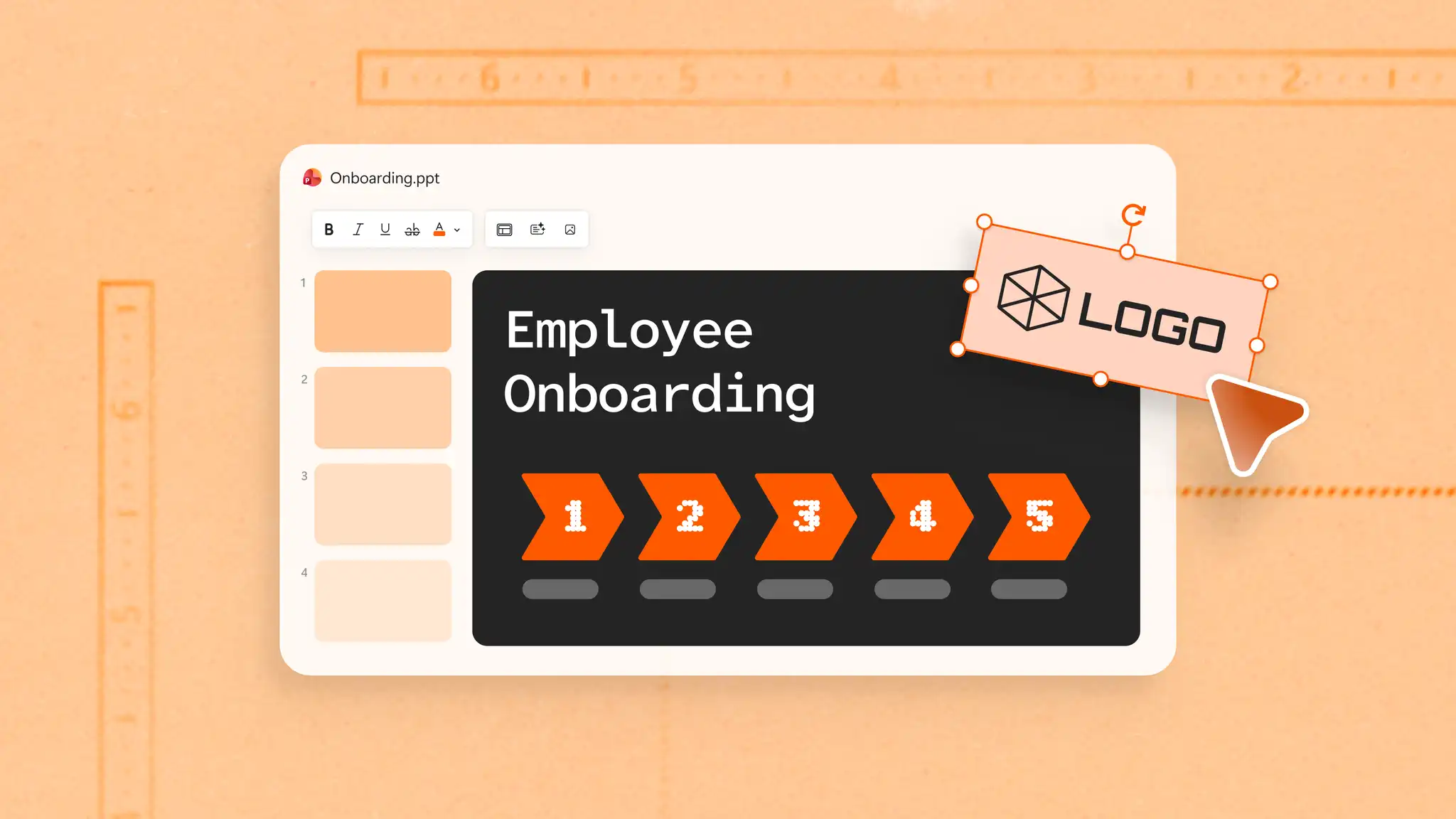
Outline onboarding activities and milestones for the first few days of starting the job. Add the schedule, training sessions, meetings with key colleagues, and important checkpoints. Present this information visually using an onboarding infographic format for easier scanning.
Training resources slide
Highlight opportunities for skill development and ongoing learning that support success in the role. This section shows new hires that the company invests in their growth.
How to make an onboarding presentation in PowerPoint
Open PowerPoint for the web and create a new presentation, or edit an existing presentation.
Add a title slide, agenda slide, or content slide from the Insert tab to start building the presentation structure.
Add text boxes to write key information, including company processes, important contacts, HR resources, and onboarding activities.
Add supporting visuals such as process layout charts and diagrams using SmartArt from the Insert tab.
Improve the presentation design using color schemes from the Design tab, or apply Design Suggestions for layout ideas.
Save the presentation, share it via secure OneDrive links, or export as a PDF once finalized.

How to make an onboarding presentation using AI
Copilot in PowerPoint can help generate slide outlines, draft text, and suggest visuals based on a description of the onboarding presentation.
Open PowerPoint for the web and select the Copilot icon to start a chat.
Describe the presentation's purpose, audience, and tone. If onboarding documents or training materials are available, upload them to Copilot chat and ask AI to generate draft slides.
Review the suggested slides and refine the content, structure, and visual recommendations as needed.
Generate speaker notes or talking points to support the presentation.
Save, share, or export the completed presentation.
Use Copilot to create draft onboarding presentations for different employee groups. Start with one of these examples and adjust it to fit the audience and onboarding goals.
New hire onboarding presentation
Internal transfer onboarding presentation
Note: review and refine any Copilot-generated content to ensure it reflects information, audience, and presentation goals accurately.
Build an onboarding presentation template with AI
Use Copilot in PowerPoint to create a reusable onboarding presentation for an organization.
Start by uploading internal documents such as existing employee handbooks, HR guides, and department-related charts into the Copilot chat in PowerPoint. Ask Copilot to draft slides for recurring sections such as welcome, company overview, leadership introductions, as well as key resources from these trusted sources. Review and refine the placeholder slides to build a reusable slide deck.
To keep the presentation on brand, start from an approved PowerPoint template or select the organization’s Brand Kit using the plus button in Copilot chat. Alternatively, attach an approved brand style guide presentation for AI to refer to. This will use approved colors, fonts, and logos to create an onboarding presentation draft. Save the finished presentation as a template that teams can update for different roles, departments, or locations.

Tips for effective employee onboarding presentations
Create a visual onboarding roadmap: show the journey from day one through the first few months, using SmartArt and flowcharts to highlight key milestones and checkpoints.
Make role-specific onboarding journeys: adapt slides for different audiences, such as new hires, internal transfers, or promotions, while keeping the overall experience consistent.
Present key contacts in an easy-to-scan format: use profile cards with photos, job titles, and responsibilities to help new employees quickly identify who they need to know. Shapes and image placeholders in PowerPoint help create a clean, organized layout for contact information.
Turn company values into memorable stories: pair each value with a short story, quote, or example that shows how the value appears in everyday work and use icons to make these slides more engaging.
Show learning pathways instead of training lists: training lists can feel overwhelming. Organize training into clear stages so new employees can see how each module connects and builds on the next.
A well-designed employee onboarding presentation helps new hires understand expectations, resources, and company culture from the first day. PowerPoint editing tools and Copilot can support the process, from organizing content and building slides to refining the design and creating reusable templates.
Explore more presentation ideas and layouts for inspiration, or learn how to make a presentation with AI for other workplace presentations.
Frequently asked questions
- How long should a new employee onboarding presentation be?
There is no fixed length for an employee onboarding presentation. Keep it easy to digest by focusing on the information new employees need most, and link to important resources they can revisit in their own time.
- How can onboarding presentations be personalized for different employee groups?
Start with a core onboarding presentation template that covers company-wide information, then duplicate and edit slides to add content specific to each group. New hires may need more company background, while internal transfers may need more focus on team structure and role changes. Chat with Copilot to adjust content for different job descriptions using the AI presentation maker.
- How to create a reusable employee onboarding template?
Start with a core presentation that covers key topics such as company information, team introductions, role expectations, and onboarding milestones. Duplicate and customize it for different teams, roles, or locations.