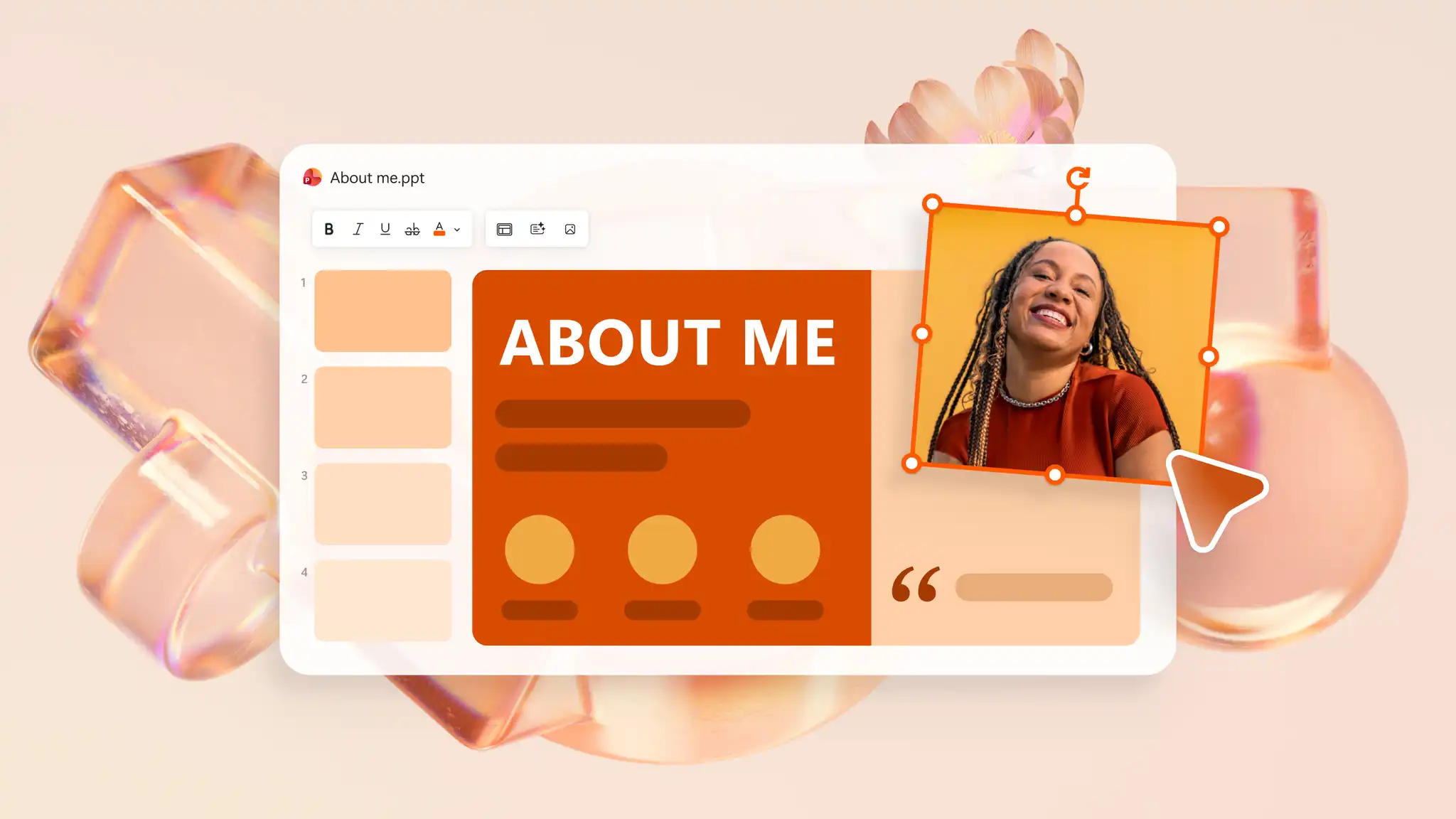
A well-designed about me slide brings together a presenter’s key skills, achievements, and personal interests in one view to help audiences connect with the person behind the presentation. Microsoft PowerPoint makes it convenient to design and share these slides for introductions at work, school, pitches, and more.
Build custom slides like profile cards, career timelines, and leadership introductions using creative design and editing tools in PowerPoint, or chat with Copilot in PowerPoint to draft and organize slide content. Find layout inspiration, design tips, and steps to create an about me slide from scratch or with AI.
Why use an about me slide
A clear about me slide provides presenters with the opportunity to connect with new colleagues, classmates, or audiences from the first interaction. It can serve several important purposes, outlined below.
Highlight skills and experience: the audience gains a better understanding of the experience and skills the presenter brings to the organization or institution, helping them identify fitting opportunities for collaboration.
Share personal interests: an overview of relevant hobbies, interests, or fun facts can turn into conversation starters and assist newcomers in engaging with an audience.
Showcase achievements and milestones: mapping out significant certifications, projects, or accomplishments can help presenters establish credibility among peers early.
Provide context for the audience: when peers understand the presenter's background, they can evaluate recommendations and insights more effectively.
About me slide layouts
A well-designed introductory slide matches audience intent accurately and sets the tone for an impactful presentation. The following layout examples include different about me slide scenarios and demonstrate how to highlight the most important information for each audience.
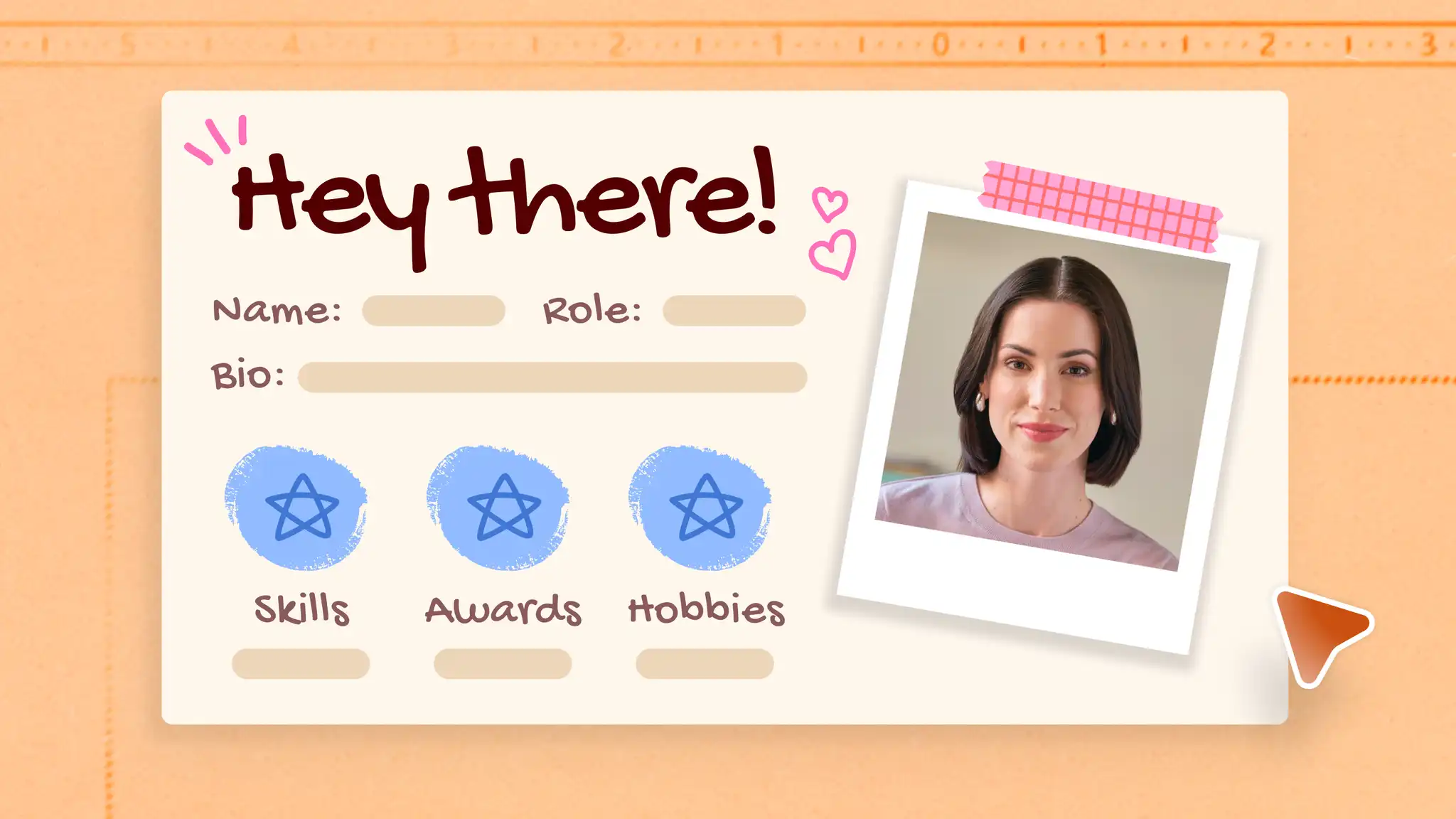
1. Profile card
Combine personal and professional details in a single section with a profile card layout to outline key information briefly.
Elements to include:
Basic details: photo, name, and role or area of study
Professional overview: short bio, key skills, and achievement
Personal overview: interests or hobbies
Best for:
Job interviews
Internships or contract roles
Professional networking
Team introductions in onboarding presentations
2. Skills and achievements slide
Use this layout to highlight professional strengths and career achievements when speaking at conferences or team-wide meetings for the first time.
Elements to include:
Basic details: name and role
Professional strengths: core skills, qualifications, and job expertise
Career highlights: key achievements and relevant projects
Optional details: contact information
Best for:
Conference and keynote presentations
Workplace presentations
Leadership introductions
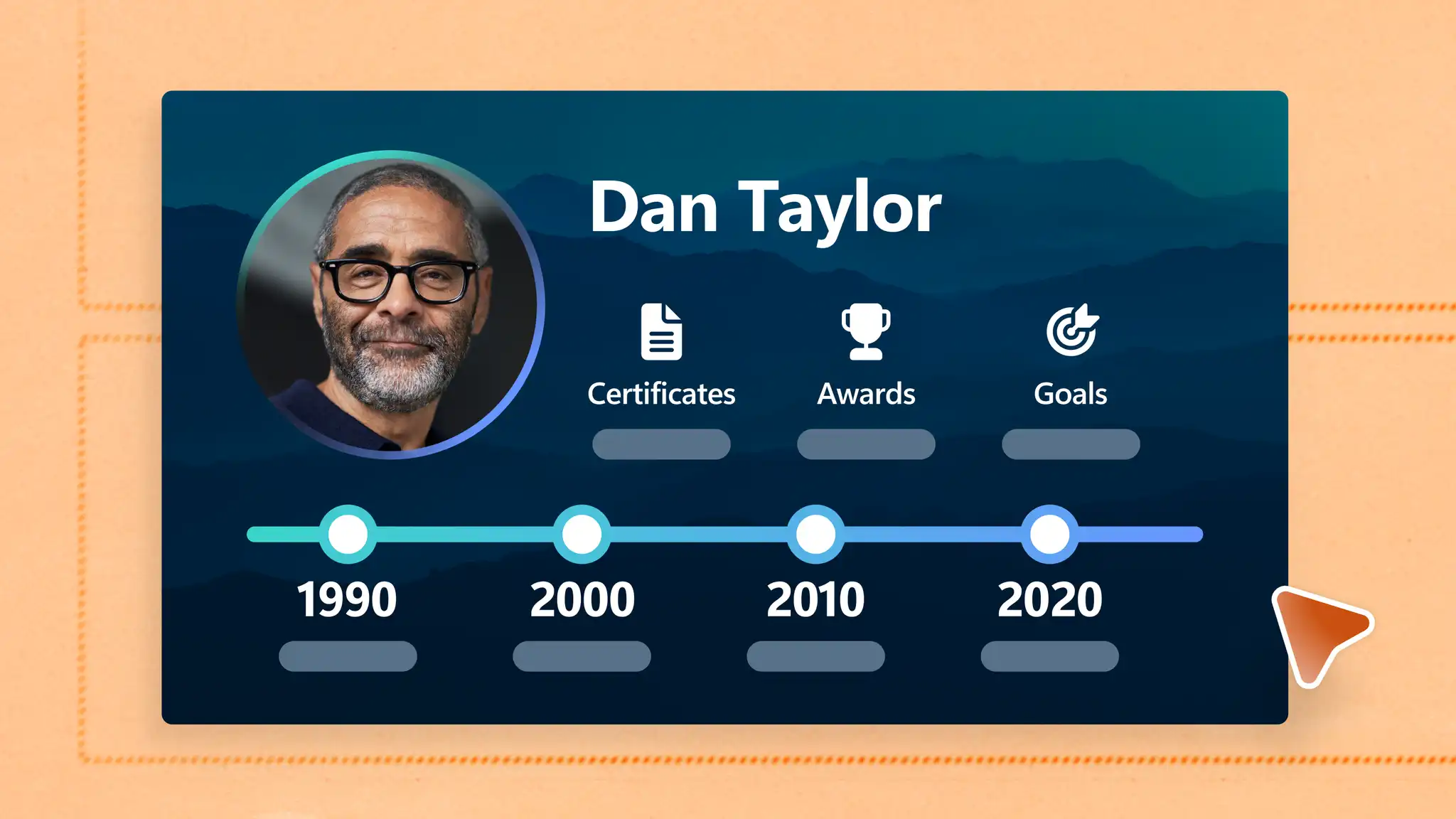
3. Timeline slide
Map personal, professional, or educational milestones using a timeline layout to showcase growth and achievements over time.
Elements to include:
Basic details: name
Timeline: educational or career progression and major milestones
Achievements: certifications, awards, and other achievements
Future direction: goals and next steps
Best for:
Student presentations
Career presentations
Personal branding
4. Photo gallery slide
Turn text-based about me slides into more engaging introductions with a gallery-style layout that displays interests, memorable experiences, and achievements through creative visuals.
Elements to include:
Basic details: name
Visual gallery: photo collage and short captions
Personal highlights: interests, hobbies, experiences, and achievements
Best for:
Hobby groups
Club introductions
Community events
5. Infographic slide
Communicate information visually with a graphic layout that showcases key facts and goals using charts and graphs or adds flair to the design with images and icons.
Elements to include:
Basic details: name
Key highlights: facts, skills, and strengths
Goals: objectives with icons and charts
Best for:
Startup presentations
Client proposals
Conference presentations
How to create an about me slide in Microsoft PowerPoint
PowerPoint brings slide drafting, designing, and preparation into one workflow. Follow the steps to get started.
Create a new about me presentation in PowerPoint for the web, or add an about me slide to an existing presentation.
Choose a slide design approach that fits the key information, such as a profile card, timeline, skills showcase, photo gallery, or infographic layout.
Add text boxes to write a short bio, relevant experiences, skills, and personal interests.
Add supporting visuals such as a profile photo using Picture from the Insert tab.
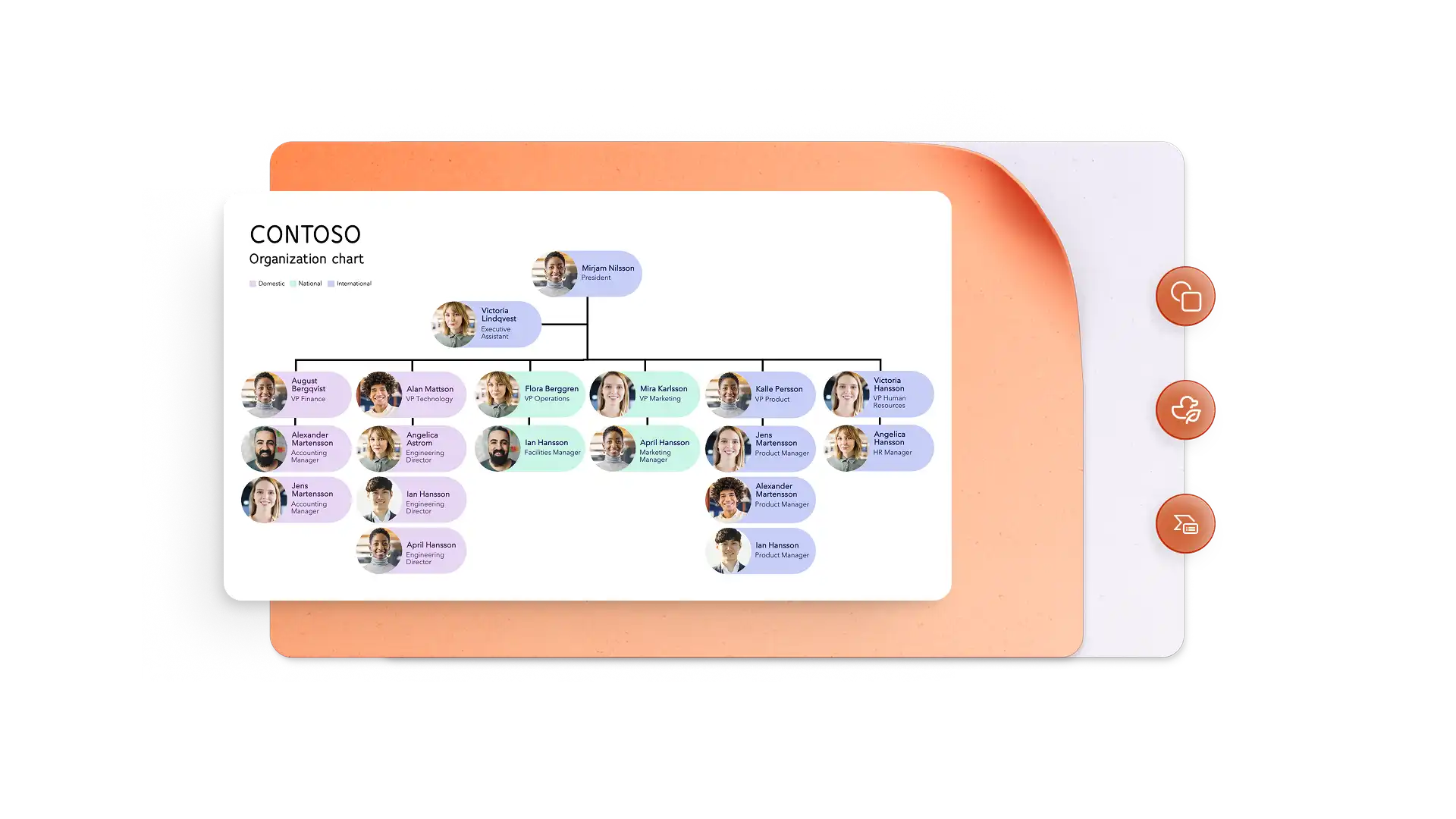
Create a timeline or flowchart using SmartArt from the Insert tab.
Improve the presentation design using color schemes from the Design tab, or applying Design Suggestions.
Save the presentation, share live or via secure OneDrive links, or export as a PDF once finalized.
How to generate an introduction slide with AI
Find a starting point for developing, refining, and personalizing an about me slide in PowerPoint with help from an AI assistant using these beginner-friendly steps.
Open PowerPoint for the web in a browser, start a chat with Copilot, and describe the purpose of the introduction slide.
Upload a resume to the Copilot chat to generate draft slide content.
Describe the target audience to receive suggested notes tailored for hiring managers, colleagues, or classmates.
Request suggestions for images, icons, graphics, or visual themes that support the introduction.
Review the slide, personalize content, and apply AI suggestions to finalize.
Ask AI to create speaker notes or talking points to use alongside the slide while presenting.
Share the presentation live or send via secure OneDrive links.
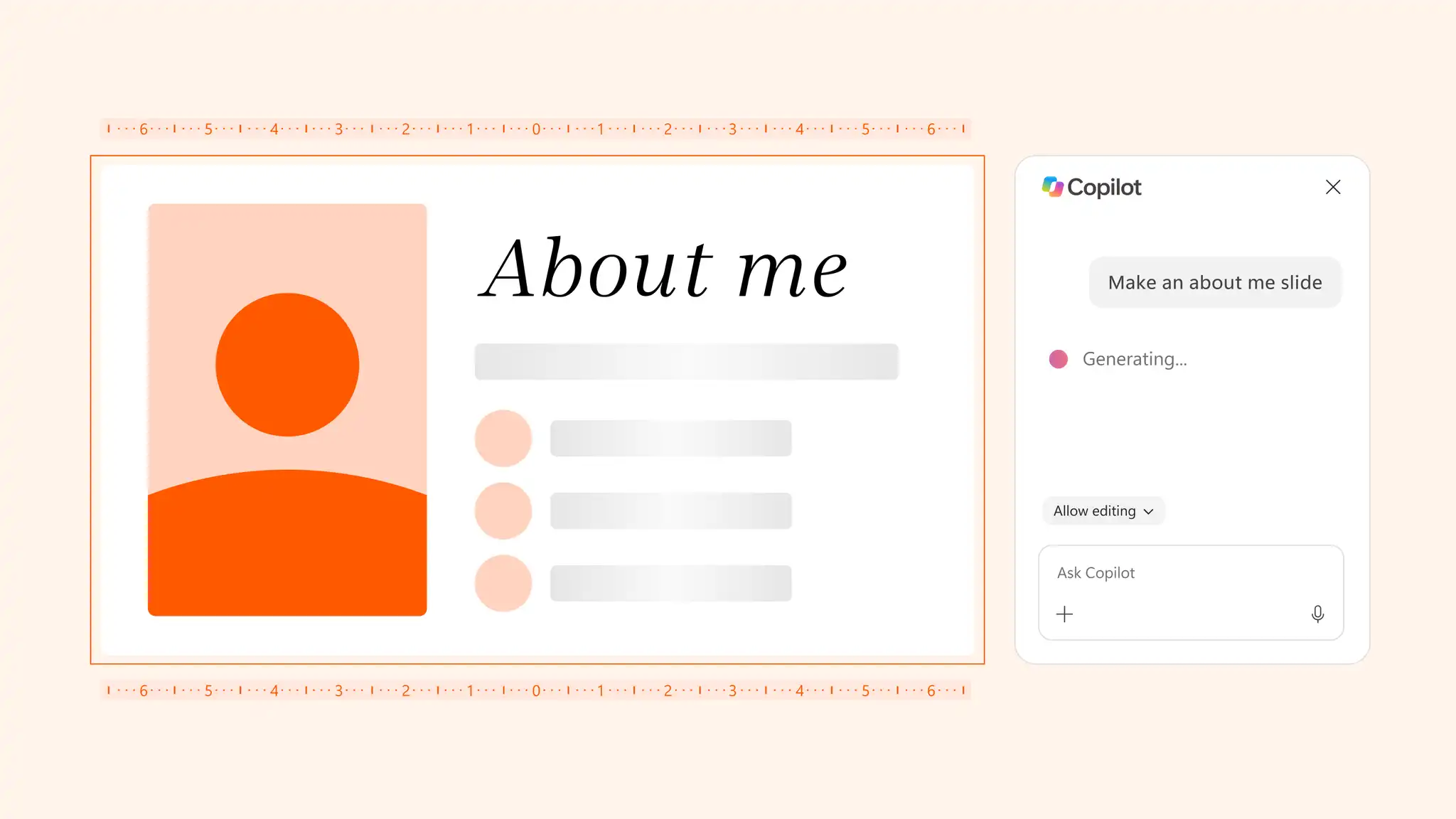
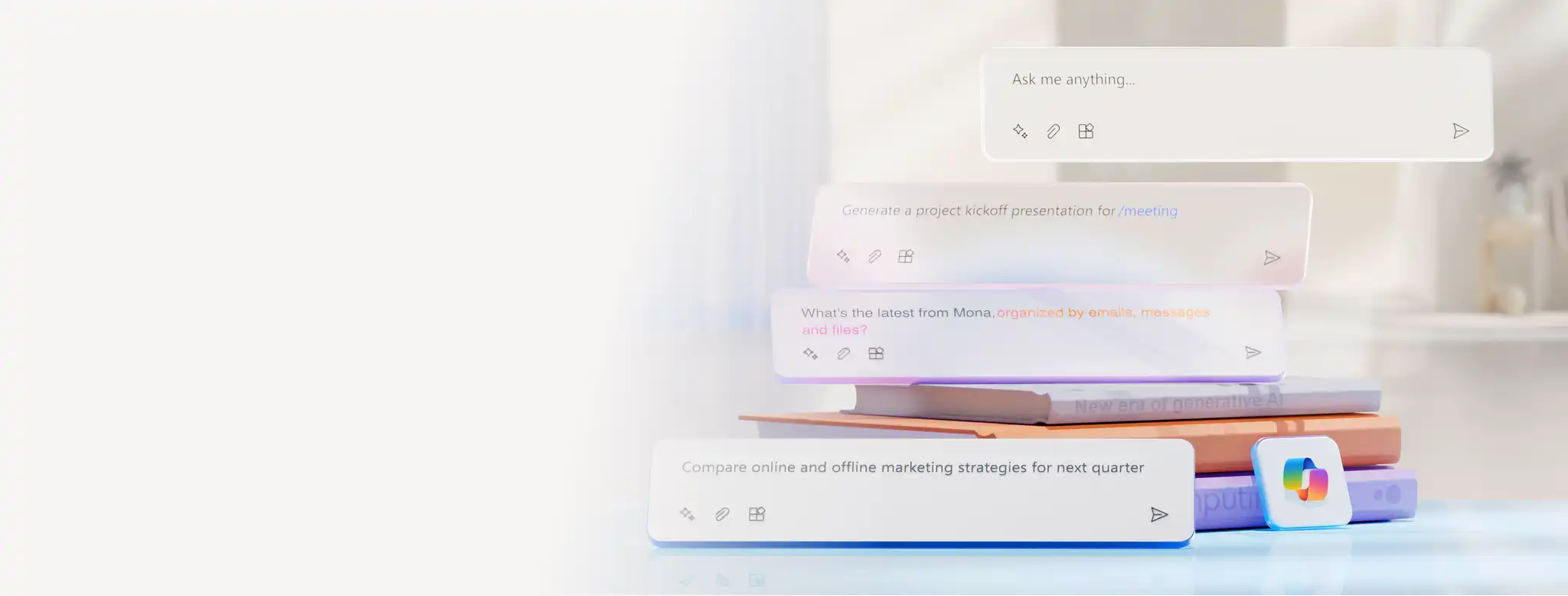
Make the process of building a complete and stylish about me slide smoother with a simple Copilot prompt for both academic and professional needs.
About me slide for new hires
About me slide for class presentations
Note: review and refine any Copilot-generated content to ensure it reflects experiences, audience, and presentation goals accurately.
Tips and ideas for a polished about me slide
Focus on memorable details: include only one or two personal interests, skills, or past experiences to help audiences find something relatable about the presenter. Keep the content in sync with the role or current year, aligning these qualities with future goals.
Address common audience questions: anticipate the questions the audience might have and use those expectations to guide the content drafting process. This can quickly set context and engage the audience, so they understand the presenter’s perspective more clearly.
Set a clear visual hierarchy and theme: adjust font sizing, spacing, and design elements in a way that makes key information stand out without overpowering the slide layout. Copilot can suggest design improvements or help visualize slide layouts to create a cohesive look and feel.
Replace text with visuals wherever possible: icons, graphs, and charts included in SmartArt present information like timelines, growth, and learnings in a more comprehensive manner than short text. A balanced mix of visuals and text makes information easier to understand.
Adapt the same slide for different audiences: save an editable version of the same slide to simplify future updates and audience-specific adjustments. Copilot can help tailor text or revise design to suit various audiences, from conferences to academic lectures.
Find inspiration and ideas for about me slides that help audiences remember key information, highlight expertise, and deliver the presenter’s story accurately with Microsoft PowerPoint. Easy-to-use design tools and Copilot come together to simplify the creation of an about me slide and turn ideas into presentation-ready content.
Learn more about creating different presentations with AI or explore how to create custom slide backgrounds for more well-designed decks.
Frequently asked questions
- How to make an about me slide professional?
A professional about me slide focuses on the information most relevant to the audience and presentation goal. Add a concise introduction, relevant experience, key skills, and achievements, then use a clear layout and consistent visual theme to make information easy to understand.
- Can Copilot create an about me slide?
Accessing Copilot in PowerPoint requires an eligible Microsoft 365 subscription and a Copilot license. Copilot can generate about me slide content to review and use. It can also suggest layouts, and recommend design improvements based on provided details. Review and refine Copilot-generated content to ensure the slide matches the intended audience, purpose, and presentation style.
- What is the best about me slide layout?
The best about me slide layout depends on the audience and presentation context. Use a profile card for a short introduction, a timeline for milestones, or a skills layout for professional experience. Most effective layouts prioritize a clear introduction, relevant background information, and visual elements that highlight accomplishments, interests, or career milestones without overcrowding the slide.
- How much information should an about me slide contain?
An about me slide should contain only the information needed to showcase credibility, provide context, and create audience connection. Prioritize essential details, skills, achievements, or interests to keep the slide concise, focused, and easy to scan.