A well-timed quiz turns a passive lesson into an active one, giving students a reason to recall, apply, and test what they have learned. Microsoft PowerPoint gives teachers and educators a flexible starting point for exactly that, ready to adapt to any subject without extra software or setup.
Build a quiz presentation with question types like multiple-choice and trivia, or chat with Copilot in Microsoft PowerPoint to generate quiz ideas and a presentation draft. Find out how to plan, design, and build an interactive classroom quiz, then how to create one using PowerPoint AI features.
Four types of classroom quiz and trivia slides
A PowerPoint quiz fits multiple moments in a lesson. Run a quick warm-up at the start of class, drop in a mid-lesson check for understanding, or set an end-of-topic revision round before exams. Share quizzes live in the classroom or in virtual classrooms using PowerPoint for the web, and save to the desktop app for sharing in class. These four quiz formats cover most classroom needs.
1. Knowledge checks
Knowledge checks use true or false, short-answer, or recap questions to confirm what students understand.
These quizzes take little time to prepare, so teachers can create them quickly before a lesson.
Knowledge checks work well at the start of a lesson to review earlier learning, or at the end to confirm what students remember.
2. Multiple-choice quizzes
Multiple-choice quizzes give students one correct answer with two or three incorrect options to choose from.
Teachers create each question with simple text boxes, so the format is easy to set up and reuse.
This structure works well for science, mathematics, and history assessments, where answers stay easy to mark.
3. Games or trivia quizzes
Trivia quizzes accept spoken answers, written answers, or multiple-choice, which suits a livelier, more competitive style of quiz.
Build them with a question slide followed by an answer-reveal slide for each round.
These quizzes work well as warm-up activities, revision games, and group challenges across any subject.
4. Visual or image-based quizzes
Image-based quizzes use maps, diagrams, or photos to test recognition instead of text-heavy questions.
Add an image to a slide, then write a question that asks students to identify, label, or locate something in it.
These quizzes work well for geography, biology, and art classes, where a labelled image explains the question more clearly than words alone.
How to create a quiz in Microsoft PowerPoint
Creating a quiz in PowerPoint for any subject takes a few simple steps, from planning the questions to adding the links and animations that let students respond on screen.
Plan a quiz presentation
A good quiz grows out of the lesson itself, shaped by what students should walk away knowing and how much class time there is to get them there.
Define the learning objective for the quiz, such as recapping a topic, testing a concept, or driving engagement.
Choose the quiz format, such as multiple-choice, image-based, or game-style, based on the subject and the grade level.
Decide the number of questions. Under ten questions fit a standard class period without rushing students.
Plan how students get feedback, either instant confirmation after each question or a group discussion at the end of the quiz.
Create the quiz presentation layout
A consistent slide structure helps students read and understand each question quickly, which matters most during timed activities or when the quiz is projected to the whole class.
Open PowerPoint and start a new presentation in PowerPoint for the web or the desktop app.
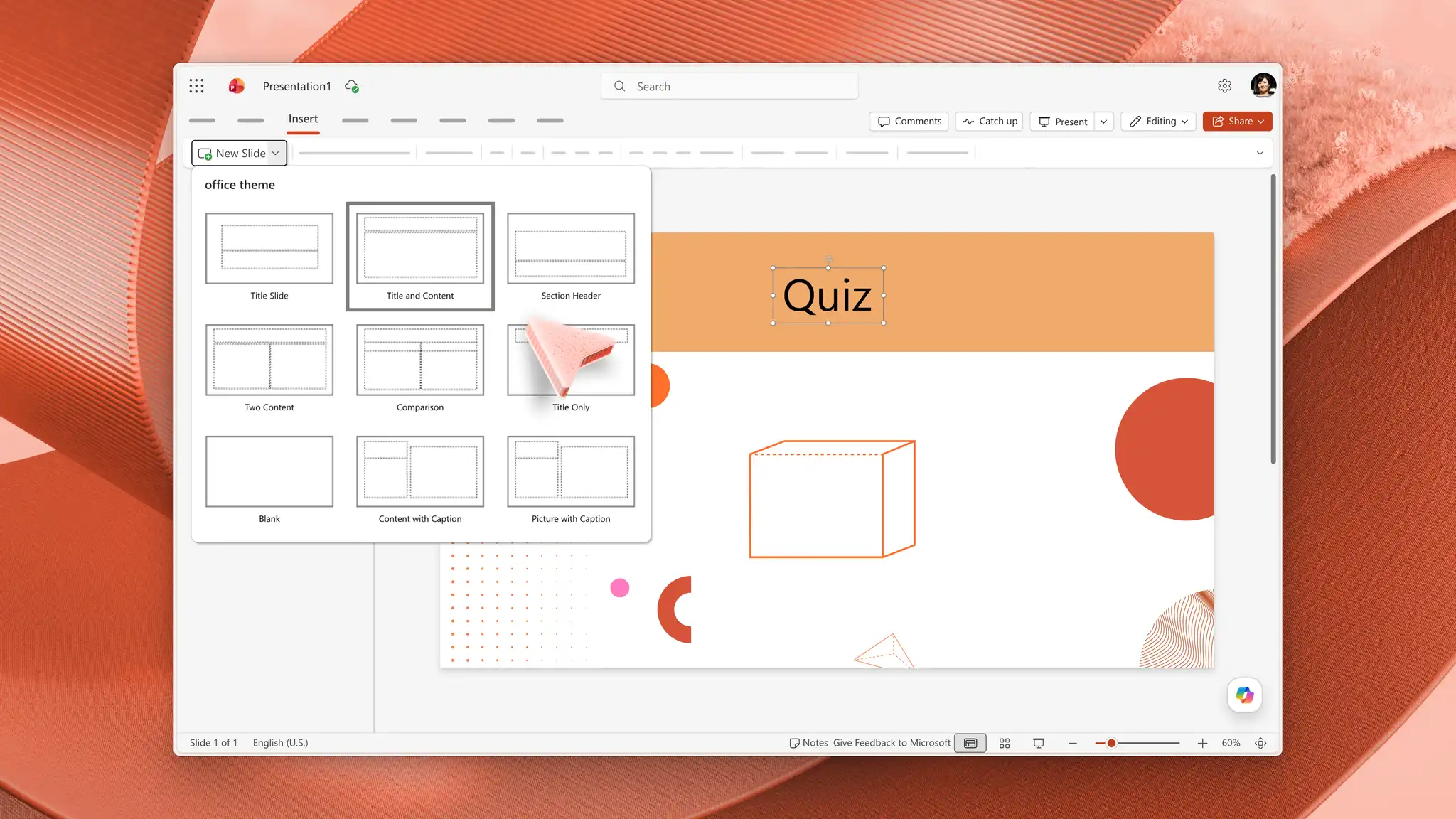
Create the title slide with the quiz name and instructions. On the Home tab, select the New Slide drop-down arrow, then choose the Title Slide layout.
Define the quiz rules, like raising hands or writing answers down, on the title slide so students know what to do before the first question.
Add question slides using the New Slide drop-down arrow, then choose the Title and Content layout to create consistent slides.
Build feedback slides for correct and try-again responses. Select a question slide, then on the Home tab choose Duplicate Slide so the feedback slides match the question slides.
Add a short explanation or key takeaway to each correct slide to reinforce learning, rather than only confirming the answer.
Keeping layouts uniform makes slides easier to read on a projector. Treat this set of slides as a quiz template to reuse each week for revision quizzes or exit tickets. For more on consistent slide structure, explore title slide design ideas in PowerPoint.
Tip: add a title in the title placeholder on every slide. Named slides are far easier to find when linking answer options to feedback screens later.
Add questions and answers
Build each question slide with one question in clear, readable text and the same layout throughout, so students focus on the content rather than the formatting.
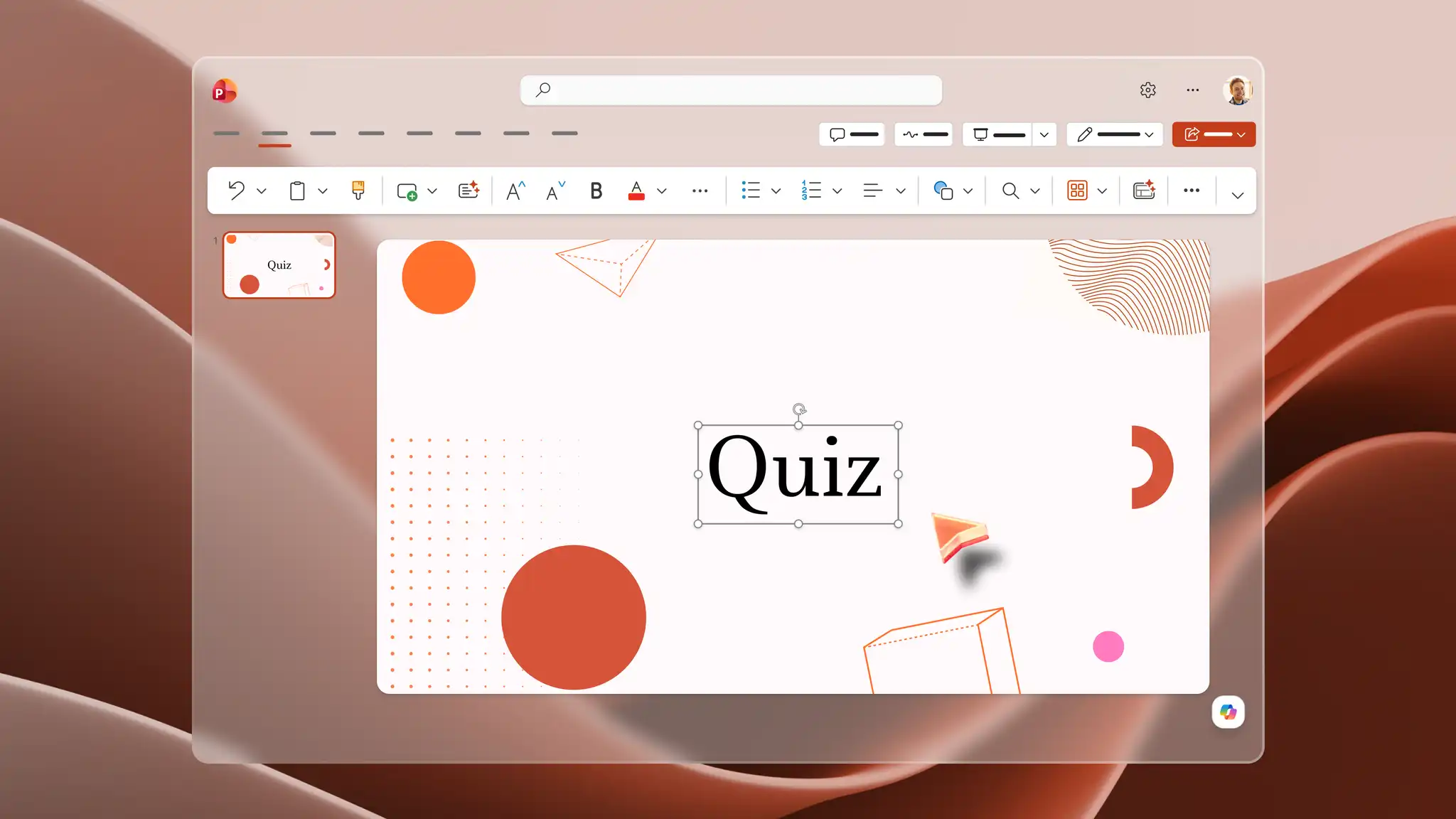
Type one question into the Title placeholder on each Title and Content slide. One question per slide keeps each question clear and the structure consistent.
Add answer options to the content placeholder or insert separate text boxes from the Insert tab by selecting Text Box.
Format the text using the Font selector on the Home tab. Large, high-contrast text is easy to scan and readable from the back of the room.
Align three or four answer options using a Bulleted list from the Paragraph group on the Home tab for consistent spacing.
Design slides for student engagement
Keep students engaged with images that show an idea instead of describing it in words, making a difficult concept easier to understand. Diagrams, photos, and clear answer buttons keep every slide easy to scan and quick to follow.
Add supporting images or icons for science, geography, history, and art quizzes. On the Insert tab, select Pictures to insert a photo, map, or diagram that illustrates the question.
Turn answer options into cards or buttons. Select a shape, then use Shape Fill and Shape Outline on the Shape Format tab to make each option easy to identify.
Apply a consistent look across the quiz using the Design tab, choose a Theme, then adjust colors using Variants or Format Background for classroom-friendly visuals.
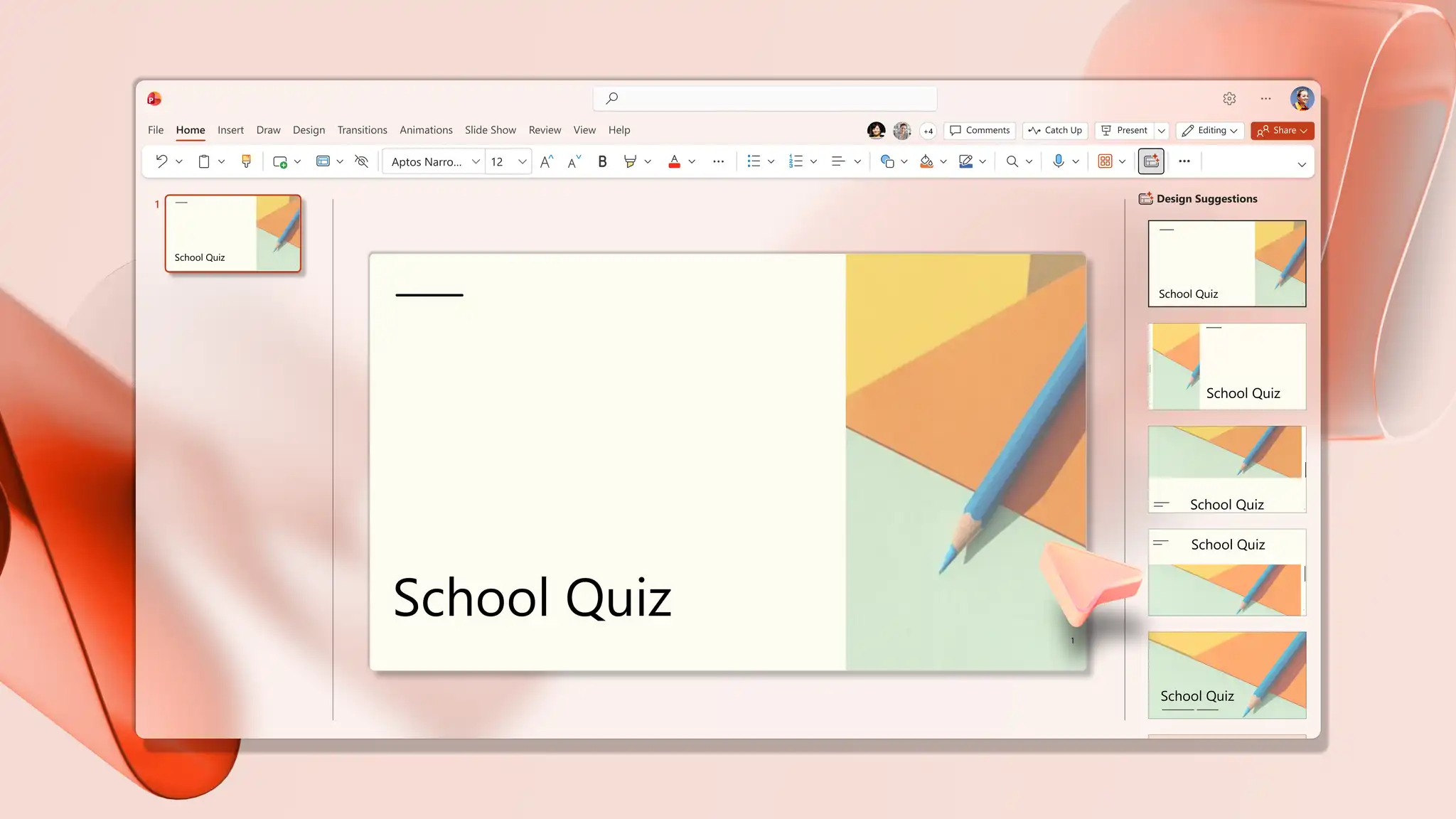
Tip: open Design suggestions from the Design tab to generate professionally arranged layout suggestions for a selected slide. For more ideas, explore AI design suggestions in PowerPoint.
Make the quiz interactive
Interactive quizzes let students click an answer and see a response, instead of watching a teacher move through a static deck. Try the following three methods to create an engaging quiz.
Option 1. Reveal answers on a dedicated slide
This method keeps the quiz simple while still showing each answer in full.
Select the question slide in the thumbnail pane, then choose Duplicate Slide on the Home tab. The copy becomes the answer slide and keeps the same layout as the question.
On the duplicate, add a label such as “Answer revealed” and mark the correct option with a shape from the Insert tab, such as a rectangle or a tick.
Add a short explanation. On the Insert tab, select Text Box, then type a brief note next to the answer that reinforces the point.
Keep the answer slide directly after its question slide. During the slideshow, the question appears first, students respond, and advancing to the next slide reveals the answer.
Option 2. Link answer options to feedback slides
This method turns the quiz into a clickable experience, where each answer sends students to its own feedback slide. Build the feedback slides first, then add the links.
Create the feedback slides after each question slide. Add one slide for correct-answer feedback and one or more for incorrect answers.
Write clear messaging on each, such as a confirmation and a short reason on the correct slide, and an invitation to try again on the incorrect slide.
Add a link to each answer option. Select the text box or shape that holds the answer, then on the Insert tab choose Link, followed by Insert Link.
Select Place in This Document, then under Select a place in this document choose the matching slide. Link a correct answer to the correct slide, and a wrong answer to the try-again slide.
Select OK, then repeat for every answer option. Leave no option unlinked, so a single click during the slideshow sends students straight to the right feedback.
For full details on linking within a deck, see add a hyperlink to a slide on Microsoft Support.
Tip: add a 'Back to question' button on each feedback slide. On the Insert tab select Shapes, draw a button, then link it back to the question slide for clean navigation between questions.
Option 3. Collect responses with Microsoft Forms
This type of quiz tracks and scores responses to support self-paced revision or end-of-class activities with measurable results.
Open the presentation in the PowerPoint desktop app on a PC, then go to the Insert tab and select Forms to open the Forms panel on the right.
Select New Quiz for a graded quiz or New Form for a poll, then build the questions in the panel.
Hover over the finished quiz under My forms and select Insert to embed it directly on the slide, ready to collect responses. For the full setup, see insert a form or quiz into PowerPoint.
Note: Microsoft Forms works best in the PowerPoint desktop app with a work or school account. Forms features may be limited or unavailable in PowerPoint for the web, so create and insert quizzes in the desktop app before sharing the presentation.
Add simple animations for pacing
Control the pace of each question by revealing answers step by step and give students a moment to consider the question before the options appear.
Select the text box or shape to animate, then on the Animations tab choose an entrance effect such as Appear or Fade.
Open the Animation Pane on the Animations tab, select the effect, then under Timing set Start to On Click.
Click through the animations during the slideshow to reveal each answer or explanation at the right moment.
Keep the animation simple, with one reveal per click, to control pacing without distracting students from the question.
Generate a school quiz with Copilot in PowerPoint
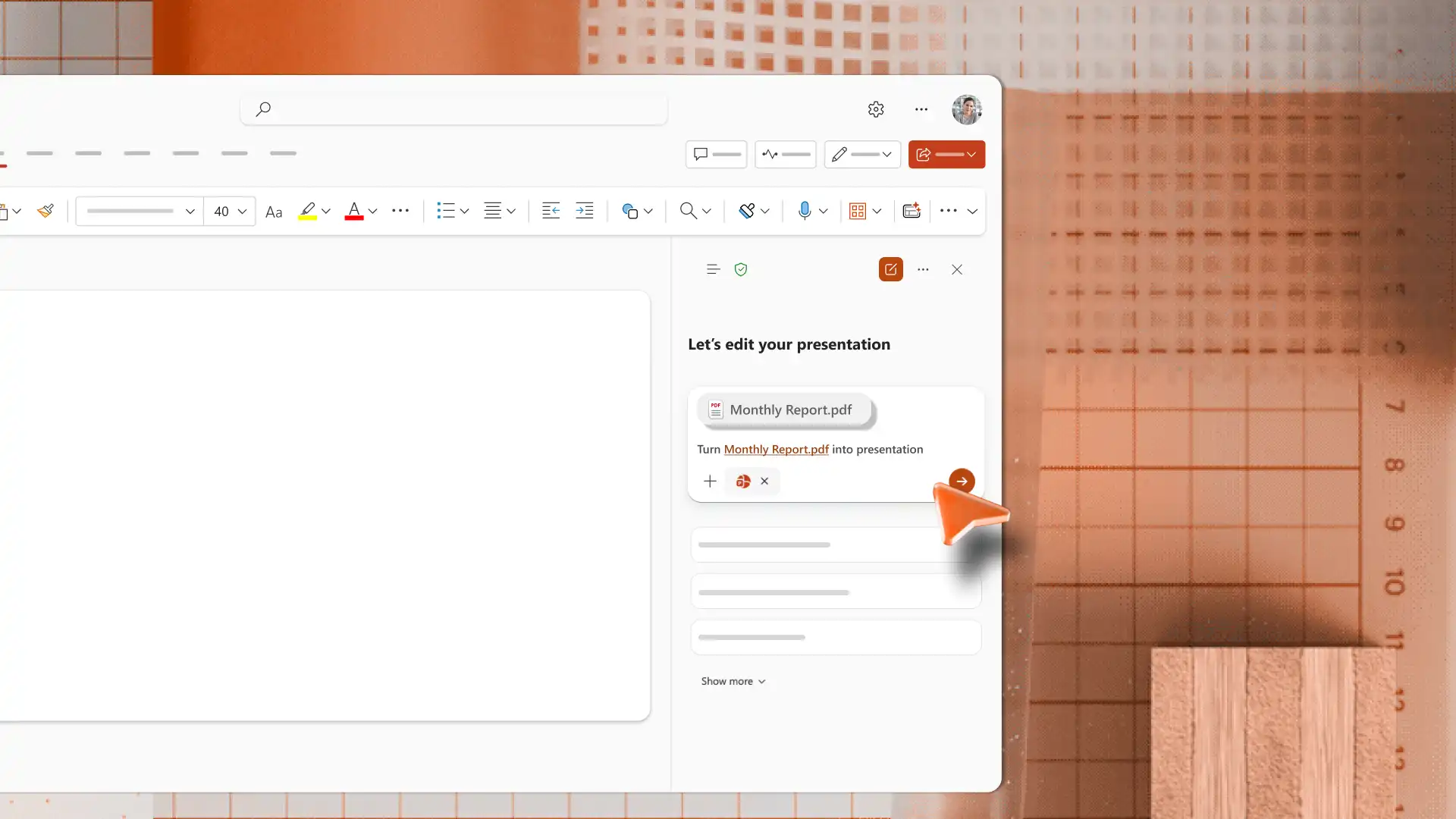
Generate a full set of quiz questions with Copilot in PowerPoint. Describe a topic in the chat, answer any follow-up questions, and AI will draft the questions, write the answer options, and build the slide outlines for review. Supplementary material like lesson plans or learning resources can also be added to the chat as a source for the questions and answers. Alternatively, convert a document into a presentation draft for review by uploading the file into Copilot chat.
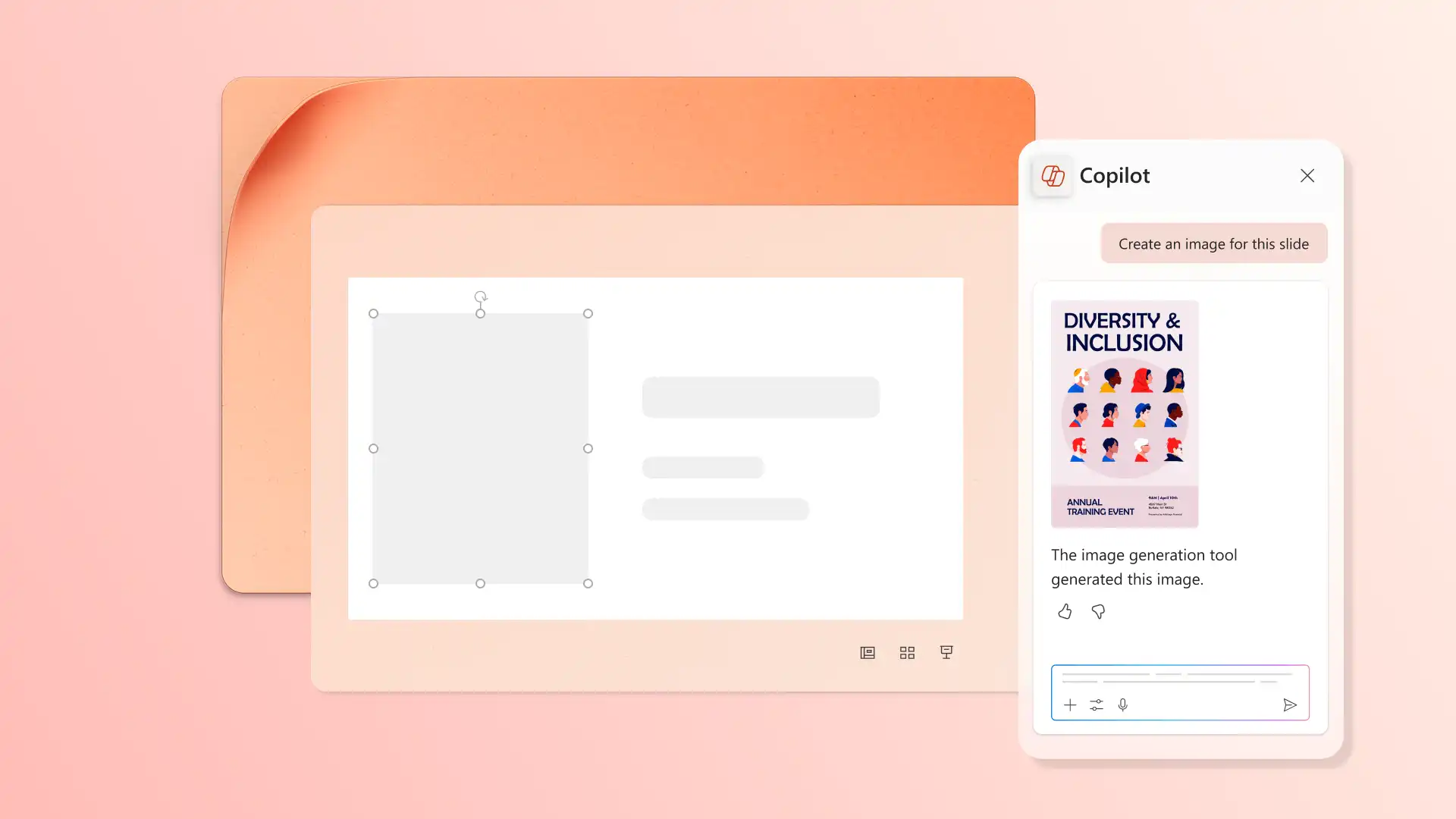
Copilot can also generate custom images to match the subject, like a themed background or an illustration to build visually engaging quiz slides quickly. Try a simple prompt like this.
From a quick warm-up to a full revision round, an interactive PowerPoint quiz keeps a class engaged. It checks understanding and reinforces key concepts across any subject or grade level. Experiment with images, hyperlinks, and Copilot to find the format that suits each lesson. Reward the winners with a certificate maker, and explore more creative presentation ideas to keep classroom slides fresh.
Frequently asked questions
- Can PowerPoint quizzes be used for assessment in class?
PowerPoint quizzes suit formative assessment, revision, and quick knowledge checks rather than formal graded exams. Teachers use them as warm-up activities at the start of class, mid-lesson checks for understanding, or end-of-topic revision before exams. For answer tracking and automatic grading, embed a Microsoft Forms quiz using the insert a form or quiz guide.
- How can students interact with a PowerPoint quiz?
Adding hyperlinks between slides turns a static deck into a clickable activity, where students select an answer on the slide and jump to a correct or try-again slide. Teachers can also run the quiz as a guided class activity, where students raise hands, answer aloud, or discuss before the reveal.
- How can teachers generate quiz questions with AI?
Teachers describe the topic and grade level, and Copilot generates the quiz questions, drafts the slide outlines, and suggests supporting images in the chat. The result is a full quiz ready to review, with the option to ask for harder or easier versions for mixed groups. Explore Copilot in PowerPoint to start from a topic.