
Présentation de Copilot dans PowerPoint
Gagnez du temps dans la conception et la création de présentations avec l’IA à l’aide de Copilot dans Microsoft PowerPoint.
Concevoir et créer des présentations professionnelles avec l’IA

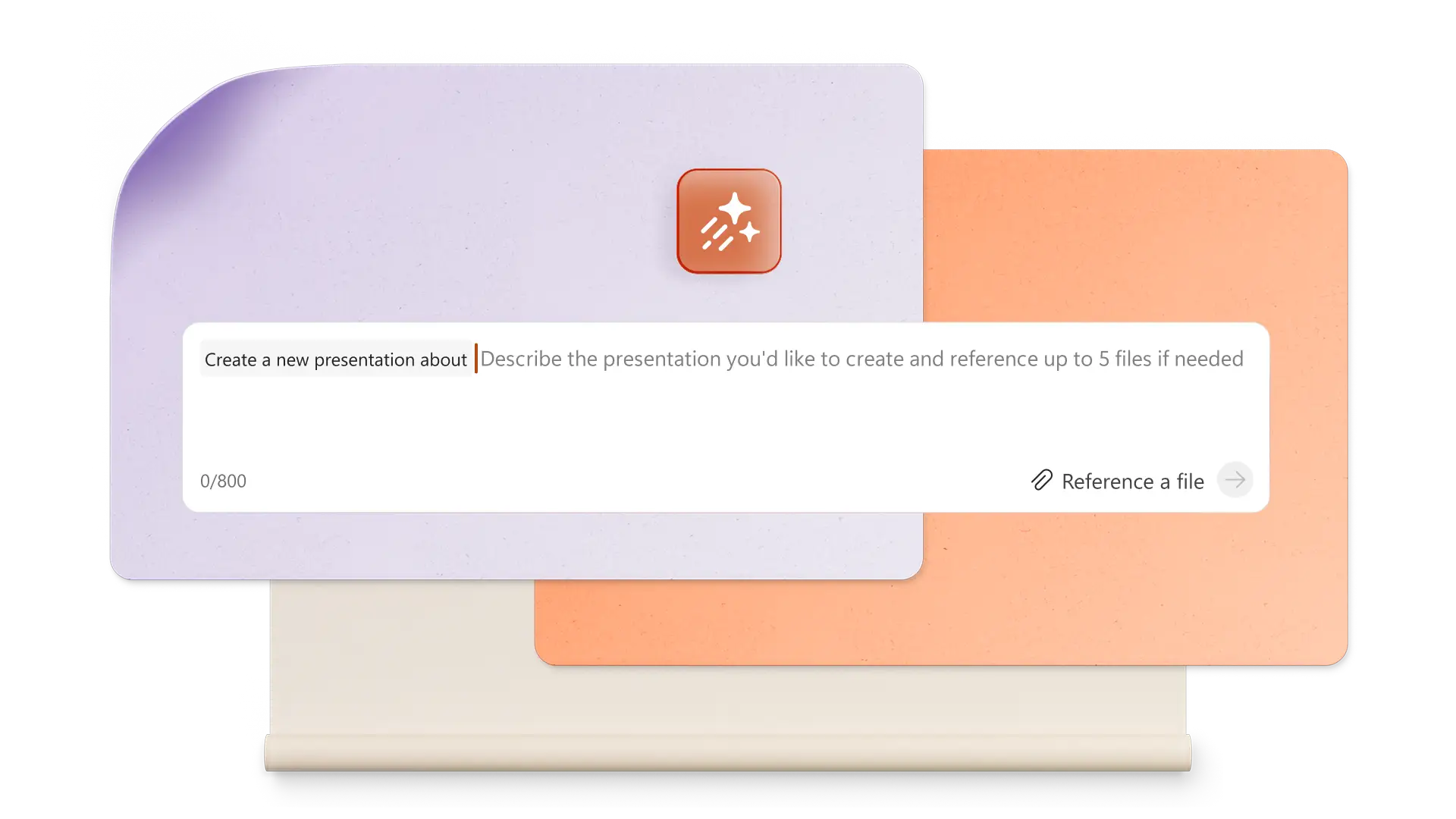
Générer des présentations IA avec des requêtes simples
Utilisez Copilot de transformer les idées en une complète Présentation générée par l’IA. Il suffit de décrire le sujet, et Copilot vous proposera du texte, des mises en page et des visuels personnalisés, vous aidant ainsi à passer rapidement du concept aux diapositives finales.

Créer des images et des graphiques IA uniques
Créez des ressources d’image personnalisées de haute qualité dans PowerPoint avec l’IA. Demandez à Copilot de générer une conception telle qu’une image, une infographie ou un arrière-plan, puis téléchargez et ajoutez facilement aux diapositives. Choisissez parmi plusieurs options de conception.

Rédiger des notes de l’orateur sur l’IA attrayante
Transformez des diapositives en une histoire transparente avec Notes de l’orateur générées par l’IA. Conversez avec Copilot pour créer des notes contextuelles pour chaque diapositive, ce qui améliore la narration et aide les présentateurs à impliquer n’importe quel public avec confiance.
Apprendre à utiliser Copilot dans PowerPoint pour créer des présentations exceptionnelles

Créer une présentation PowerPoint à partir d’une seule requête
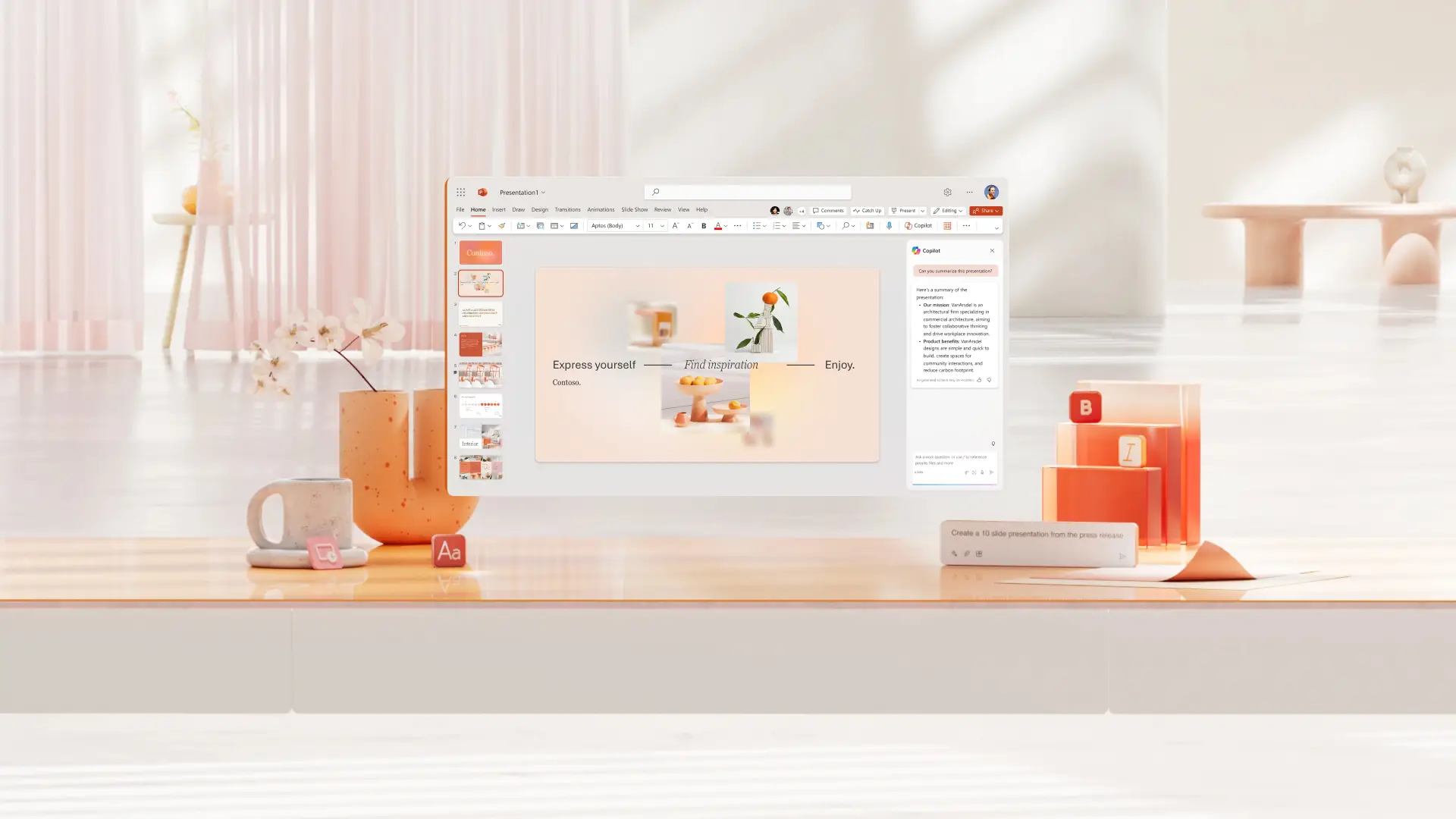
Décrivez les idées dans la conversation Copilot pour faire une présentation avec l’IA. Générez des suggestions de plan de diapositive et fournissez rapidement des options affinées pour le texte de diapositive existant et le contenu personnalisé des diapositives. Passez en revue les suggestions de disposition d’IA intelligente à partir de idées de conception pour améliorer le jeu. Accélérez la création des propositions commerciales, des présentations commerciales et bien plus encore.
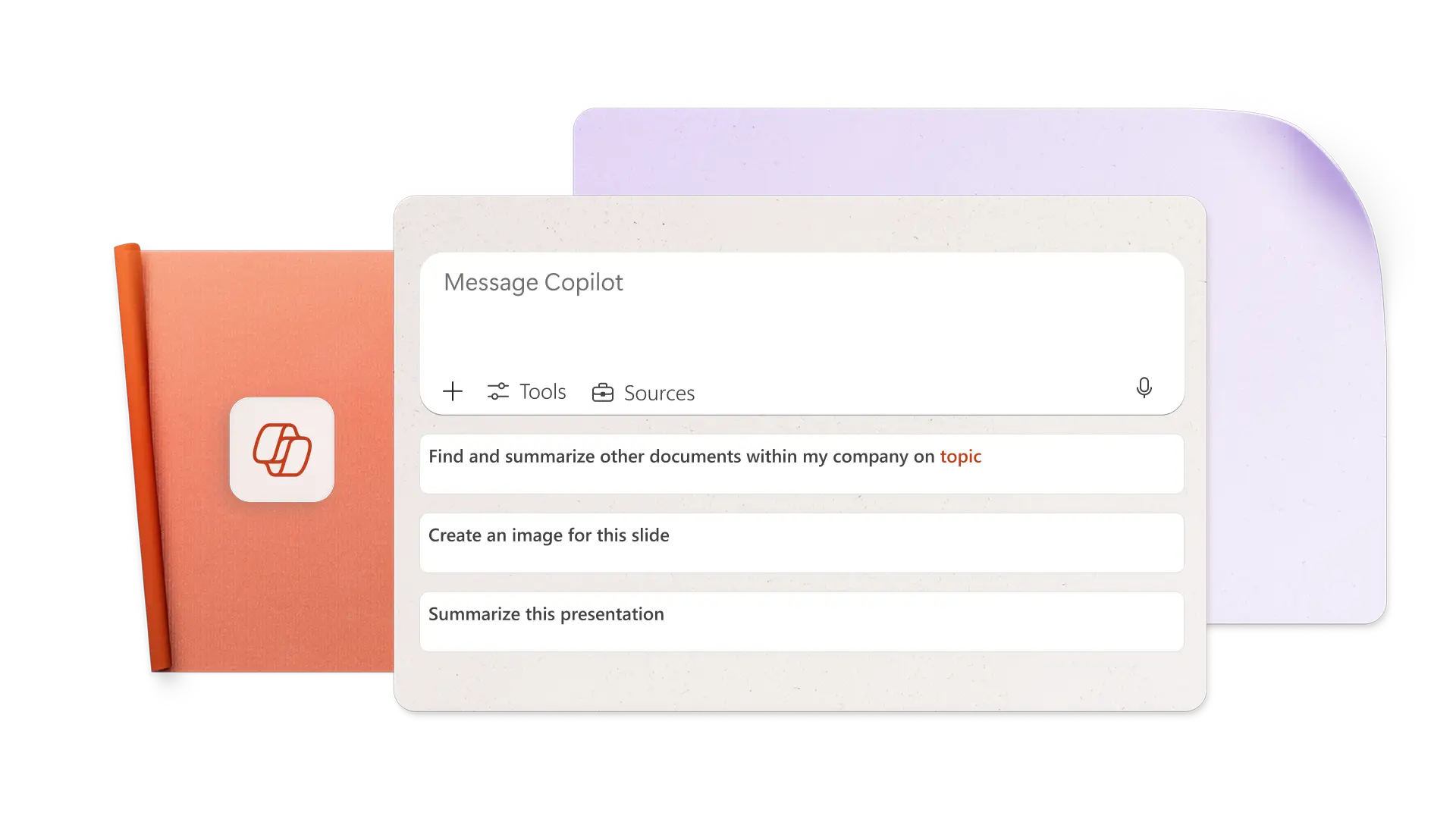
Créer des images IA à partir de requêtes dans Copilot
Générez l’image parfaite pour n’importe quelle diapositive en décrivant les exigences d’image et le style artistique en mots simples. Faites Copilot créer des images IA et des arrière-plans de diapositive, puis téléchargez et appliquez facilement. Il peut également rechercher des images de stock et suggérer des ressources approuvées de Brand Center, parfait pour présentations marketing.

Ajouter des notes de l’orateur IA pour présenter en toute confiance
Produisez les suggestions de la note de l’orateur IA en un clic, puis ajoutez aux diapositives et présentez-les en toute confiance. Pour modifier les notes, demandez simplement à Copilot d’adapter le ton de la voix en fonction du public. Anticipez les questions du public et utilisez l’IA pour suggérer des réponses. Notes parfaites pour correspondre à la limite totale de temps de présentation pour l’école ou pitchs.

Collaborer en ligne et partager avec tout le monde
Invitez les membres de l’équipe à modifier des présentations PowerPoint en temps réel. Passez en revue les éléments d’action en demandant à Copilot de les identifier à partir des commentaires. Lorsque la présentation est prête à être partagée, envoyez un lien de partage sécurisé à l’e-mail d’un destinataire ou imprimez-la pour la partager dans des réunions.

Comment faire une présentation IA avec Copilot dans PowerPoint
Ouvrez PowerPoint et cliquez sur le bouton Copilot pour démarrer une conversation.
Expliquez l’idée de rubrique ou joindre un document ou une feuille de calcul de référence pour le contexte.
Examinez le plan suggéré, ajoutez ou supprimez des sections, puis générez le brouillon de la présentation.
Créez des images IA personnalisées et ajoutez des notes du présentateur.
Partagez la présentation IA à l’aide de liens OneDrive sécurisés, ou joignez-la au format PDF à un e-mail.
Commencez avec des modèles PowerPoint pour que Copilot s’adapte
Choisissez parmi des modèles pour les entreprises, le marketing, les projets créatifs, l’école, les événements, etc., puis utilisez Copilot pour personnaliser les modèles en fonction des besoins de présentation.
Si vous souhaitez en savoir plus


Forum aux questions
Comment trouver Copilot dans PowerPoint ?
Cliquez sur l’icône Copilot dans PowerPoint, puis décrivez les besoins de présentation et joignez des Word documents, feuilles de calcul et autres graphiques pertinents pour fournir un contexte et créer une présentation.
Copilot peut-il créer une présentation PowerPoint ?
Copilot peut créez une présentation PowerPoint avec l’IA basée sur une rubrique ou un document. Fournissez à Copilot des détails sur la présentation, passez en revue un plan initial, puis générez la présentation.
Comment ajouter Copilot à PowerPoint
Copilot est activé dans PowerPoint pour toute personne disposant d’un abonnement Microsoft 365 Personnel ou Famille, ou d’un abonnement Copilot Pro. Les plans gratuits et certains plans Business ne sont pas fournis avec l’accès Copilot. Envisagez de mettre à niveau le plan pour profiter des compétences de présentation basées sur l’IA.
Copilot peut-il créer des diapositives PowerPoint ?
Discutez avec Copilot pour créer rapidement des diapositives PowerPoint individuelles et les ajouter à une présentation. Laissez Copilot créez une visualisation basée sur une table de données, une diapositive clé à retenir, une diapositive de conclusion ou un autre type de diapositive.