
Presentazione di Copilot in PowerPoint
Risparmia tempo durante la progettazione e la creazione di presentazioni con l'IA usando Copilot in Microsoft PowerPoint.
Progettare e creare presentazioni di PowerPoint professionali con l'IA

Generare presentazioni AI con semplici richieste
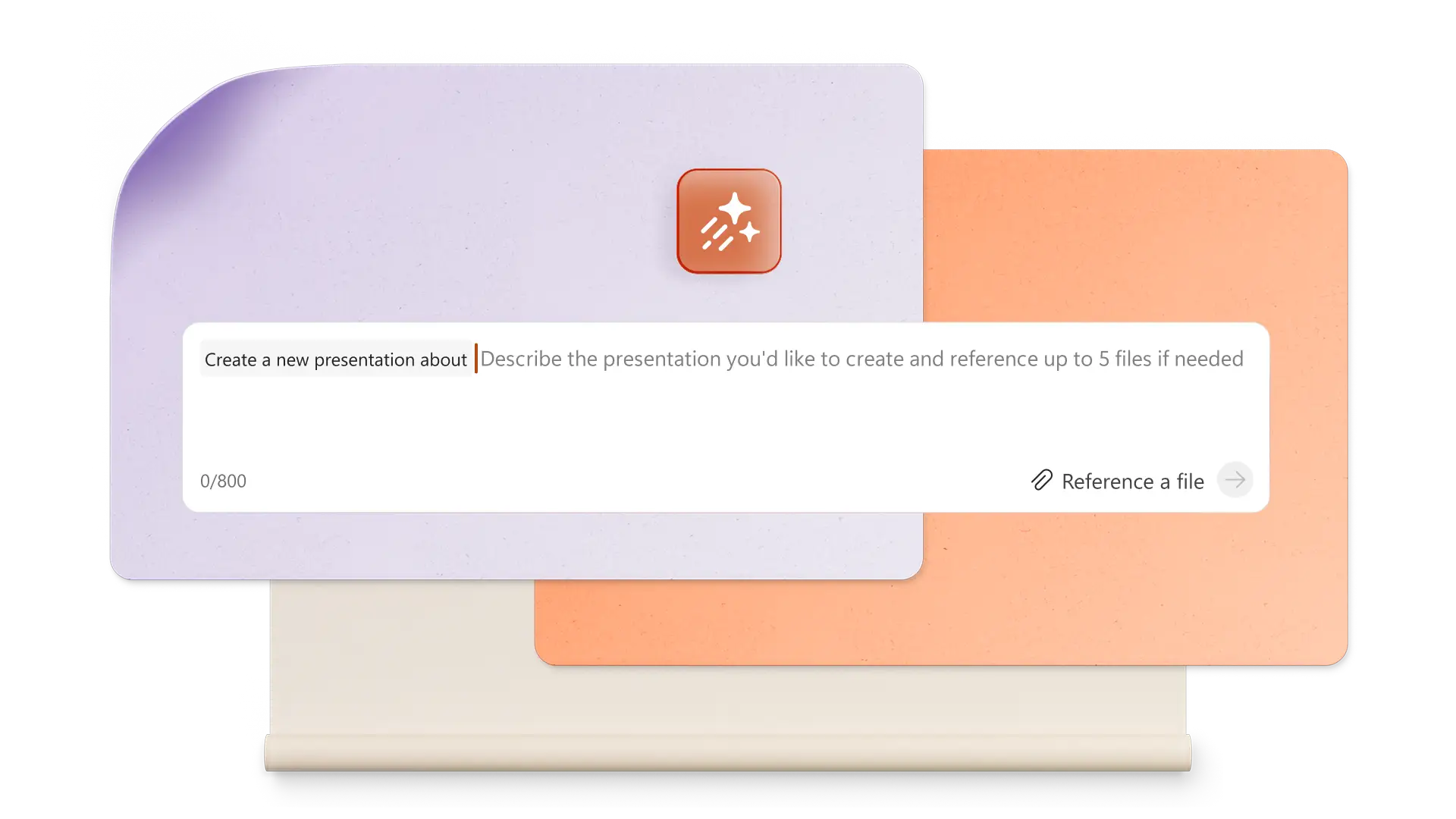
Usa Copilot di trasformare le idee in una presentazione completa generata dall'IA. Basta descrivere l'argomento e lasciare che Copilot suggerisca il testo, il layout di progettazione e oggetti visivi personalizzati che consentono di passare rapidamente dal concetto alle diapositive finali.

Creare immagini e grafica IA univoche
Crea risorse immagine personalizzate di alta qualità all'interno di PowerPoint con l'IA. Chiedi a Copilot di generare una struttura, ad esempio un'immagine, un'infografica o uno sfondo, quindi scaricala e aggiungila facilmente alle diapositive. Scegli tra più opzioni di progettazione.

Creare bozze di note del relatore IA accattivanti
Trasforma le diapositive in una storia fluida con note del relatore generate dall'IA. Chatta con Copilot per creare note contestuali per ogni diapositiva per migliorare la narrazione e aiutare i relatori a coinvolgere qualsiasi gruppo di destinatari con disinvoltura.
Scopri come chiedere a Copilot di creare straordinarie presentazioni in PowerPoint

Creare una presentazione di PowerPoint da una singola richiesta
Descrivi le idee nella chat di Copilot per fare una presentazione con l'IA. Genera suggerimenti per la struttura delle diapositive e offri rapidamente opzioni ottimizzate per il testo delle diapositive esistente e il contenuto personalizzato. Esamina i suggerimenti IA intelligenti per il layout IA da idee di design per migliorare la presentazione. Velocizza la creazione proposte di business, presentazioni di vendita e altro ancora.
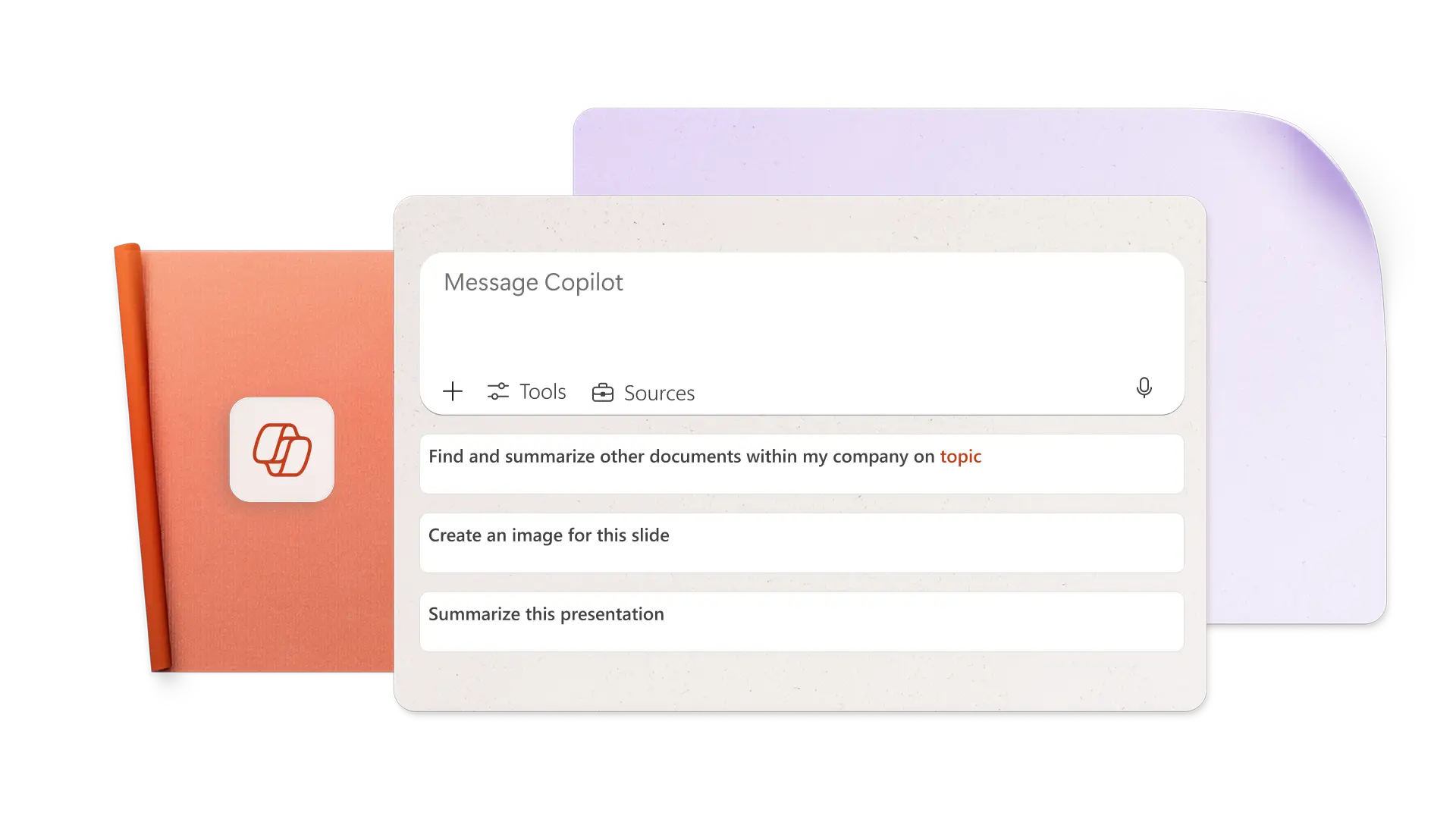
Creare immagini IA dalle richieste in Copilot
Genera l'immagine perfetta per qualsiasi diapositiva descrivendo i requisiti delle immagini e lo stile artistico in parole semplici. Lascia che Copilot crei immagini IA e sfondi delle diapositive, quindi scaricali e applicali facilmente. Copilot può anche cercare immagini di archivio e suggerire risorse approvate del centro per la gestione del marchio, perfette per presentazioni di marketing.

Aggiungi note del relatore per esporre una presentazione con disinvoltura
Ottieni suggerimenti IA per le note del relatore con un clic, quindi aggiungile alle diapositive e presentale in tutta tranquillità. Per modificare le note, basta chiedere a Copilot di adattare il tono della voce in base ai destinatari. Anticipa le domande dei destinatari e usa l'intelligenza artificiale per suggerire risposte. Note perfette in base al limite di tempo totale della presentazione per la scuola o alla tonalità.
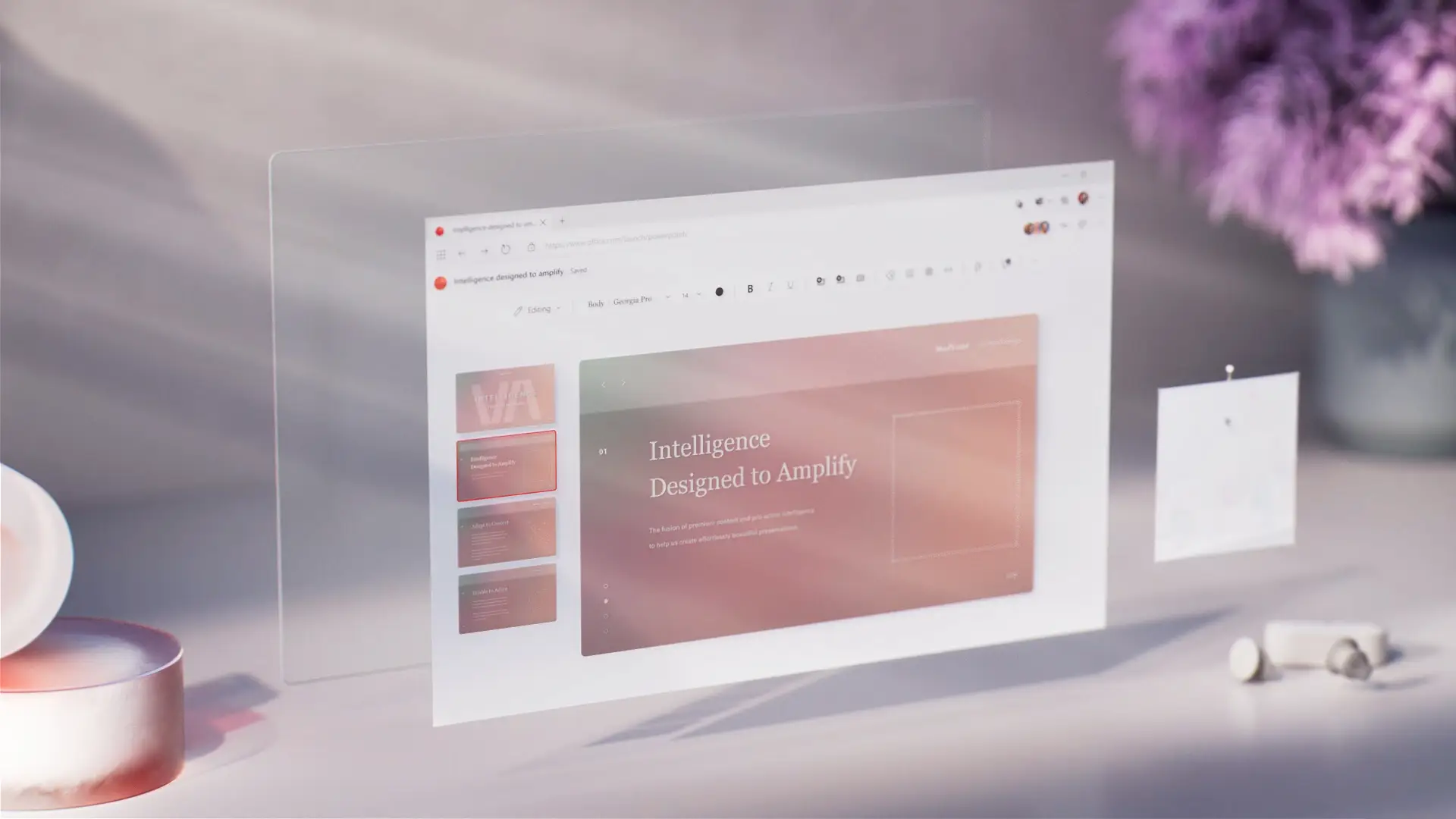
Collaborare online e condividere contenuti con chiunque
Invita i membri del team a creare in tempo reale presentazioni di PowerPoint in collaborazione con più persone. Rivedi senza problemi le attività chiedendo a Copilot di identificarle dai commenti. Quando la presentazione è pronta per la condivisione, invia un collegamento di condivisione sicuro al messaggio e-mail di un destinatario o stampala per condividerla durante le riunioni.

Come creare una presentazione IA con Copilot in PowerPoint
Apri PowerPoint e fai clic sul pulsante Copilot per avviare una chat.
Illustra l'idea dell'argomento o allega un documento di riferimento o un foglio di calcolo per contesto.
Rivedi la struttura suggerita, aggiungi o elimina sezioni, quindi genera la bozza della presentazione.
Crea immagini IA personalizzate e aggiungi note del relatore.
Condividi la presentazione AI usando collegamenti sicuri di OneDrive o allega il file PDF a un messaggio e-mail.
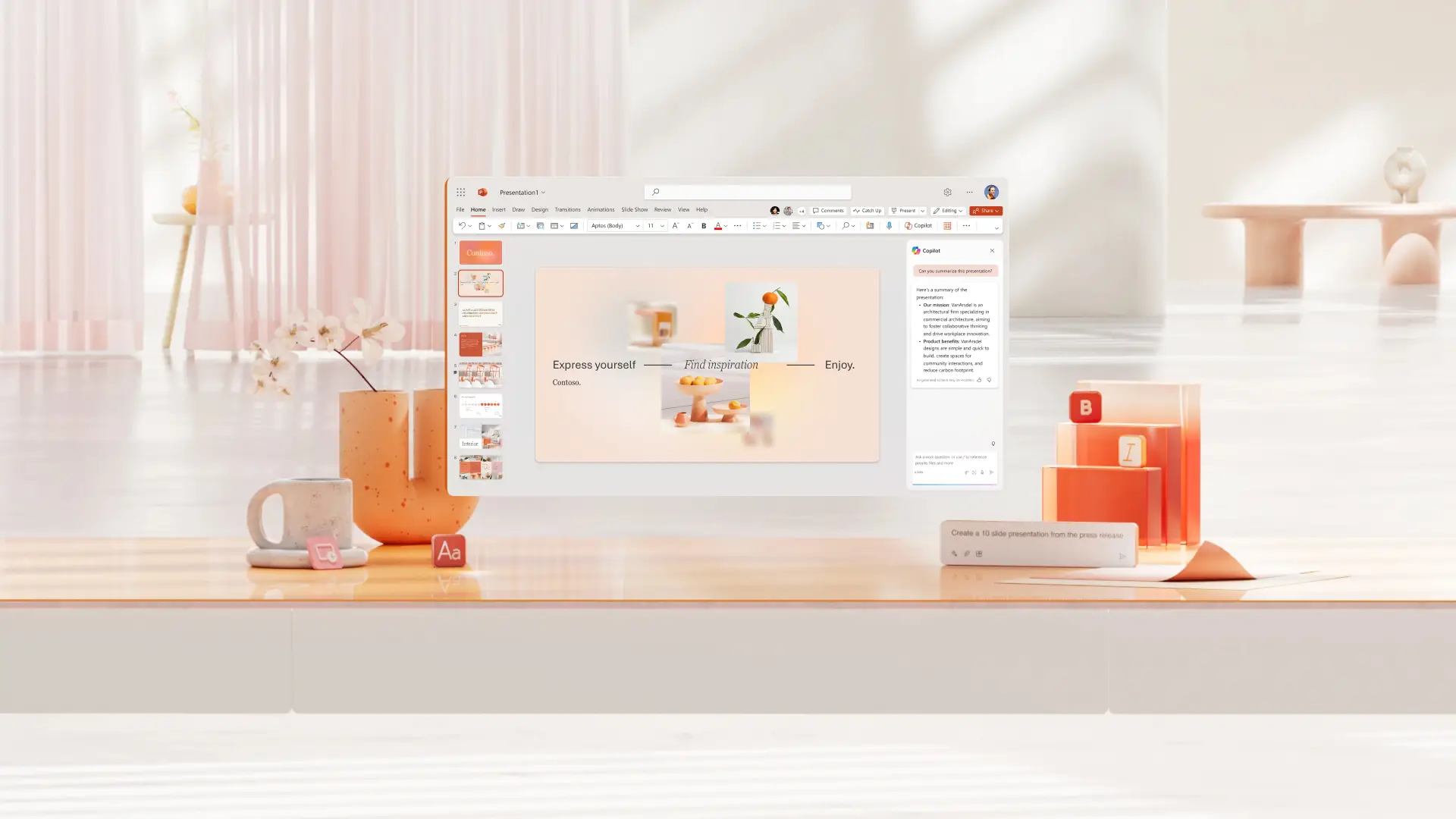
Iniziare con i modelli di PowerPoint per Copilot e adattarli
Scegli tra modelli per aziende, marketing, progetti creativi, scuola, eventi e altro ancora, quindi usa Copilot per personalizzare i modelli in base alle esigenze di presentazione.
Altre informazioni

Domande frequenti
Come trovare Copilot in PowerPoint?
Fai clic sull'icona Copilot in PowerPoint, quindi descrivi le esigenze della presentazione e allega documenti Word, fogli di calcolo e altri elementi grafici rilevanti per fornire contesto e crea una presentazione.
Copilot può creare una presentazione di PowerPoint?
Copilot può creare una presentazione di PowerPoint con l'intelligenza artificiale in base a un argomento o a un documento. Fornisci a Copilot dettagli sulla presentazione, rivedi la struttura iniziale e quindi genera la presentazione.
Come aggiungere Copilot a PowerPoint
Chiunque abbia un piano di Microsoft 365 Personal o Family o un abbonamento Copilot Pro può accedere a Copilot in PowerPoint. I piani gratuiti e alcuni piani per le aziende non includono l'accesso Copilot. Pertanto, è consigliabile aggiornare il piano per usufruire delle competenze di presentazione basate sull'IA.
Copilot può creare diapositive di PowerPoint?
Chatta con Copilot per creare rapidamente singole diapositive di PowerPoint e aggiungerle a una presentazione. Lascia che Copilot crei una nuova visualizzazione basata su una tabella dati, una diapositiva con le conclusioni chiave, una diapositiva conclusiva o di altro tipo.