
Copilot in PowerPoint の概要
Microsoft PowerPoint で Copilot を使用し、AI を使用してプレゼンテーションをデザインおよび作成する時間を節約しましょう。
AI を活用して、プロフェッショナルなプレゼンテーションをデザインおよび作成する

シンプルなプロンプトを使用して AI プレゼンテーションを生成する
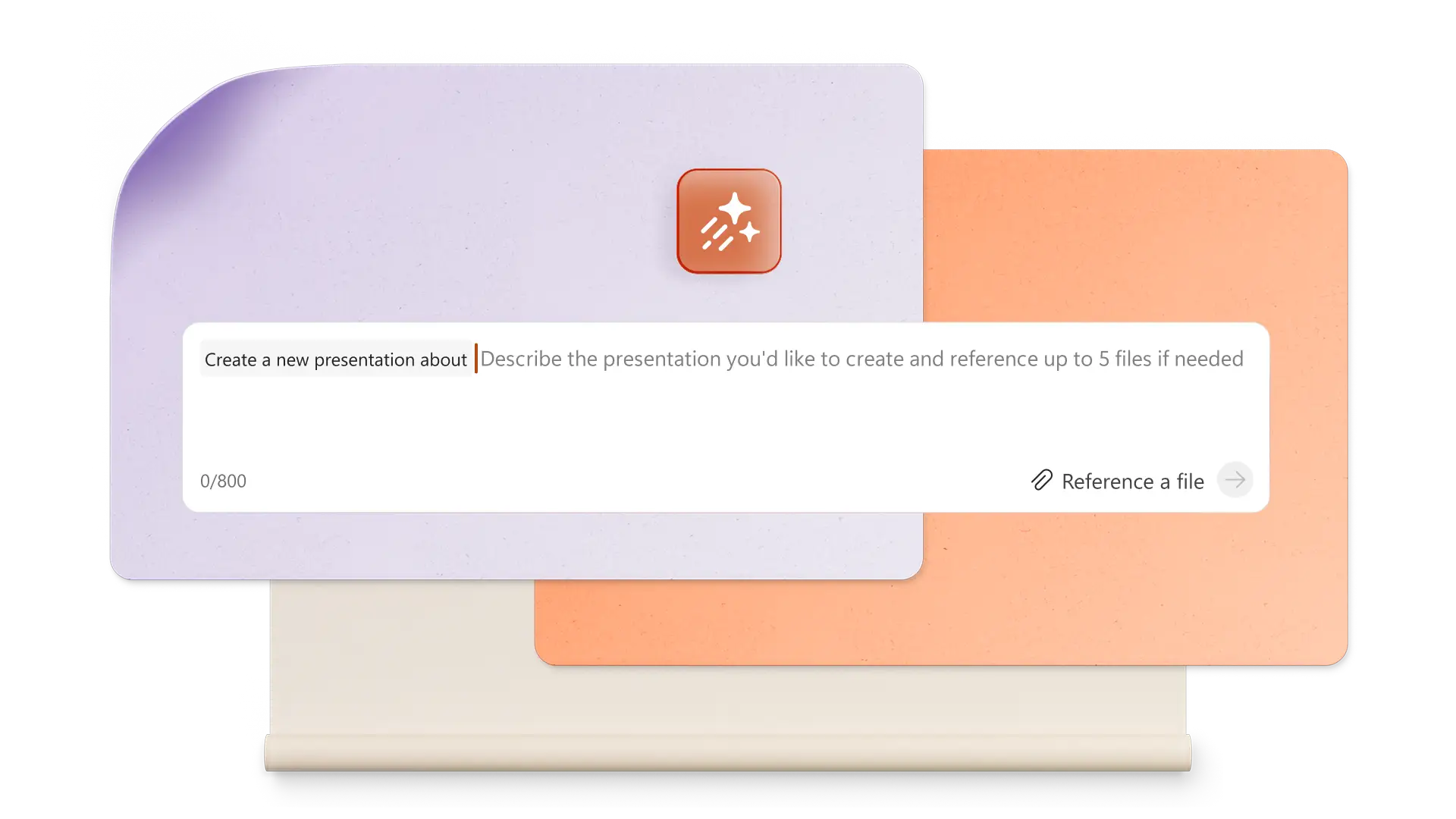
Copilot を使用し、あなたのアイデアから AI 生成プレゼンテーションを生み出しましょう。トピックを簡単に説明するだけで Copilot がテキスト、デザイン レイアウト、カスタム ビジュアルを提案し、コンセプトからスライドの完成までをすばやく実現する手助けをしてくれます。

ユニークな AI 画像とグラフィックスを作成する
AI を使用して、PowerPoint 内に高品質のカスタム画像アセットを作成します。Copilot に、画像、インフォグラフィック、背景などのデザイン生成を依頼し、ダウンロードしてスライドに簡単に追加できます。複数のデザイン オプションから選択しましょう。

魅力的な AI スピーカー メモの下書き
AI 生成スピーカー メモを使用して、スライドをシームレスな物語へと変えましょう。Copilot とチャットして各スライドにコンテキストに対応したメモを作成すると、ストーリーテリングが強化され、発表者が自信を持って聴衆を引き付けられるようになります。
Copilot in PowerPoint に指示する方法を学び、素晴らしいプレゼンテーションを作成する

Copilot でプロンプトから AI 画像を作成する
画像の要件とアート スタイルを簡単な言葉で説明することで、任意のスライドに対して最適な画像を生成します。Copilot で AI 画像とスライドの背景を作成し、簡単にダウンロードして適用しましょう。また、ストック画像の検索や承認済みのブランド センターのアセットの提案も可能で、マーケティング デッキの作成に最適です。

スピーカー メモを追加して自信を持って発表する
ワンクリックで AI スピーカー メモの提案を生成し、スライドに追加して自信を持ってプレゼンテーションしましょう。メモを修正するには、Copilot に尋ねて、聴衆に合わせて声のトーンを調整します。聴衆の質問を予測し、AI を使用して回答案を提出してもらいましょう。学校やピッチでのプレゼンテーションに求められる時間制限に合った完璧なメモを作成します。
オンラインで共同作業を行い、誰とでも共有する
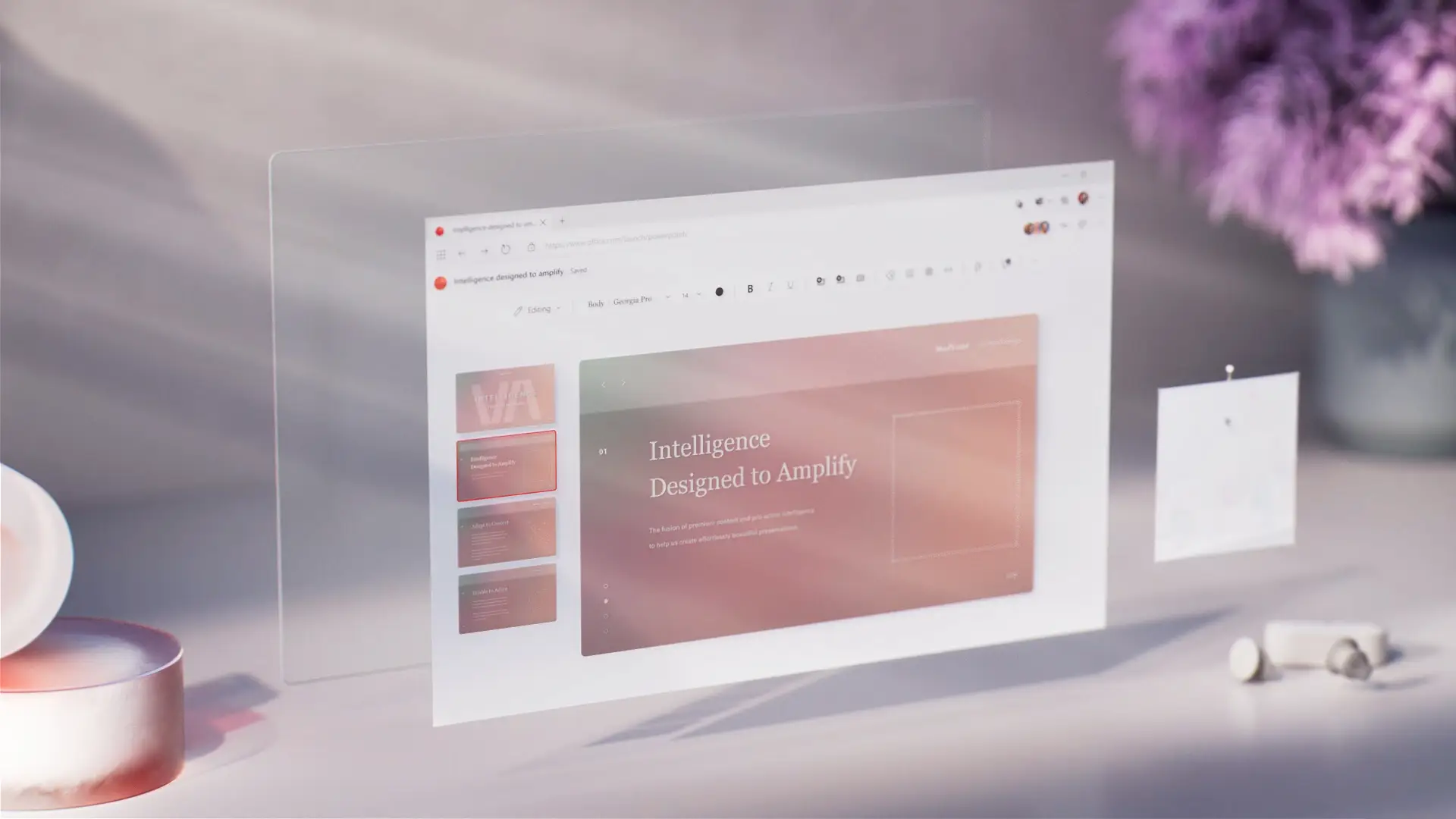
チーム メンバーを招待して、PowerPoint プレゼンテーションをリアルタイムで編集しましょう。コメントからアクション項目を特定するよう Copilot に依頼し、スムーズに確認しましょう。プレゼンテーションを共有する準備ができたら、安全な共有リンクを受信者のメールアドレスに送信するか、印刷して会議で共有します。

Copilot in PowerPoint を使って AI プレゼンテーションを作成する方法
PowerPoint を開き、[Copilot] ボタンをクリックしてチャットを開始します。
トピックのアイデアを説明するか、コンテキストの参照ドキュメントやスプレッドシートを添付します。
提案の概要を確認し、セクションの追加や削除を行ったら、プレゼンテーションの下書きを生成します。
カスタム AI 画像を作成し、スピーカー メモを追加します。
セキュリティで保護された OneDrive リンクを使用して AI プレゼンテーションを共有するか、PDF 形式でメールに添付します。
Copilot に適応させるための PowerPoint テンプレートから開始する
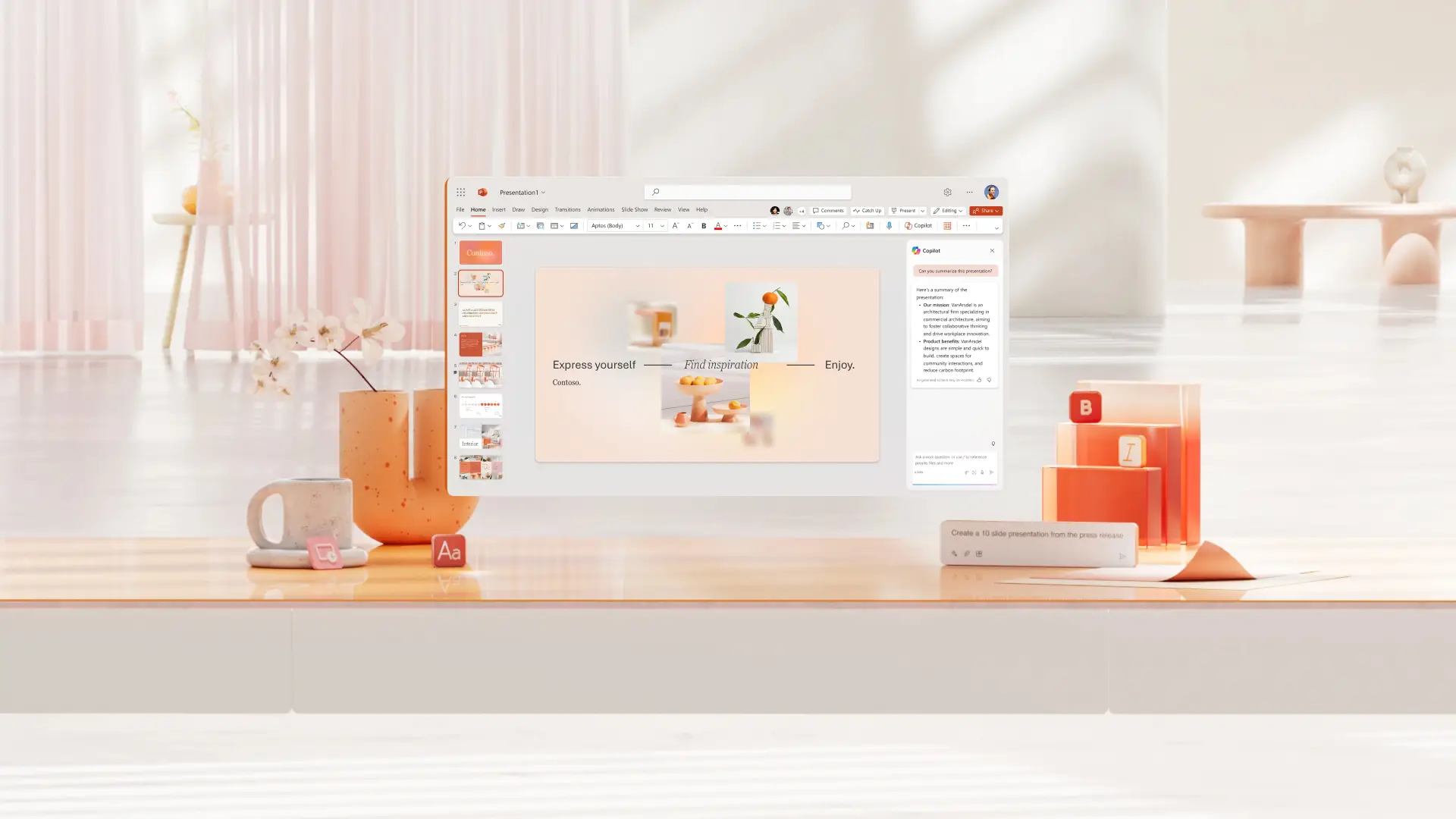
ビジネス、マーケティング、クリエイティブ プロジェクト、学校、イベントなどのテンプレートの中から選択し、Copilot を使用してプレゼンテーションのニーズに基づいたテンプレートのカスタマイズを行います。


よく寄せられる質問
Copilot in PowerPoint を見つけるには?
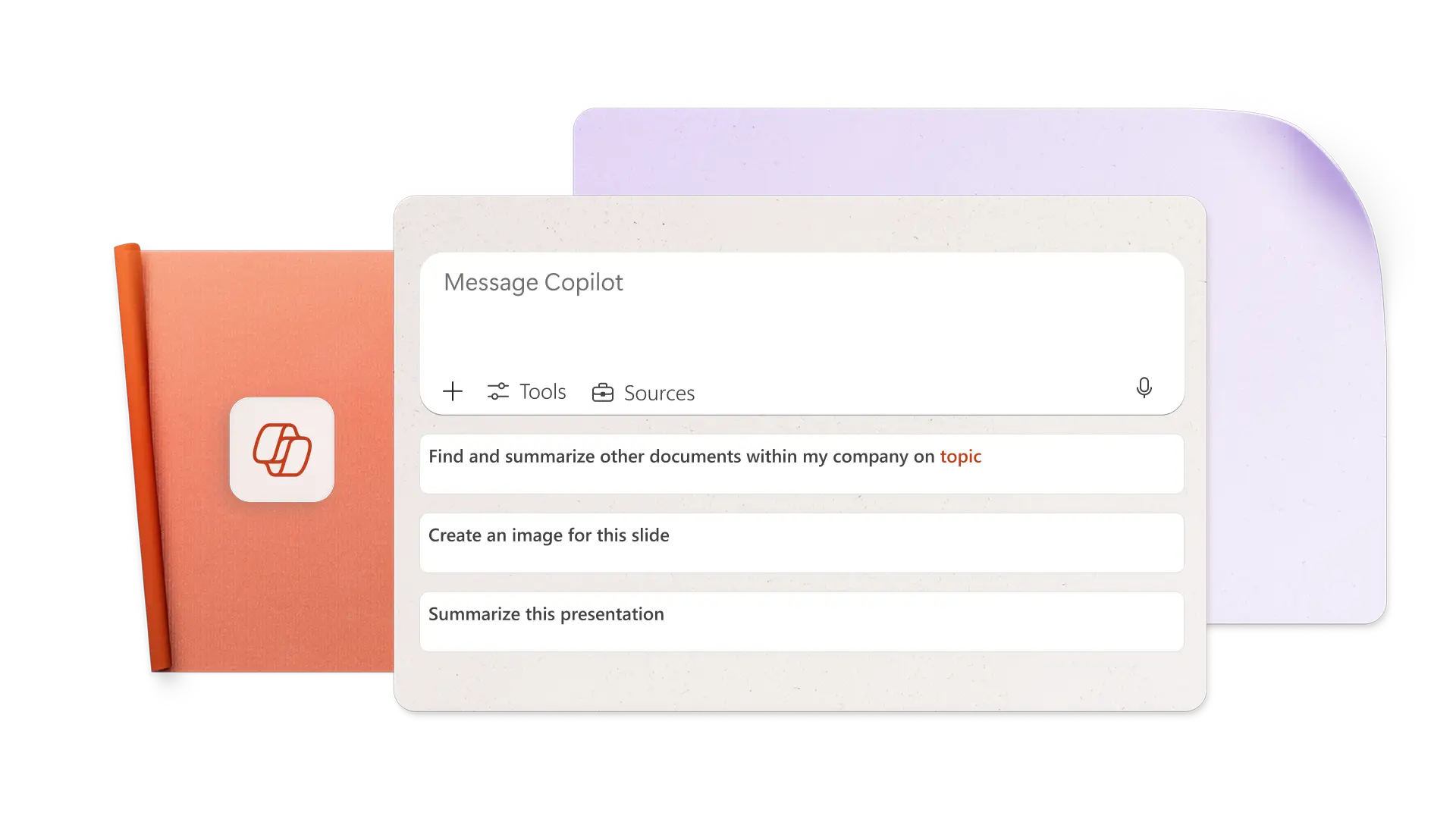
PowerPoint で Copilot のアイコンをクリックし、プレゼンテーションのニーズを説明し、関連する Word ドキュメント、スプレッドシート、その他のグラフィックスを添付してコンテキストを提供し、プレゼンテーションを作成します。
Copilot は PowerPoint プレゼンテーションを作成できますか?
Copilot は、トピックやドキュメントに基づき、AI を使用して PowerPoint プレゼンテーションを作成 できます。プレゼンテーションの詳細を Copilot に提供し、最初のアウトラインを確認してから、プレゼンテーションを生成します。
Copilot を PowerPoint に追加する方法
Copilot は、Microsoft 365 Personal またはファミリー プラン、または Copilot Pro サブスクリプションを持つすべてのユーザーに対して PowerPoint で有効化されます。無料プランと一部のビジネス プランには Copilot へのアクセスが付属していません。AI を活用したプレゼンテーションをお楽しみいただくために、プランのアップグレードをご検討ください。
Copilot は PowerPoint スライドを作成できますか?
Copilot とチャットして、個別の PowerPoint スライドをすばやく作成し、プレゼンテーションに追加します。Copilot が、データ テーブル、重要なポイントのスライド、結論スライド、またはこれら以外の種類のスライドに基づいて新しい視覚エフェクトを作成できるようにします。