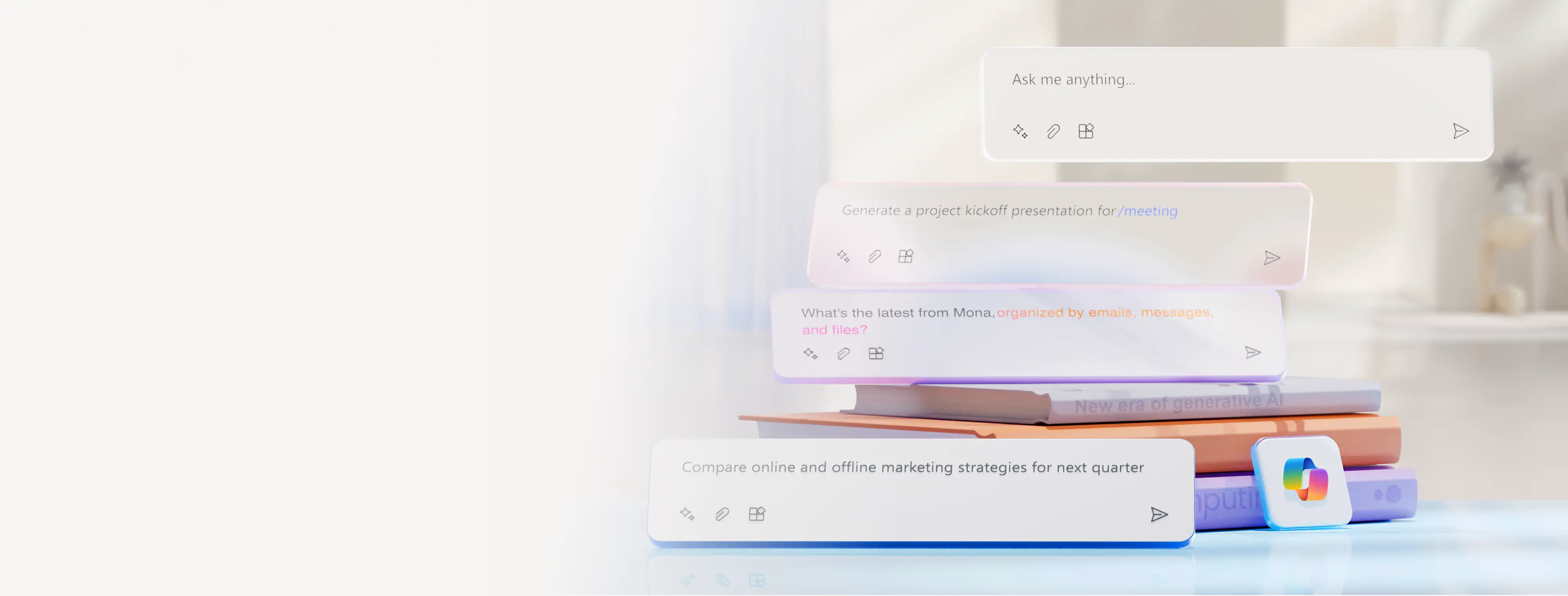
Maak kennis met Copilot in PowerPoint
Bespaar tijd met het ontwerpen en maken van presentaties met AI door Copilot in Microsoft PowerPoint te gebruiken.
Ontwerp en maak professionele presentaties met AI

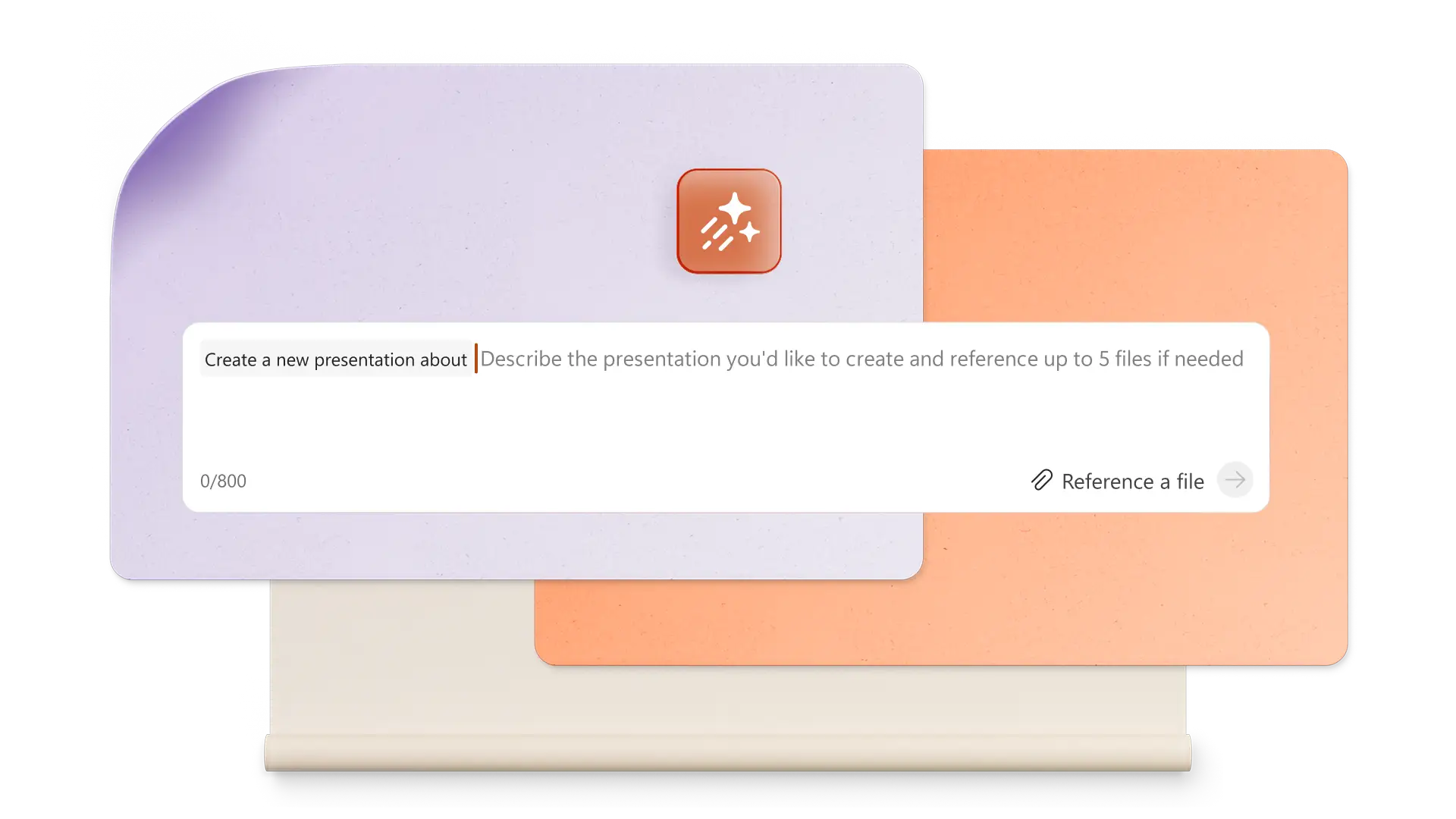
Genereer AI-presentaties met eenvoudige opdrachten
Gebruik Copilot om je ideeën om te zetten in een complete AI-gegenereerde presentatie. Beschrijf het onderwerp simpelweg, en Copilot stelt tekst, ontwerpsjablonen en aangepaste visuals voor, zodat je snel van concept naar afgewerkte dia's gaat.

Maak unieke AI-afbeeldingen en -grafieken
Maak hoogwaardige aangepaste afbeeldingsbestanden binnen PowerPoint met AI. Vraag Copilot om een ontwerp te genereren, zoals een afbeelding, infographic of achtergrond, en vervolgens eenvoudig dia's te downloaden en toe te voegen. Kies uit meerdere ontwerpopties.

Stel boeiende AI-sprekersnotities op
Verander dia's in een vloeiend verhaal met door AI gegenereerde sprekersnotities. Chat met Copilot om contextbewuste aantekeningen voor elke dia te maken, wat het verhaal versterkt en presentatoren helpt elk publiek met vertrouwen te boeien.
Leer hoe je Copilot in PowerPoint kunt vragen om geweldige presentaties te maken

Maak een PowerPoint-presentatie met één enkele opdracht
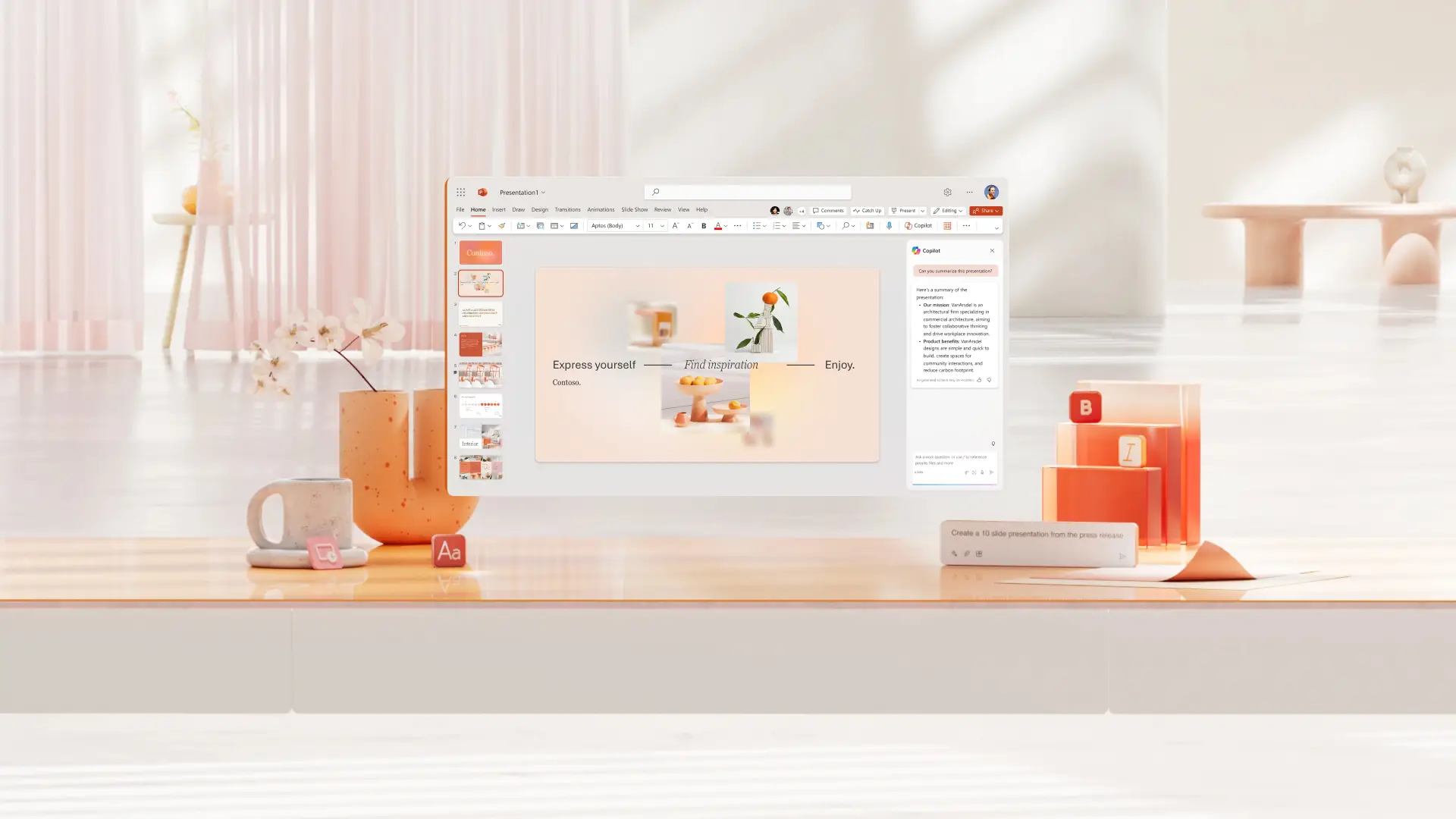
Beschrijf ideeën in de Copilot-chat om een presentatie met AI te maken. Genereer snel suggesties voor dia-overzichten en geef verfijnde opties voor bestaande diatekst en aangepaste dia-inhoud. Bekijk ontwerpideeën voor slimme AI-indelingssuggesties om het deck te verbeteren. Versnel het maken van zakelijke voorstellen, verkoopdecks en meer.
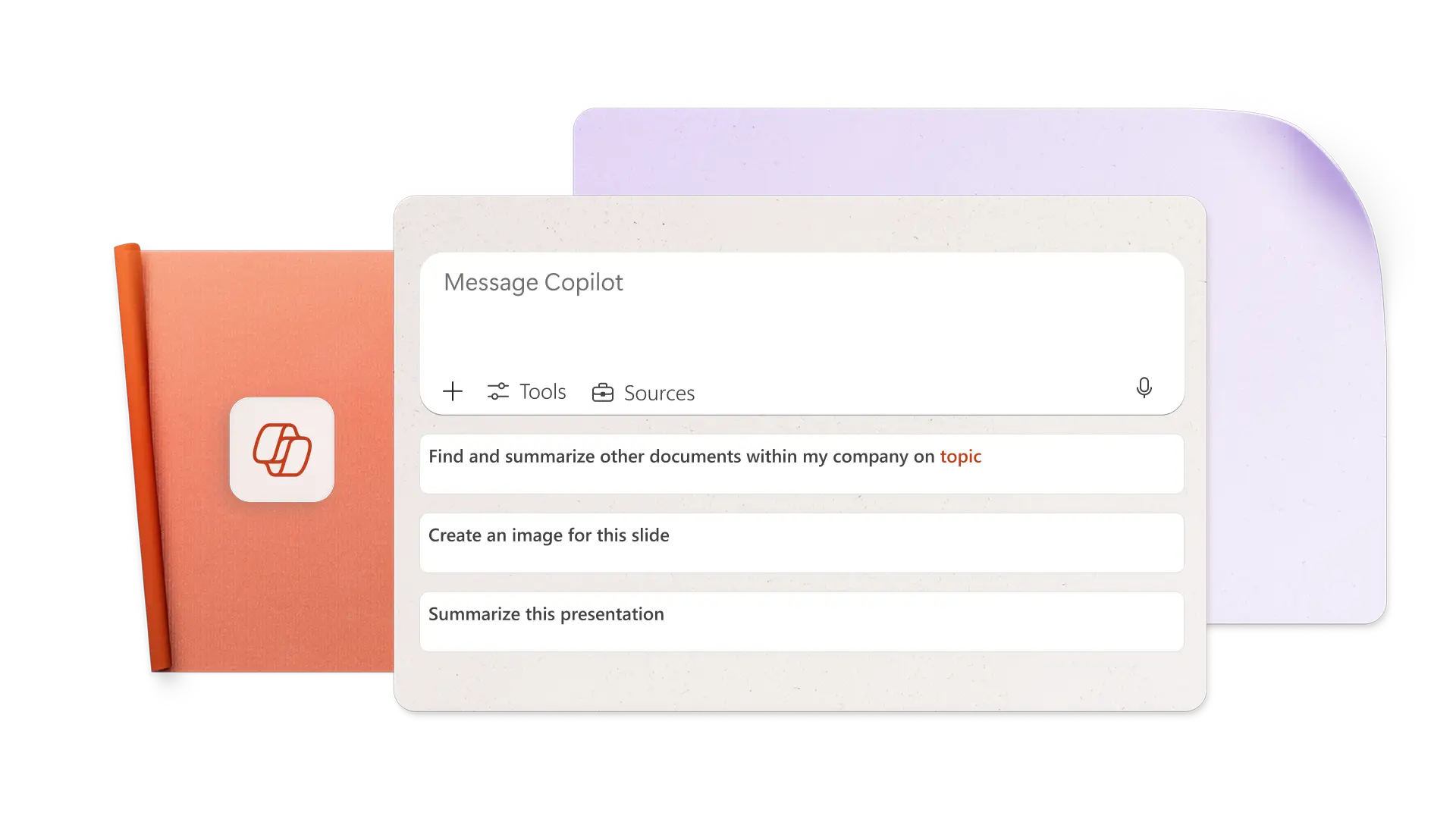
Maak AI-afbeeldingen van prompts in Copilot
Genereer de perfecte afbeelding voor elke dia door de afbeeldingsvereisten en kunststijl in eenvoudige woorden te beschrijven. Maak Copilot AI-afbeeldingen en dia-achtergronden, download deze en pas ze vervolgens eenvoudig toe. Het kan ook zoeken naar stockafbeeldingen en goedgekeurde Brand Center-bestanden voorstellen, perfect voor marketingdecks.

Voeg AI-presentatornotities toe om zelfverzekerd te presenteren
Genereer suggesties voor AI-sprekersnotities met één klik, voeg ze toe aan dia's en presenteer met vertrouwen. Om aantekeningen aan te passen, vraag je Copilot gewoon de toon aan te passen aan het publiek. Voorzie vragen van het publiek en gebruik AI om antwoorden voor te stellen. Perfecte aantekeningen die passen bij de totale presentatietijd voor school of pitchpresentaties.
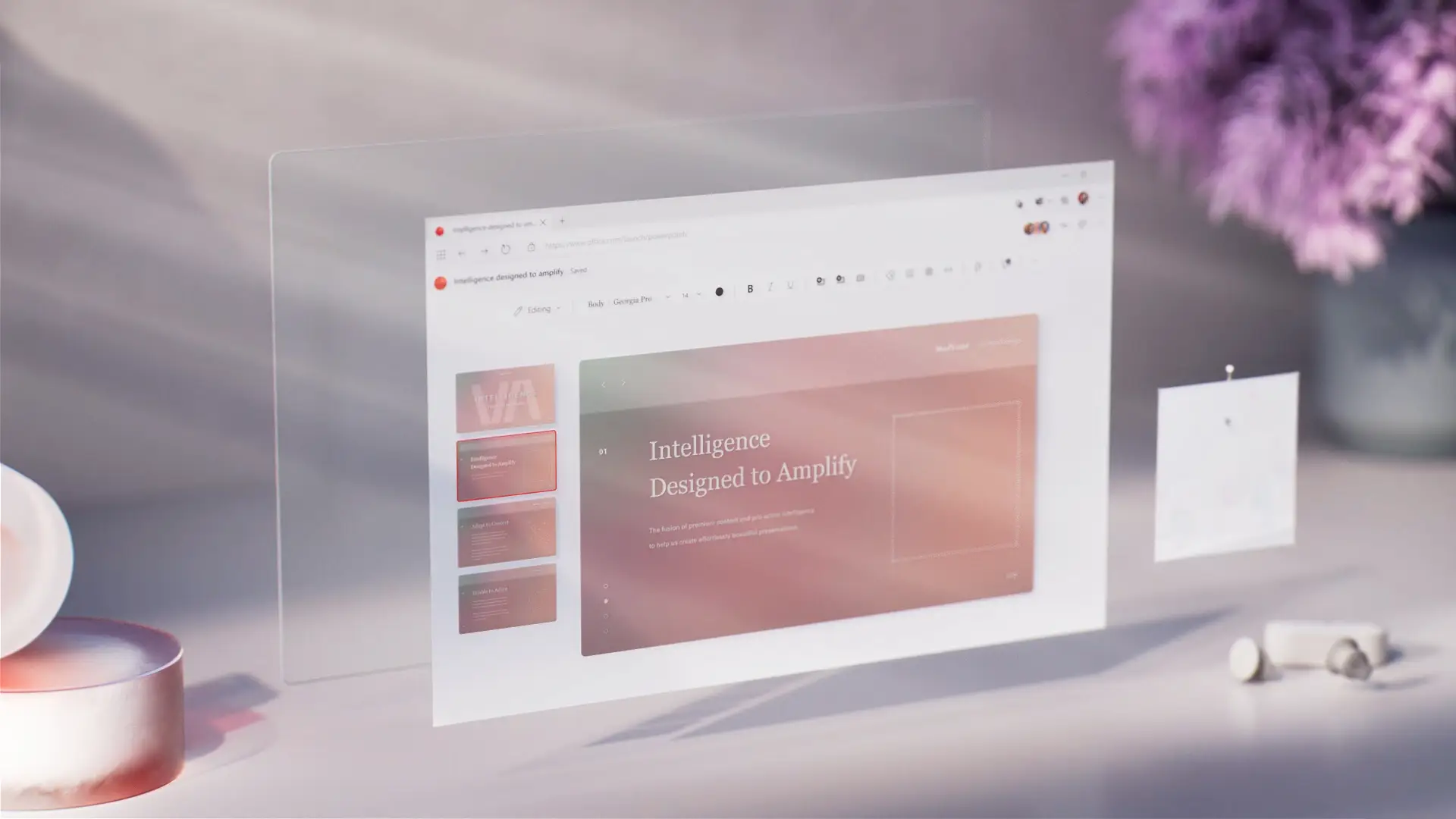
Werk online samen en deel met iedereen
Nodig teamleden uit om PowerPoint-presentaties in realtime samen te bewerken. Bekijk actiepunten soepel door Copilot te vragen ze uit opmerkingen te halen. Als de presentatie klaar is om te delen, stuur je een beveiligde deel-link naar het e-mailadres van een ontvanger of print je deze om te delen tijdens vergaderingen.
Hoe je een AI-presentatie maakt met Copilot in PowerPoint
Open PowerPoint en klik op de knop Copilot om een chat te starten.
Leg het onderwerp uit of voeg een referentiedocument of spreadsheet toe voor context.
Bekijk de voorgestelde opzet, voeg secties toe of verwijder ze, en genereer daarna de conceptpresentatie.
Maak aangepaste AI-afbeeldingen en voeg sprekersnotities toe.
Deel de AI-presentatie met beveiligde OneDrive-links of voeg deze als PDF toe aan een e-mail.
Begin met PowerPoint-sjablonen die Copilot kan aanpassen
Kies uit sjablonen voor zakelijke, marketing-, creatieve projecten, school, evenementen en meer, en gebruik Copilot om de sjablonen aan te passen aan de presentatiebehoeften.
Meer informatie

Veelgestelde vragen
Hoe vind je Copilot in PowerPoint?
Klik op het Copilot-pictogram in PowerPoint, beschrijf vervolgens de presentatiebehoeften en voeg relevante Word-documenten, spreadsheets en andere afbeeldingen toe om context te bieden en een presentatie te maken.
Kan Copilot een PowerPoint-presentatie maken?
Copilot kan een PowerPoint-presentatie maken met AI op basis van een onderwerp of document. Geef Copilot details over de presentatie op, bekijk een eerste overzicht en genereer vervolgens de presentatie.
Hoe je Copilot toevoegt aan PowerPoint
Copilot is ingeschakeld in PowerPoint voor iedereen met een Microsoft 365 Personal- of Family-abonnement, of met een Copilot Pro-abonnement. Gratis abonnementen en sommige zakelijke abonnementen hebben geen toegang tot Copilot; overweeg het abonnement te upgraden om te profiteren van AI-ondersteunde presentatievaardigheden.
Kan Copilot PowerPoint-dia's maken?
Chat met Copilot om snel individuele PowerPoint-dia's te maken en toe te voegen aan een presentatie. Laat Copilot een nieuwe visualisatie maken op basis van een datatabel, een dia met belangrijkste punten, een conclusie-dia of een ander type dia.