
Apresentando o Copilot no PowerPoint
Use o Copilot no Microsoft PowerPoint para economizar tempo projetando e criando apresentações com IA.
Projetar e criar apresentações profissionais do PowerPoint com IA

Gerar apresentações baseadas em IA a partir de prompts simples com o Copilot
Solicite que o Copilot transforme as suas ideias em uma apresentação completa gerada por IA. Basta descrever o seu tópico e o Copilot gerará texto, layouts de design e visuais personalizados, permitindo que você mude do conceito para slides concluídos rapidamente.

Criar visuais exclusivos instantaneamente usando DALL-E 3
Criar ativos de imagem diretamente dentro do PowerPoint com IA e DALL· E 3. Solicite que o Copilot projete o que você precisa usando a IA, como uma imagem, um elemento de design ou um plano de fundo de slide, e obtenha várias opções de design instantaneamente, tudo sem sair do painel do Copilot Chat.

Entregue com confiança usando anotações do orador da plataforma IA
Transforme os seus slides em uma história perfeita com anotações do orador geradas por IA. Com um prompt, o Copilot cria anotações com reconhecimento de contexto para cada slide, que aprimoram a narrativa e ajudam você a engajar o público para fazer a apresentação com confiança.
Saiba como solicitar que o Copilot faça apresentações no PowerPoint

Fazer uma apresentação do PowerPoint em um único prompt
Solte a criatividade solicitando que o Copilot faça uma apresentação com IA. Transforme ideias em uma apresentação de slides envolvente com o seu logotipo e identidade visual. Converse com o Copilot para refinar texto, reorganizar slides e adicionar novos slides automaticamente. Explore uma variedade de opções de layout em Ideias de Design.
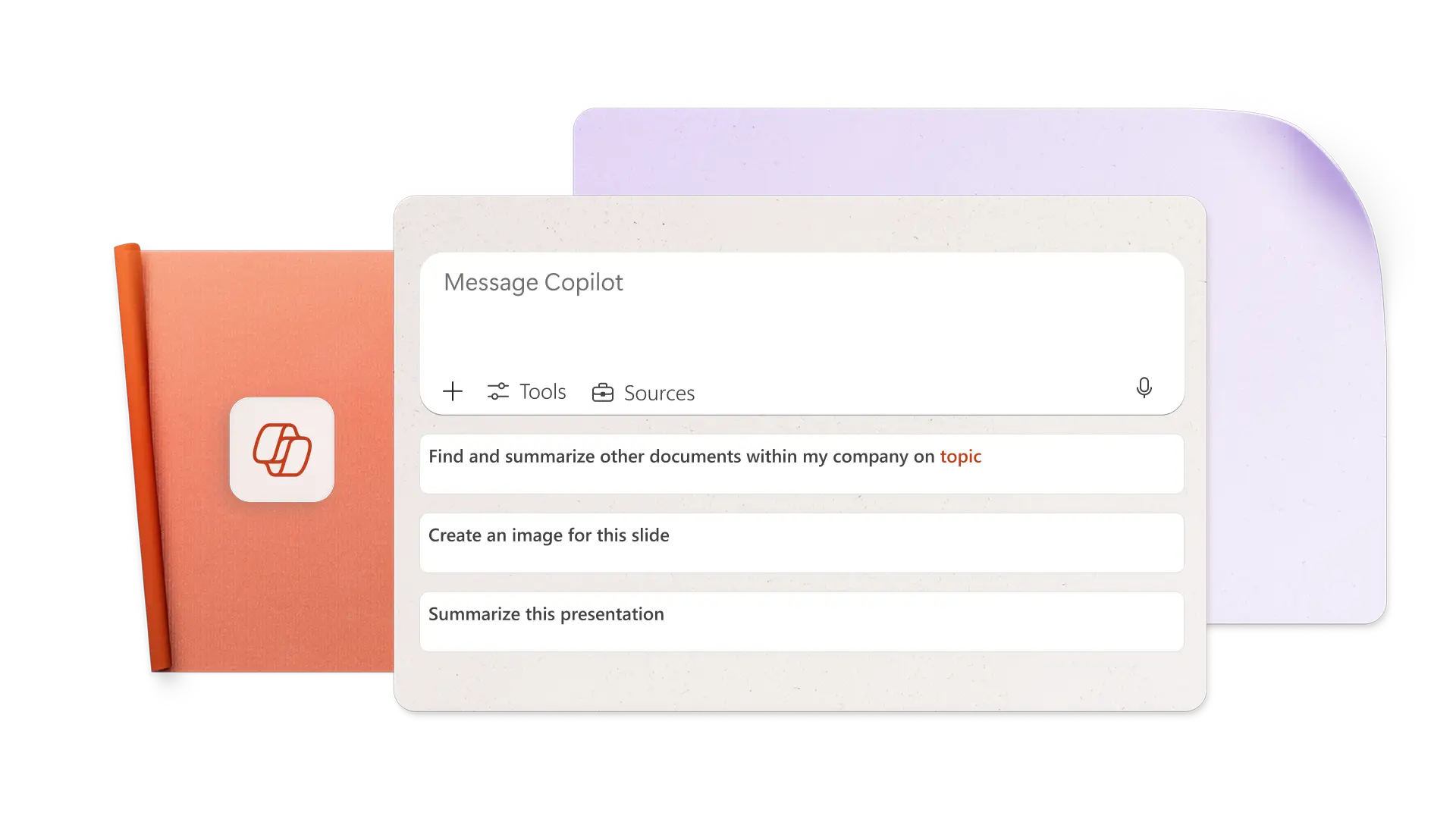
Criar imagens de IA de prompts no Copilot
Gere a imagem perfeita para qualquer slide informando ao Copilot o que você precisa em suas próprias palavras. Faça com que o Copilot crie imagens de IA, planos de fundo de slide e ícones, ou pesquise fotografia de estoque e, em seguida, escolha o seu favorito para inserir em um slide específico. O Copilot também pode pesquisar os seus ativos do Centro de Marcas em busca de imagens que funcionem com a sua apresentação.

Adicionar notas do orador para apresentar com confiança
Produza anotações do orador com um único prompt para apresentar com confiança. Para modificar anotações, basta pedir ao Copilot para usar um tom diferente de voz ou adicionar descrições de imagem para apresentação. Faça uma preparação adicional usando o Copilot para prever perguntas do público e sugerir respostas. Por fim, ajuste o tempo de entrega e faça com que o Copilot reescreva as notas do orador para corresponder a uma meta de duração.

Colaborar online e compartilhar com qualquer pessoa
Convide membros da equipe para trabalhar em coautoria em apresentações do PowerPoint em tempo real. Aqueles com acesso ao Copilot podem editar, reescrever, gerar imagens e muito mais com IA. Antes de finalizar, use o Copilot para identificar itens de ação de comentários. Depois, compartilhe a apresentação com o email de um destinatário ou envie um link do OneDrive. Imprima uma apresentação para compartilhá-la em uma reunião.

Saiba como usar o Copilot para criar uma apresentação com IA
Saiba mais sobre as várias maneiras pelas quais o Copilot pode ajudar a criar apresentações, como gerar ideias de tópicos, projetar slides, adicionar visuais de estoque e melhorar a formatação da apresentação.

Como fazer uma apresentação de IA com o Copilot no PowerPoint
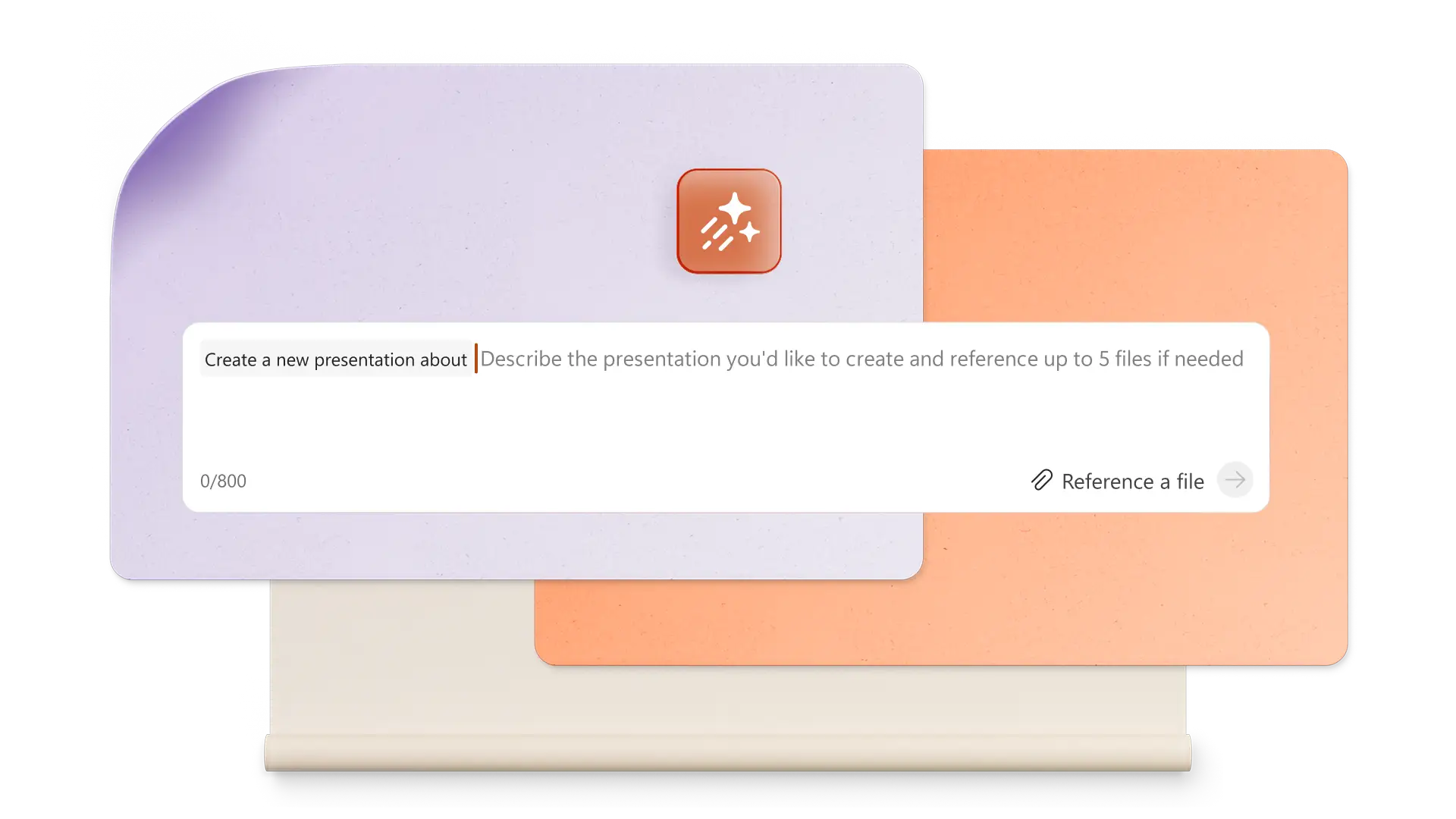
Clique no botão Copilot acima de um novo slide e selecione Criar uma nova apresentação ou peça ao Copilot para criar uma nova apresentação no chat
Anexar um arquivo do OneDrive ou carregar um documento para iniciar a apresentação
Examine a estrutura de tópicos inicial e insira ou exclua seções e gere a apresentação
Refinar o tom de voz, imagens, notas do orador e ordem de slide
Colabore com outras pessoas durante a criação e compartilhe a apresentação com os visualizadores depois de terminar
Comece com um modelo do PowerPoint para o Copilot expandir
Escolha entre modelos para empresas, projetos criativos, escola, eventos e muito mais e, em seguida, faça com que o Copilot personalize o modelo em segundos com texto e imagens com base em um prompt.


Perguntas frequentes
Como usar o Copilot no PowerPoint
Comece a usar o Copilot no PowerPoint clicando no botão Copilot no canto superior direito. Diga ao Copilot o que você deseja criar e adicione um arquivo externo ou anexo do OneDrive para fundamentar a apresentação.
O Copilot pode criar uma apresentação do PowerPoint?
O Copilot pode criar uma apresentação do PowerPoint com IA com base em um tópico ou documento. Forneça ao Copilot detalhes sobre a apresentação, examine uma estrutura de tópicos inicial e gere a apresentação.
Como adicionar o Copilot ao PowerPoint
O Copilot está habilitado no PowerPoint para qualquer pessoa com um plano do Microsoft 365 Personal ou Family ou com uma assinatura do Copilot Pro. Planos gratuitos e alguns planos de negócios não vêm com acesso do Copilot. Você pode obter o Copilot no PowerPoint atualizando o seu plano.
O Copilot pode criar slides do PowerPoint?
Converse com o Copilot para criar rapidamente slides individuais do PowerPoint e adicioná-los a uma apresentação. Permita que o Copilot crie uma nova visualização com base em uma tabela de dados, um slide com os principais pontos, um slide de conclusão ou outro tipo de slide.