Thiết kế phát sáng

Tạo nền trang chiếu tùy chỉnh với các màu sắc, hình ảnh hoặc mẫu theo chủ đề cho phù hợp với mọi nhu cầu về bản trình bày trong Microsoft PowerPoint.

Tạo không khí phù hợp cho bất kỳ bản trình bày nào với hình nền trang chiếu màu sắc tùy chỉnh. Sử dụng màu đơn sắc hoặc màu chuyển sắc để phản ánh bản sắc thương hiệu và tạo nền tảng thẩm mỹ trên mọi trang chiếu.

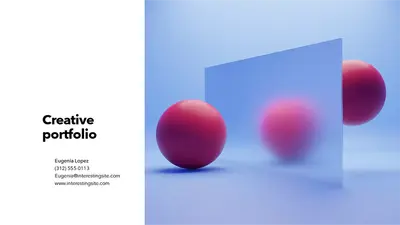
Tăng sức hút cho bất kỳ bản trình bày nào bằng hình nền trang chiếu dạng ảnh phù hợp với nội dung. Thêm ảnh sản phẩm làm hình mờ tinh tế hoặc sử dụng hình ảnh minh họa để thể hiện ý tưởng.

Thổi hồn vào tầm nhìn độc đáo với hình nền PowerPoint do AI tạo ra phù hợp với nội dung của bản trình bày. Mở Copilot trong PowerPoint, mô tả chủ đề hoặc phong cách và chọn từ các tùy chọn hình ảnh do AI tạo ra chỉ trong vài giây.

Tìm màu phù hợp cho bất kỳ bài trình bày nào với hình nền trang chiếu màu hồng, tím, xanh lam, xanh lục và đỏ. Giữ đúng chuẩn thương hiệu và tạo ấn tượng lâu dài với những màu sắc nổi bật.
Stand out with aesthetic slide backgrounds that look polished and on-trend. Browse stylish templates and personalize them in minutes.
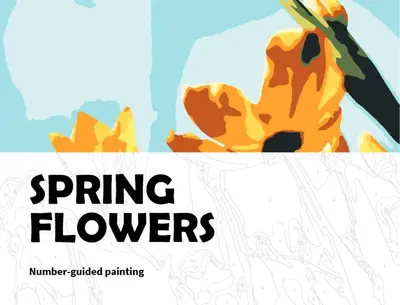
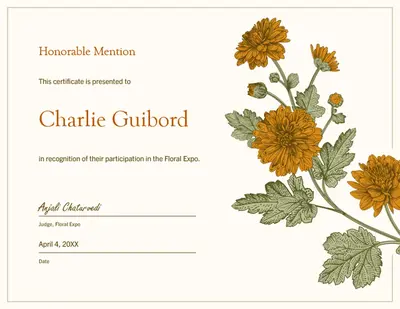
Bring elegance to slides with floral slide backgrounds. Browse flower-themed templates and tailor them to any creative project.
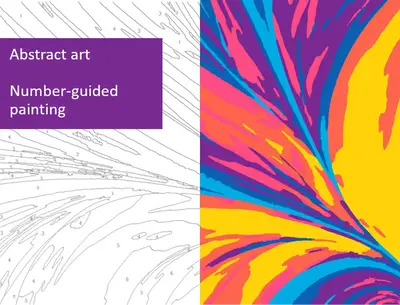
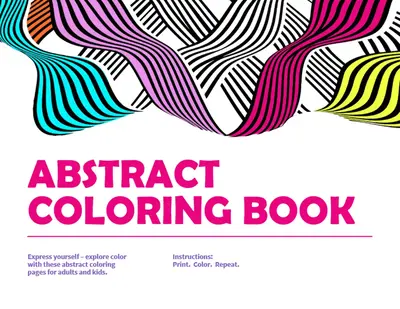
Spark curiosity with abstract slide backgrounds that stand out. Explore artistic templates and customize bold shapes, patterns, and gradients.
Brighten any presentation with pink slide backgrounds. Explore templates ranging from soft blush to bold magenta and customize them instantly.
Capture the spirit of the season with holiday slide backgrounds. Browse themed templates and personalize them for parties, events, and celebrations.
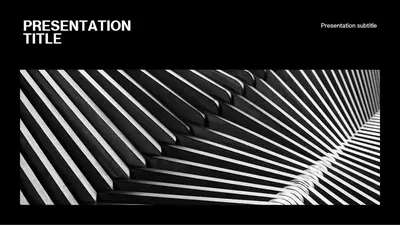
Achieve a clean and professional look with minimalist presentation templates. Explore sleek templates and customize balanced layouts to suit any topic.
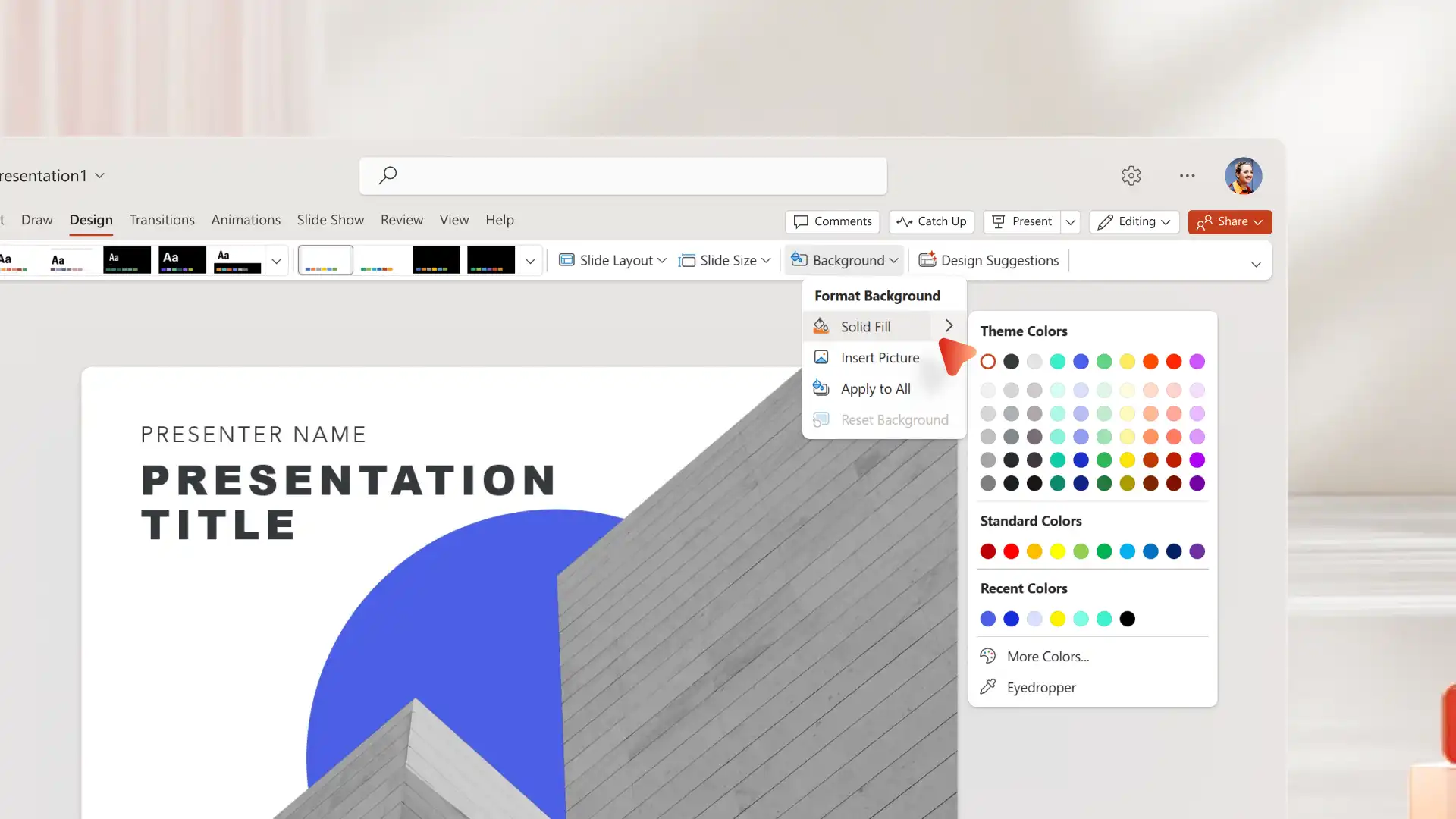
Open PowerPoint for the web or the desktop app and select a blank slide.
Click the Design tab, then select Format Background.
Choose solid fill colors, upload images from device, or choose stock and brand images.
Apply to one slide or select Apply to All.
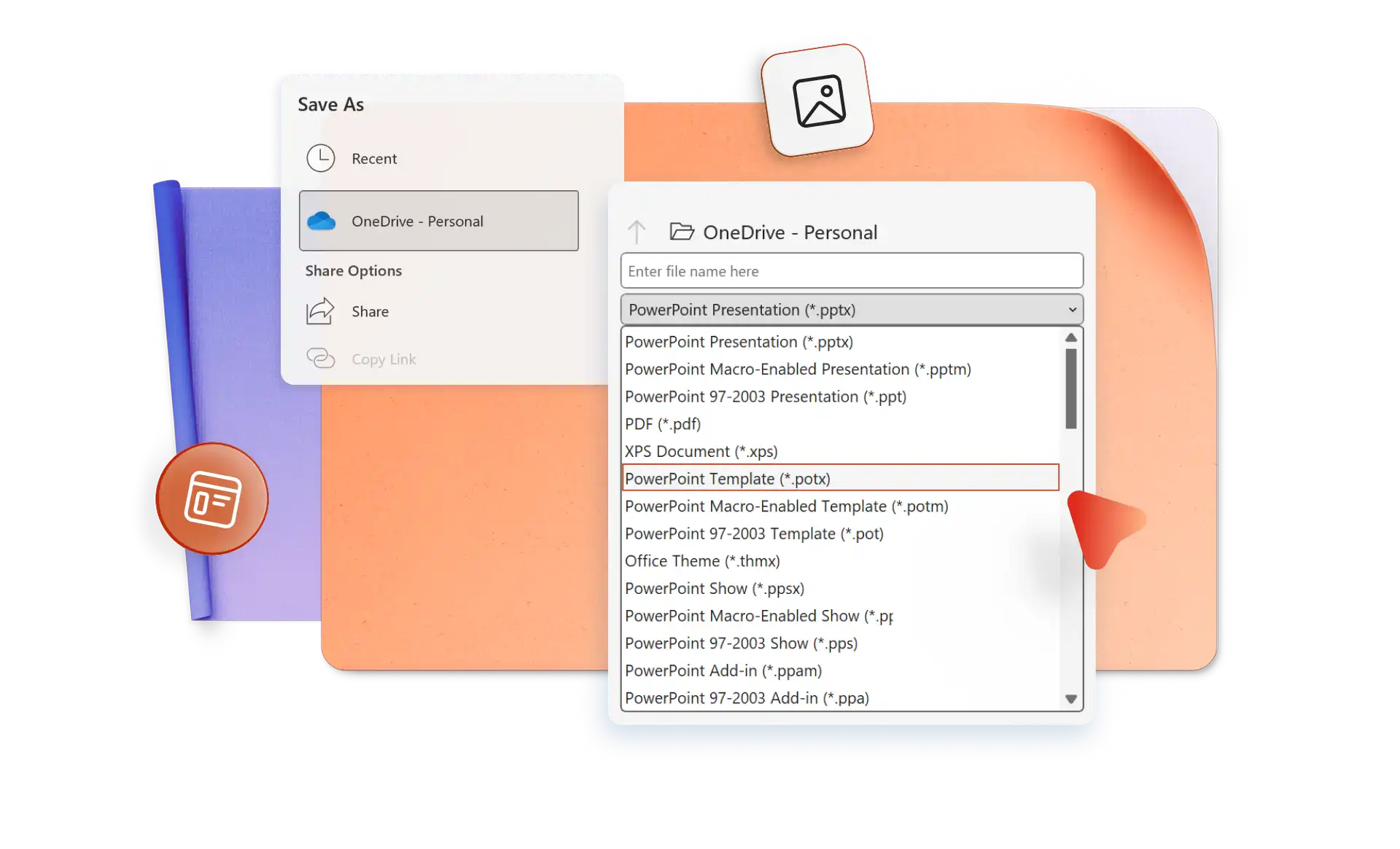
Save and share as a PowerPoint file or PDF.
Skip the repetitive work by saving custom slide backgrounds as reusable templates. Microsoft 365 subscribers can streamline presentation design by saving custom slide backgrounds as reusable templates.
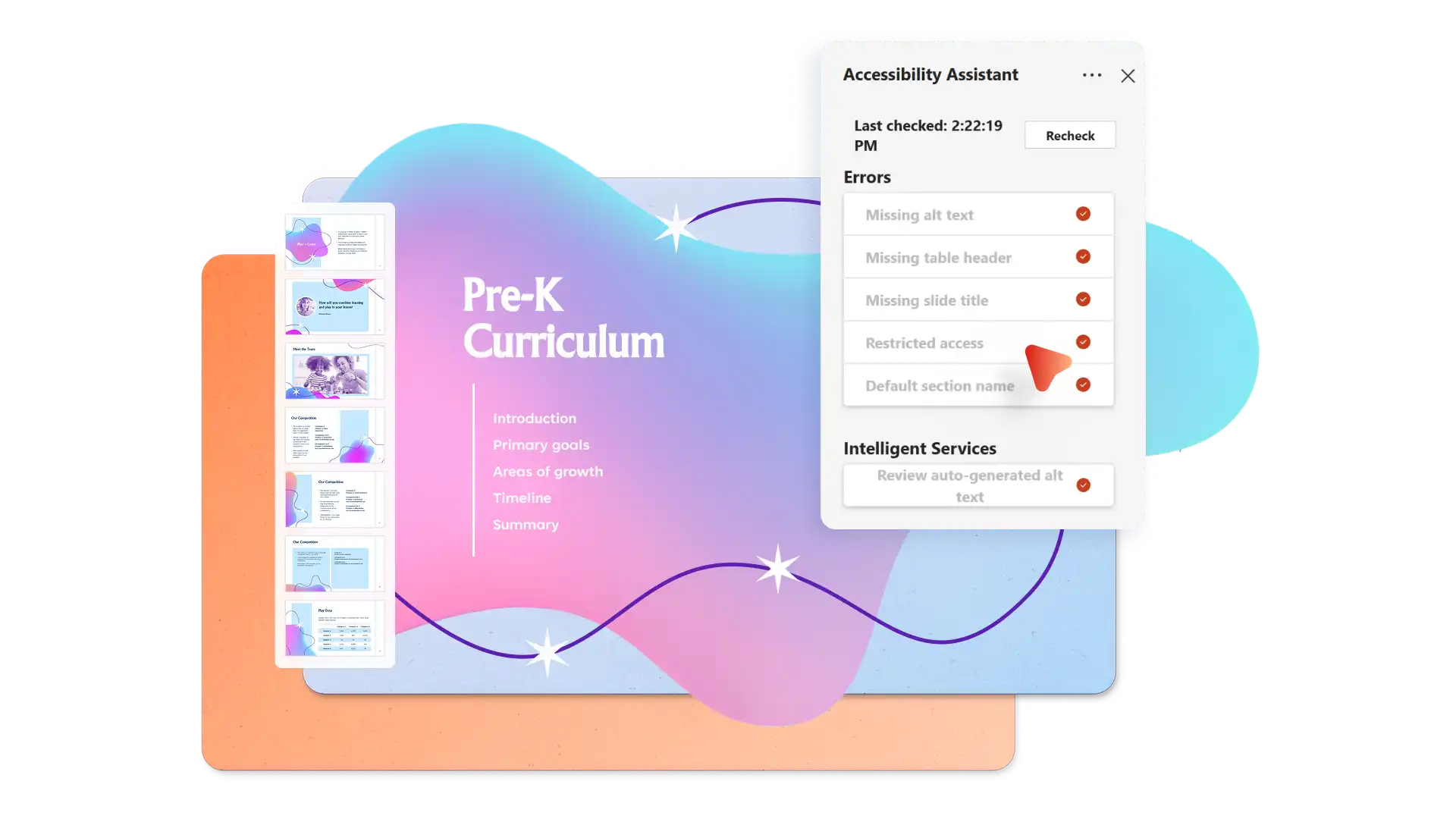
Reach every audience member with slide backgrounds that prioritize accessibility. Scan presentations with the Accessibility checker in PowerPoint to flag issues such as insufficient color contrast between text and background to ensure content remains easy to read for all viewers.
A good PowerPoint background is simple, high contrast, and complements the content without distracting from it. Choose colors or images that support the message and meet accessibility standards, such as sufficient contrast between text and background.
Right-click the slide, select Format Background, and note the current settings. Apply the same settings to other slides manually, or use Duplicate Slide to copy the entire slide along with its background.
Mở Copilot trong PowerPoint và mô tả nhu cầu sáng tạo. Copilot tạo bố cục, kiểu thiết kế và hình ảnh AI dựa trên nội dung, giúp bạn dễ dàng xây dựng các trang chiếu chuyên nghiệp trong vài giây. Dễ dàng tạo các bản trình chiếu giới thiệu, bài thuyết trình kinh doanh, kế hoạch dự án, bài thuyết trình gọi vốn và bản trình bày trên áp phích ấn tượng nhờ sự hỗ trợ của AI.