การประชุมสีสันสดใส

สร้างสไลด์ที่พูดได้อย่างน่าประทับใจแบบสาธารณะโดยใช้เทมเพลตงานนําเสนอที่สามารถแก้ไขได้ สื่อหุ้น และฟีเจอร์ AI ใน Microsoft PowerPoint

เลือกจากเทมเพลตงานนําเสนอที่ออกแบบมาอย่างมืออาชีพเพื่อให้เหมาะกับการสนทนาทางธุรกิจ ระดับเริ่มต้น หรือเวิร์คช้อปเพื่อการศึกษา สํารวจเทมเพลตแบบไดนามิกและสามารถเข้าถึงได้ที่ออกแบบมาสําหรับการพูดแบบสาธารณะ
ต้องการงานนําเสนอสําหรับประเด็นสำคัญ การประชุม เวิร์คช้อป หรือระดับเสียงใช่ไหมสร้างสไลด์ประเด็นสำคัญที่โดดเด่นได้อย่างรวดเร็วโดยการเลือกเทมเพลตงานนําเสนอและกําหนดเค้าโครง ตัวแทนข้อความ ภาพ และภาพเคลื่อนไหวของสไลด์ที่เหมาะกับธีมของงานนําเสนอของคุณปรับปรุงเนื้อหาของคุณด้วย Copilot ใน PowerPoint และฝึกซ้อมการนําส่งของคุณด้วย AI โค้ชฝึกพูด (opens in a new tab) เพื่อให้คุณสามารถสร้างความประทับใจที่ยาวนานให้กับผู้ชมของคุณในเหตุการณ์ถัดไปของคุณ
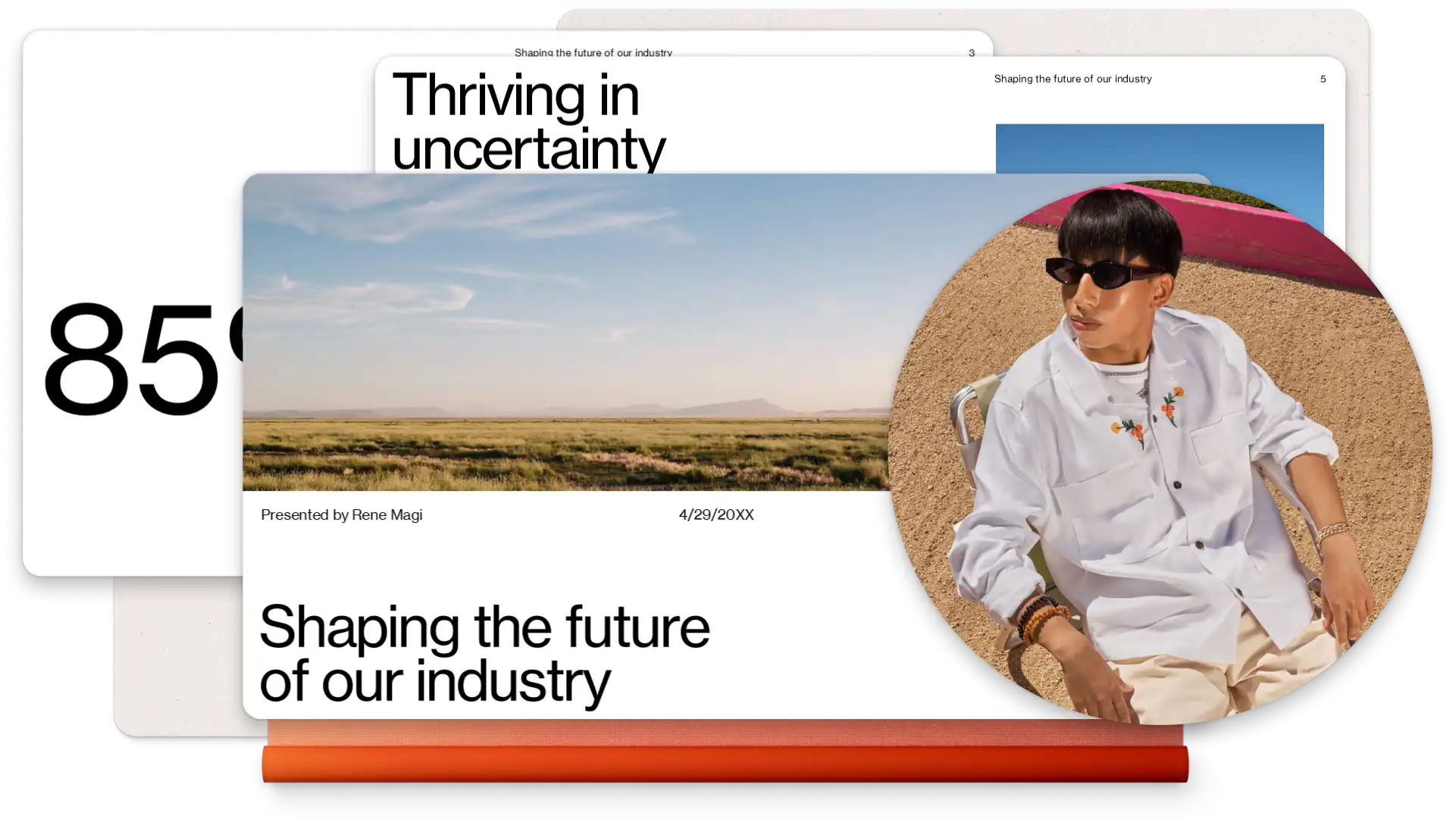
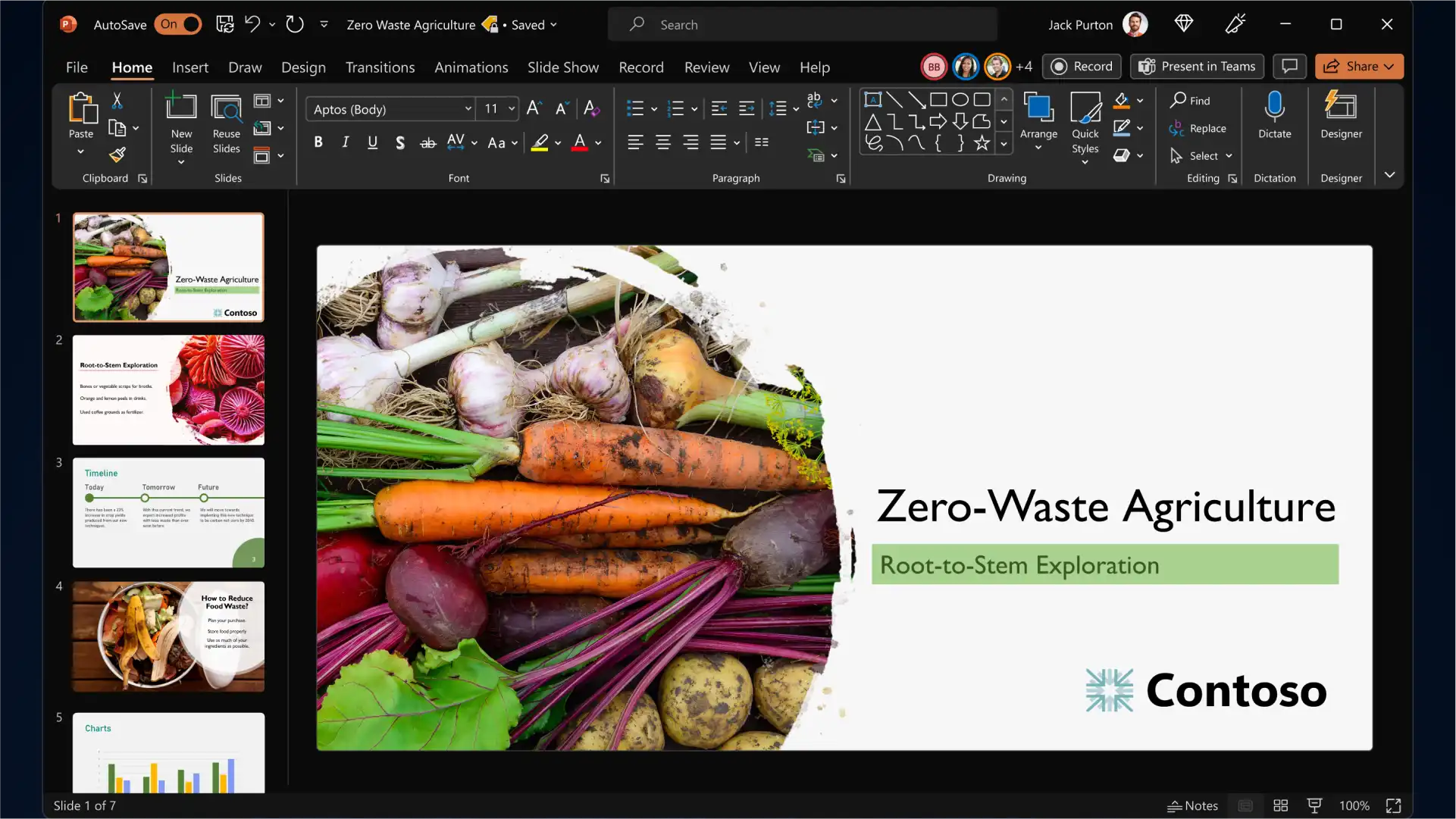
Start with a PowerPoint presentation template and personalize it to build slides for any event, topic and industry. Add branding elements such as your company logo and color palette, then pair classic and modern fonts to communicate your ideas while being memorable to the audience.
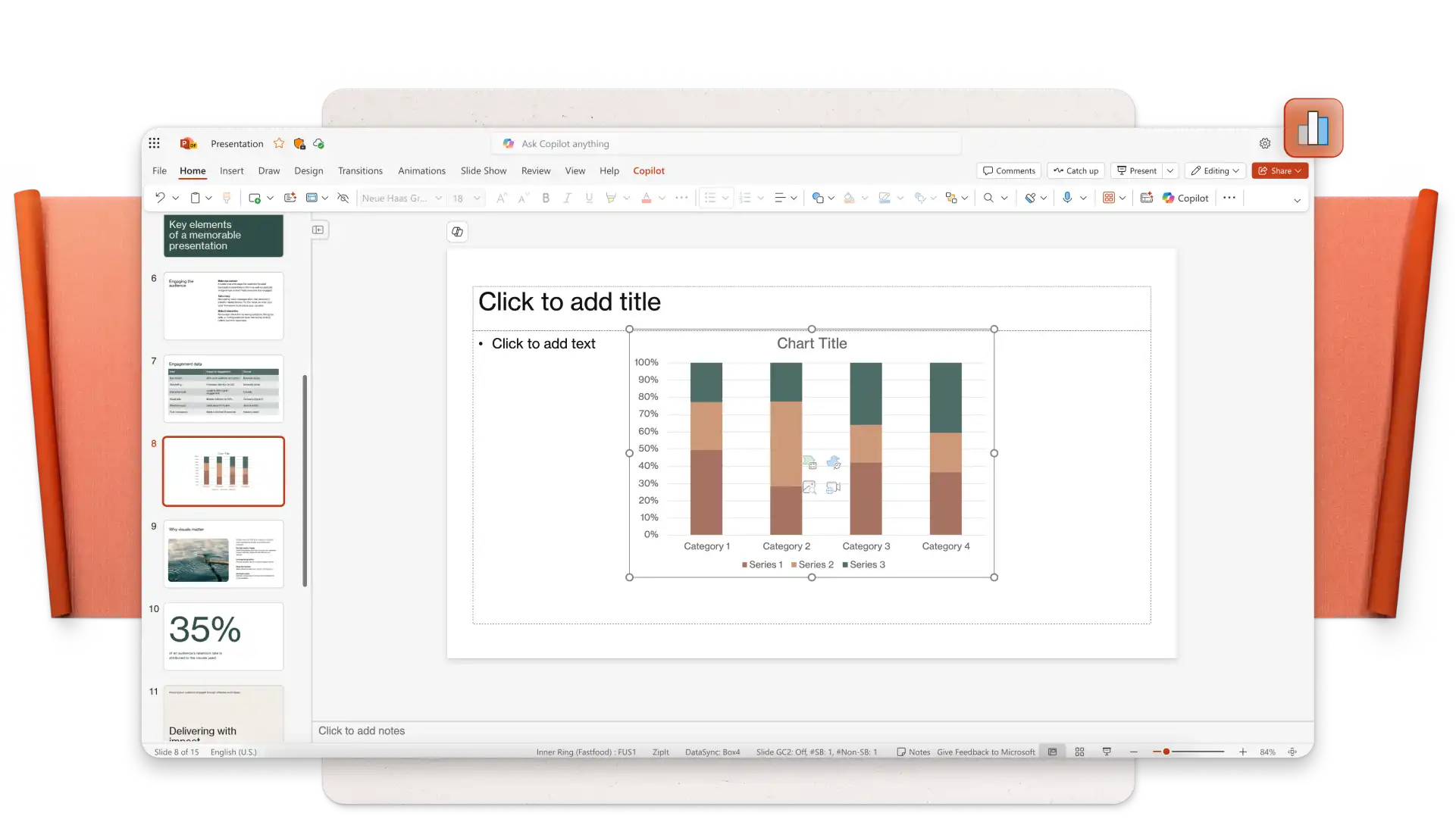
Engage viewers by adding eye-catching backgrounds, image slideshows, videos, Cameos, and graphics to complement your keynote presentation storytelling. Turn timelines and processes into easy-to-follow charts using SmartArt, create infographics, and choose modern icons to represent key talking points of your presentation.
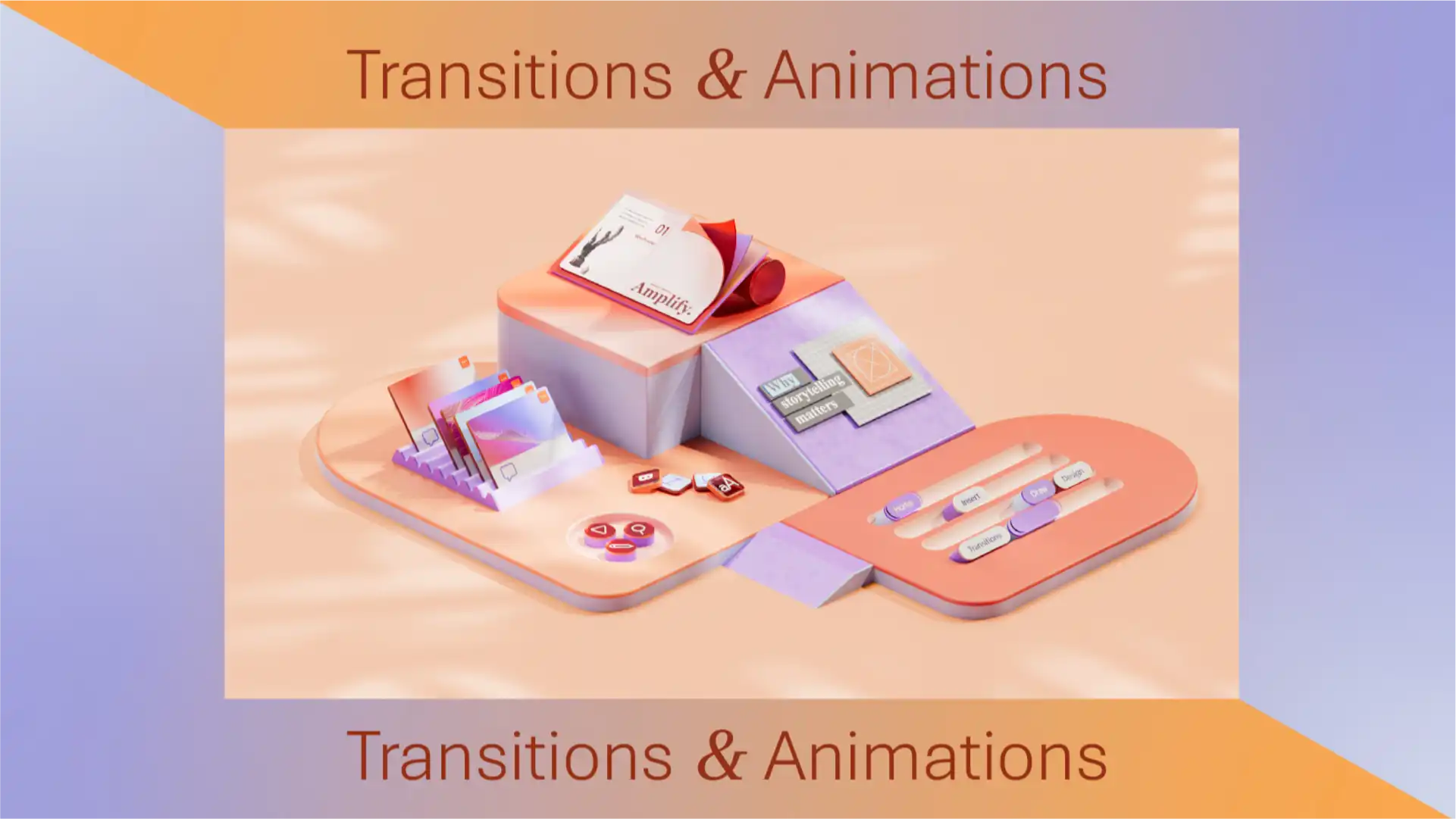
Apply subtle transitions like fades and wipes to add interest to business conference slides, or use dynamic transitions like uncover and morph effect (opens in a new tab) to emphasize a key point or do a big reveal while public speaking. Set your transition and animation timings to impress your audience.
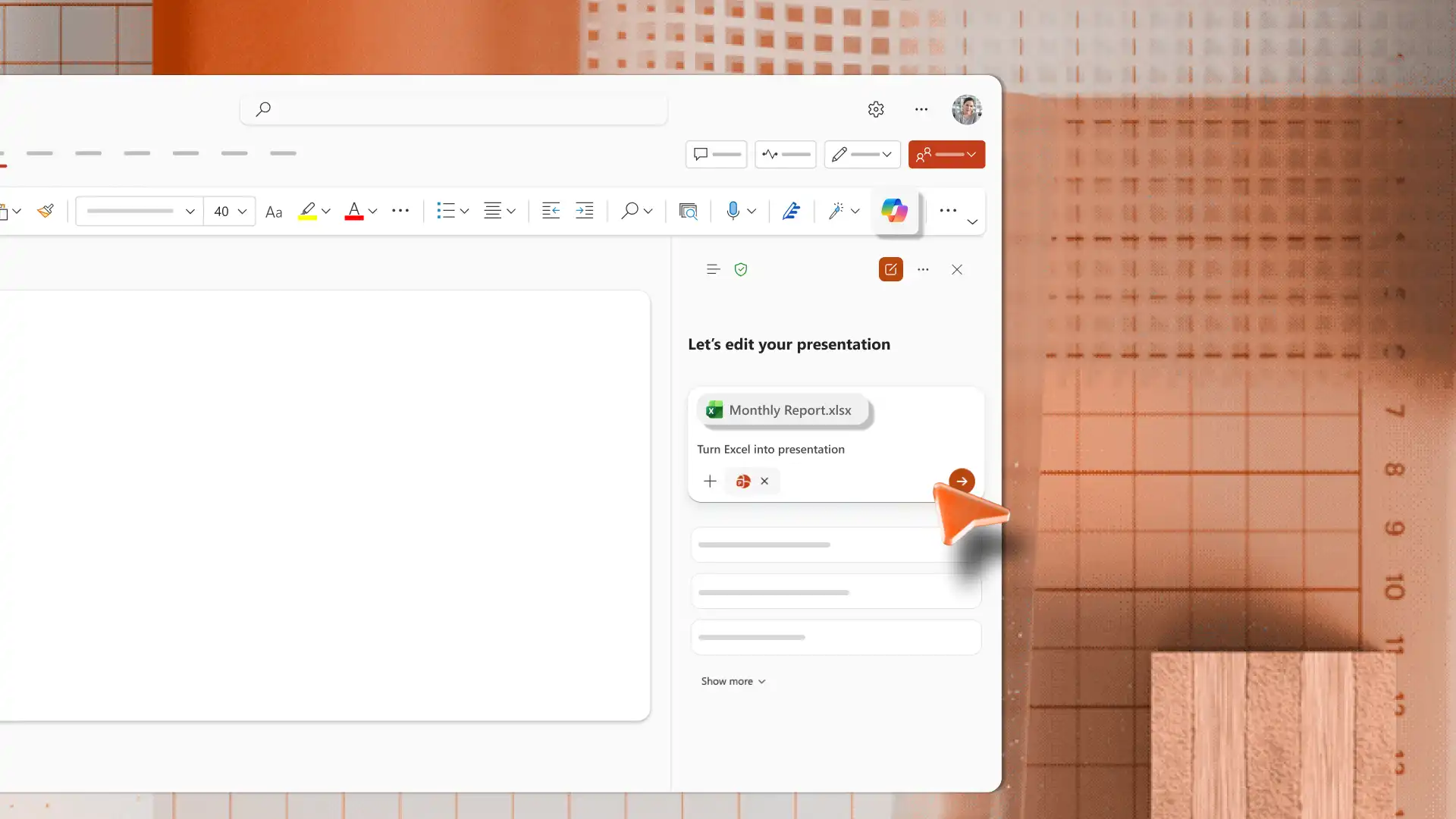
ใช้ Copilot ใน PowerPoint เพื่อปรับปรุงเนื้อหาสไลด์ของคุณด้วยการเขียนใหม่อัตโนมัติ หรือสร้างบันทึกย่อของผู้นําเสนอเพื่อให้ได้รับผลกระทบมากขึ้นเตรียมพร้อมสําหรับกิจกรรมการพูดของคุณโดยการฝึกฝนด้วยเครื่องมือ AI โค้ชฝึกพูด (opens in a new tab) ซึ่งสามารถให้คําติชมเกี่ยวกับการมีส่วนร่วมของผู้ชม ระดับเสียง และจังหวะของคุณสุดท้าย สไลด์ที่พิสูจน์อักษรด้วย ตัวแก้ไข (opens in a new tab) เพื่อให้แน่ใจว่าเนื้อหาของสไลด์ไม่มีข้อผิดพลาดการสะกดและถูกต้องทางไวยากรณ์
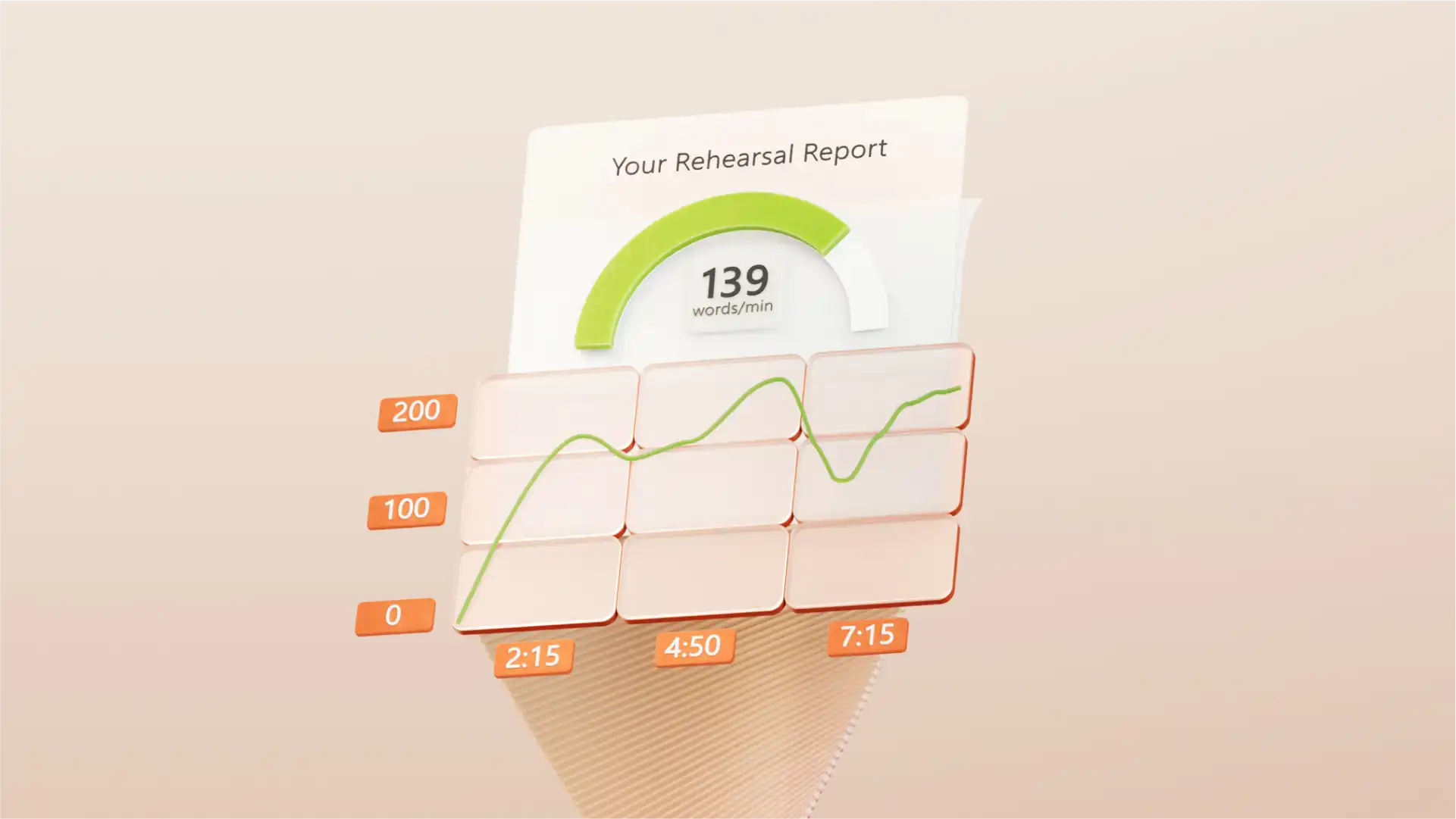
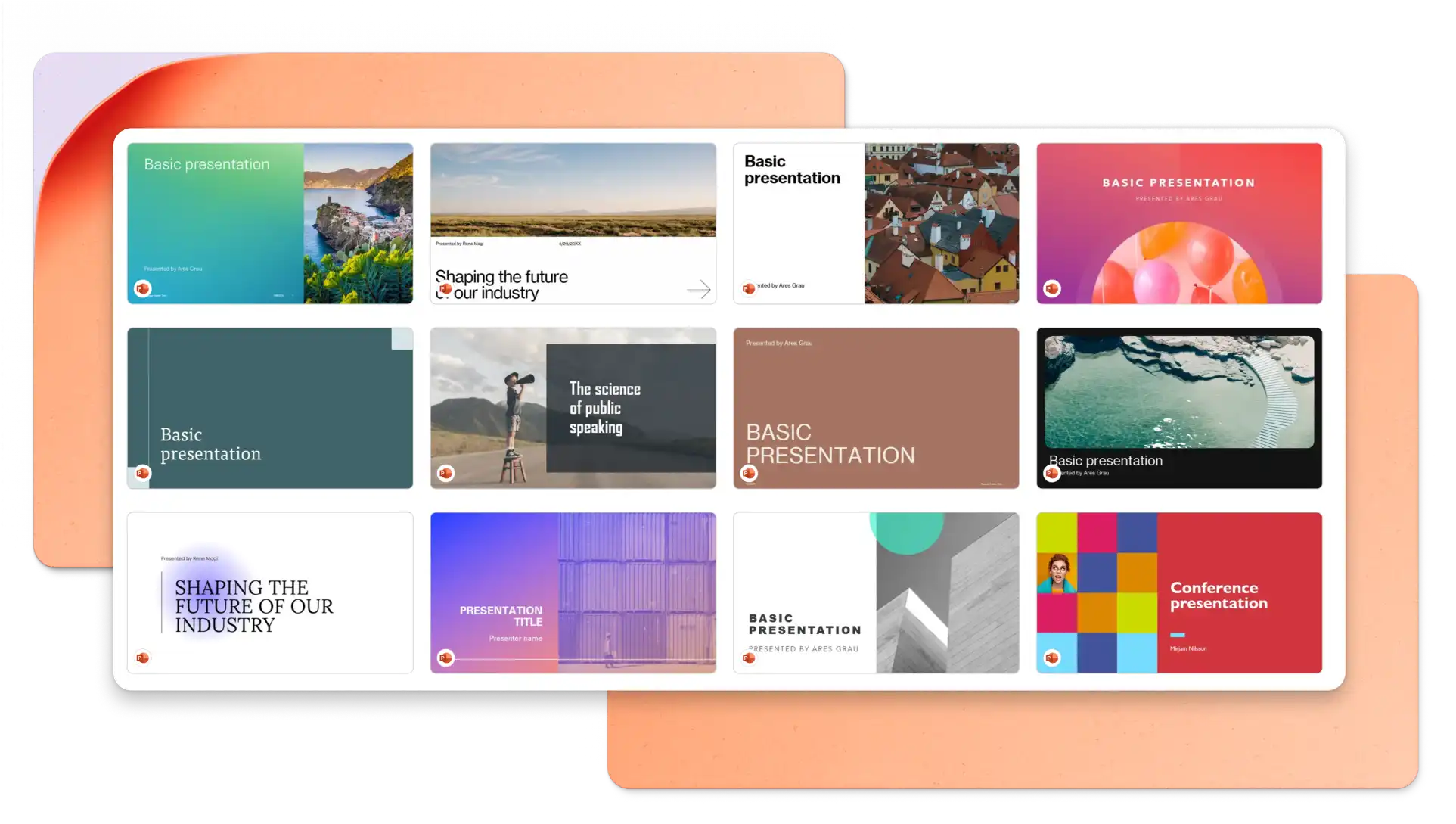
In your browser, explore PowerPoint keynote presentation templates
Choose a keynote presentation template you want to edit
Replace the text and graphics with your own information
Download, print and share your presentation for free
Structure your keynote presentation to deliver one idea per slide and stay on-theme to engage your audience. It’s recommended to use images and graphics to represent concepts and reduce distractions where possible. Choose a professionally designed keynote presentation template to make a great impression on your audience. Lastly, practice your timing and delivery using speech notes and AI Speaker Coach (opens in a new tab).
Animations can add engagement to your keynote presentation, however, you should choose animation styles based on the keynote topic and target audience. Choose slow reveals and movements to suit a business keynote presentation and select bold animations when presenting creative keynotes.
There are different ways to share your keynote PowerPoint presentation. Save your slides as a .PPT file, share a secure HTML link to viewers, or download your presentation slides as a PDF. You can also attach it to marketing presentations, and create accompanying certificates.