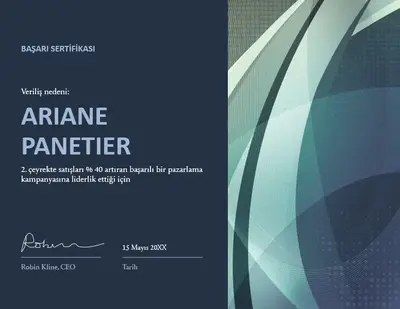
Başarı sertifikası

Microsoft PowerPoint'te başarıları kutlamak için güzel metinler, grafikler ve şablonlar kullanarak özel sertifikalar oluşturun.

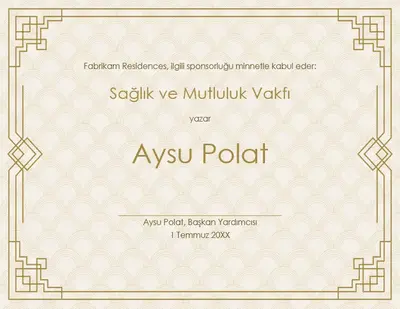
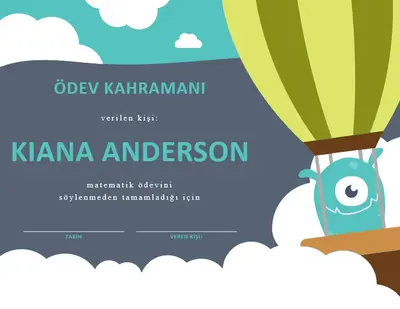
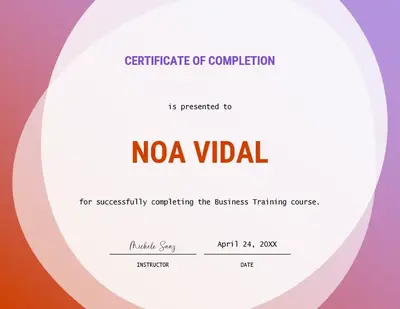
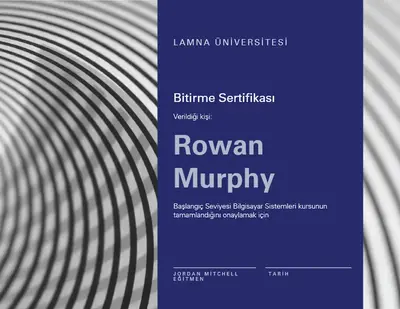
Boş bir sertifikayla başlayın veya düzenlemek için sürükleyip bırakın PowerPoint şablonları her durum için. Şık düzenlerde kutlama simgeleri ve grafikler ekleyerek şık bir sertifika oluşturun.

Özel renkler, logolar ve imzalarla personel ve ödül sertifikalarını geliştirin. Marka logosu yükleyin, özel renkler uygulayın ve resmi imzayı göstermek için kurumsal sertifikalara imza ekleyin.

Boyutu 8,5 x 11 inç olan yatay yönlendirmeye hazır sertifika şablonlarıyla zaman kazanın. İş için sertifikaları yazdırın ve çerçeveleyin veya eğitim atölyeleri ve hediye verme için kullanın ya da yeniden boyutlandırmaya gerek kalmadan dijital olarak resim veya PDF olarak paylaşın.

Tasarım becerisi gerektirmeden her durum için ücretsiz yazdırılabilir sertifikalar indirin. Ödüller, mezuniyet, çalışanların takdir edilmesi ve başarılarla ilgili farklı stil ve renk şemalarındaki sertifika örneklerini keşfedin.
Update any certificate template with a recipient's name, event details, date, and a celebratory message. Draft thoughtful formal or friendly messages with Copilot in PowerPoint when creating multiple versions for employee awards, graduation, or team achievements.
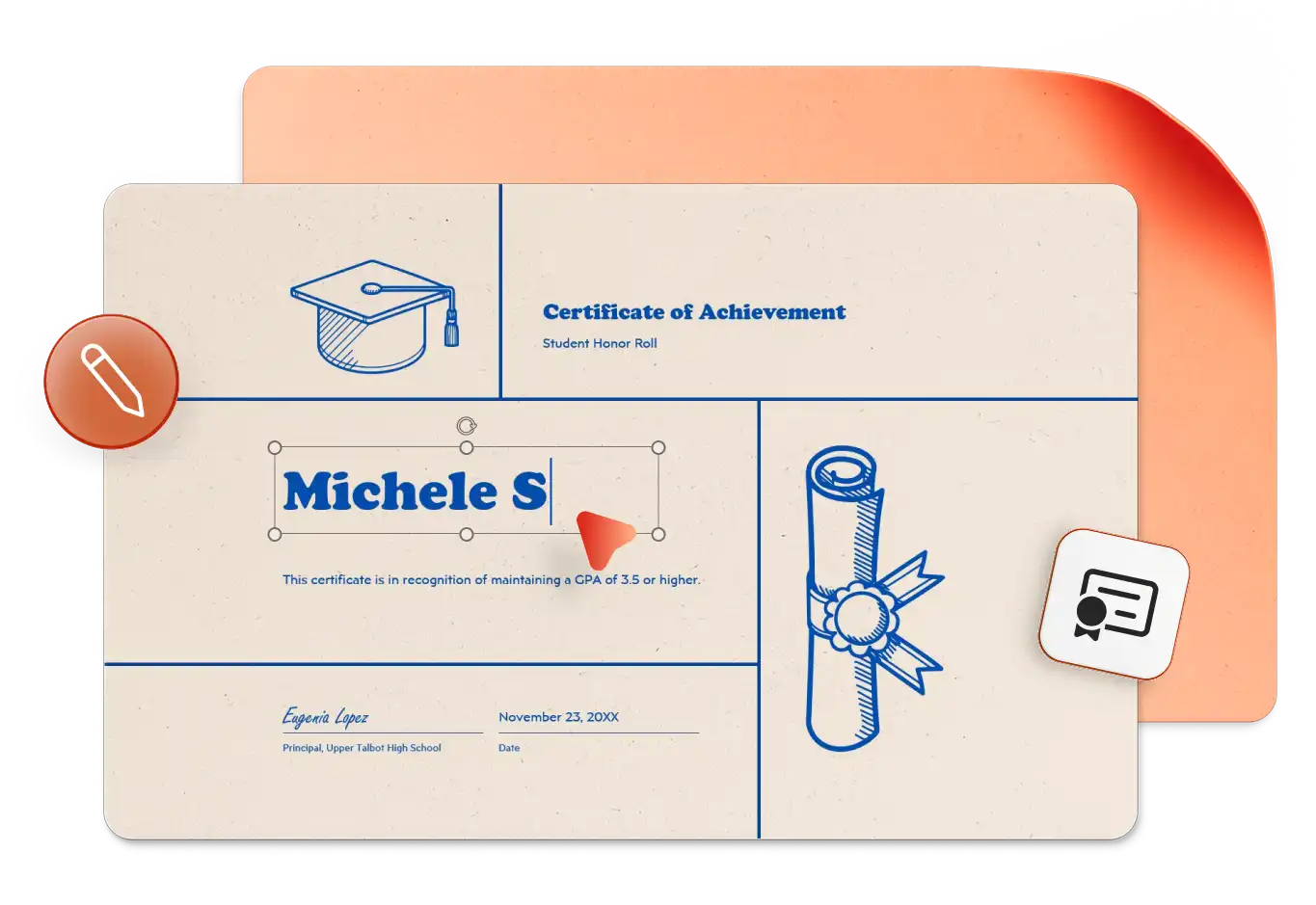
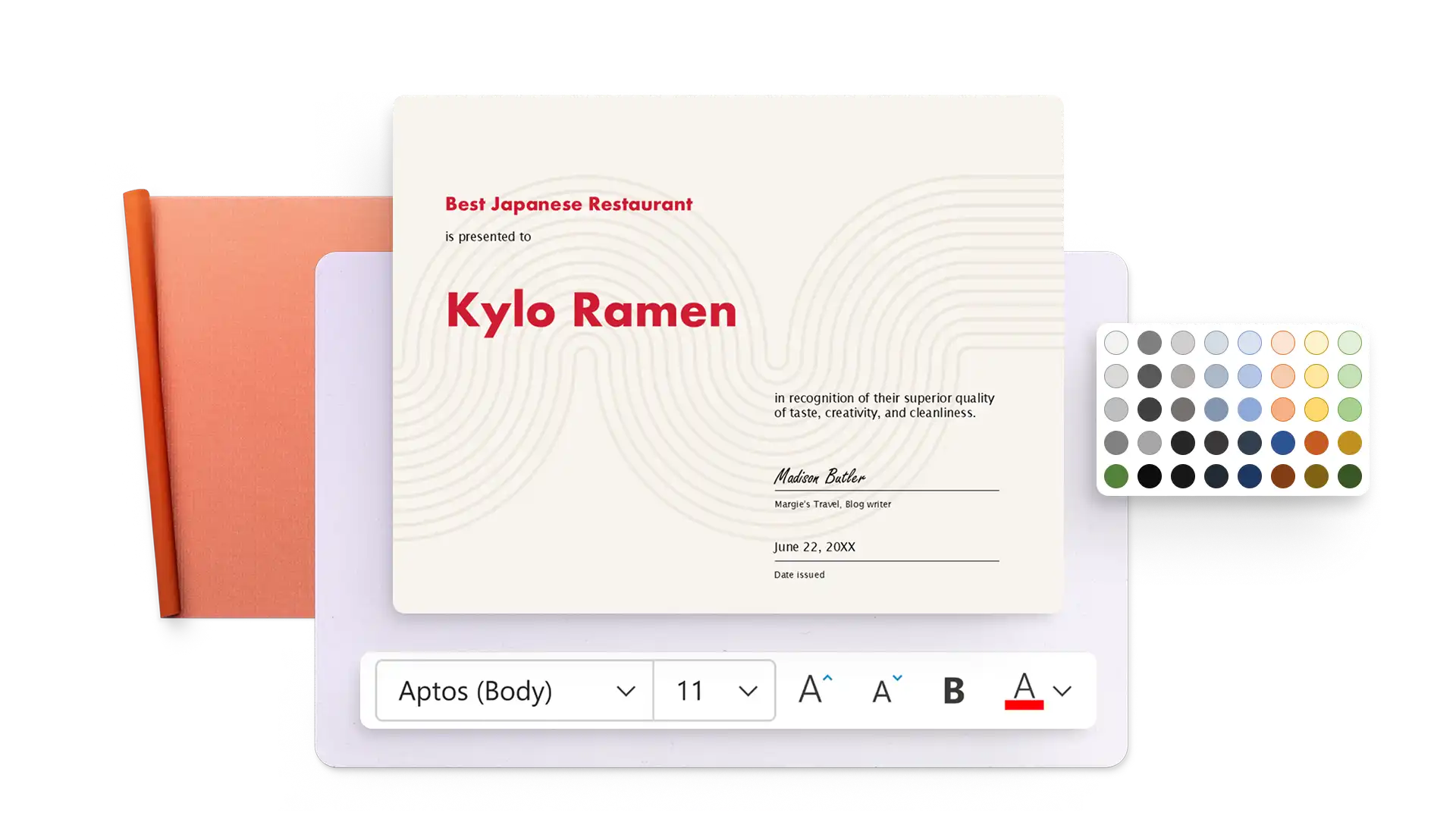
Modify certificate templates with unique color styling and creative fonts to match any occasion. Adjust text layouts and refine the design in just a few clicks, or get design suggestions from the AI presentation designer in PowerPoint.
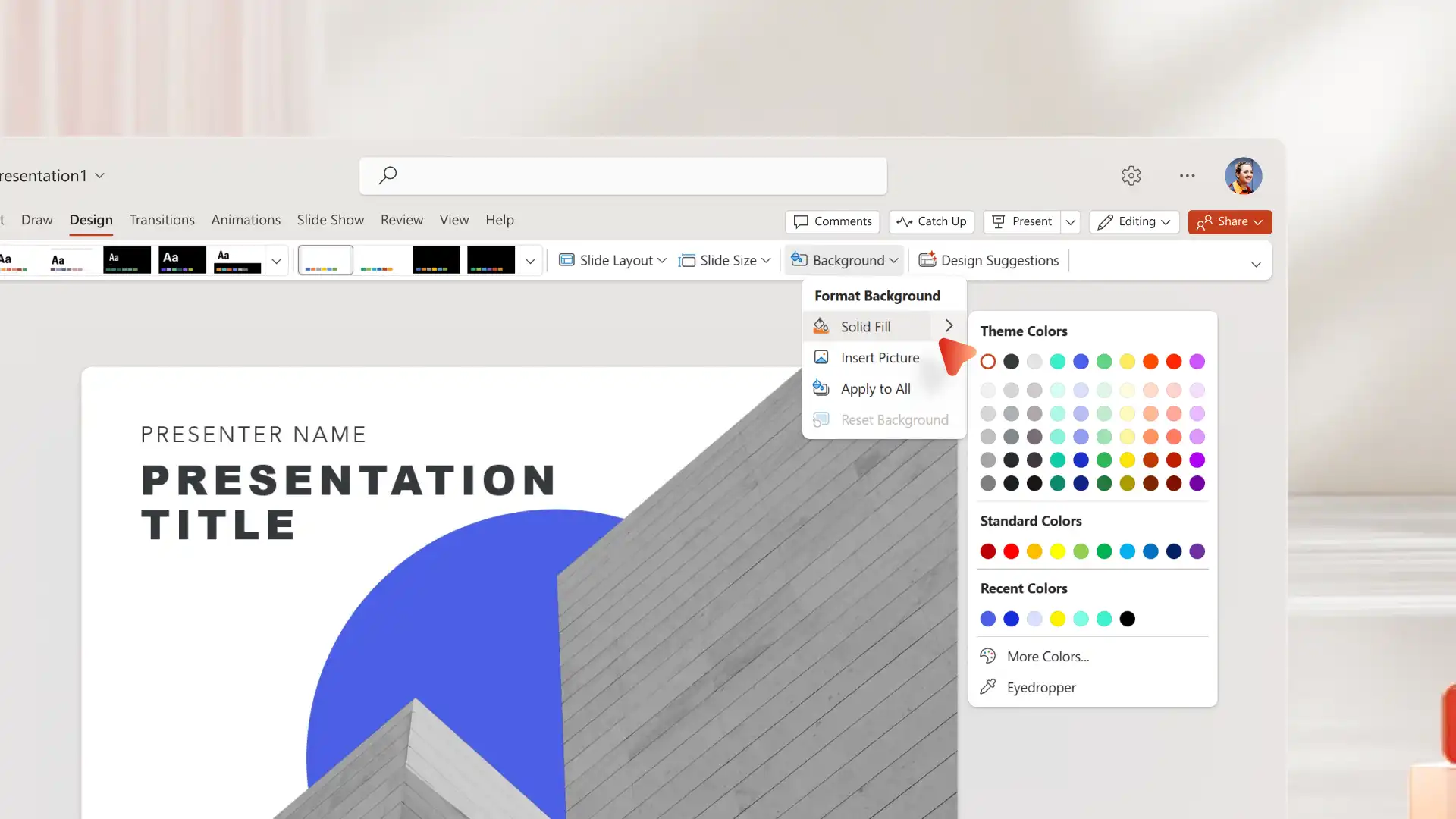
Choose from stars, ribbons, trophies, and other shapes in the PowerPoint library to highlight achievements. Insert timelines for course certificates, add a custom slide background, or create an AI-generated image with Copilot in PowerPoint.
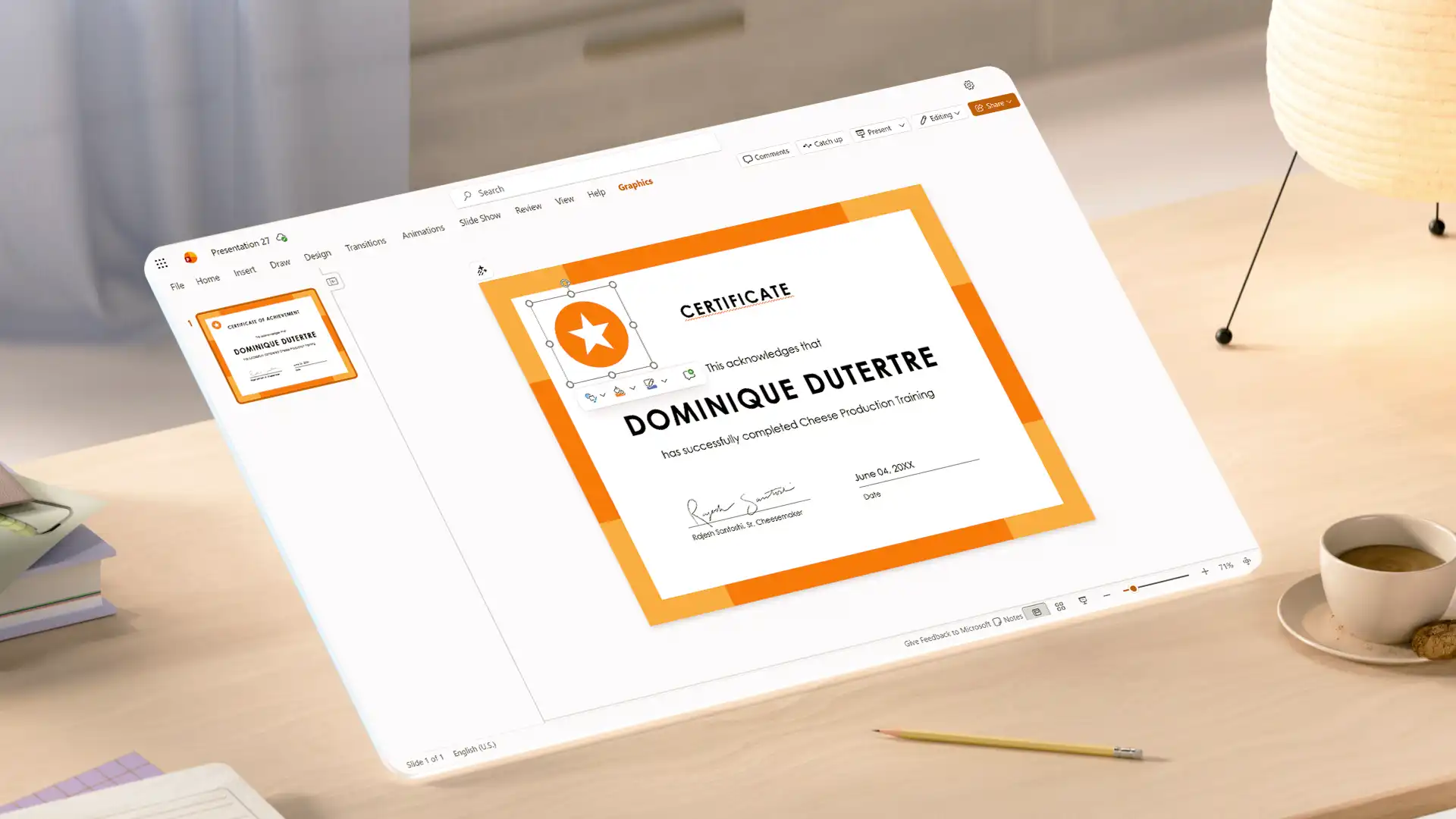
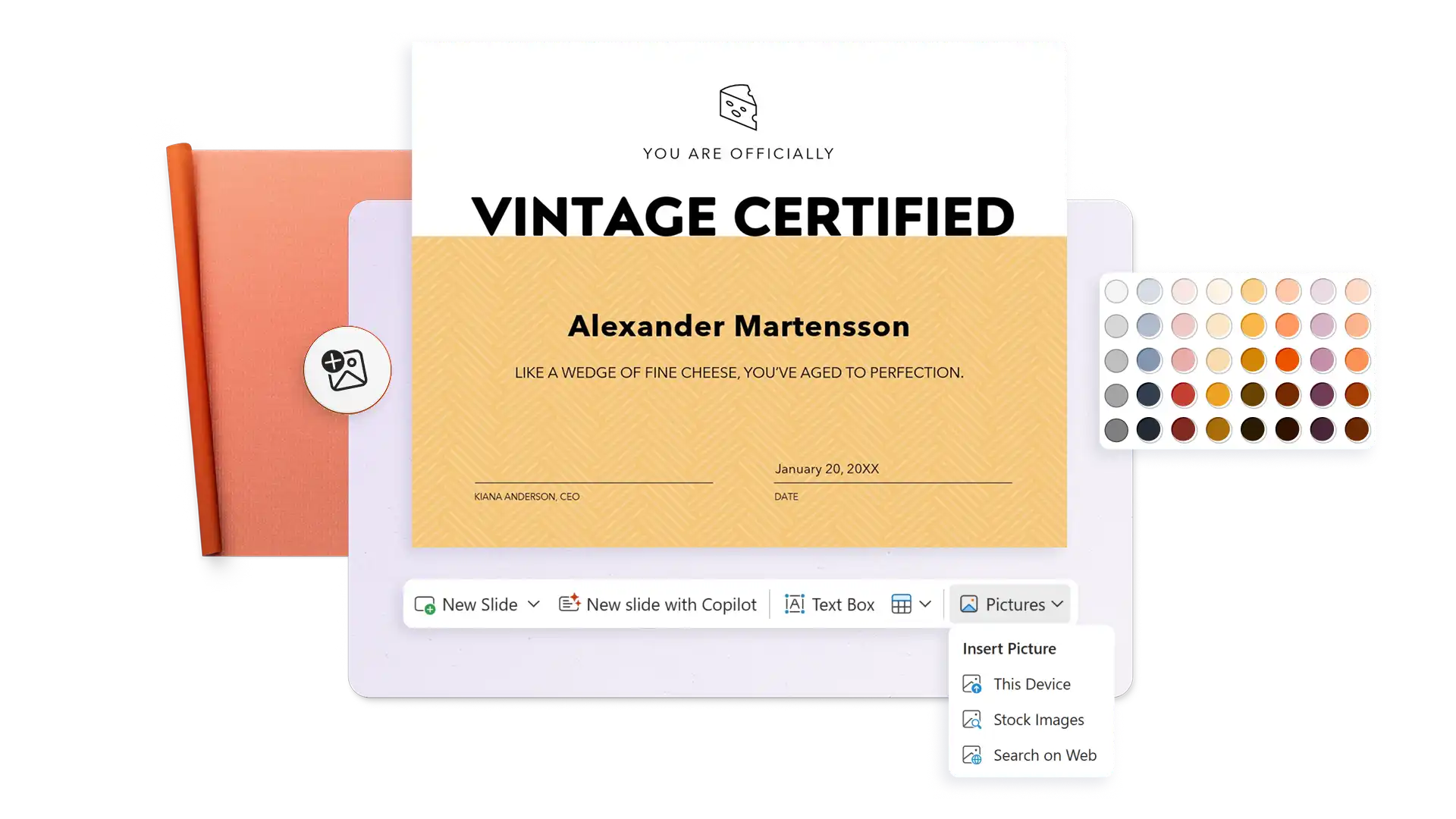
Çalışan takdiri için markalı sertifikalarla dikkat çekin, test kazanımları, atölye tamamlama veya pazarlama ve satış ödülleri. Bir marka logosu yükleyin, kuruluş renkleri uygulayın ve orijinallik için bir şirket mührü veya yönetici imzası ekleyin.
Refine the text on any certificate with Copilot to adjust formality or choose better words to engage any audience. Turn on text predictions to write faster and save time when creating multiple certificates.
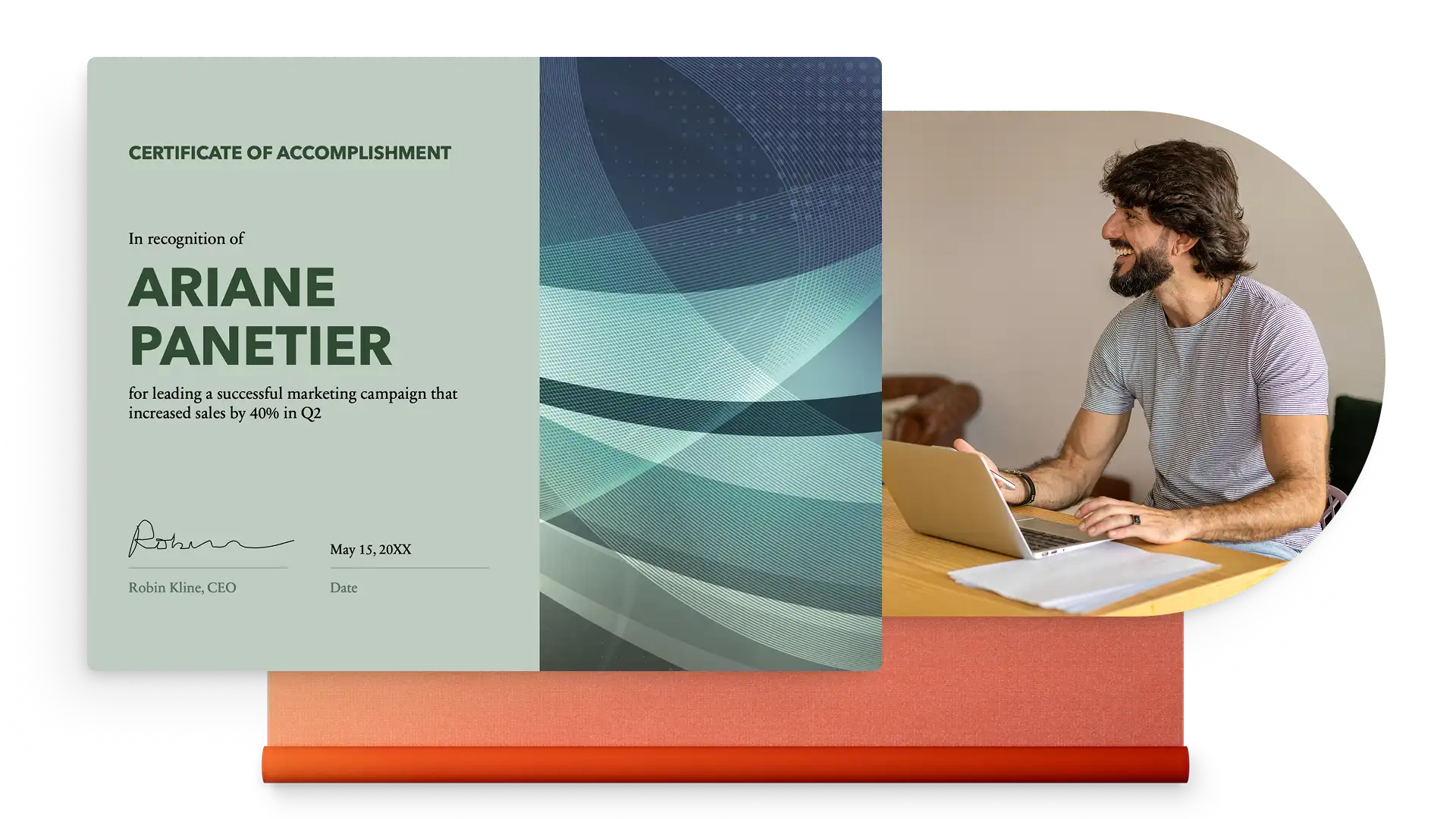
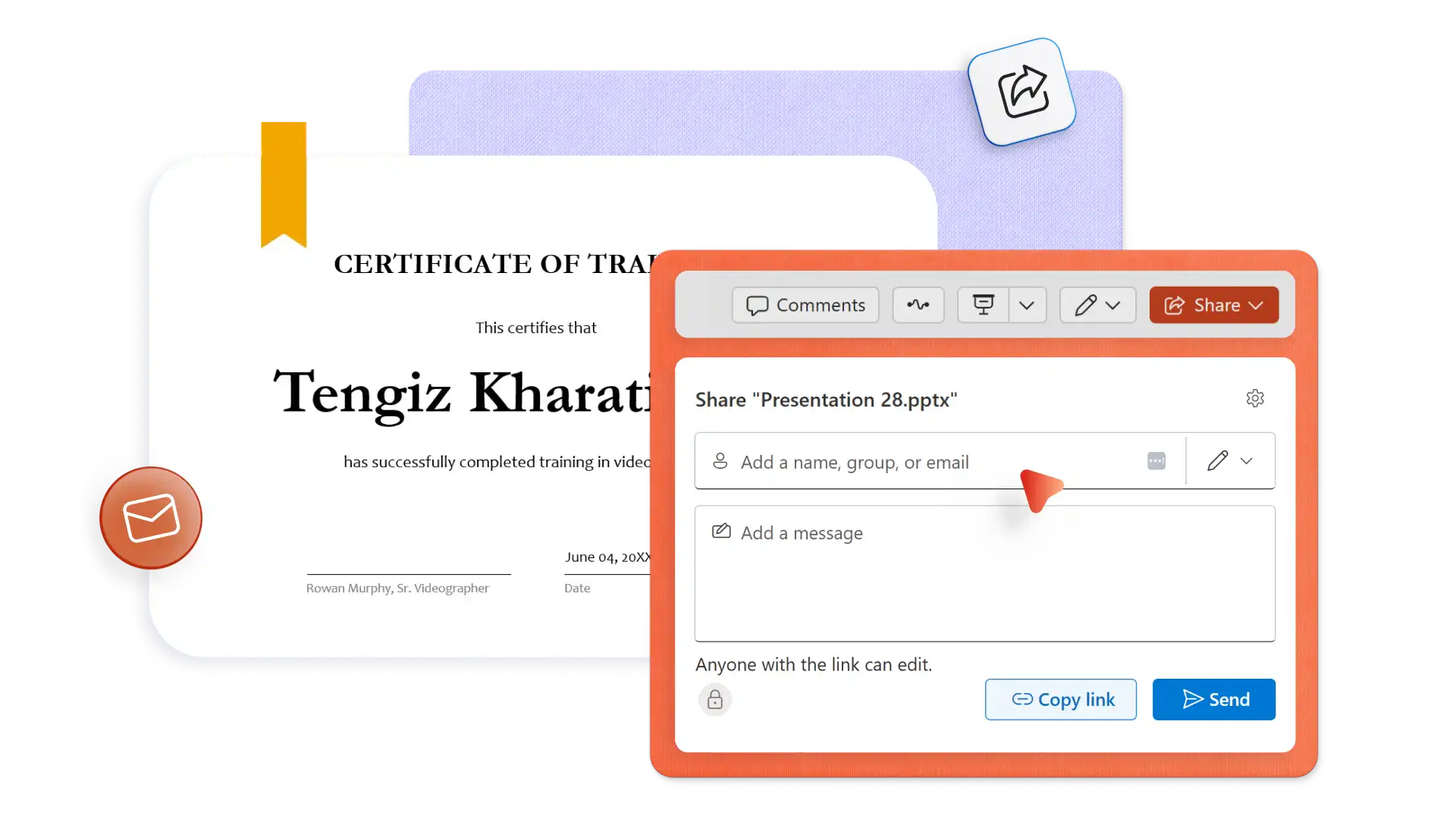
Create and download as many certificates as needed for free. Save certificates in different formats like PDF, JPEG, or PNG. Print, frame, and present in-person, or share online as a PDF email attachment.
In your browser, explore PowerPoint certificate templates
Choose a certificate template to edit
Update the recipient's name, milestone details, date, and signature
Download, print, and share the certificate for free
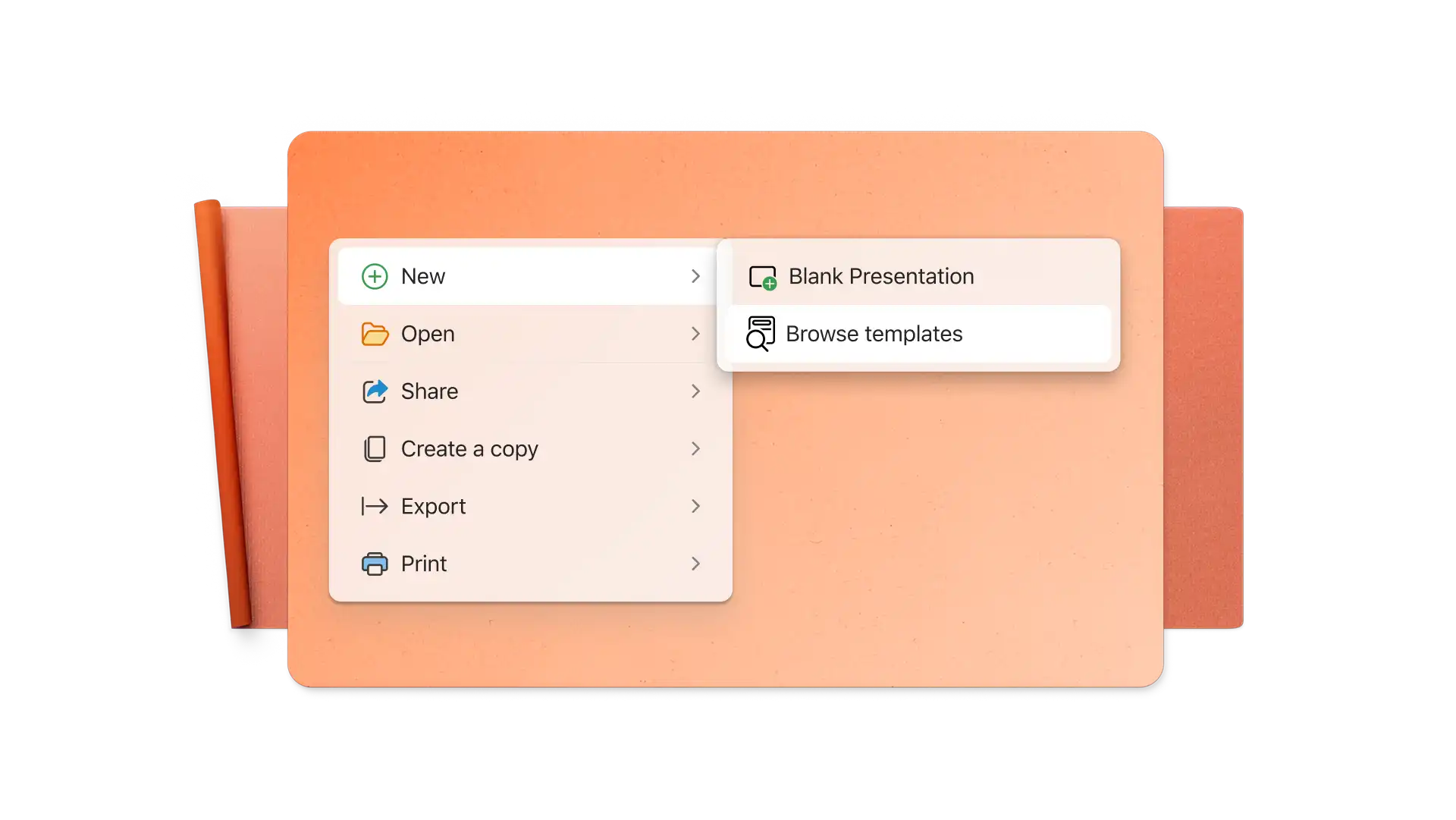
The standard certificate size is 8.5-inch by 11-inch in a landscape orientation. All certificate templates in PowerPoint are automatically preset to the certificate standard size.
To add an image to a certificate in PowerPoint, select Insert on the toolbar then select Pictures. From here, insert an image from a browser or device files, or browse the web to select a stock image.
Easily create more than one certificate using the same template by duplicating the slide, then editing the recipient's name on the new slide. Alternatively, save a copy of an existing certificate as a new file and edit the copy accordingly.
To virtually sign a certificate in PowerPoint, import a saved signature as a PNG or JPEG file with a transparent background. Also consider typing a name using a calligraphy text style like Rastanty Cortez or Freestyle Script fonts. Alternatively, print the certificate as a PDF then sign by hand.