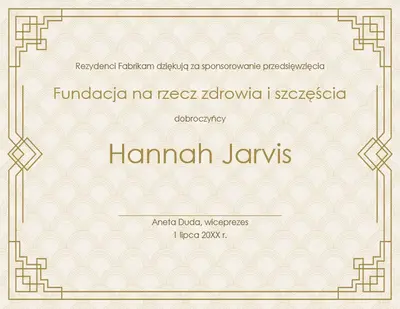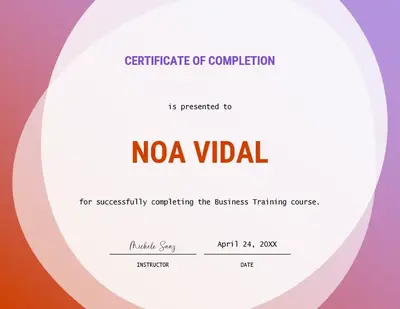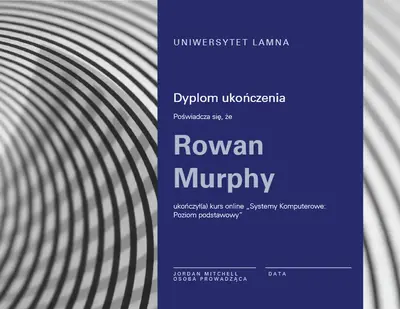
Certyfikat ukończenia

Twórz niestandardowe certyfikaty przy użyciu pięknych tekstów, grafik i szablonów, aby świętować osiągnięcia w programie Microsoft PowerPoint.

Zacznij od pustego certyfikatu albo przeciągnij i upuść, aby edytować szablony programu PowerPoint na dowolną okazję. Dodaj uroczyste ikony i grafiki w stylowych układach, aby stworzyć dopracowany certyfikat.

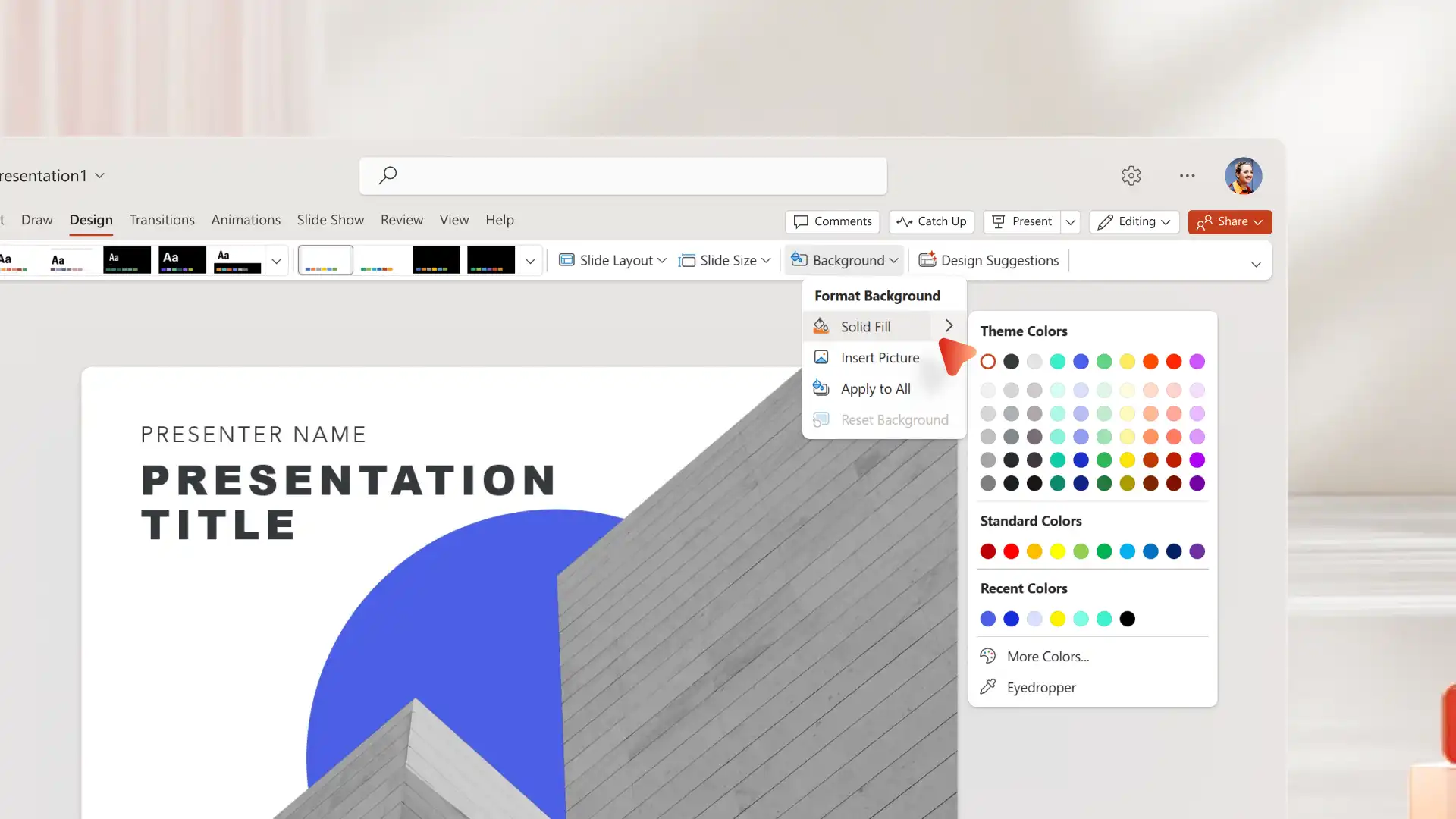
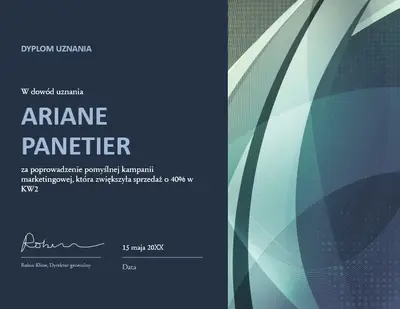
Wyróżnij certyfikaty dla pracowników i nagród dzięki niestandardowym kolorom, logo i podpisom. Prześlij logo marki, zastosuj niestandardowe kolory i dodaj podpis do firmowych certyfikatów, aby pokazać oficjalne zatwierdzenie.

Oszczędzaj czas dzięki szablonom certyfikatów, które mają już ustawiony rozmiar 8,5 × 11 cala w orientacji poziomej. Drukuj i oprawiaj certyfikaty na potrzeby firmowych lub edukacyjnych warsztatów i wręczenia prezentów albo udostępniaj je cyfrowo jako obraz lub plik PDF bez konieczności zmiany rozmiaru.

Pobierz bezpłatne certyfikaty do wydruku na dowolną okazję, bez potrzeby posiadania umiejętności projektowania. Zobacz przykłady certyfikatów na nagrody, ukończenie studiów, uznanie pracowników i osiągnięcia w różnych stylach i zestawach kolorów.
Update any certificate template with a recipient's name, event details, date, and a celebratory message. Draft thoughtful formal or friendly messages with Copilot in PowerPoint when creating multiple versions for employee awards, graduation, or team achievements.
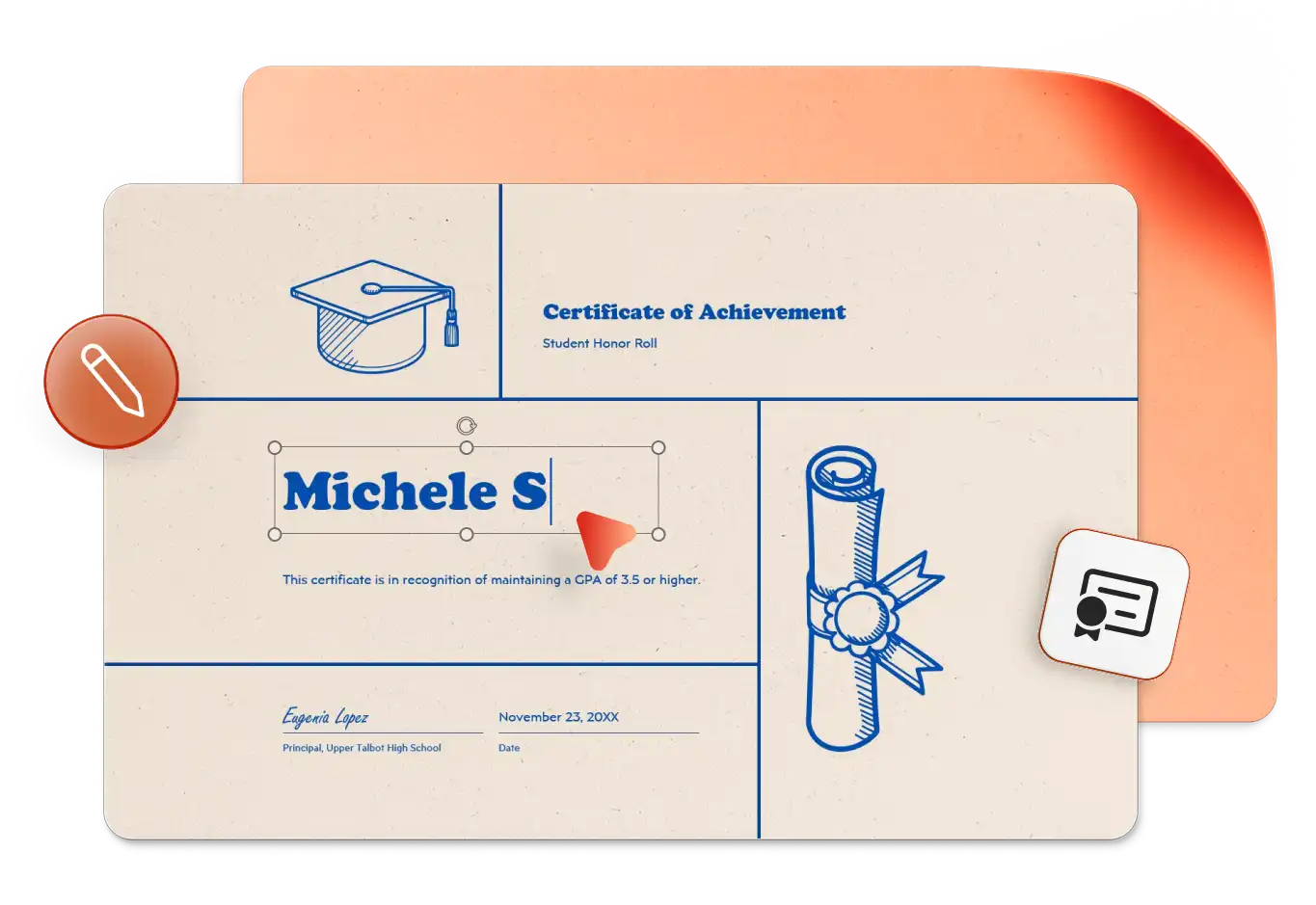
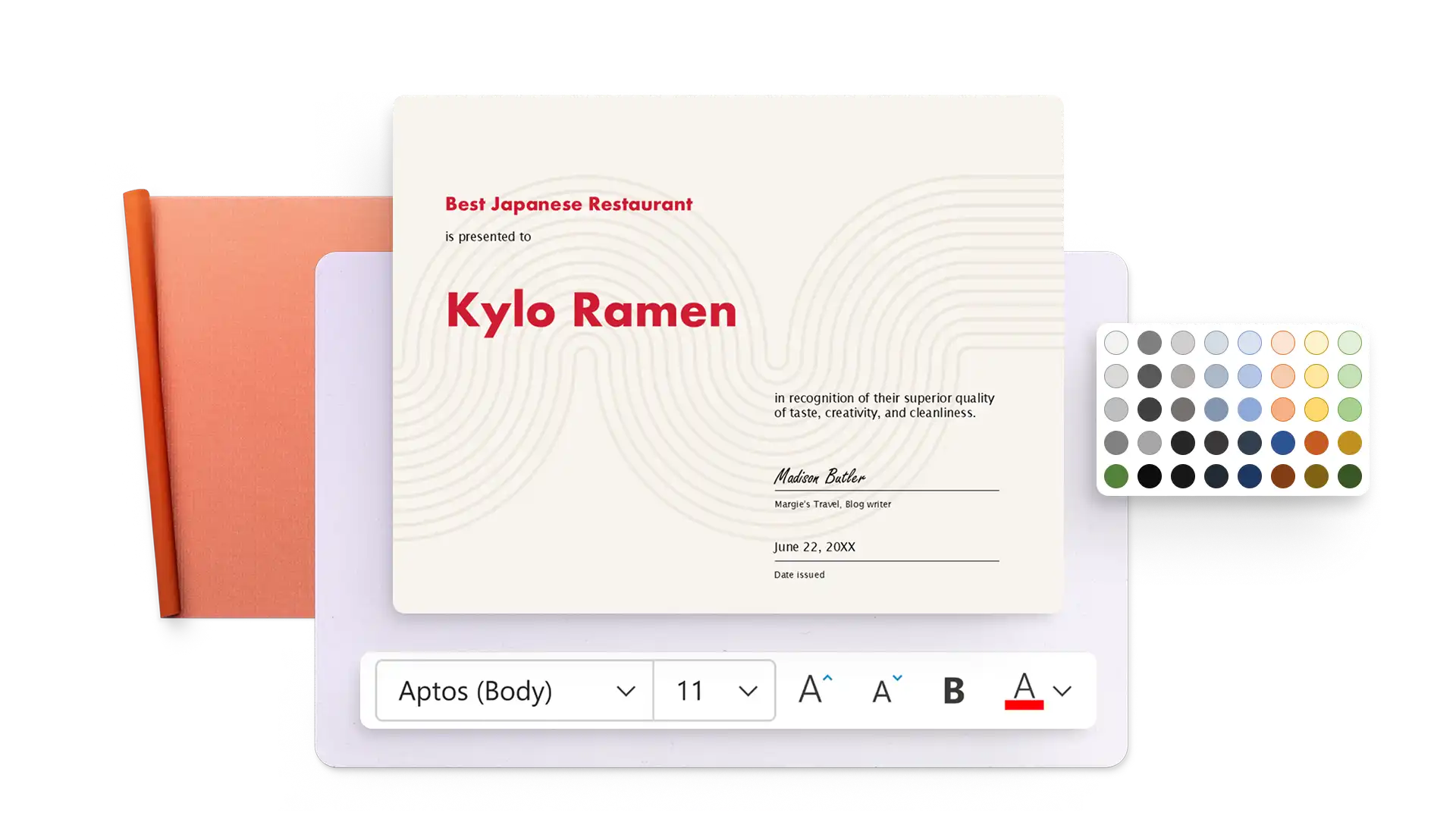
Modify certificate templates with unique color styling and creative fonts to match any occasion. Adjust text layouts and refine the design in just a few clicks, or get design suggestions from the AI presentation designer in PowerPoint.
Choose from stars, ribbons, trophies, and other shapes in the PowerPoint library to highlight achievements. Insert timelines for course certificates, add a custom slide background, or create an AI-generated image with Copilot in PowerPoint.
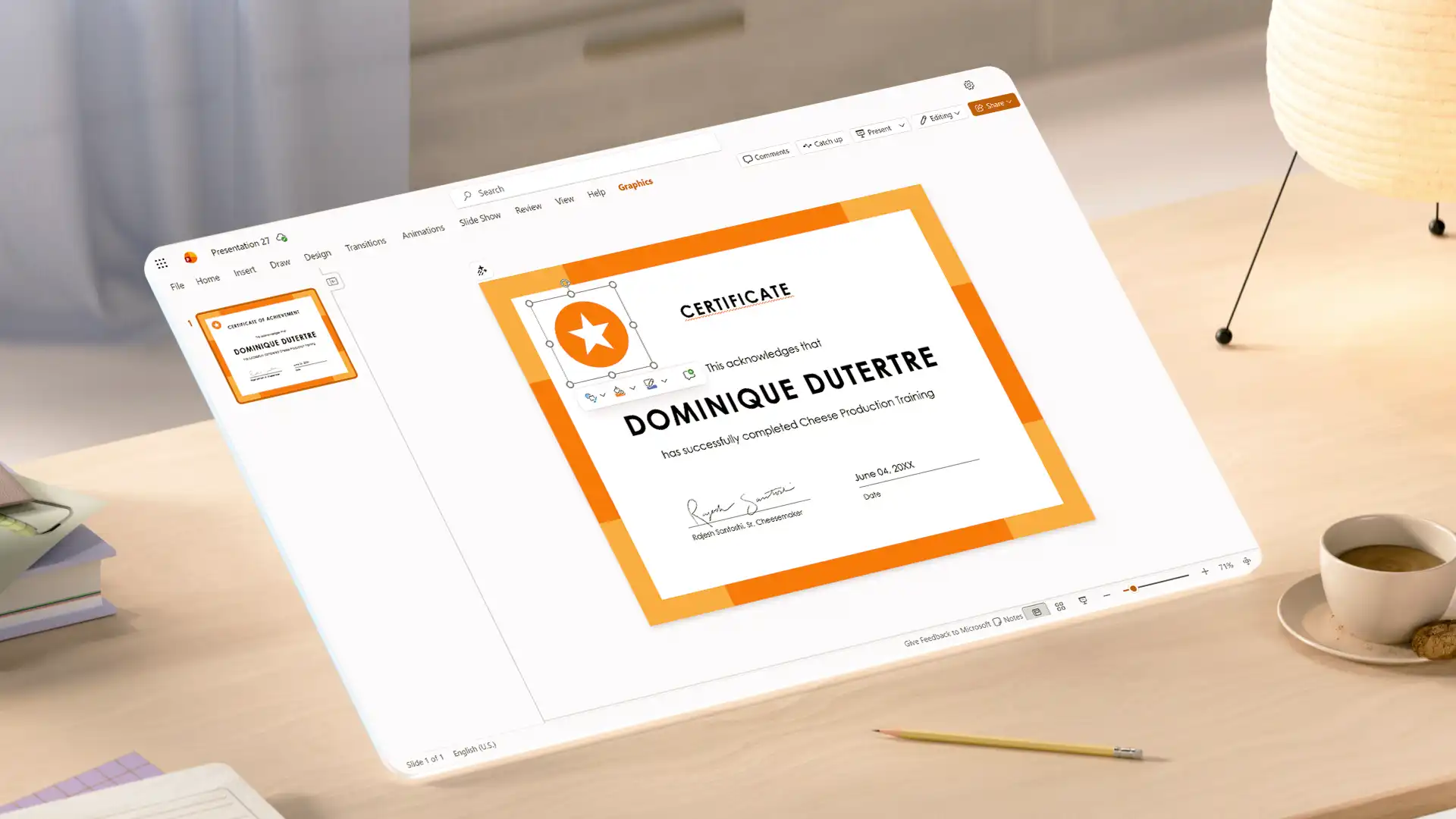
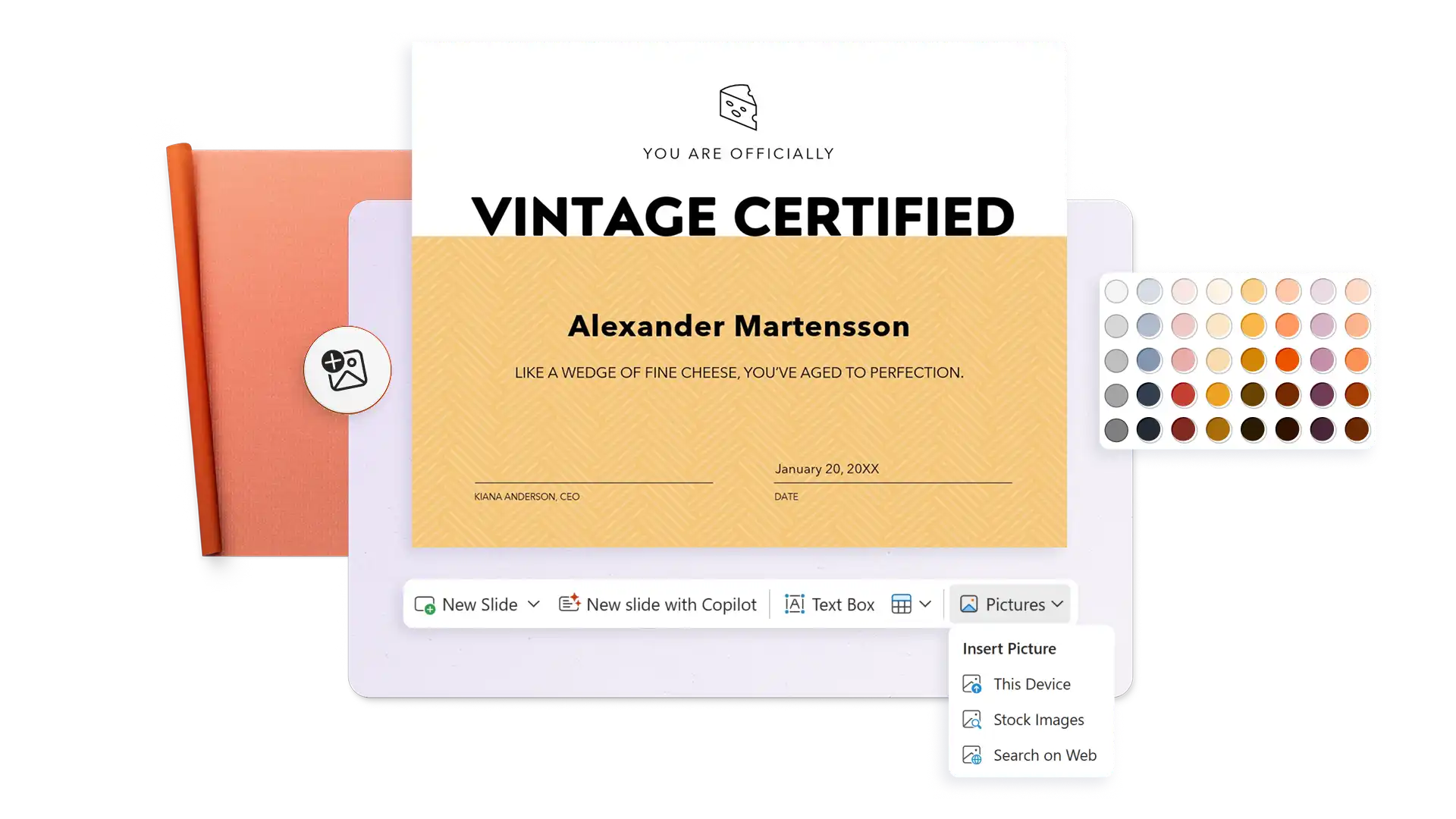
Przyciągnij uwagę dzięki markowym certyfikatom dla uznania pracowników, zwycięstw w quizach, ukończenia warsztatów lub nagród marketingowych i sprzedażowych. Prześlij logo marki, zastosuj kolory organizacji i dodaj pieczęć firmową albo podpis osoby zarządzającej, aby podkreślić autentyczność.
Refine the text on any certificate with Copilot to adjust formality or choose better words to engage any audience. Turn on text predictions to write faster and save time when creating multiple certificates.
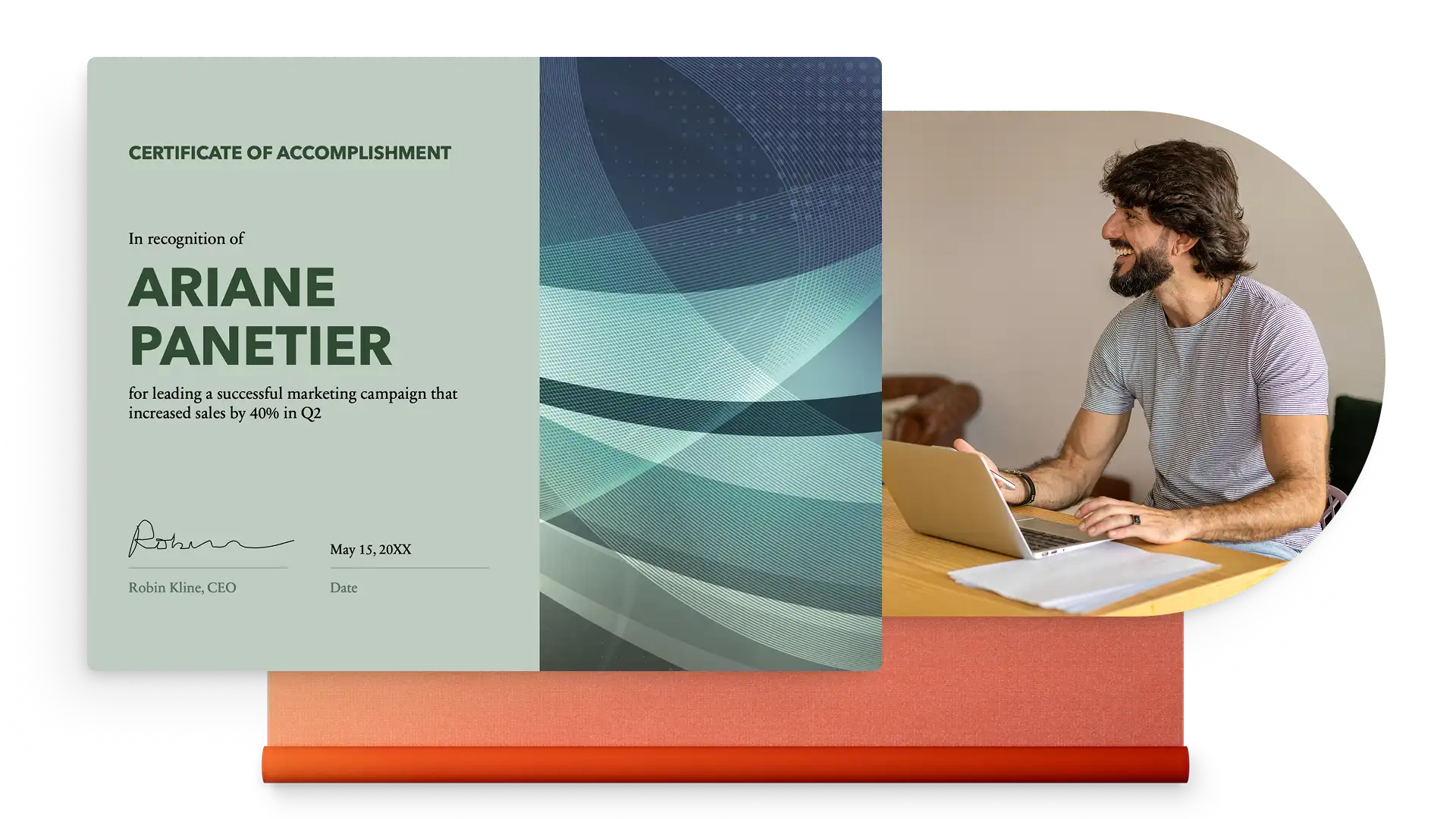
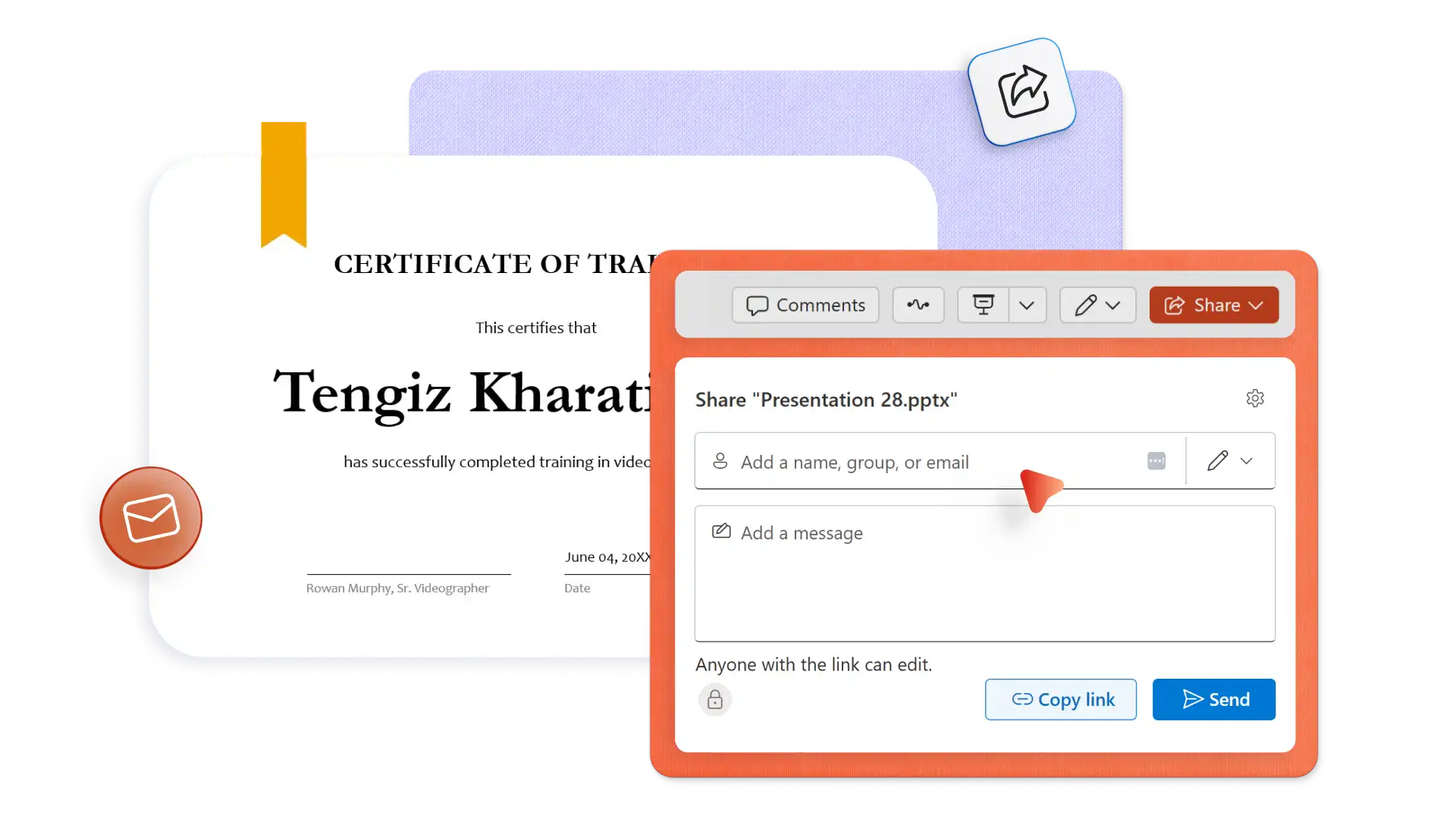
Create and download as many certificates as needed for free. Save certificates in different formats like PDF, JPEG, or PNG. Print, frame, and present in-person, or share online as a PDF email attachment.
In your browser, explore PowerPoint certificate templates
Choose a certificate template to edit
Update the recipient's name, milestone details, date, and signature
Download, print, and share the certificate for free
The standard certificate size is 8.5-inch by 11-inch in a landscape orientation. All certificate templates in PowerPoint are automatically preset to the certificate standard size.
To add an image to a certificate in PowerPoint, select Insert on the toolbar then select Pictures. From here, insert an image from a browser or device files, or browse the web to select a stock image.
Easily create more than one certificate using the same template by duplicating the slide, then editing the recipient's name on the new slide. Alternatively, save a copy of an existing certificate as a new file and edit the copy accordingly.
To virtually sign a certificate in PowerPoint, import a saved signature as a PNG or JPEG file with a transparent background. Also consider typing a name using a calligraphy text style like Rastanty Cortez or Freestyle Script fonts. Alternatively, print the certificate as a PDF then sign by hand.