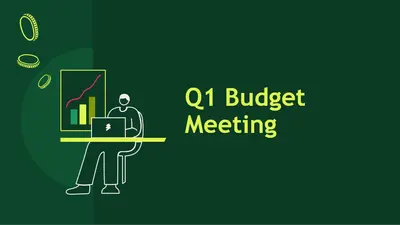
Üç aylık bütçeleme

Microsoft PowerPoint’te düzenlenebilir şablonlar, görsel grafikler ve Copilot kullanarak anlaşılır finans sunumları oluşturun.

Boş bir slaytla başlayın veya bütçeleri, raporları veya tahminleri sergilemek için bir finans sunusu şablonunu uyarlayın. Yer tutucu metni değiştirin ve slayt tasarımlarını içeriğin net bir şekilde akması için ayarlayın.

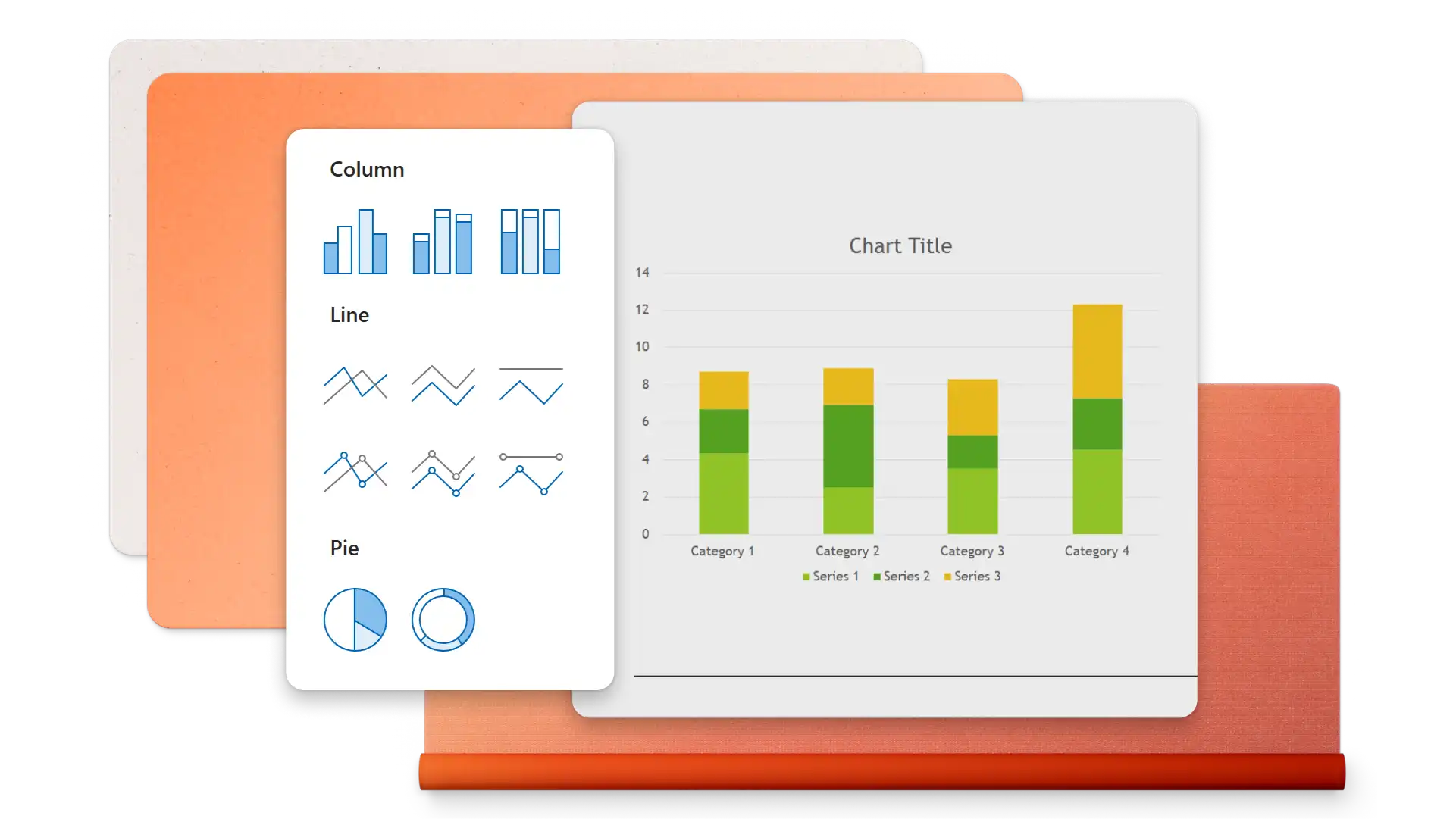
Finans verilerini, gelir tahminlerini ve pazar eğilimlerini görüntülemek için grafikler ve grafikler ekleyin. infografikleri, SmartArt ve tabloları kullanarak karmaşık bilgileri net görsellere dönüştürün.

Finans raporlarını, belgeleri veya elektronik tabloları PowerPoint'te Copilot sohbetine yükleyerek sunum ana hat önerileri alın. Taslağı gözden geçirin ve slaytlara gereken değişiklikleri uygulayın.

Bütçe gözden geçirmeleri, üç aylık raporlar, yatırım desteleri ve finansal planlar için çeşitli finans sunusu şablonları arasından seçim yapın. Yönetim kurulu toplantıları, müşteri incelemeleri veya kişisel finans takibi için düzenleri uyarlayın.
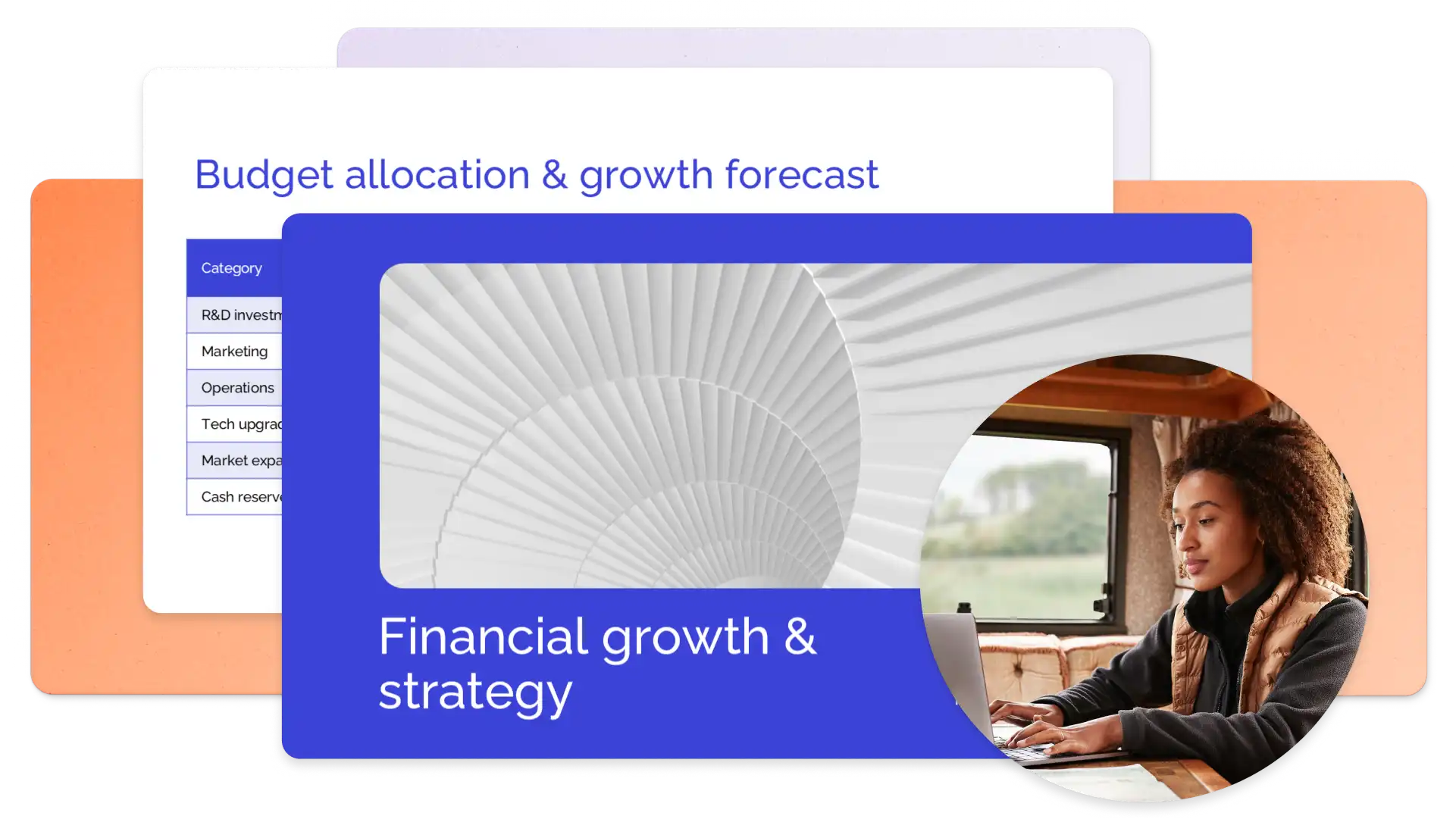
Choose a presentation template featuring placeholder slides for profit and loss statements, revenue breakdowns, and financial forecasts. Replace sample content with actual data, add branding, and adjust visuals to prepare a clear presentation.
PowerPoint’te Copilot (opens in a new tab) ile daha hızlı çalışın. Copilot slayt tasarımlarınızı güncelleştirebilir, ilgili görseller ekleyebilir ve marka şablonunuzu kullanarak sunu oluşturabilir; bu özellikleri kullanarak bir finans sunusunu hızlı bir şekilde özelleştirin. Copilot ile sohbet ederek içerik önerileri ve özet slaytlar oluşturun ve otomatik yeniden yazma ile slaytları geliştirin. Hazır olduğunuzda Konuşma Koçu (opens in a new tab) ile sunu becerilerini geliştirin.
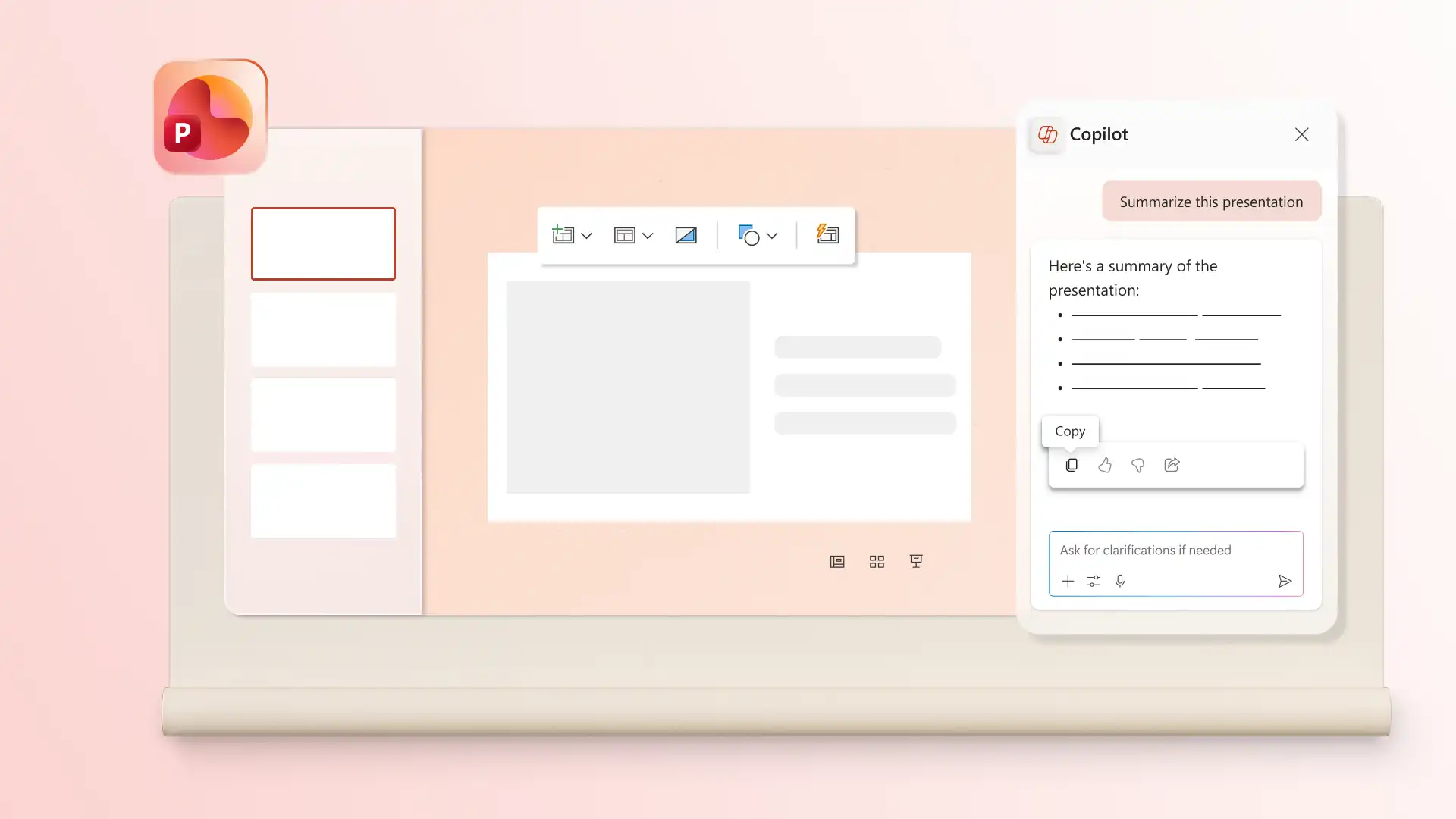
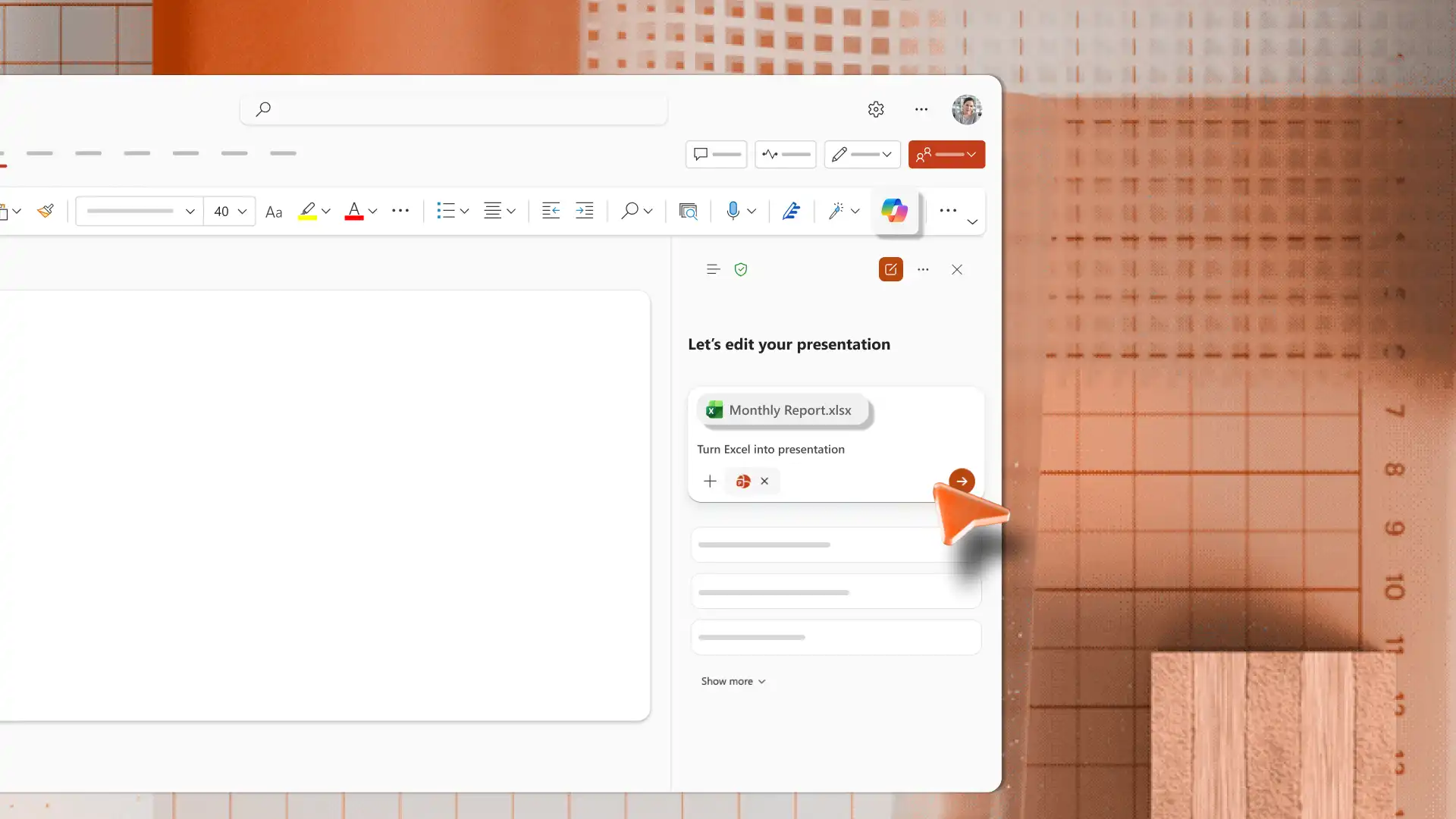
Generate slides from existing files using the AI presentation maker in PowerPoint. Upload an Excel file or document to Copilot chat and receive a presentation outline to review and apply. Review the suggested structure to organize and format slides, so the final deck is clear and easy to follow.
Insert charts, tables, diagrams, or timeline slides that directly support topics in a finance presentation. Use the right chart type for the data, such as line charts for trends, pie charts for proportions, or bar charts for comparisons. Keep one main insight per slide so the data supports the message.
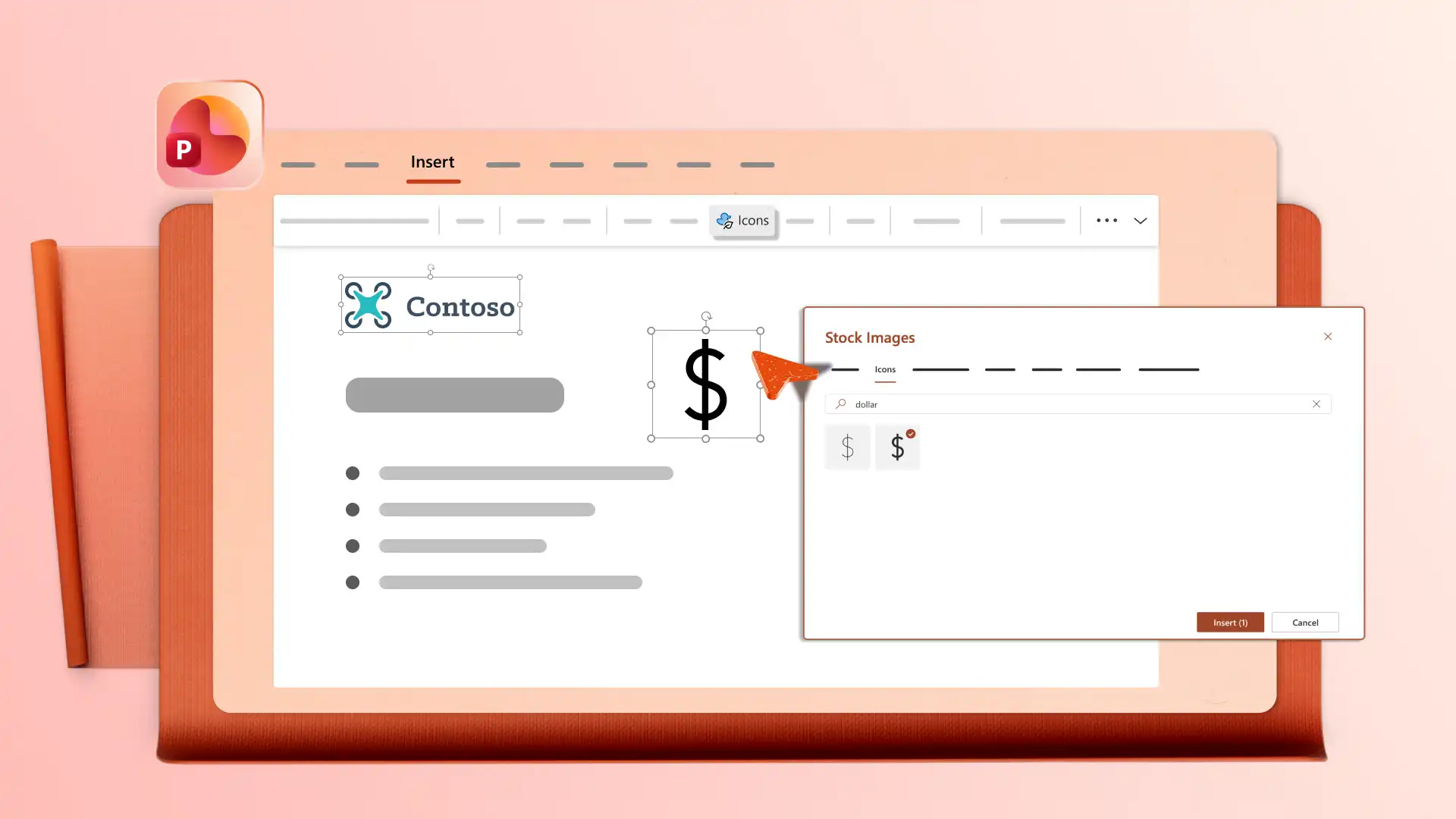
Add a company logo, apply brand colors, and choose fonts that match brand guidelines, so finance presentations look consistent with other company materials. Open the Design tab to review layout suggestions that organize content clearly. Use clean layouts so audiences can read the data and remember key points.
Edit finance presentations with a team using real-time collaboration tools like mentions and comments to review and add ideas. Download a presentation as a PDF or send a secure OneDrive link that always shows the latest version for stakeholders, clients, or board members.

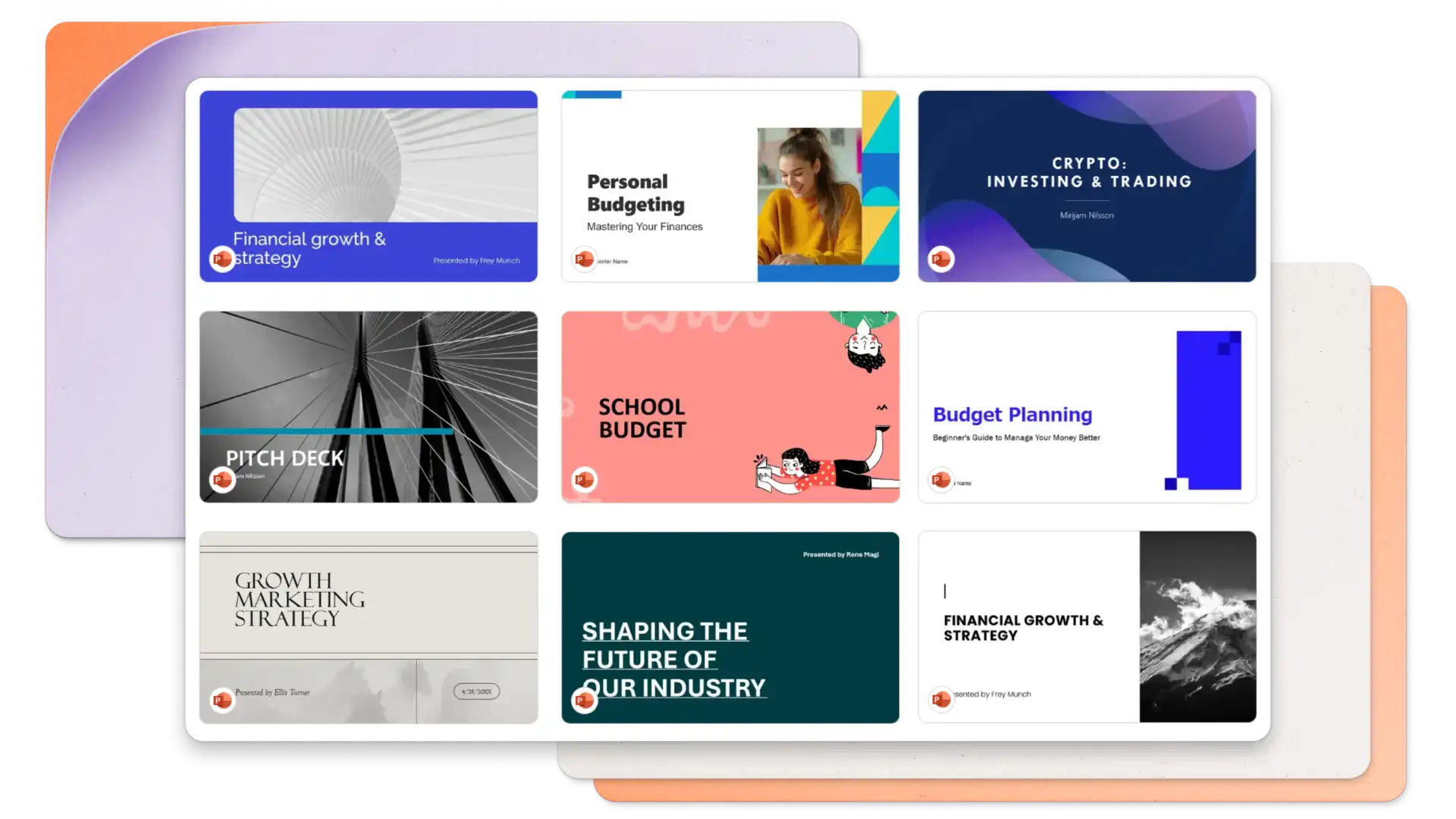
PowerPoint for the web öğesini açın ve sıfırdan başlayın veya finans sunumu şablonlarına göz atın.
Bir şablon seçin ve yer tutucu içeriği finansal veriler ve raporlarla değiştirin.
Her slayda önemli noktaları desteklemek için grafikler, tablolar ve görseller ekleyin.
PowerPoint'te Copilot ile sohbet ederek ekli dosyalardan ana hatlar, özetler veya slaytlar oluşturun.
Sunuyu OneDrive bağlantısı aracılığıyla kaydedin ve paylaşın veya PDF olarak indirin.
Finance presentation templates work well for budget reviews, quarterly reports, investment pitches, and financial forecasts. Share these decks with executives, investors, or clients for business purposes. Personal finance presentations can also be shared with family or colleagues. Combine finance templates with sales presentations or business presentations for broader coverage.
Start with an executive summary that covers the main points, then move into detailed sections for revenue, expenses, profit and loss, and forecasts. Use a finance template to follow a ready-made structure and save time on formatting. End with key takeaways and next steps.
Use charts that match the data type, such as line charts for trends, pie charts for proportions, and bar charts for comparisons. Add timeline slides to show progress over time. Keep one main insight per slide so the visuals support the story rather than replace it.
Follow a clear structure using a finance template to cover key areas like summaries, data, and forecasts. Practice delivery with the coach in PowerPoint (opens in a new tab) to review pacing, tone, and filler words. Keep slides focused on one insight each so the audience can follow along.