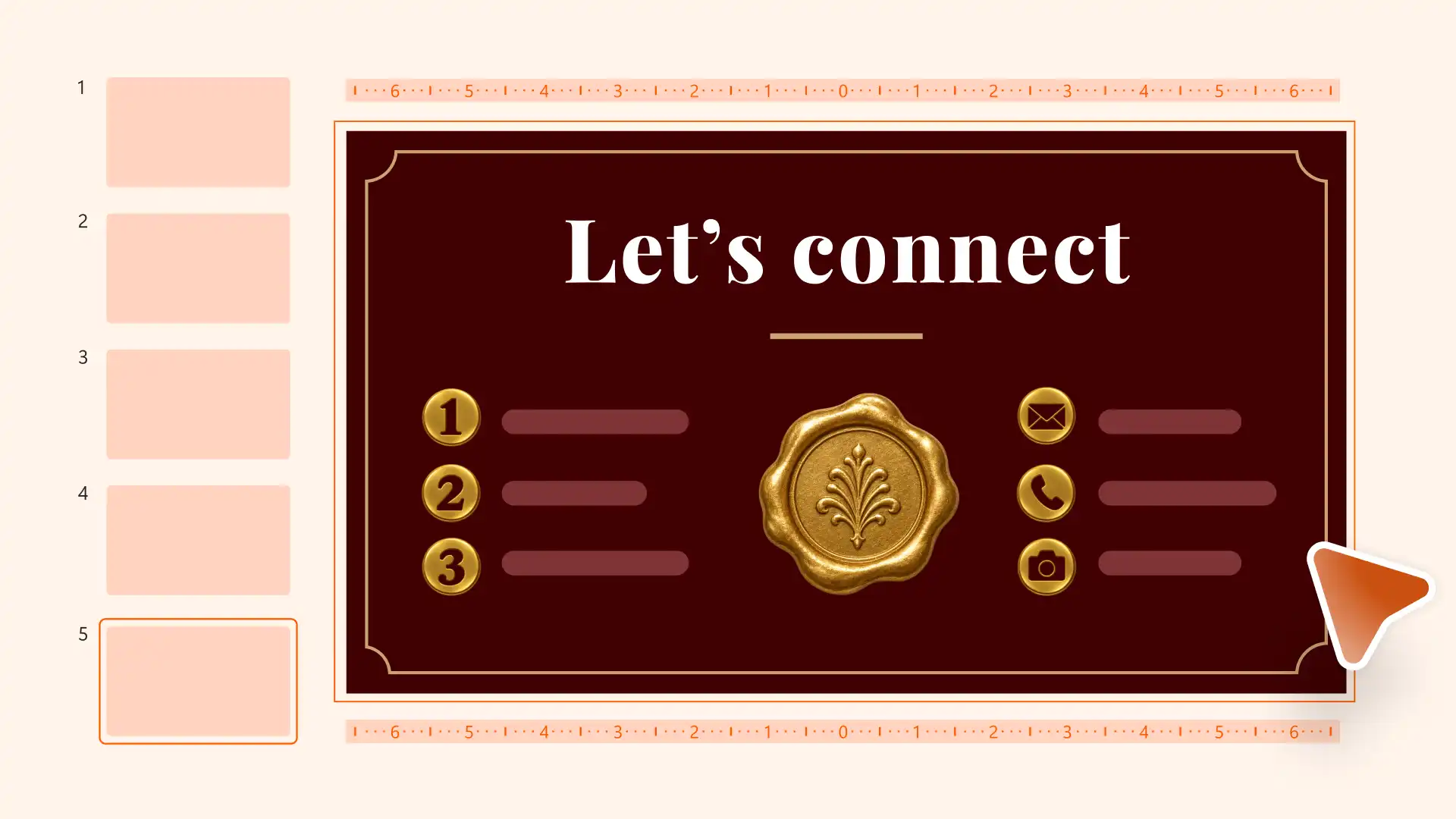
An impactful end slide helps a presentation’s main message stay with an audience. It highlights key decisions, outlines actions, and addresses questions, so everyone leaves the presentation with a shared understanding of what comes next.
Build a clear end slide with editable layouts and design tools in Microsoft PowerPoint, or use Copilot in PowerPoint to generate a first draft that is ready to edit. Learn how to create end slides for work or the classroom, along with practical tips on using AI in PowerPoint.
How to end a presentation effectively
Each part of an end slide has a purpose, from guiding the next step to helping people get in touch. Take inspiration from these tips to build a strong closing slide that connects ideas and insights shared from the deck to a central message.
Summarize three key takeaways
Start with a strong closing headline that outlines the main insight or action, and follow it up with three or four important takeaways from the presentation. This makes it easy for audiences to view the most important conclusions at a glance.
Close with a clear call to action
Ask the audience to take one specific step, such as booking a demo, approving a budget, or completing a survey, since a single request is simpler to remember and act on than a long list.
Support text with matching visuals
Add relevant icons, photos, or charts in the same style as the rest of the deck, so the presentation has a consistent look and feel from start to finish.
Share a quote, story, or statistic
Use a short quote, personal story, or relevant statistics to reinforce a central message through a different perspective.
Invite questions and set up Q&A
Plan time for questions with a Q&A slide, either as the end slide itself or just before a final summary or thank you slide. A simple line such as “Any questions?” creates opportunities for discussion.
End slide layout ideas
A well-designed end slide fits the goal of the presentation and shows the audience where to go next. These five layouts show how to close a presentation for different audiences, from lectures and team meetings to client pitches and conferences.
1. Summary slide
Highlight final takeaways with a summary slide to help teams review project outcomes, students revisit important findings, or clients compare main recommendations.
Elements to include:
Headline: the core idea in a few words
Key points: three to four takeaways from the presentation
Visual support: icons or a simple SmartArt graphic for each point
Best for:
Training sessions
Project updates
Pitch decks
2. Call to action slide
Turn interest into action with a call to action slide that asks the audience to take one next step, such as signing up for a free trial or scheduling a meeting.
Elements to include:
Action headline: the next step, written as a direct instruction
Supporting line: one sentence on why the action is useful
Link or QR code: a hyperlink or QR code that leads straight to the next step
Best for:
Business proposals
Investor pitches
Recorded presentations

3. Thank you slide with contact details
Show appreciation and invite follow-up with a professional thank you slide that shares contact details with potential clients, partners, and event guests.
Elements to include:
Thank you message: a sincere line of thanks
Contact details: name, role, email address, or website
Social links: professional social media handles or a QR code
Best for:
Conferences and events
Keynote talks
Guest lectures
4. Q&A slide
Invite discussion with a Q&A slide that helps audiences clarify complex information, raise concerns, and share feedback.
Elements to include:
Simple heading: a title such as “Questions?”
Key points: a brief reminder of the main topics for reference
Contact details: a way to send questions after the session
Best for:
Workshops
Team meetings
Investor updates
5. Quote or image-led closing slide
Illustrate a final idea, reinforce an important theme, or give audiences something specific to reflect on with a full-screen photo, a short quote, or a custom slide background.
Elements to include:
Image or quote: one strong photo or a quote that links to the topic
Short caption: a line that connects the image or quote to the message
Source: the name of the person quoted, where relevant
Best for:
Conference and keynote sessions
Storytelling presentations
Award or celebration events

How to create an end slide in PowerPoint
Bring the presentation to a clear conclusion with layouts and design tools that help organize key takeaways, highlight next steps, and present the final message in a format that fits the deck. Follow these seven steps to get started.
Open an existing presentation in PowerPoint for the web and select the last slide.
Select New Slide on the Home tab and choose the Title and Content slide layout to insert an end slide.
Add text boxes for the closing headline, takeaways, call to action, or contact details.
Insert icons, a picture, a QR code image, or SmartArt from the Insert tab to support the message.
Match the fonts and colors to the deck theme from the Design tab, or choose the Design Suggestions tab for layout suggestions that fit the slide.
Add speaker notes to deliver a warm and engaging thank you.
Save the presentation, present it live, or share for review using a secure OneDrive link.
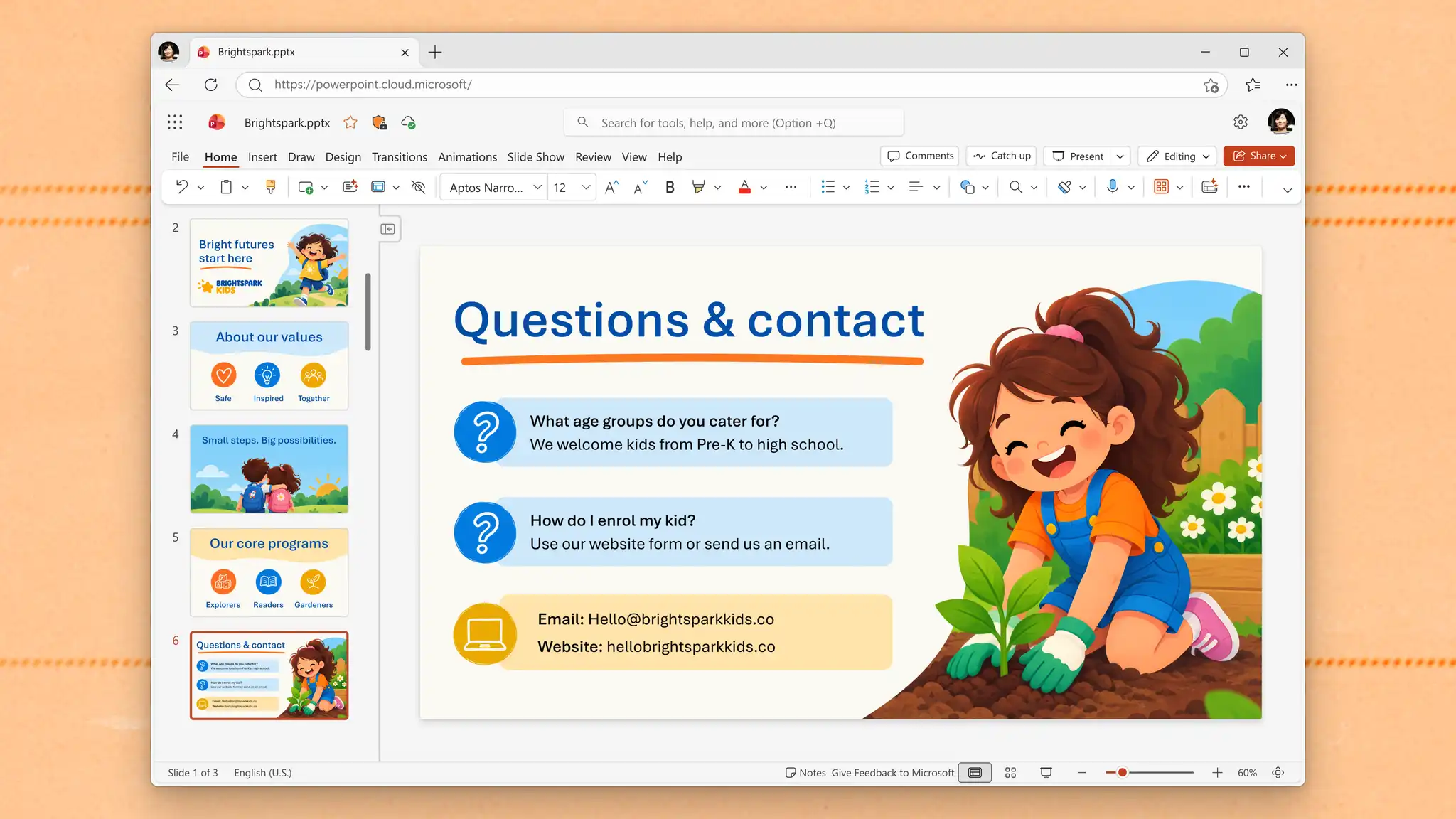
How to create a conclusion slide with Copilot
Tailor one closing message for clients, classmates, or company leaders with help from Copilot, without rewriting the end slide each time.
Open the finished presentation and select the Copilot icon to start a chat.
Ask Copilot to summarize the presentation into three key takeaways for a closing slide.
Turn the takeaways into a conclusion slide with one short next step, such as booking a demo or completing a survey.
Describe the presentation audience to help AI adjust the tone of the generated summary.
Review and request any changes to the slide layout or visuals.
Finish with speaker notes from Copilot for the closing remarks and some follow-up questions.
Make the process of generating a stylish end slide smoother with editable Copilot prompts for both academic and professional needs.
Conclusion slide for a business pitch
Restate the value of the proposal and ask for one decision to keep tasks moving after the meeting.
Thank you slide for a class presentation
Wrap up a presentation and invite questions from classmates and teachers to continue the topic discussion.
Closing slide for a project update
Confirm each decision, owner, and due date to give the whole team a shared plan once the update ends.
Review and refine every Copilot suggestion to confirm the final slide reflects the presentation goals, facts, and audience.

Tips for a professional thank you slide
Match the look of the full deck: apply the same fonts, colors, and layouts used on earlier slides to create a consistent look and feel from opening to closing.
Make contact details readable: display contact details in large text and make the QR code easy to scan so audiences can save the information before the presentation ends.
Add visuals with a purpose: include icons or high quality photos to complement closing talking points.
Pair thanks with a next step: follow the thank you message with one action, such as a follow-up meeting or a feedback survey, to give interested attendees a specific way to continue engaging.
Create a strong story from start to finish with an intro slide that establishes a topic and a closing slide that reinforces the main message and outlines next steps.
Build the full deck with the presentation maker, or learn more about creating presentations with AI in PowerPoint.
Frequently asked questions
- How to design an end slide in a presentation in PowerPoint?
Add a summary or conclusion slide with a Title Only or Two Content layout, then add the closing headline and key points. Open the Design Suggestions tab for AI-powered layout suggestions, or ask Copilot in PowerPoint to suggest a visual design to suit the deck.
- Is it professional to end with a thank you slide?
A professional thank you slide is a formal way to end a presentation. Pair it with a summary, a call to action, or contact details, because a thank you slide on its own can miss a chance to reinforce the message.
- Can Copilot in PowerPoint create a conclusion slide?
Accessing Copilot in PowerPoint requires an eligible Microsoft 365 subscription (opens in a new tab) and a Copilot license. Copilot can help draft a conclusion slide with key takeaways, closing lines, and layout suggestions based on the deck. Review and refine the result before presenting.