A training presentation is a slide deck that teaches a process, skill, or policy to any group that needs to learn something new. Microsoft PowerPoint provides tools to create and format training slides while Copilot in PowerPoint can turn existing documents into an editable presentation outline.
Explore key slide types, design tips, and steps to create engaging training presentations from scratch or with AI in PowerPoint.
How to make a training presentation in PowerPoint
Follow these steps to create a PowerPoint training presentation from a blank deck or a template.
Open PowerPoint for the web and create a blank presentation, or select a template that fits the training topic.
Select New Slide on the Home tab to add a title slide, an agenda slide, and a section slide for each training topic.
Type the learning content, then add formatting with bullet points for key facts, numbered lists for steps, and tables for details such as roles, dates, or contacts.
Use a SmartArt process layout (opens in a new tab) to show steps, or insert a chart when the training needs to explain data.
Navigate to the Insert tab to add pictures or screenshots to illustrate a task or embed a video for a demonstration.
Apply a theme from the Design tab to use a consistent color scheme across the presentation.
Save the presentation to OneDrive, then share a secure online link, download a PDF, or print handouts for any training sessions.
How to create training slides with AI
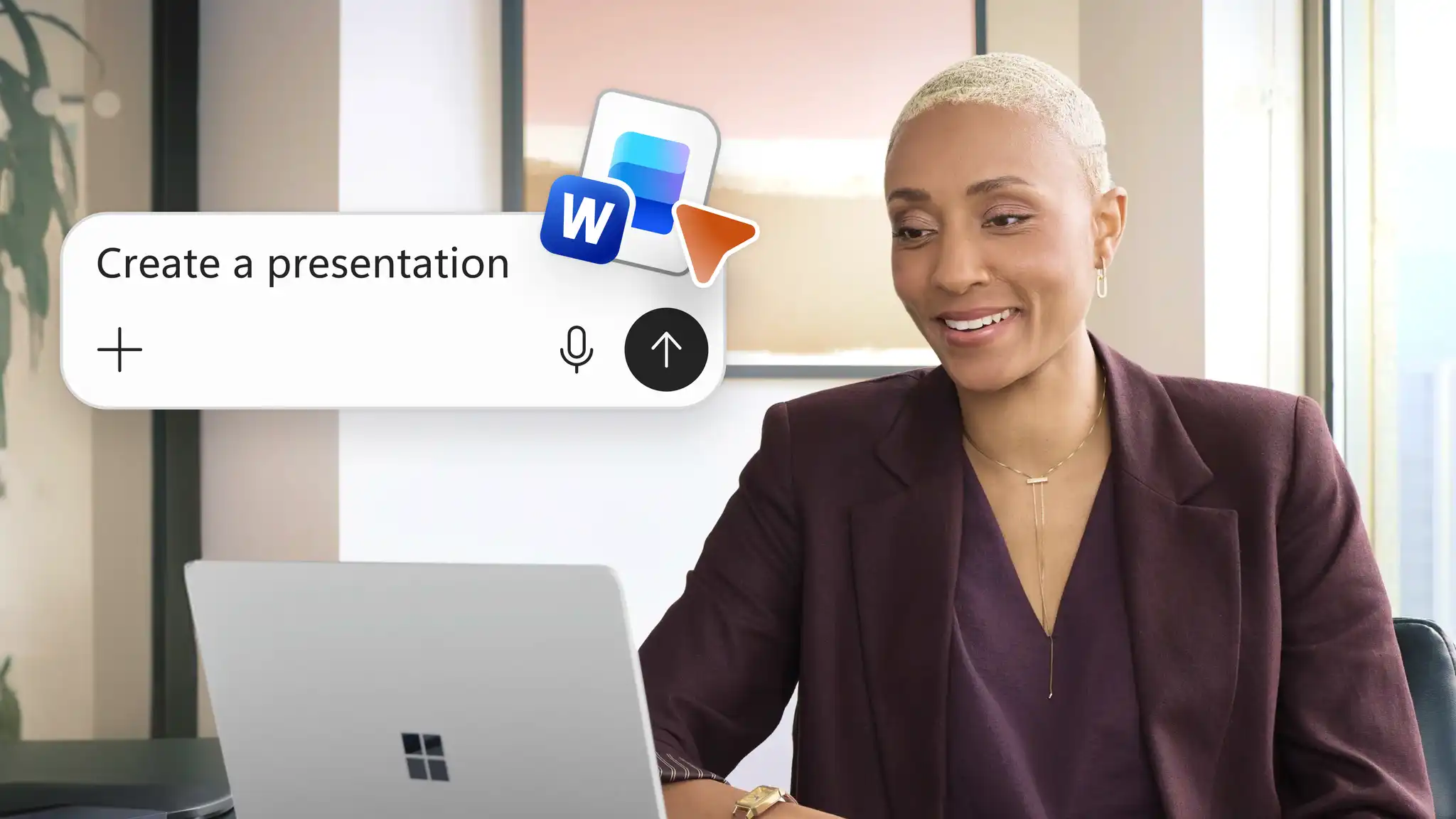
Copilot can help draft training slides from a description, notes, or an uploaded file, and can help rewrite long text into shorter slide text, perfect for beginners to follow.
Open a new presentation and start a Copilot chat.
Attach the training document, such as a process guide, product manual, or policy as source material for AI, or paste a description of the training process as notes in the chat.
Describe the audience, learning objectives, and number of slides required in the chat.
Review the slides generated by Copilot and check for accuracy.
Rewrite long text as short bullet points or to draft speaker notes for the trainer using the AI chat.
Share the finished presentation as a link, or download it to present in a training session.
Key slides of a training presentation
Treat these slides as a checklist for any informative training deck, built step by step in PowerPoint or drafted with Copilot.
Title and agenda slide
Share the training topic, details about the trainer, and a list of sections the session covers.
Learning objectives slide
List what learners can do by the end of the session. Clear objectives give each section a goal to work toward.
Process and topic slides
Give each topic or process stage its own slide. A SmartArt graphic or a flowchart in PowerPoint can explain the order of each step in a visually engaging format.
Demonstration slides
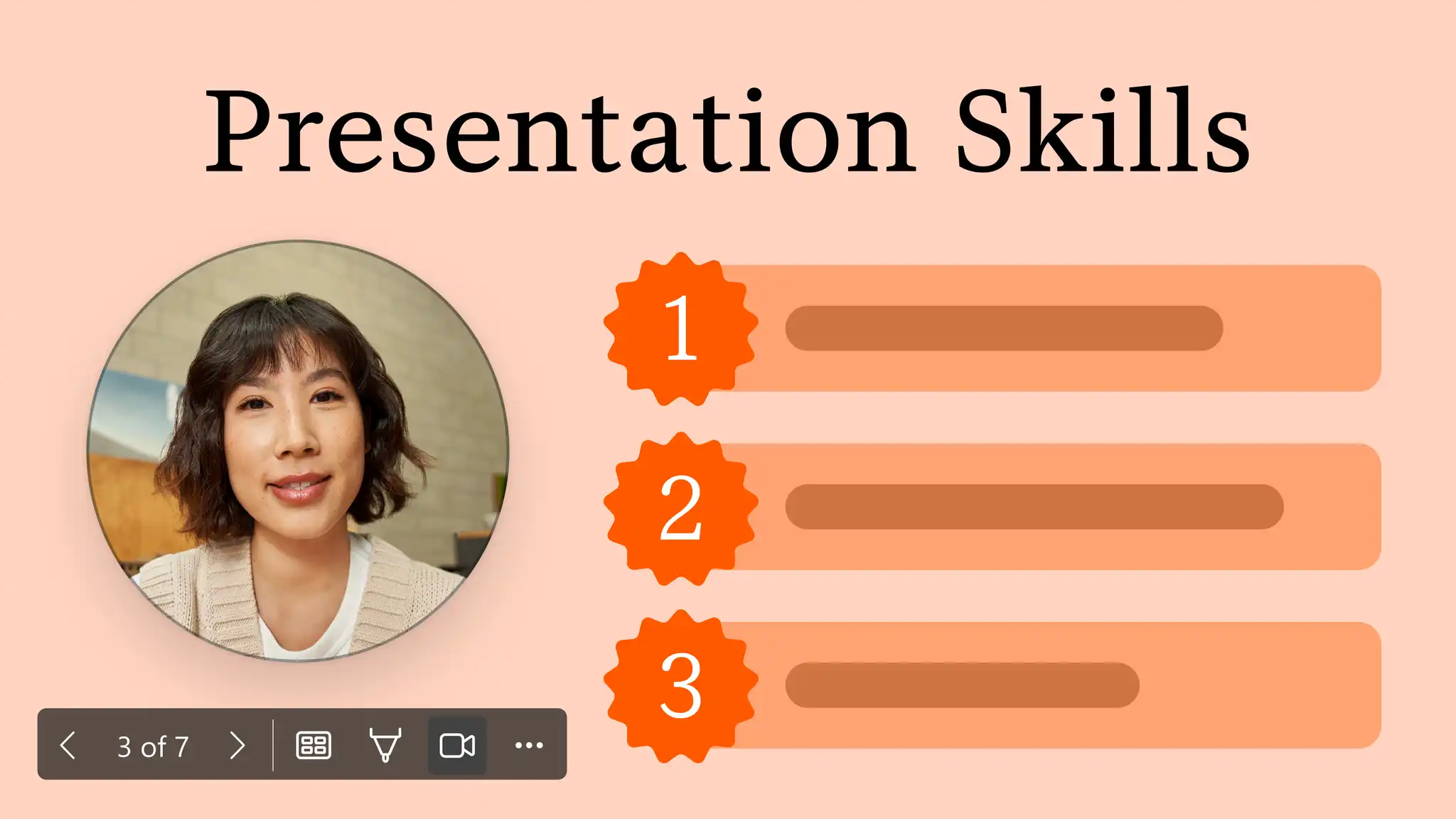
Add screenshots, pictures, or video to show how to complete a task. Use Cameo (opens in a new tab) to add a live camera feed to any slide for demonstrations led by the trainer.
Knowledge check slide
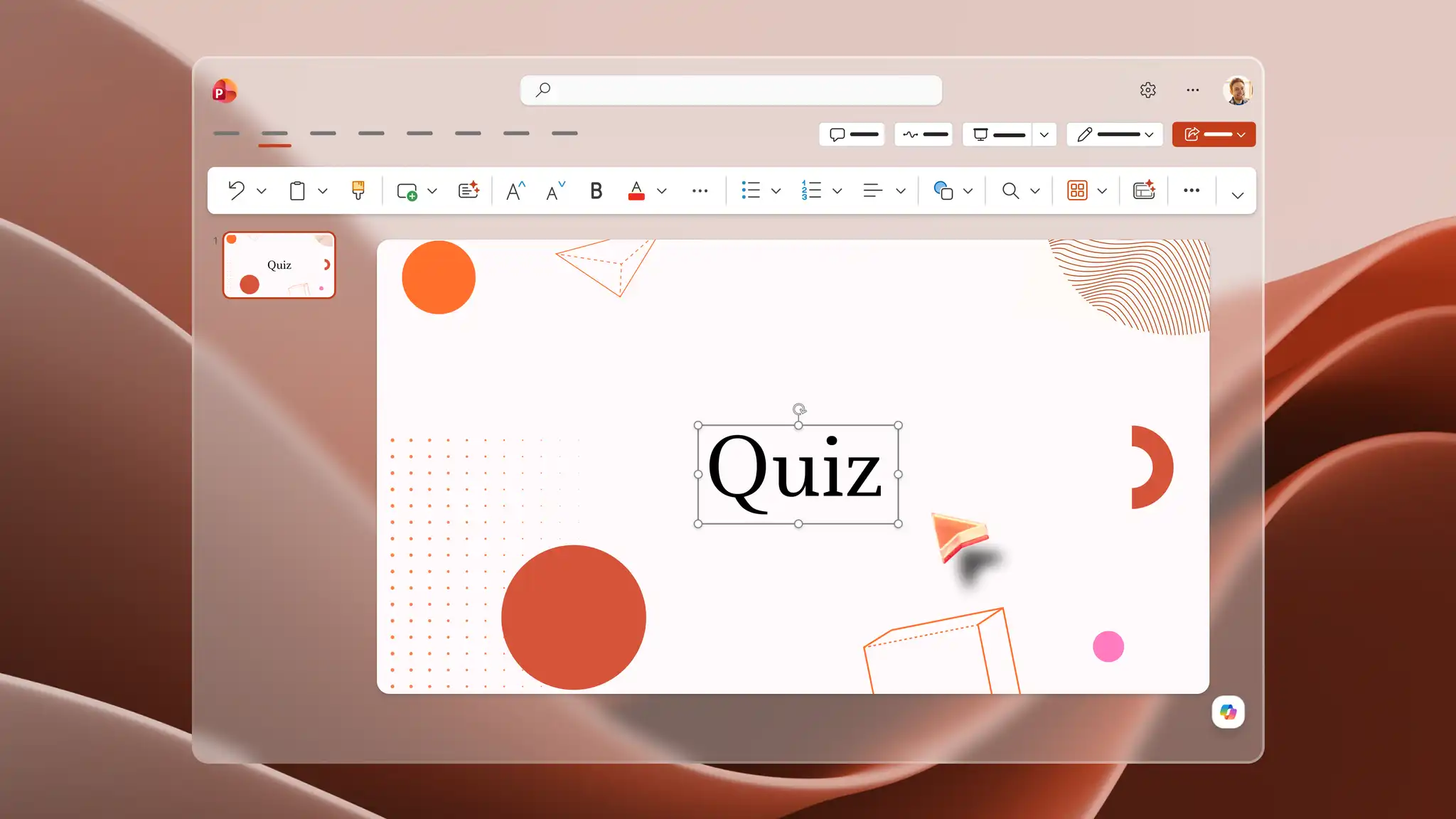
Add a short discussion question, or make a quiz in PowerPoint to check what students or training attendees remember from each section.
Summary and resources slide
Close the presentation with an end slide with key takeaways, contacts, and where to find the training materials after the session.
Design a clear training presentation
Clear training presentation design can help learners follow the content from one section to the next.
Focus each slide on one main topic or learning point.
Organize the training into sections with clear headings and consistent layouts.
Limit on-slide text to key points, and leave space around each element to avoid crowded slides.
Add images, diagrams, charts, or examples only where they support the training topic, or generate custom infographics with AI to support learning.
Match fonts, colors, and other visual elements from one slide to the next.
Add organizational branding, such as a logo or confidentiality label, to maintain a professional look.
Training presentation examples to draft with AI
Use existing Word documents, PDF files, and even Excel spreadsheets as the starting point for AI to create a training presentation draft. Get started with one of these examples and update the prompt to fit one's audience and learning goals.
Onboarding and HR training presentation
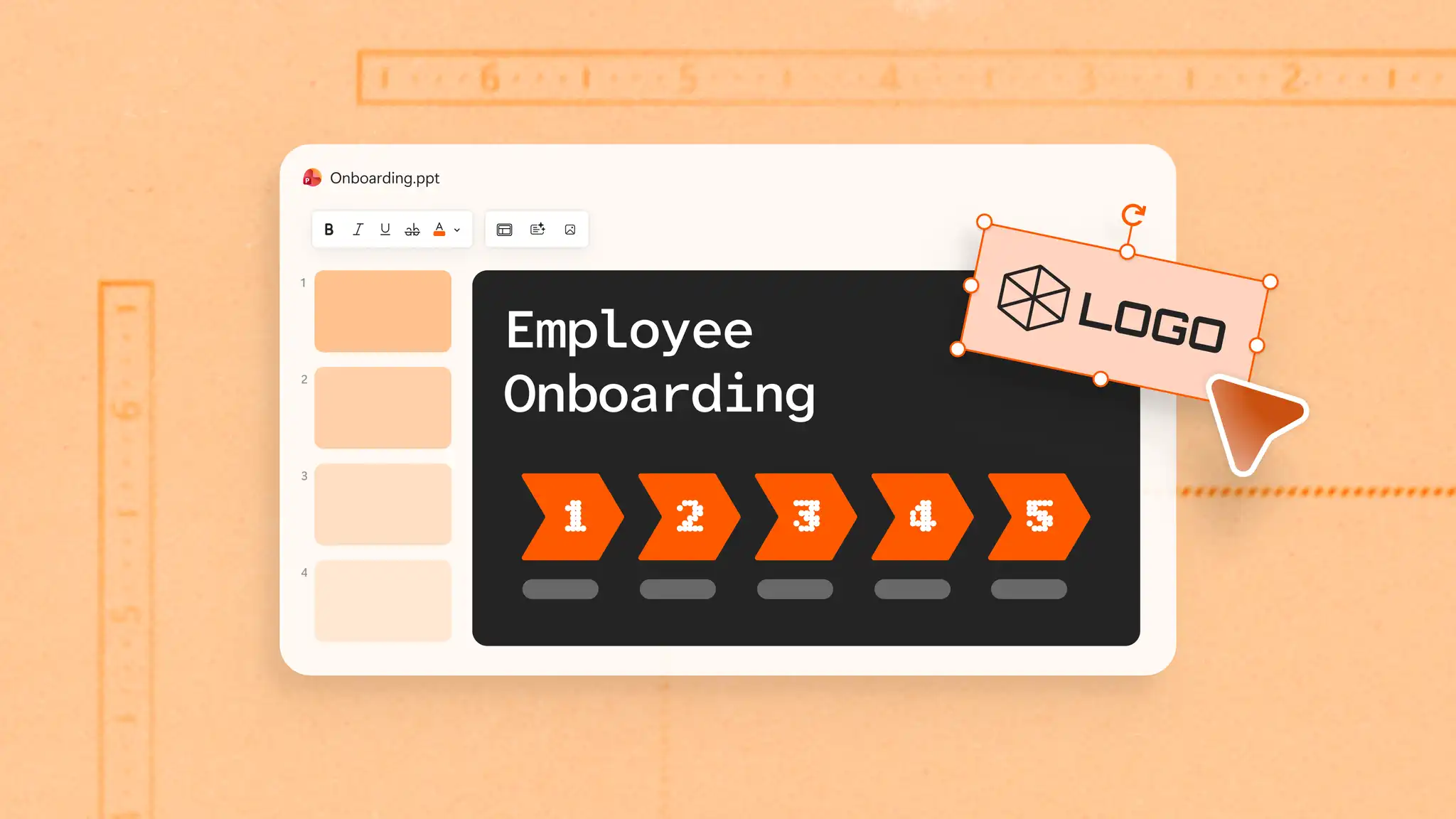
Turn an HR policy, employee handbook, or onboarding checklist into training slides for new hires, and pair them with an employee onboarding presentation for company and team details.
Business process training presentation
Convert a written process guide or standard operating procedure into training slides. Use one slide for each stage to show the order of tasks from start to finish.
Sales training presentation
Build a sales training presentation for new sales representatives from a product guide or an existing sales presentation deck, with informative slides about the key product benefits, and common usage scenarios.
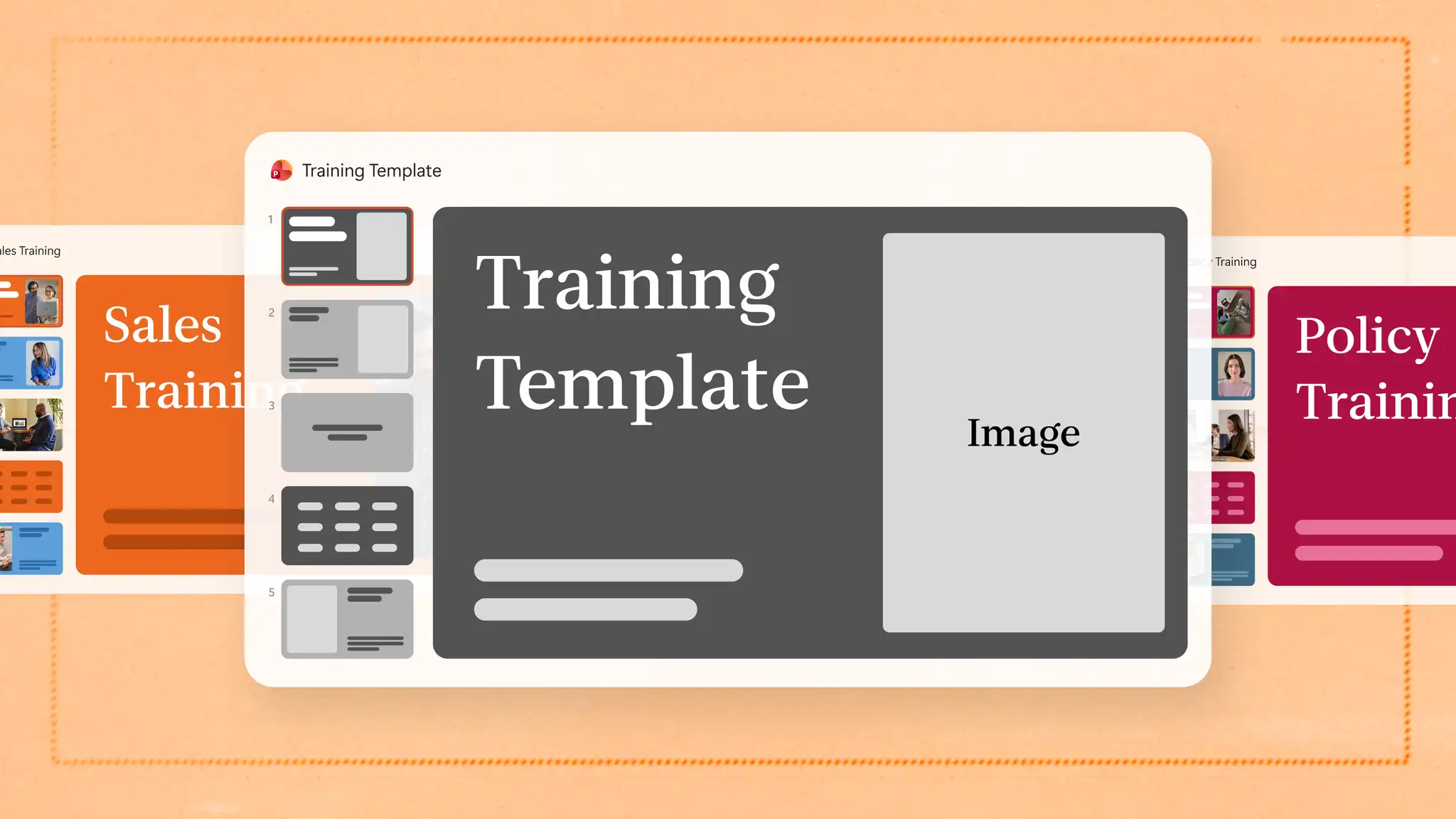
Make a reusable training deck template
Set up a PowerPoint presentation outline to edit and reuse with ease to create training materials for virtual calls, employee onboarding meetings, or student workshops.
Start from an approved PowerPoint template or select the organization’s Brand Kit using the plus button in Copilot chat. Alternatively, attach an approved brand style guide presentation for AI to refer to. This will use approved colors, fonts, and logos to create an training presentation draft. Add the essential slides, such as the title, agenda, objectives, knowledge check, and end slides with placeholder text which can be edited depending on the training topic. Save this presentation to OneDrive, and make a copy each time a new course, team, or role needs training slides.
Tips for effective training presentations
One goal per section: focus each section on one learning objective.
Visualize processes: show steps as a SmartArt infographic or flowchart instead of a text list.
Short slide text: limit slides to key points, and move extra detail into speaker notes.
Practice and knowledge checks: add questions, polls, or a quiz between sections to build an interactive presentation that gives learners time to practice.
Consistent design: apply the same layouts, fonts, and colors across every module in a course.
A training deck can start from notes or documents that already exist. Draft slides with AI presentation maker in PowerPoint, or convert Word documents into PowerPoint with Copilot to reuse training materials from a file.
Continue exploring more ways to make professional presentations for work, such as creating an onboarding presentation.
Frequently asked questions
- How long should a training presentation be?
There is no set length for a training presentation. The number of slides depends on the topic, the learning objectives, and the time available for the session. One main point per slide, with extra detail in speaker notes, helps keep each slide clear.
- How to make a training presentation more engaging?
Add visuals. data charts, demonstrative videos, or short activities between sections help make a training presentation more engaging. Quizzes or polls in an interactive presentation give learners ways to see and practice each skill from the training.
- How to adapt a training presentation for different audiences?
Start from a training presentation template with a set structure, then change the examples, terms, and level of detail for each presentation group. Utilize Copilot chat to rewrite slide text for a new audience, such as new hires.