




Marketing presentations
Create marketing presentations with free customizable templates in Microsoft PowerPoint...

Create professional sales presentations using customizable templates, visuals, and Copilot in Microsoft PowerPoint.

Start from a blank slide or edit a template by updating text to highlight key messages such as value propositions, competitive advantages, and pricing plans at any stage of sales.

Make sales decks recognizable when sharing with stakeholders or clients. Reinforce credibility by adding a company logo and brand colors across slides so the presentation aligns with other customer‑facing sales materials.

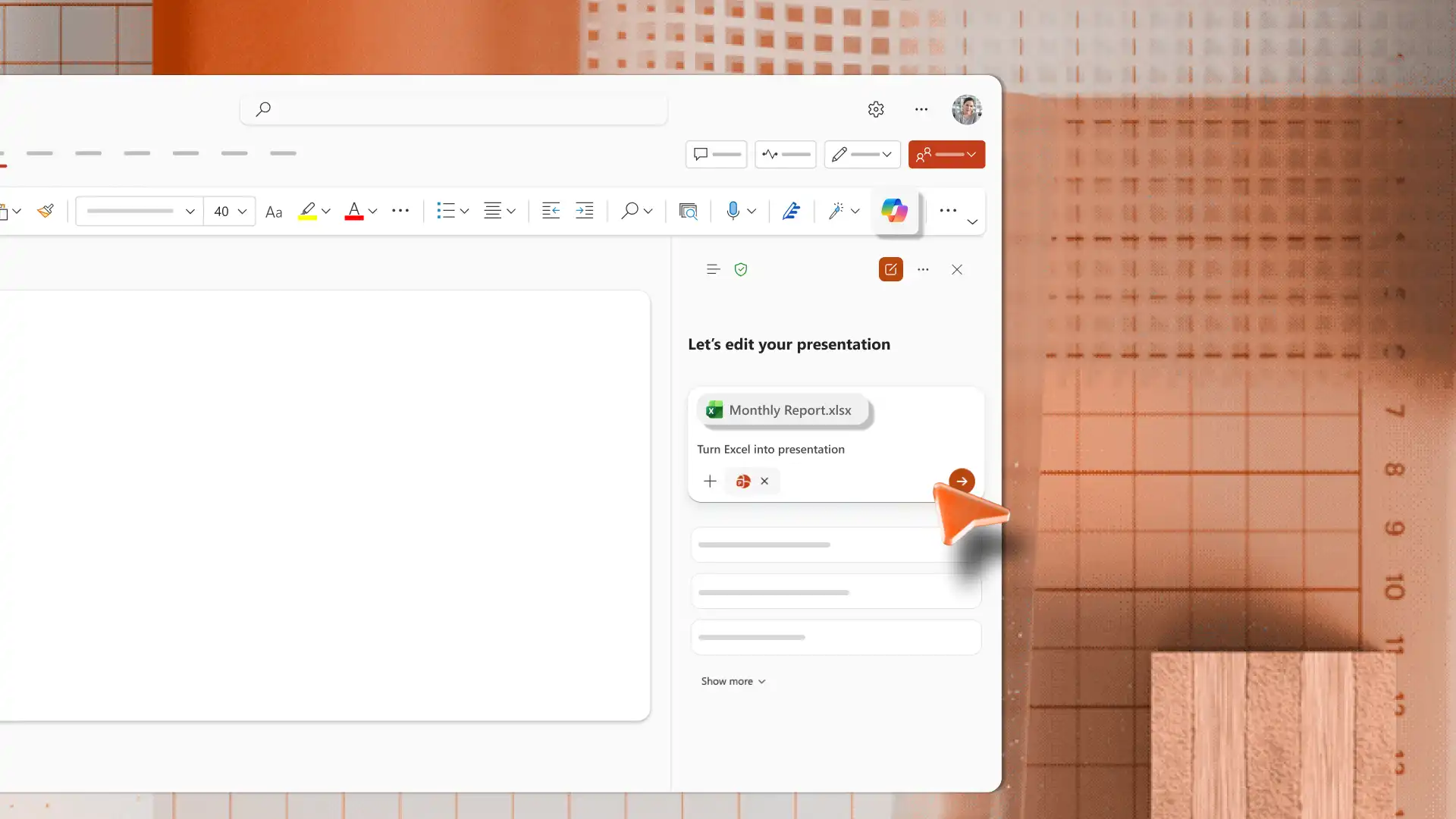
Chat with Copilot in PowerPoint to generate sales presentation outlines, AI images, or convert documents into presentation slides. Tailor messaging for different target audiences with AI rewriting suggestions.

Browse customizable sales templates for pitches, proposals, product decks, performance reviews, and annual sales plans.
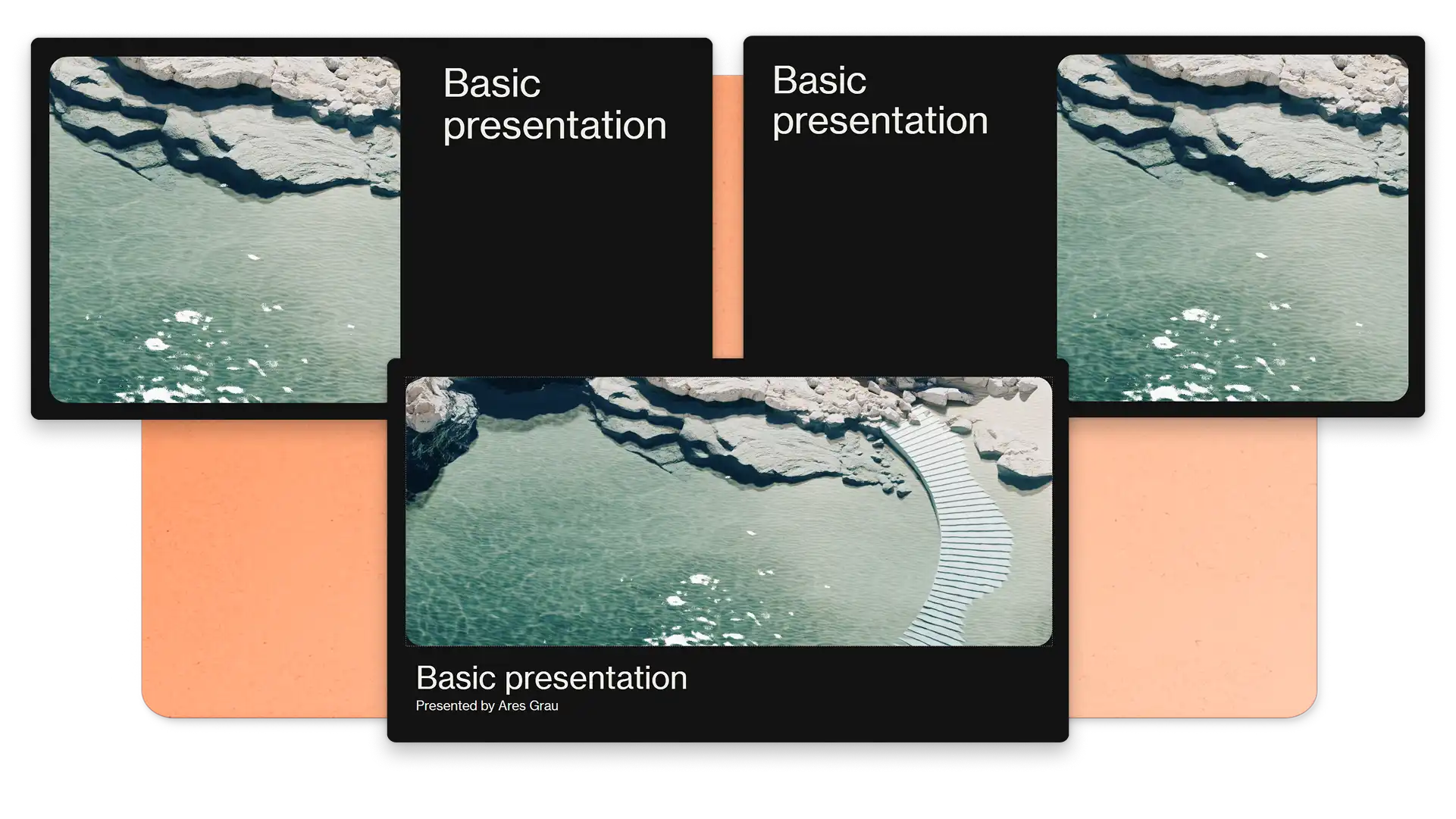
Follow the suggested content placements in the sample sales pitch templates and create an effective deck without starting from scratch. Review layout suggestions from the Design tab and apply changes to enhance title slides, timeline slides, and key sales data instantly.
Display sales data, financial projections, and market trends with charts and graphs. Break down complex sales information using infographics, SmartArt, and tables. Add stock images of target customers and use cases to resonate with the audience.


Copy slides from an existing sales presentation to maintain consistent design and formatting across multiple decks. Repurpose content by updating small details like a client name or team intros, or add new sections with case studies and customer testimonials for different audiences.
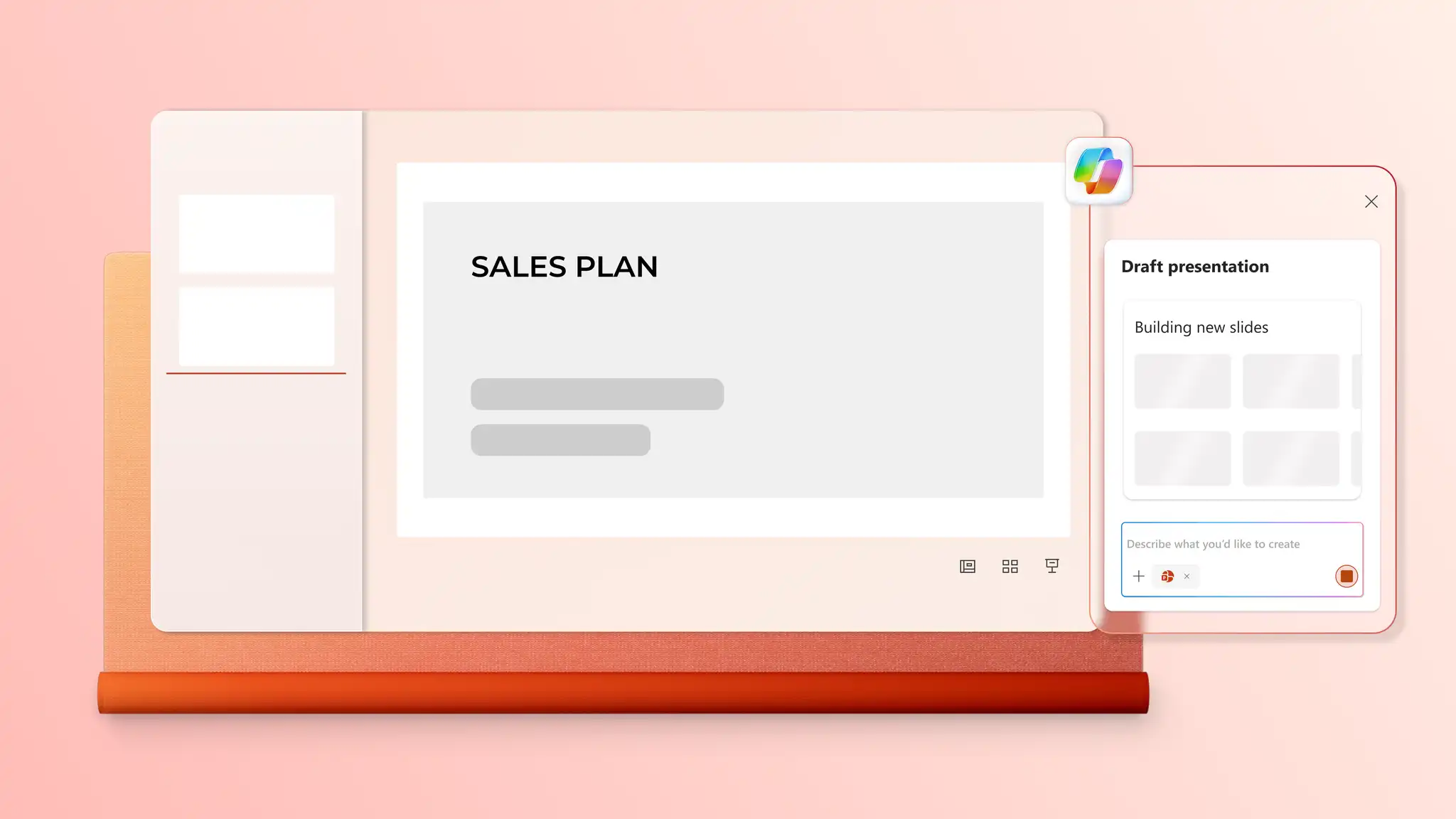
Chat with Copilot in PowerPoint to generate an AI sales presentation outline by describing the topic or attaching product documents, spreadsheets, or sales briefs for context. Review the suggested outline in the chat, apply content to slides, and attach a presentation summary to sales emails for additional context.

Edit sales presentations with a team using real-time collaboration tools like mentions and comments to review and add ideas. Practice pitch delivery with the coach in PowerPoint to perfect pacing and tone. When ready, share via email or secure OneDrive links, or download as a PDF for sales meetings.
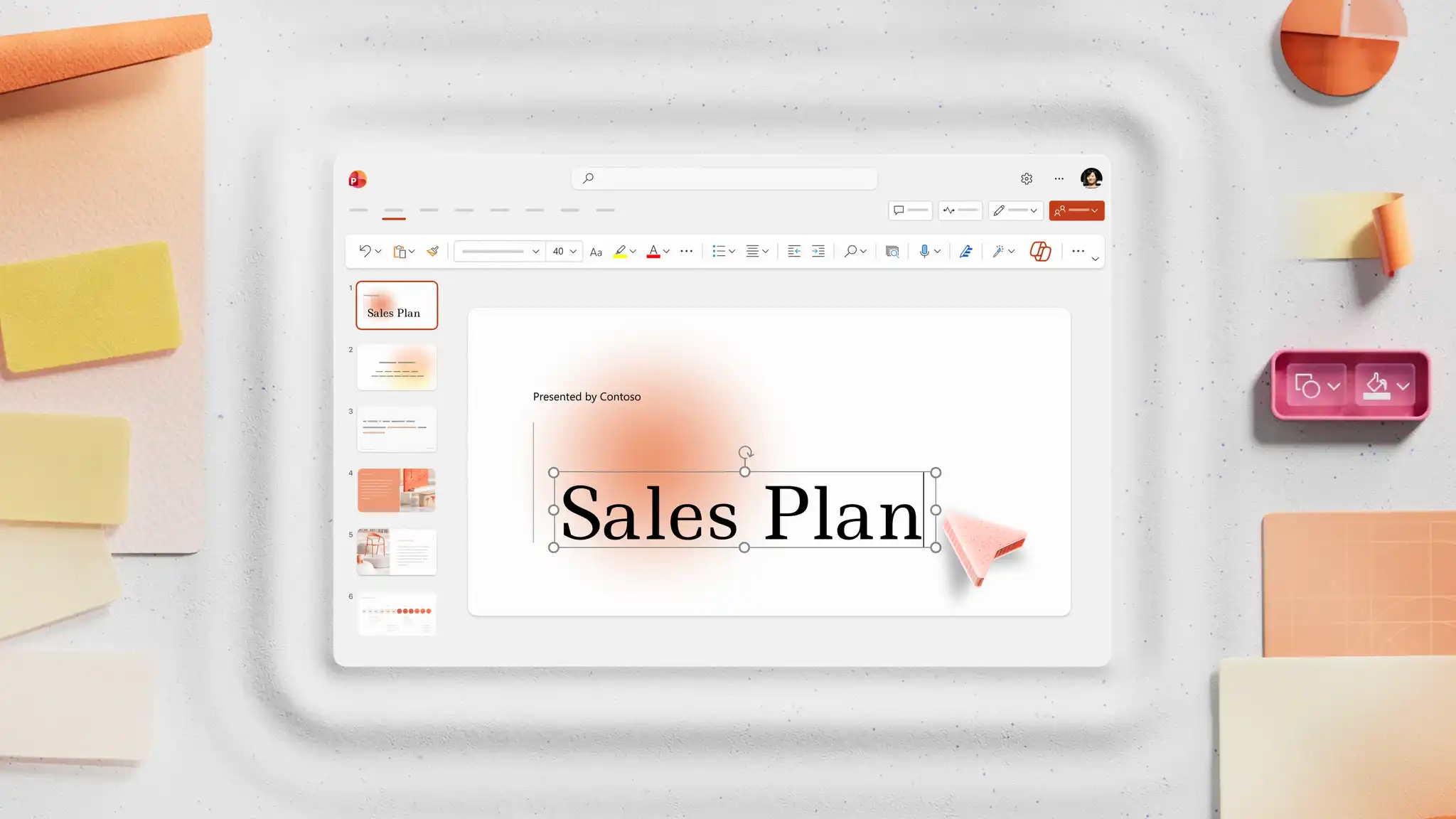
Open PowerPoint for the web and explore sales presentation templates.
Choose a template and replace placeholder text with custom sales presentation content.
Edit visuals and add images, brand logo, and preferred font styles.
Chat with Copilot in PowerPoint to get text, visual, or speaker notes suggestions to copy and apply.
Save and share the presentation via email, as PDF, or with secure OneDrive links.
Start with a clear structure and understanding of the audience and sales goals. Craft content around a value proposition, beginning with a hook that addresses a problem or opportunity. Use a sales template with consistent design, present text in bullet points, and include graphs or charts to share data. Close with a call to action like scheduling a meeting or signing a contract. Make good sales decks fast using the AI presentation maker.
Presentation length varies based on the sales stage and meeting time. In an hour-long session, plan for 20 to 30 minutes of content covering the business, market, product, pricing, marketing plan, and next steps. Reserve the remaining time for questions.
Use simplified graphs, tables, and charts in PowerPoint business presentations to display sales metrics like revenue, growth, and market share. Illustrate sales processes with SmartArt and connect to an Excel spreadsheet for real-time data. Add labels and context to charts so the information is clear without a presenter.
Close with thank you slide design with a summary of key points and a call to action for next steps, such as scheduling a follow-up call or signing a contract. Include contact details on a closing slide to make follow-up easy for attendees.