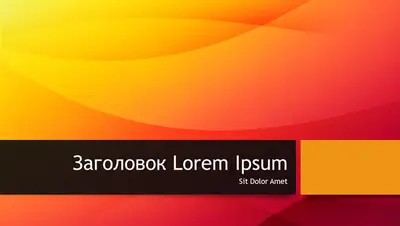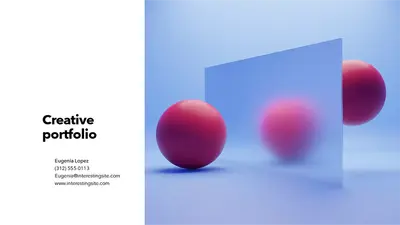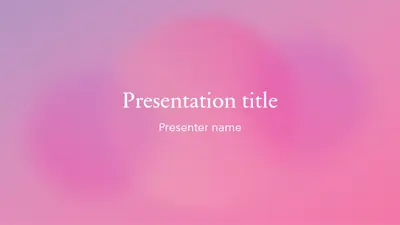
Яскравий дизайн
Використовувати цей шаблон

Створюйте власні фони слайдів за допомогою кольорів, зображень або тематичних шаблонів, щоб задовольнити будь-які потреби презентації в Microsoft PowerPoint.

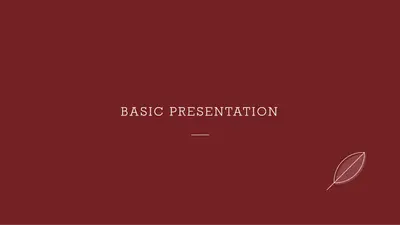
Налаштуйте правильний настрій для будь-якої презентації за допомогою особливого кольорового фону слайда. Застосовуйте однотонні кольори або кольори з градієнтом, щоб відобразити фірмову символіку та створити цілісну візуальну основу на кожному слайді.

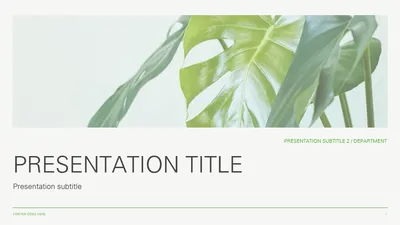
Покращуйте будь-яку презентацію за допомогою фонових зображень для слайдів, які гармонійно доповнюють вміст. Додайте фотографію товару у вигляді непомітного водяного знака або використайте концептуальне зображення для ілюстрації ідеї.

Втілюйте свої унікальні ідеї в життя за допомогою фонів для PowerPoint на основі ШІ, які ідеально підходять до вмісту презентації. Відкрийте Copilot у PowerPoint, опишіть тему або стиль і за лічені секунди оберіть один із варіантів зображень, створених штучним інтелектом.

Підберіть ідеальний колір для будь-якої презентації, використовуючи рожеві, фіолетові, сині, зелені та червоні фони слайдів. Дотримуйтесь фірмового стилю та справляйте незабутнє враження за допомогою кольорів, що привертають увагу.
Stand out with aesthetic slide backgrounds that look polished and on-trend. Browse stylish templates and personalize them in minutes.
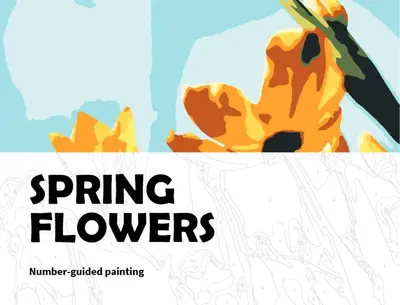
Bring elegance to slides with floral slide backgrounds. Browse flower-themed templates and tailor them to any creative project.
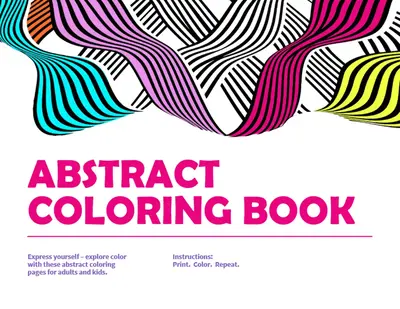
Spark curiosity with abstract slide backgrounds that stand out. Explore artistic templates and customize bold shapes, patterns, and gradients.
Brighten any presentation with pink slide backgrounds. Explore templates ranging from soft blush to bold magenta and customize them instantly.
Capture the spirit of the season with holiday slide backgrounds. Browse themed templates and personalize them for parties, events, and celebrations.
Achieve a clean and professional look with minimalist presentation templates. Explore sleek templates and customize balanced layouts to suit any topic.
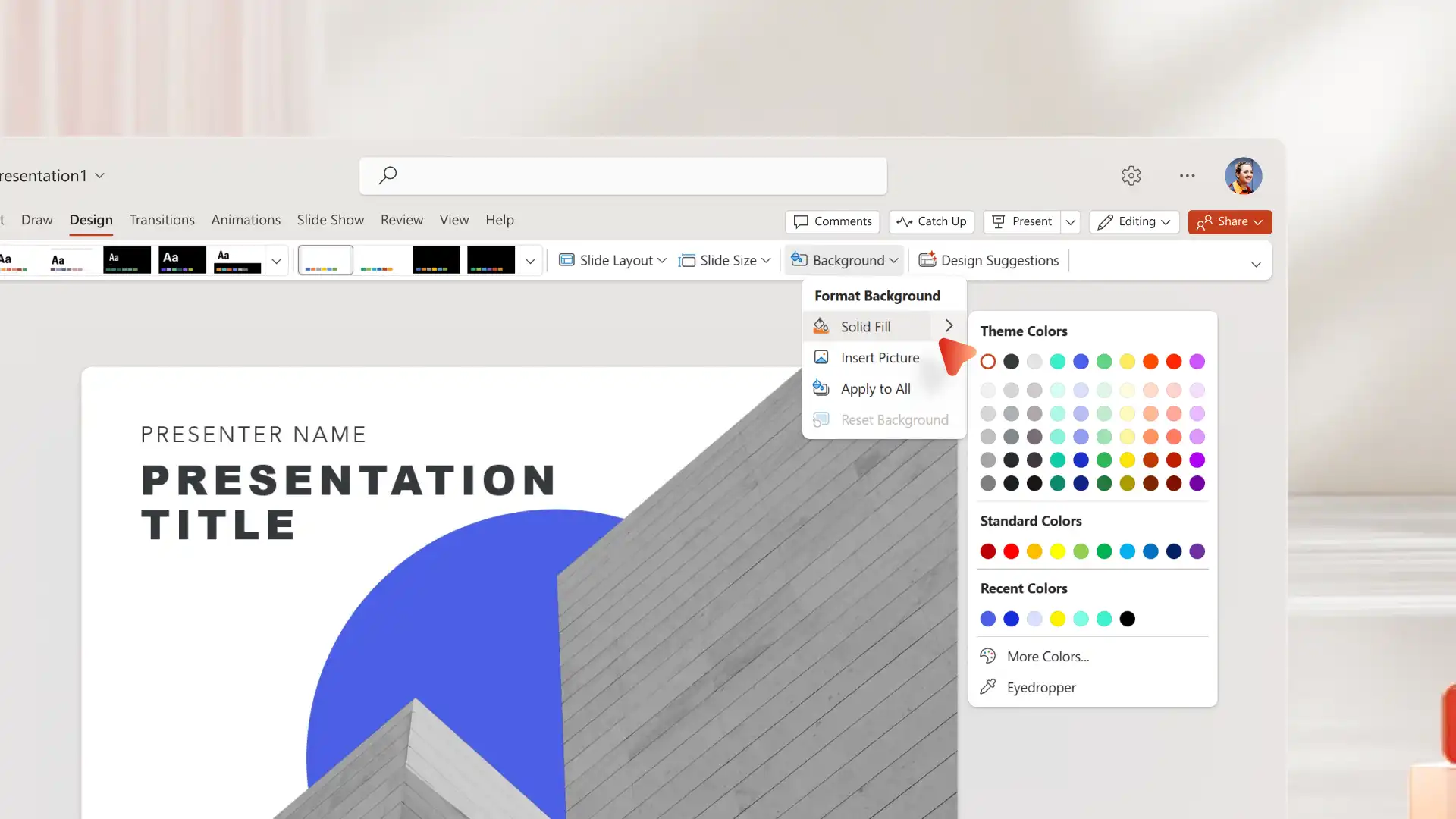
Open PowerPoint for the web or the desktop app and select a blank slide.
Click the Design tab, then select Format Background.
Choose solid fill colors, upload images from device, or choose stock and brand images.
Apply to one slide or select Apply to All.
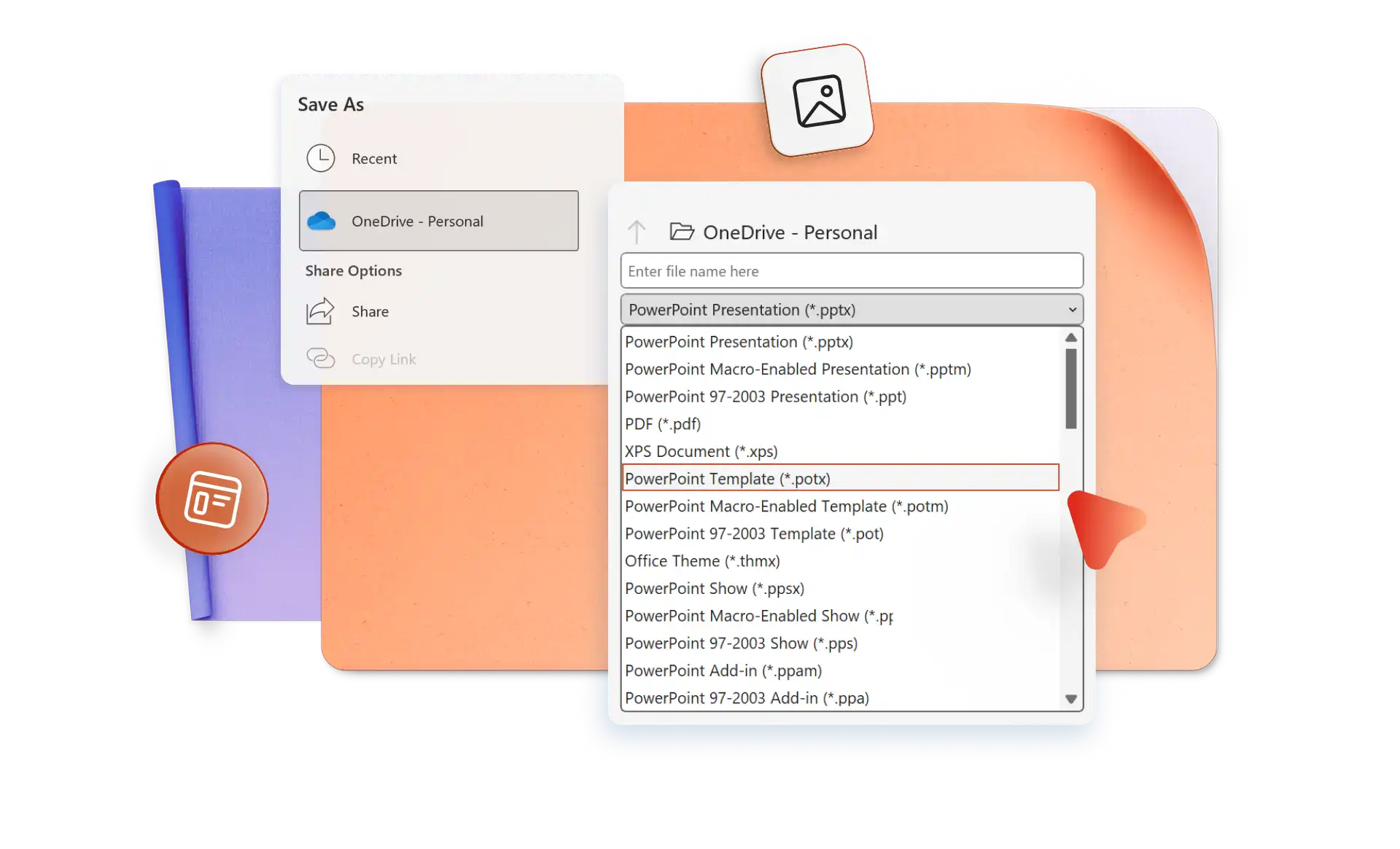
Save and share as a PowerPoint file or PDF.
Skip the repetitive work by saving custom slide backgrounds as reusable templates. Microsoft 365 subscribers can streamline presentation design by saving custom slide backgrounds as reusable templates.
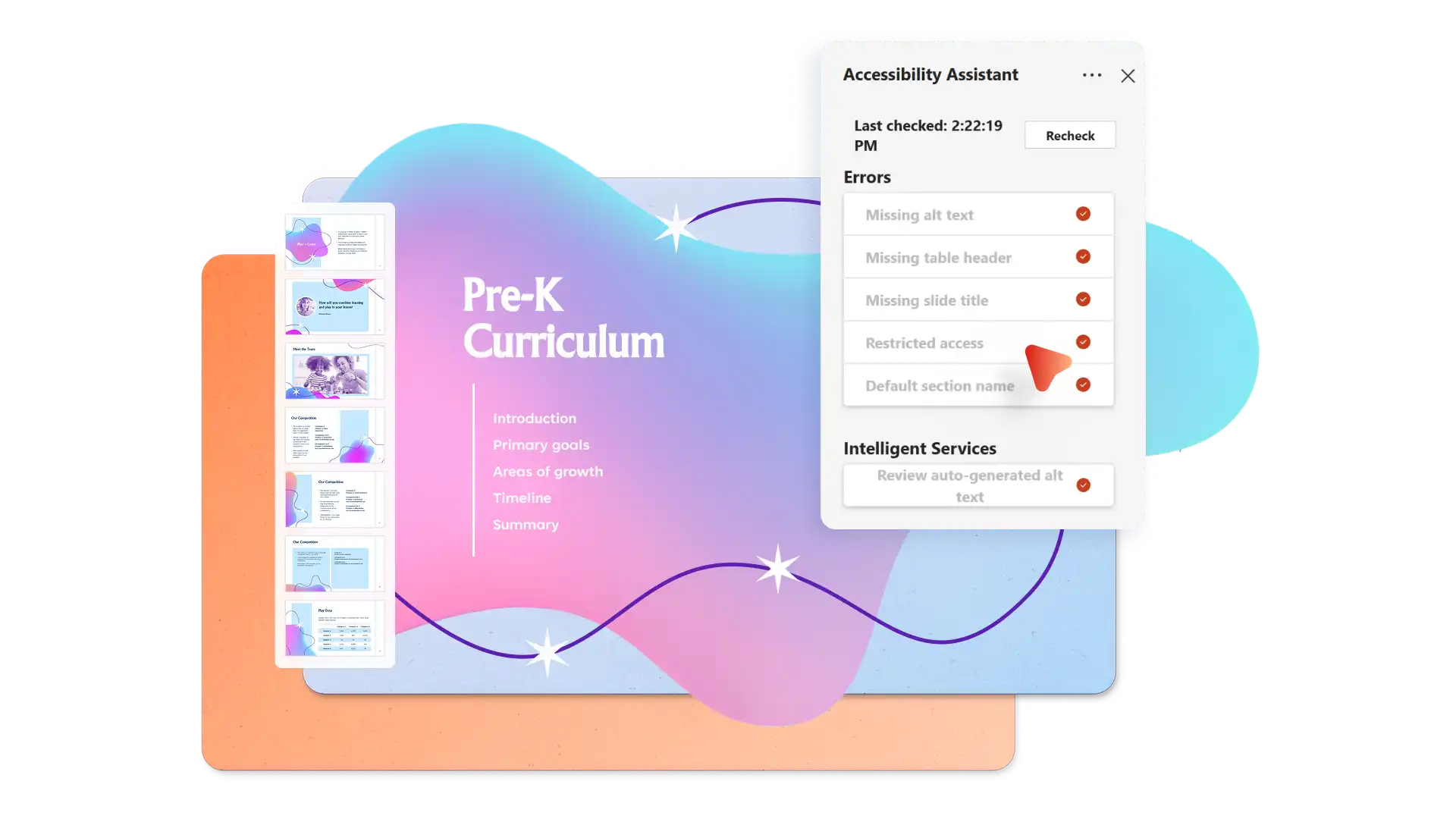
Reach every audience member with slide backgrounds that prioritize accessibility. Scan presentations with the Accessibility checker in PowerPoint to flag issues such as insufficient color contrast between text and background to ensure content remains easy to read for all viewers.
A good PowerPoint background is simple, high contrast, and complements the content without distracting from it. Choose colors or images that support the message and meet accessibility standards, such as sufficient contrast between text and background.
Right-click the slide, select Format Background, and note the current settings. Apply the same settings to other slides manually, or use Duplicate Slide to copy the entire slide along with its background.
Відкрийте Copilot у PowerPoint і опишіть творчі потреби. Copilot створює макети, стилі оформлення та зображення, згенеровані штучним інтелектом, на основі вмісту, що дає змогу легко створювати професійні слайди за лічені секунди. Створюйте неперевершені вступні слайди, ділові презентації, плани проєктів, презентаційні матеріали й презентації-плакати з легкістю за допомогою ШІ.