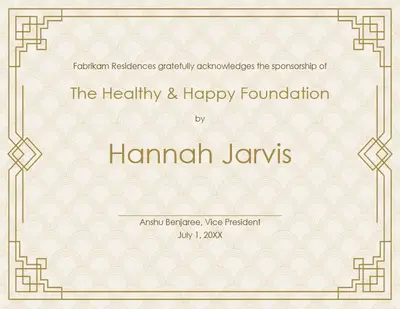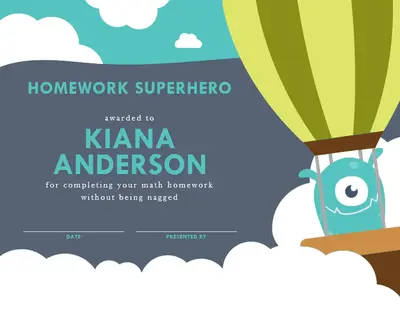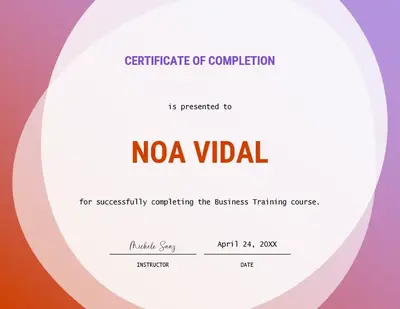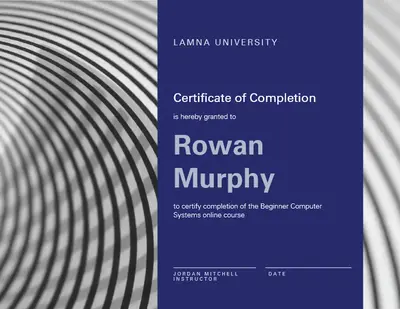
Giấy chứng nhận thành tích

Tạo giấy chứng nhận tùy chỉnh với văn bản, hình ảnh và mẫu đẹp mắt để tôn vinh thành tích bằng Microsoft PowerPoint.

Bắt đầu từ một mẫu chứng chỉ trống hoặc kéo và thả để chỉnh sửa các mẫu PowerPoint cho bất kỳ dịp nào.ịp. Thêm các biểu tượng và đồ họa ăn mừng trong bố cục sành điệu để tạo một chứng chỉ đẹp mắt.

Nâng tầm chất lượng các chứng nhận nhân viên và giải thưởng với màu sắc, logo và chữ ký tùy chỉnh. Tải lên logo thương hiệu, áp dụng màu sắc tùy chỉnh và thêm chữ ký vào các chứng chỉ doanh nghiệp để thể hiện sự xác nhận chính thức.

Tiết kiệm thời gian với các mẫu chứng chỉ đã có kích cỡ theo hướng ngang 8,5 x 11 inch. In và đóng khung các chứng chỉ để sử dụng trong các hội thảo kinh doanh hoặc giáo dục, làm quà tặng, hoặc chia sẻ kỹ thuật số dưới dạng hình ảnh hoặc PDF mà không cần chỉnh kích thước.

Tải xuống miễn phí các mẫu giấy chứng nhận có thể in được cho mọi dịp mà không cần kỹ năng thiết kế. Khám phá các ví dụ về giấy chứng nhận cho giải thưởng, lễ tốt nghiệp, vinh danh nhân viên và thành tích với nhiều kiểu dáng và màu sắc khác nhau.
Update any certificate template with a recipient's name, event details, date, and a celebratory message. Draft thoughtful formal or friendly messages with Copilot in PowerPoint when creating multiple versions for employee awards, graduation, or team achievements.
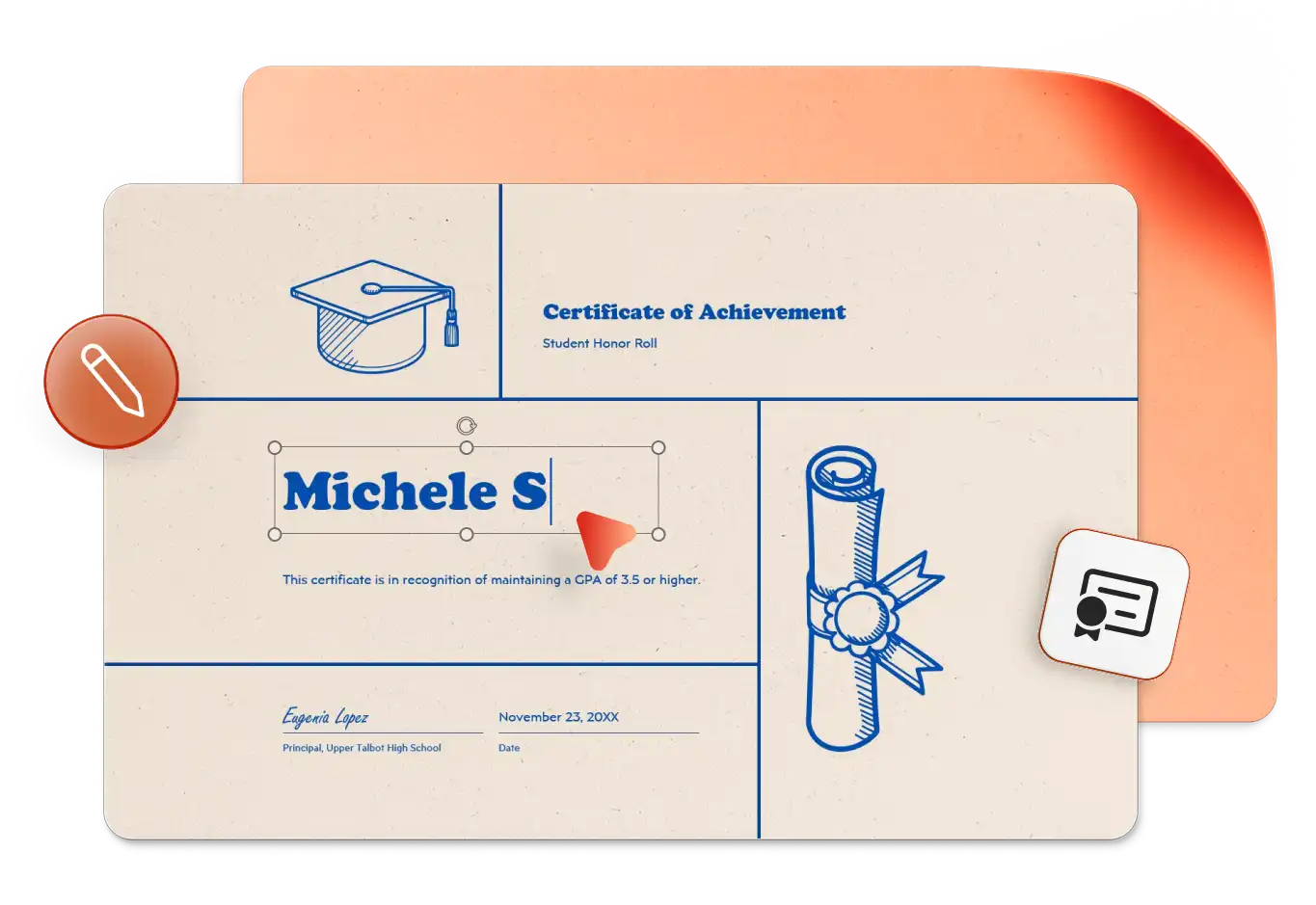
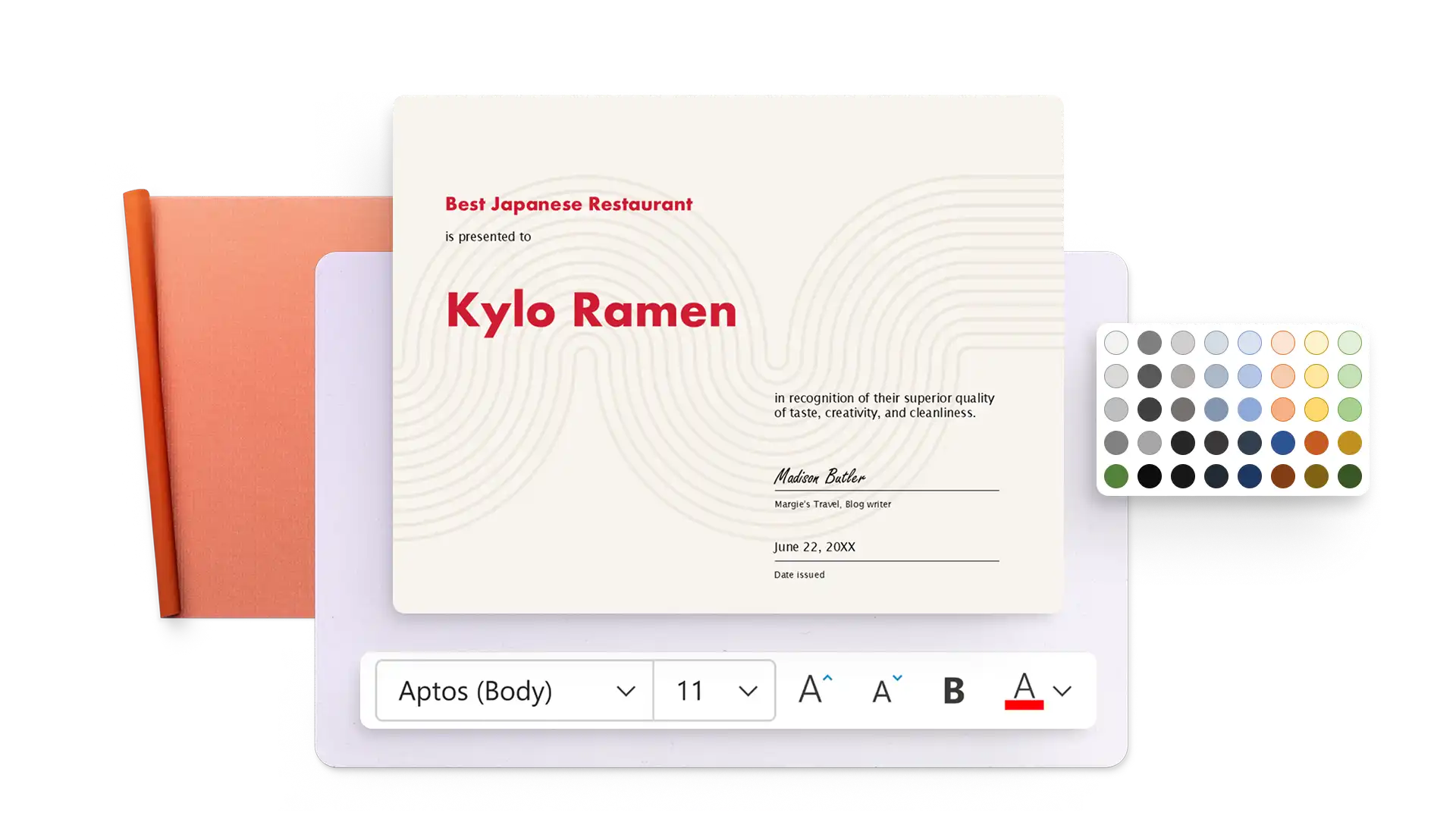
Modify certificate templates with unique color styling and creative fonts to match any occasion. Adjust text layouts and refine the design in just a few clicks, or get design suggestions from the AI presentation designer in PowerPoint.
Choose from stars, ribbons, trophies, and other shapes in the PowerPoint library to highlight achievements. Insert timelines for course certificates, add a custom slide background, or create an AI-generated image with Copilot in PowerPoint.
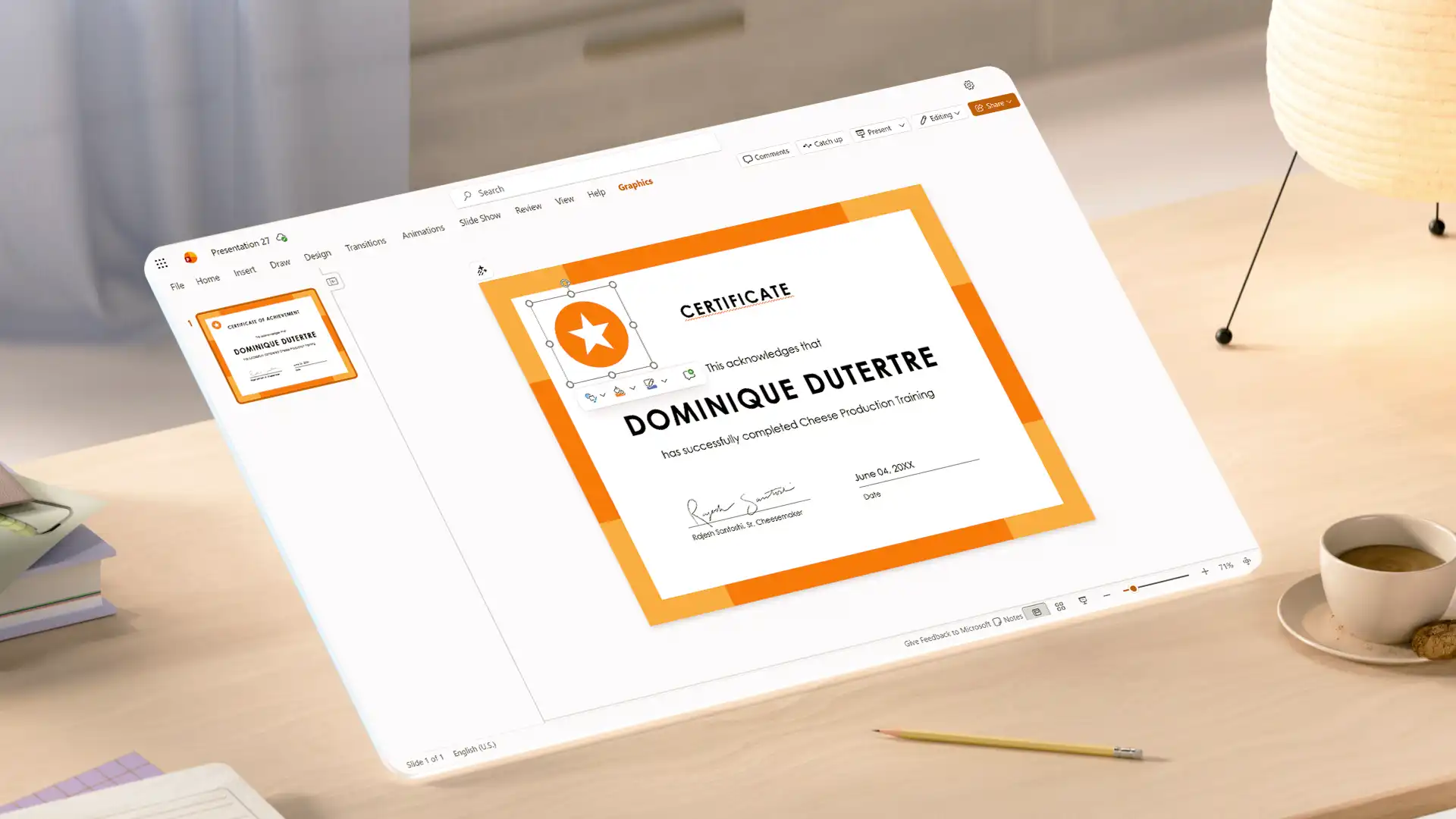
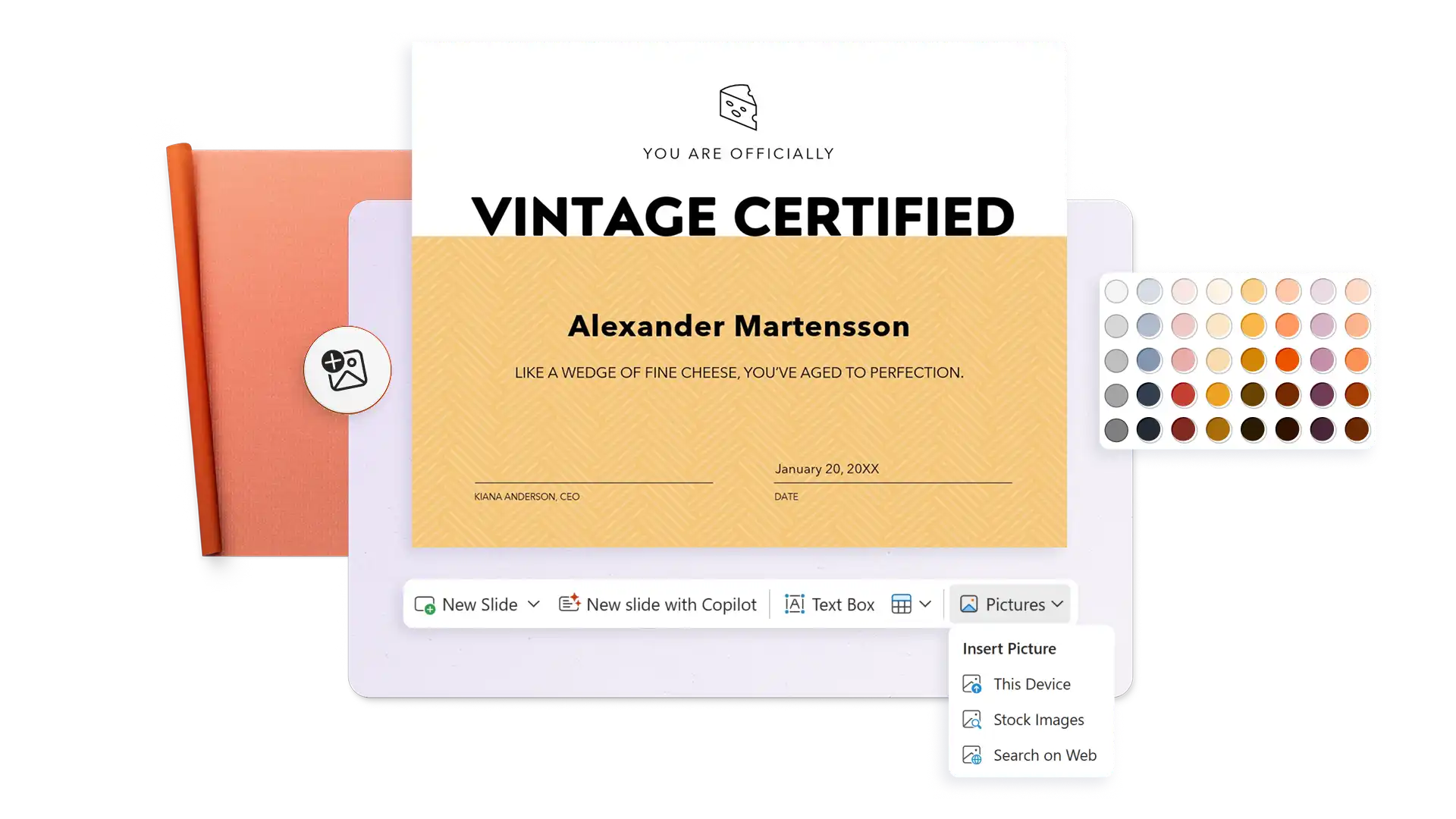
Thu hút sự chú ý với các chứng chỉ có thương hiệu dành cho việc ghi nhận thành tích của nhân viên, chiến thắng trong cuộc thi trắc nghiệm, hoàn thành khóa học hoặc các giải thưởng về tiếp thị và bán hàng. Tải lên logo thương hiệu, áp dụng màu sắc của tổ chức và thêm con dấu công ty hoặc chữ ký của giám đốc điều hành để xác thực.
Refine the text on any certificate with Copilot to adjust formality or choose better words to engage any audience. Turn on text predictions to write faster and save time when creating multiple certificates.
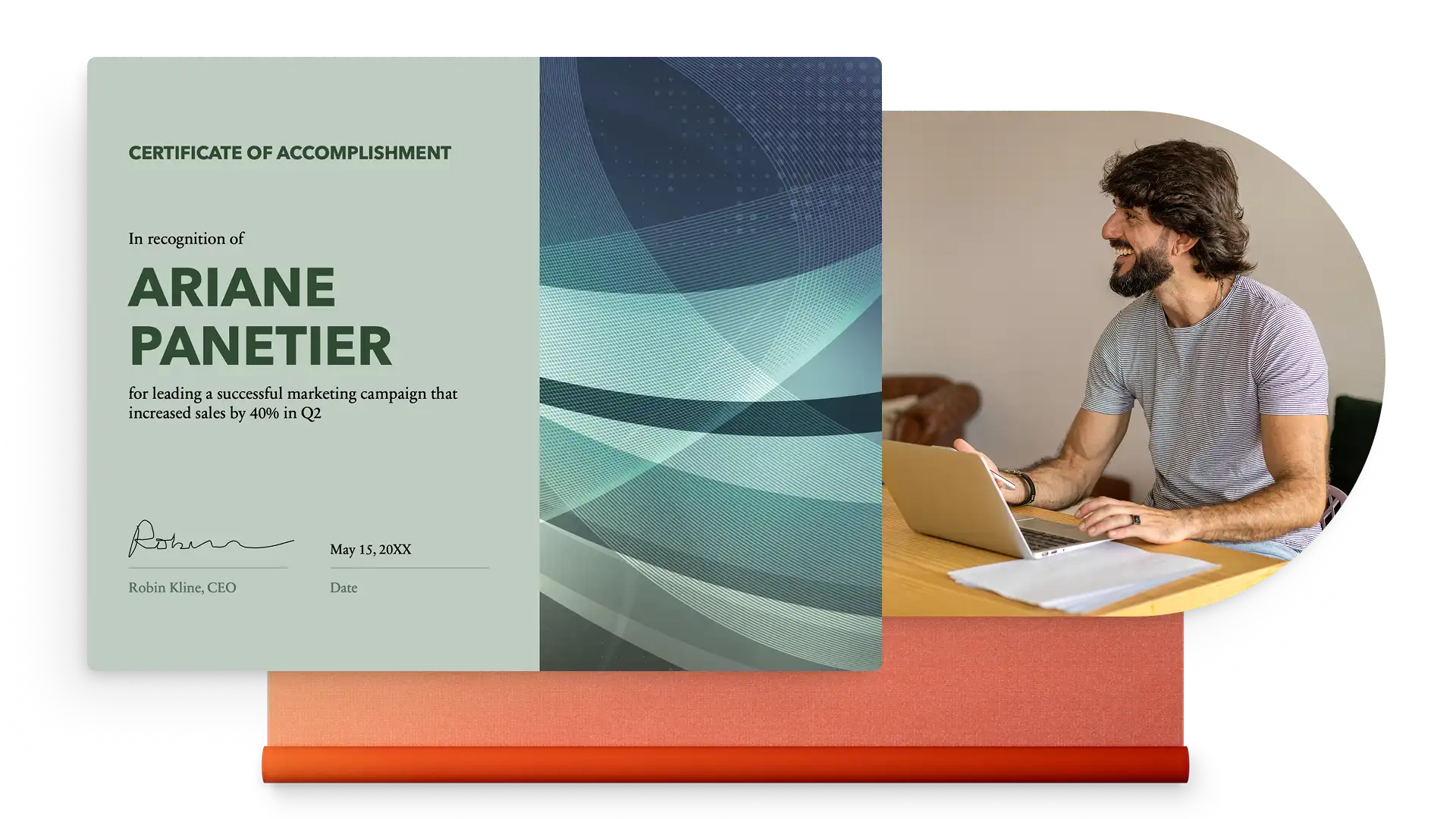
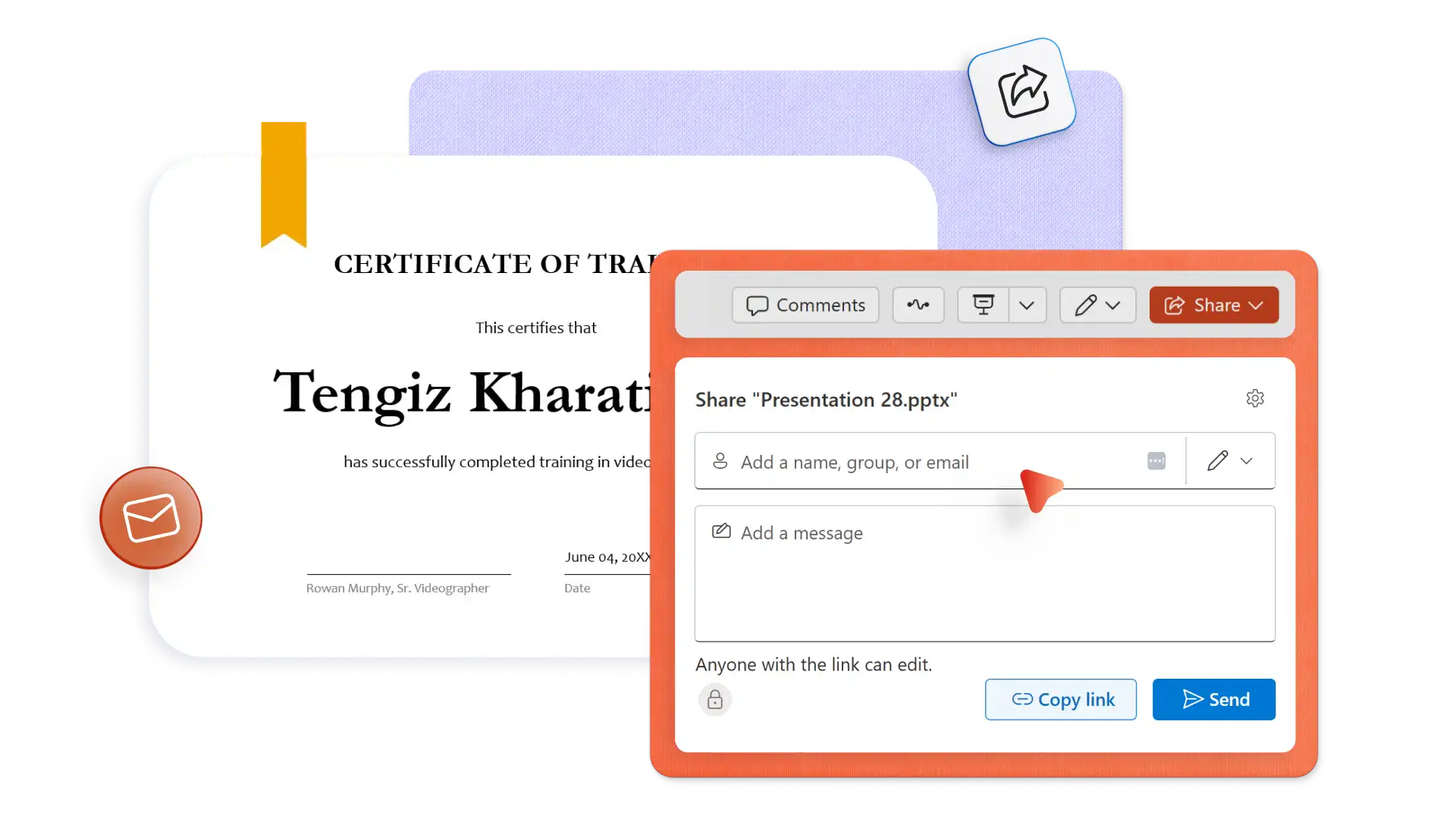
Create and download as many certificates as needed for free. Save certificates in different formats like PDF, JPEG, or PNG. Print, frame, and present in-person, or share online as a PDF email attachment.
In your browser, explore PowerPoint certificate templates
Choose a certificate template to edit
Update the recipient's name, milestone details, date, and signature
Download, print, and share the certificate for free
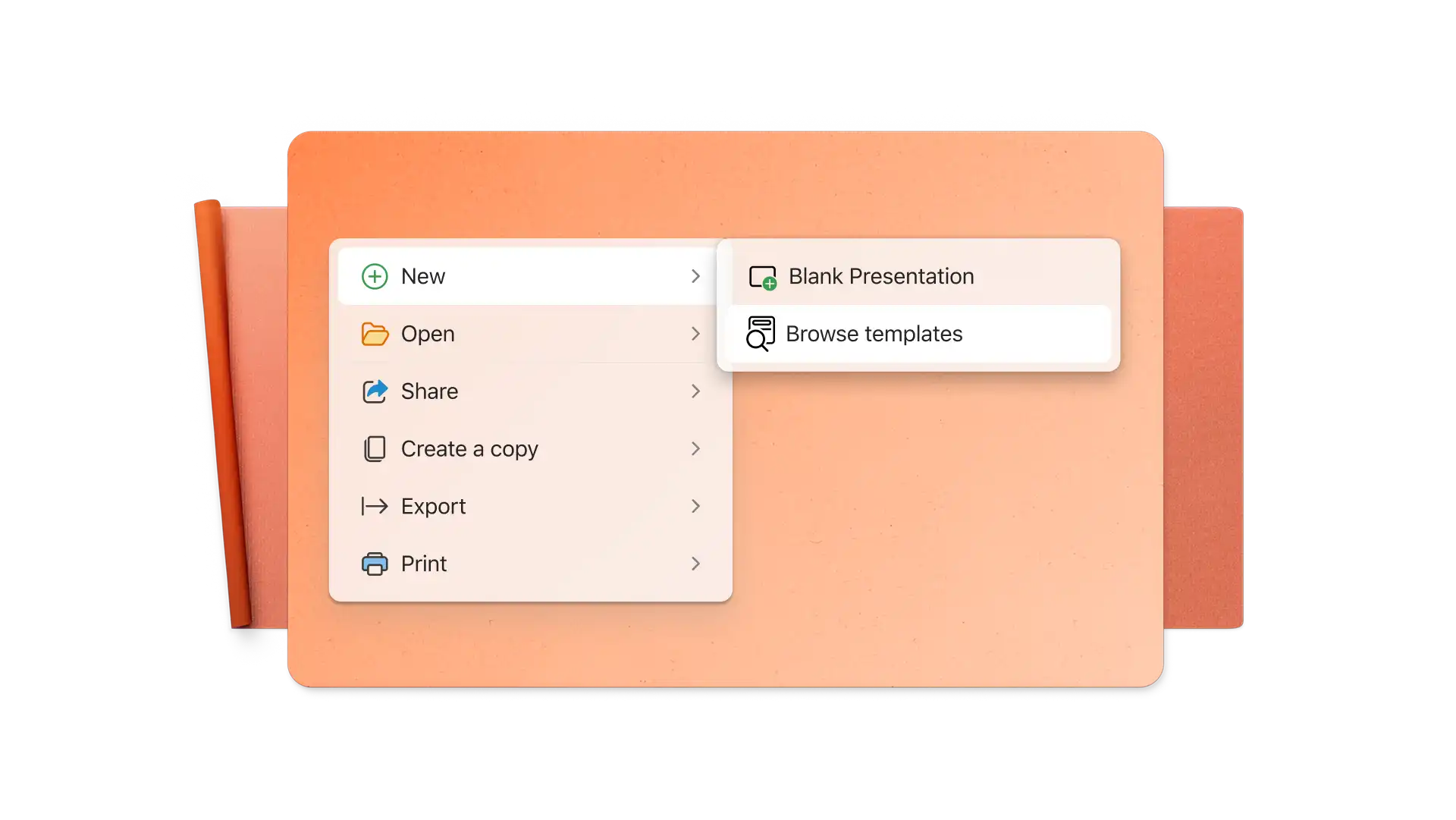
The standard certificate size is 8.5-inch by 11-inch in a landscape orientation. All certificate templates in PowerPoint are automatically preset to the certificate standard size.
To add an image to a certificate in PowerPoint, select Insert on the toolbar then select Pictures. From here, insert an image from a browser or device files, or browse the web to select a stock image.
Easily create more than one certificate using the same template by duplicating the slide, then editing the recipient's name on the new slide. Alternatively, save a copy of an existing certificate as a new file and edit the copy accordingly.
To virtually sign a certificate in PowerPoint, import a saved signature as a PNG or JPEG file with a transparent background. Also consider typing a name using a calligraphy text style like Rastanty Cortez or Freestyle Script fonts. Alternatively, print the certificate as a PDF then sign by hand.