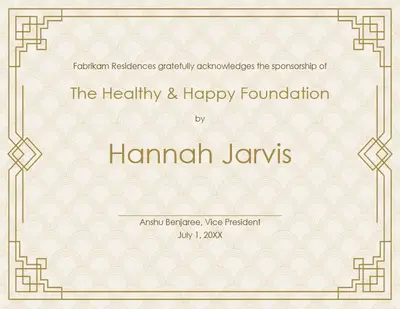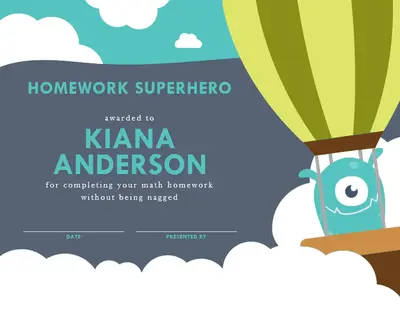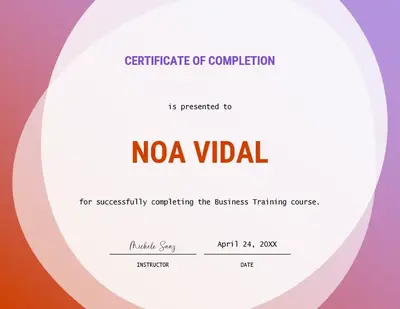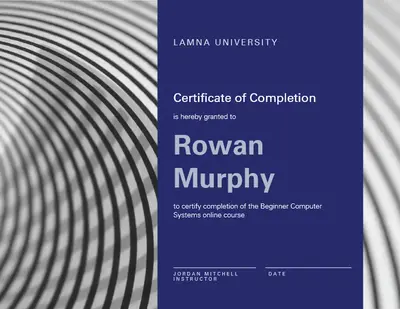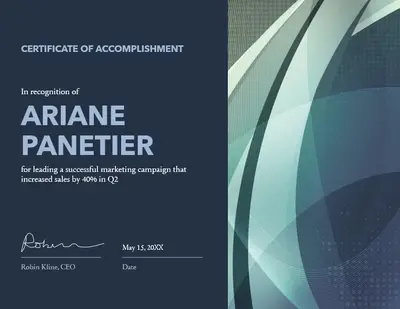
Сертифікат про досягнення
Використовувати цей шаблон

Створюйте власні сертифікати за допомогою красивого тексту, графіки та шаблонів в Microsoft PowerPoint, щоб відзначати досягнення.

Почніть із порожнього сертифіката або перетягніть, щоб редагувати шаблони PowerPoint для будь-якої нагоди. Додавайте святкові піктограми та графіку в стильних макетах, щоб створити вишуканий сертифікат.

Підкреслюйте заслуги співробітників і вручайте сертифікати з індивідуальними кольорами, логотипами та підписами. Завантажуйте логотип бренду, застосовуйте власні кольори та додавайте підпис до корпоративних сертифікатів, щоб демонструвати їхній офіційний статус.

Заощаджуйте час завдяки шаблонам сертифікатів, які вже мають розмір 8,5 x 11 дюймів в альбомній орієнтації. Друкуйте сертифікати та вставляйте їх у рамку для ділових або освітніх семінарів та як подарунків, або діліться ними в цифровому форматі як зображеннями чи PDF-файлами без потреби змінювати розмір.

Завантажуйте безкоштовні сертифікати для друку для будь-якої події без потреби в навичках дизайну. Переглядайте приклади сертифікатів для нагород, випуску, визнання працівників і досягнень у різних стилях і колірних схемах.
Update any certificate template with a recipient's name, event details, date, and a celebratory message. Draft thoughtful formal or friendly messages with Copilot in PowerPoint when creating multiple versions for employee awards, graduation, or team achievements.
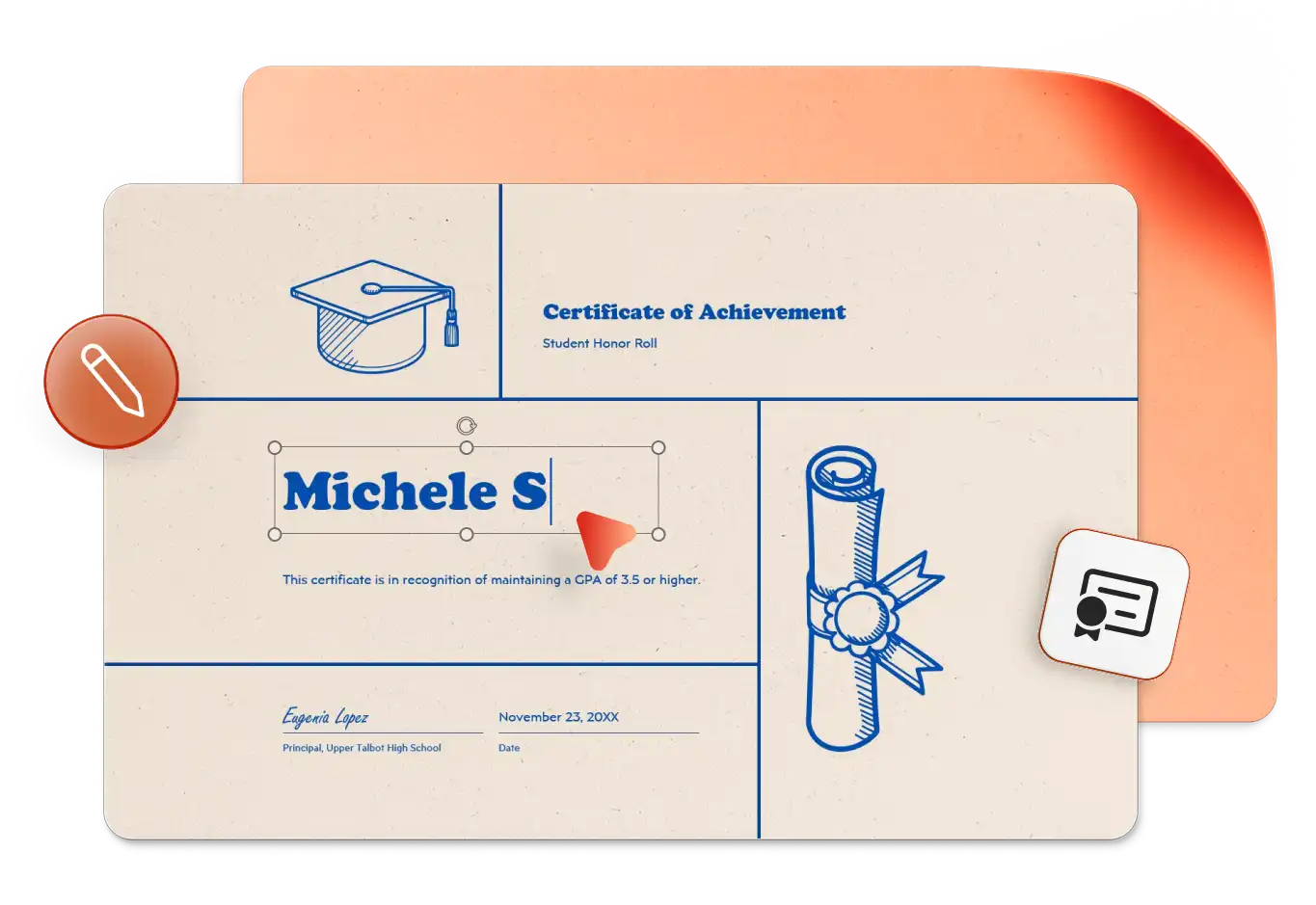
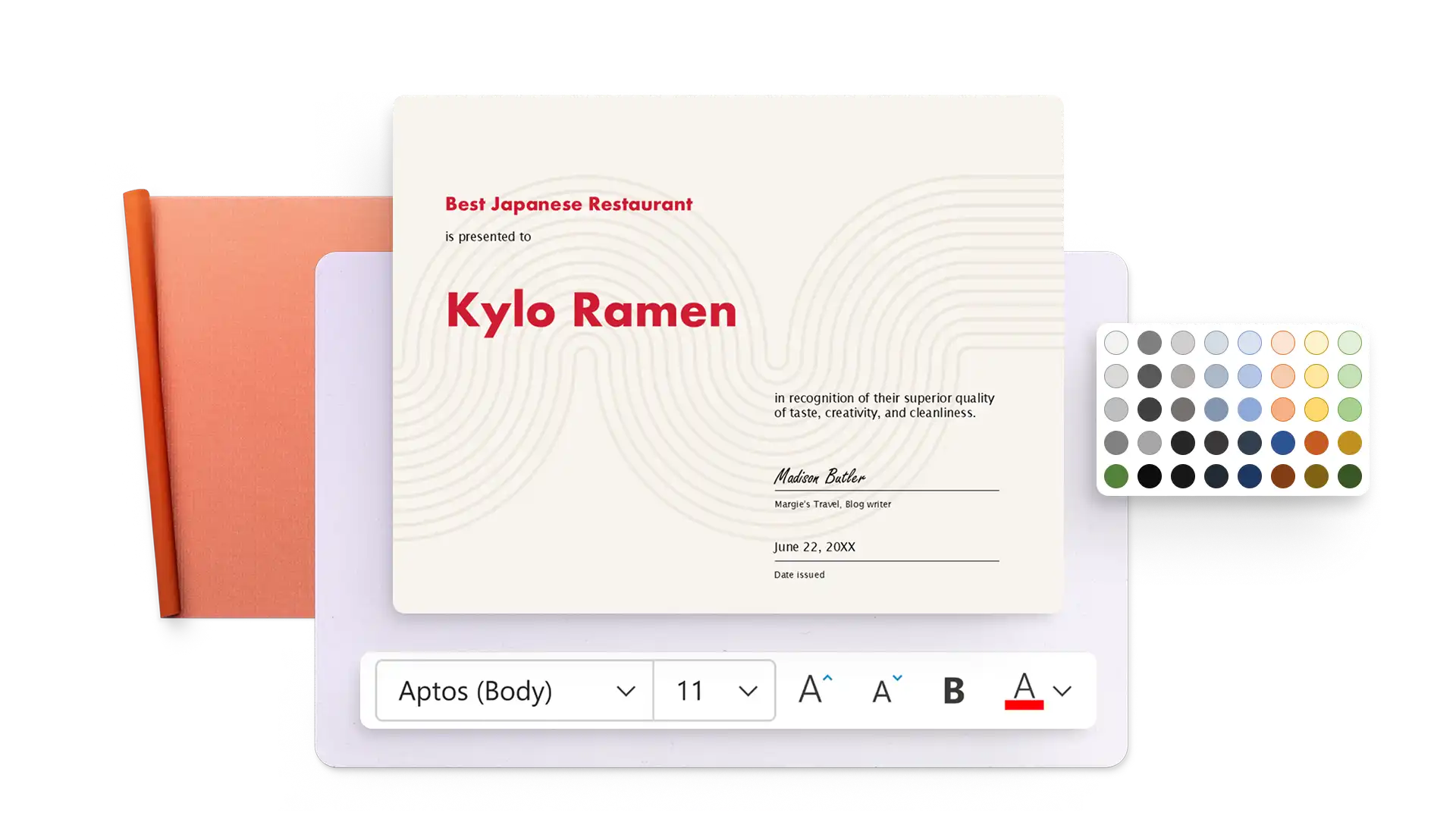
Modify certificate templates with unique color styling and creative fonts to match any occasion. Adjust text layouts and refine the design in just a few clicks, or get design suggestions from the AI presentation designer in PowerPoint.
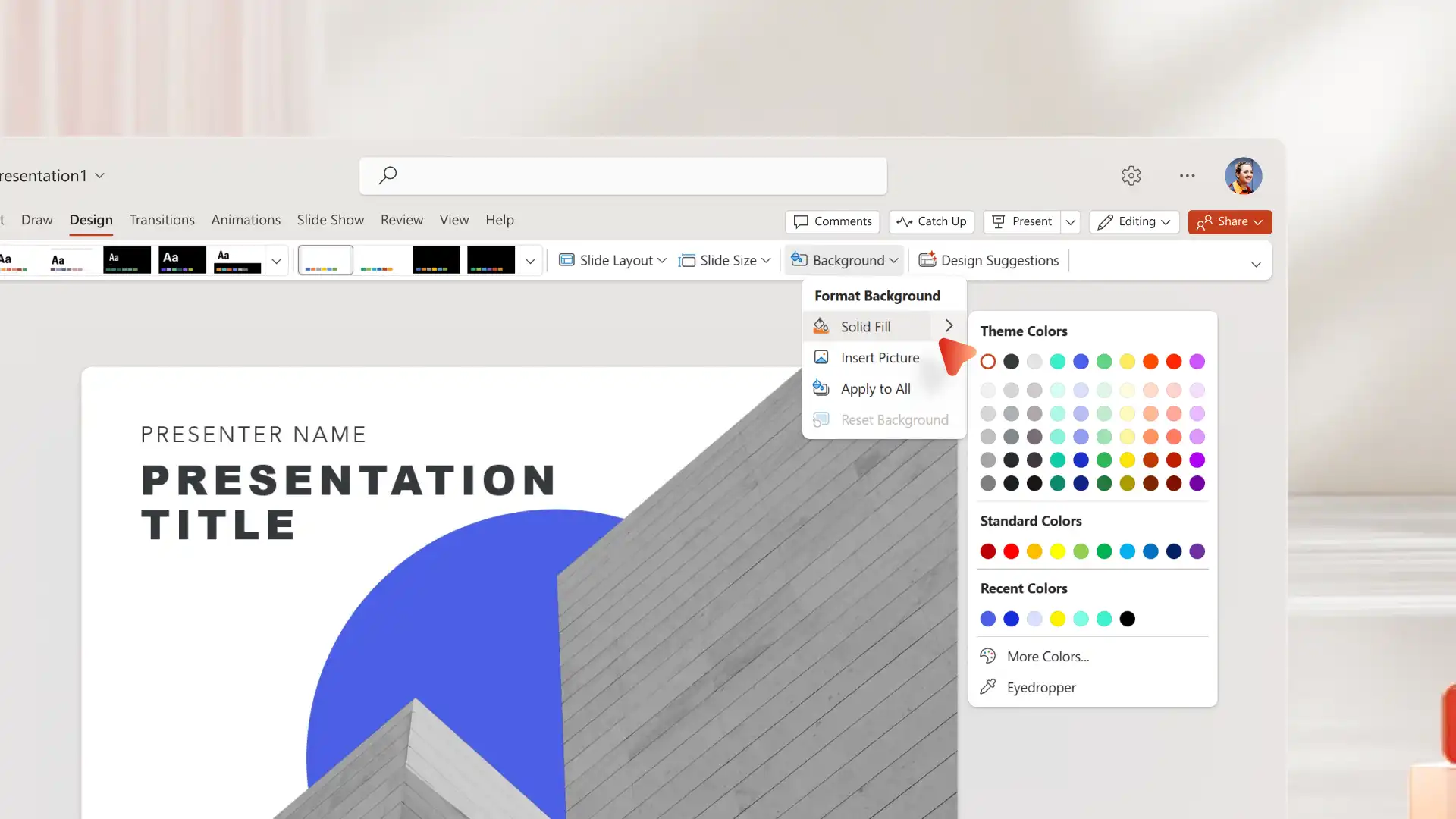
Choose from stars, ribbons, trophies, and other shapes in the PowerPoint library to highlight achievements. Insert timelines for course certificates, add a custom slide background, or create an AI-generated image with Copilot in PowerPoint.
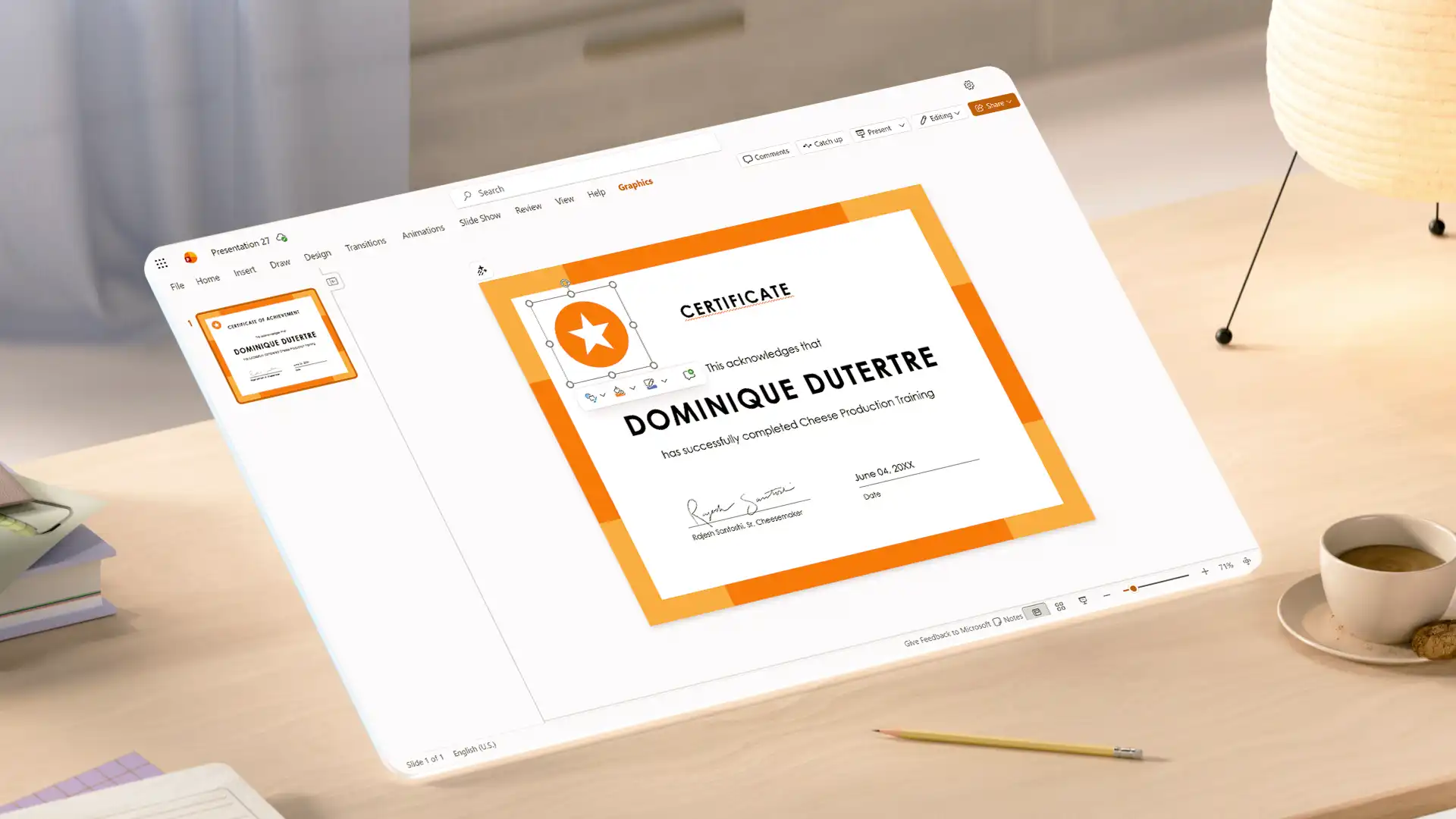
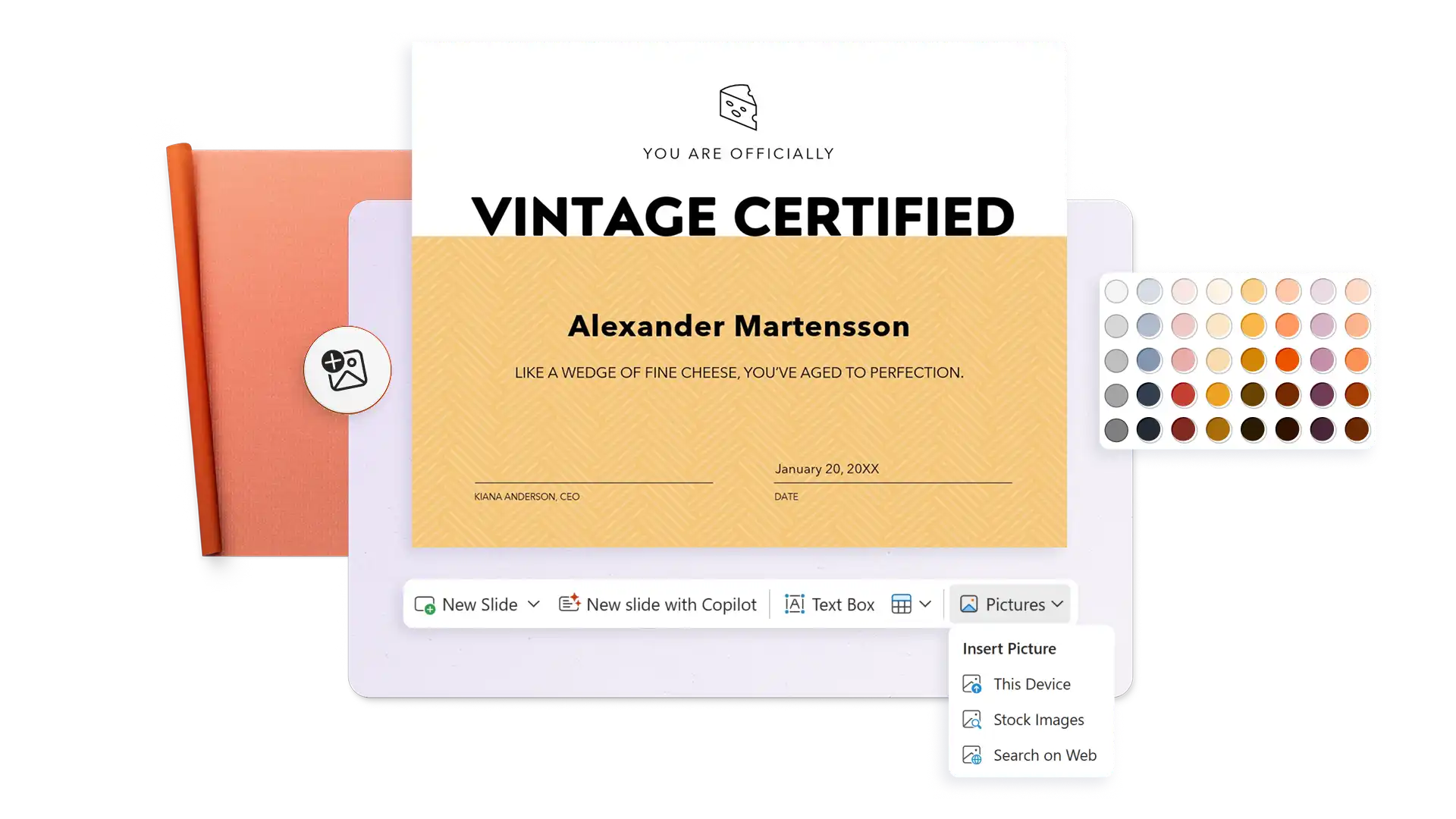
Привертайте увагу фірмовими сертифікатами для відзначення працівників, перемог у тестах, проходження семінарів або для нагород у сфері маркетингу й продажів. Завантажте логотип бренду, застосуйте кольори організації та додайте печатку компанії або підпис керівника для підтвердження автентичності.
Refine the text on any certificate with Copilot to adjust formality or choose better words to engage any audience. Turn on text predictions to write faster and save time when creating multiple certificates.
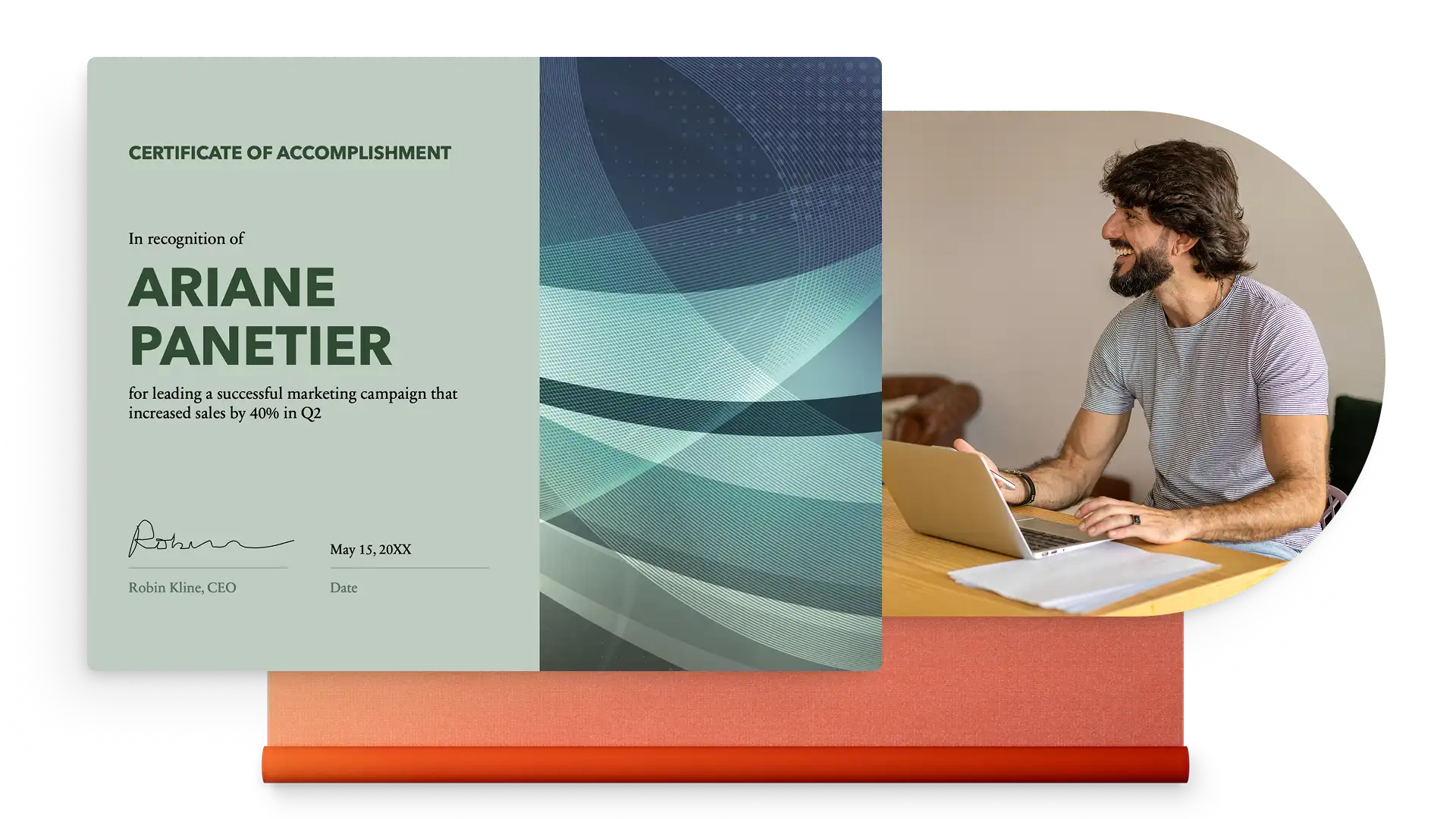
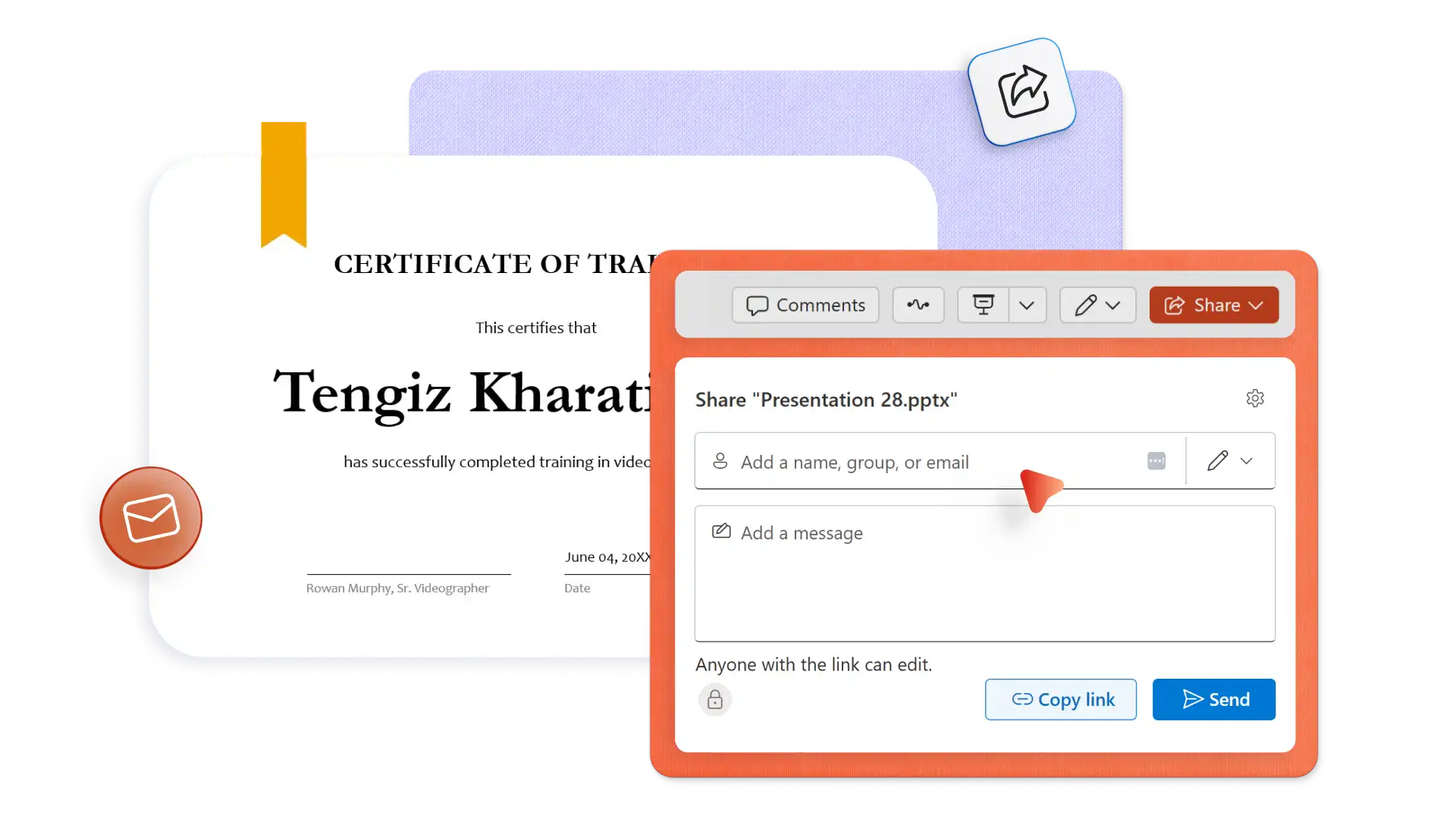
Create and download as many certificates as needed for free. Save certificates in different formats like PDF, JPEG, or PNG. Print, frame, and present in-person, or share online as a PDF email attachment.
In your browser, explore PowerPoint certificate templates
Choose a certificate template to edit
Update the recipient's name, milestone details, date, and signature
Download, print, and share the certificate for free
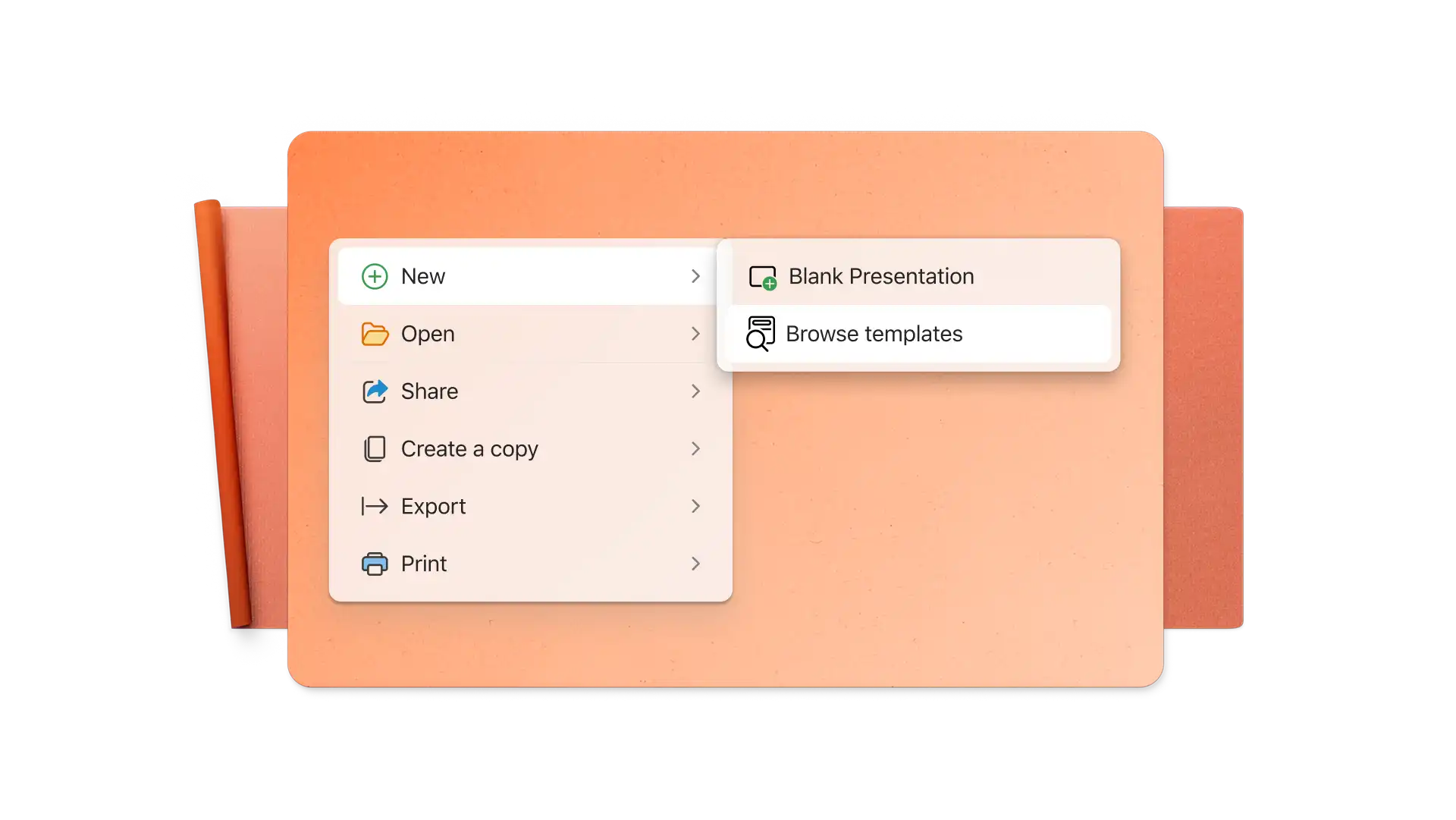
The standard certificate size is 8.5-inch by 11-inch in a landscape orientation. All certificate templates in PowerPoint are automatically preset to the certificate standard size.
To add an image to a certificate in PowerPoint, select Insert on the toolbar then select Pictures. From here, insert an image from a browser or device files, or browse the web to select a stock image.
Easily create more than one certificate using the same template by duplicating the slide, then editing the recipient's name on the new slide. Alternatively, save a copy of an existing certificate as a new file and edit the copy accordingly.
To virtually sign a certificate in PowerPoint, import a saved signature as a PNG or JPEG file with a transparent background. Also consider typing a name using a calligraphy text style like Rastanty Cortez or Freestyle Script fonts. Alternatively, print the certificate as a PDF then sign by hand.