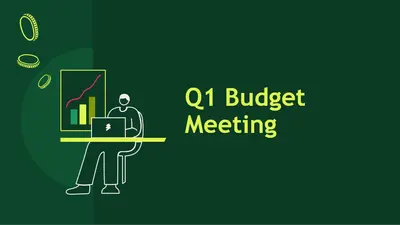
Lập ngân sách hàng quý

Tạo bản trình chiếu tài chính rõ ràng bằng cách sử dụng các mẫu có thể chỉnh sửa, biểu đồ trực quan và Copilot trong Microsoft PowerPoint.

Bắt đầu với một trang chiếu trống hoặc điều chỉnh mẫu bản trình bày tài chính để hiển thị ngân sách, báo cáo hoặc dự báo. Thay thế văn bản chỗ dành sẵn và điều chỉnh thiết kế trang chiếu sao cho nội dung liền mạch rõ ràng.

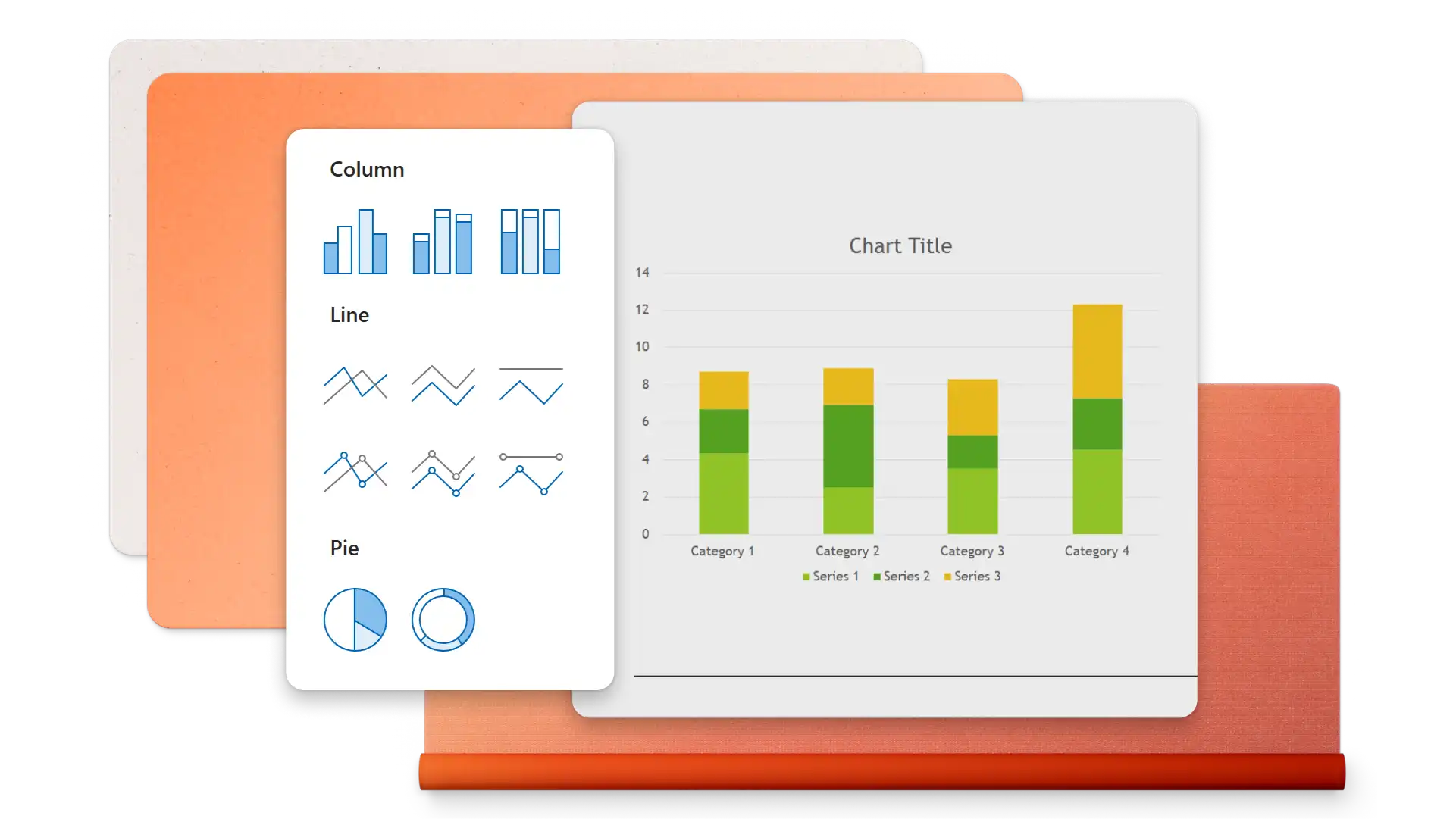
Chèn biểu đồ và đồ thị để hiển thị dữ liệu tài chính, dự báo doanh thu và xu hướng thị trường. Sử dụng đồ họa thông tin, SmartArt và bảng để chia nhỏ thông tin phức tạp thành hình ảnh trực quan rõ ràng.

Tải báo cáo tài chính, tài liệu hoặc bảng tính lên cuộc trò chuyện Copilot trong PowerPoint để nhận đề xuất dàn ý cho bản trình bày. Xem lại bản thảo và áp dụng thay đổi cho trang chiếu nếu cần.

Chọn trong số hàng loạt các mẫu bản trình bày tài chính để đánh giá ngân sách, báo cáo quý, bản trình chiếu kêu gọi đầu tư và kế hoạch tài chính. Điều chỉnh bố cục cho các cuộc họp hội đồng quản trị, đánh giá khách hàng hoặc theo dõi tài chính cá nhân.
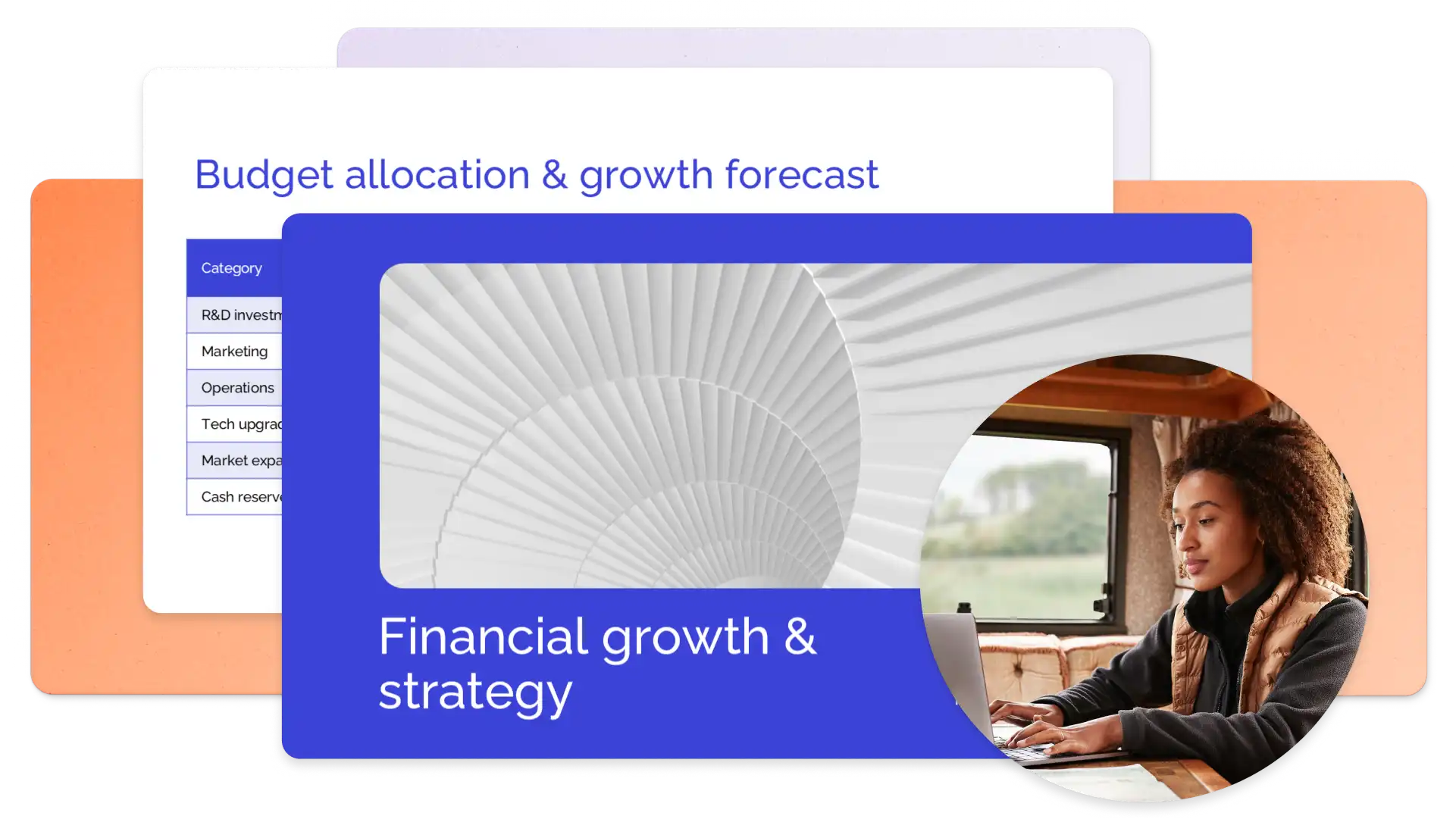
Choose a presentation template featuring placeholder slides for profit and loss statements, revenue breakdowns, and financial forecasts. Replace sample content with actual data, add branding, and adjust visuals to prepare a clear presentation.
Làm việc nhanh hơn với Copilot trong PowerPoint (opens in a new tab). Điều chỉnh nhanh bản trình bày tài chính vì Copilot có thể cập nhật thiết kế trang chiếu của bạn, thêm hình ảnh liên quan và tạo bản trình bày bằng mẫu thương hiệu của bạn. Tạo gợi ý nội dung và trang chiếu tóm tắt bằng cách trò chuyện với Copilot và trau chuốt trang chiếu bằng tính năng viết lại tự động. Khi bạn đã sẵn sàng, hãy cải thiện kỹ năng trình bày với Huấn luyện viên diễn thuyết (opens in a new tab).
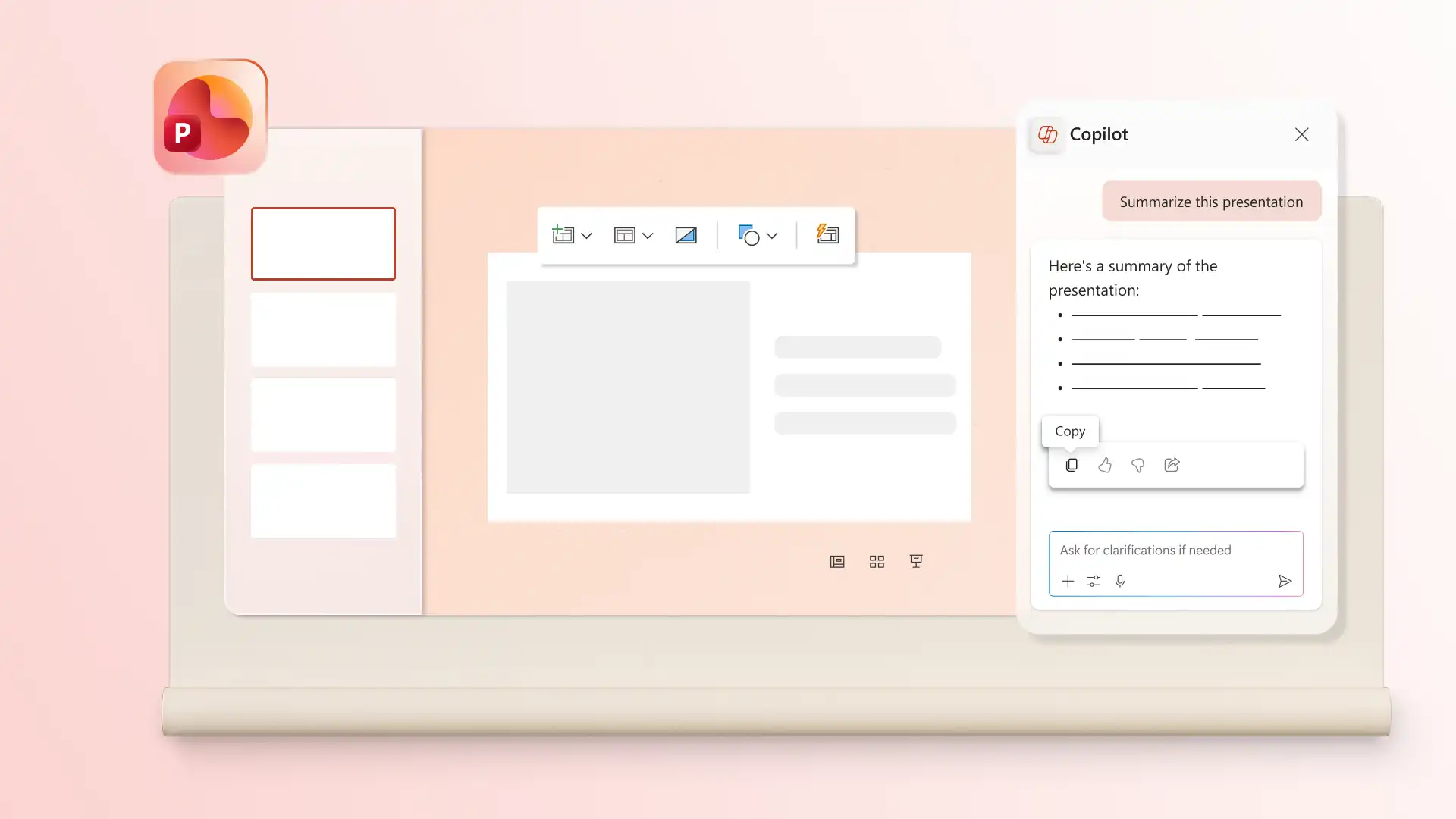
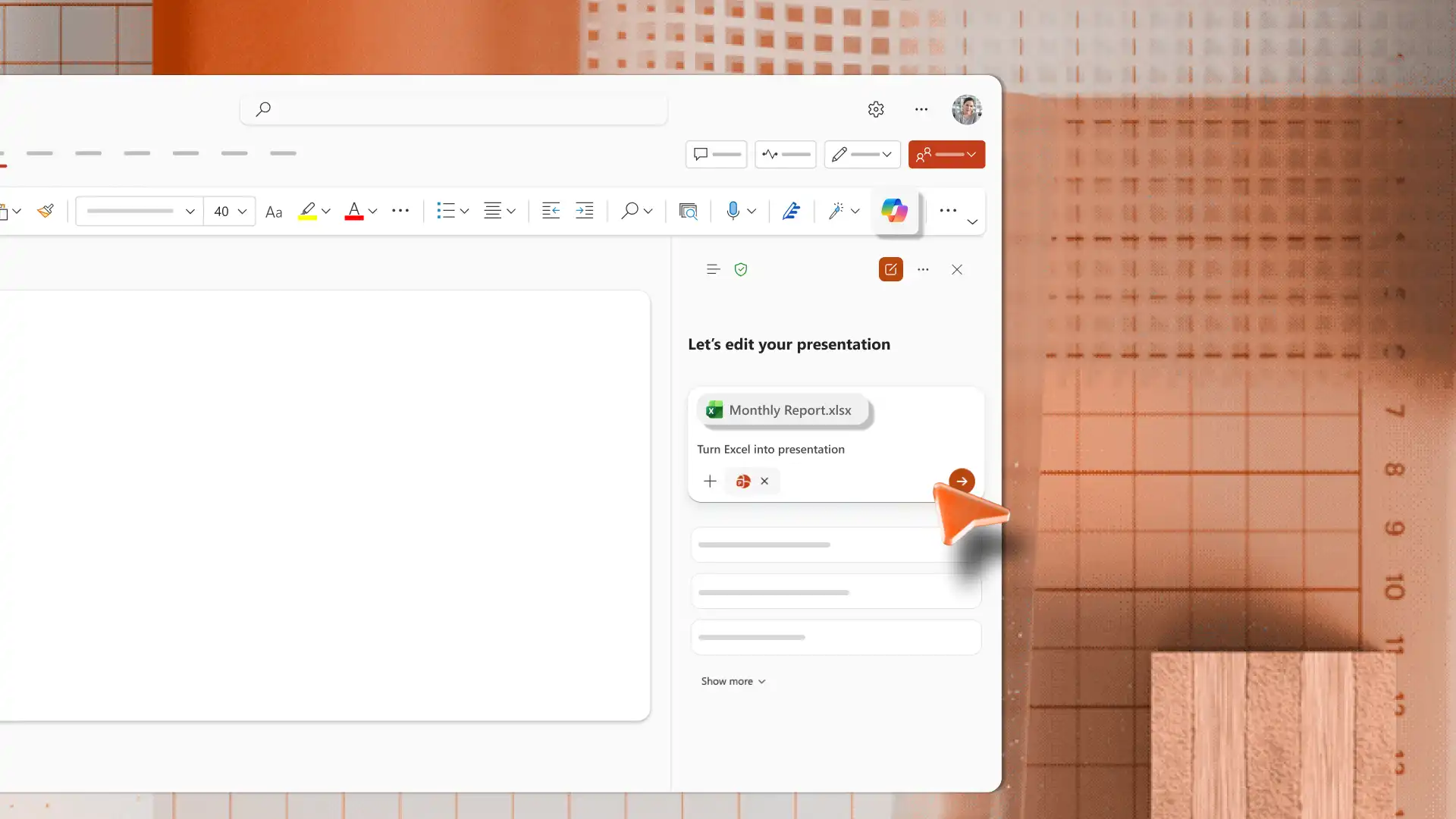
Generate slides from existing files using the AI presentation maker in PowerPoint. Upload an Excel file or document to Copilot chat and receive a presentation outline to review and apply. Review the suggested structure to organize and format slides, so the final deck is clear and easy to follow.
Insert charts, tables, diagrams, or timeline slides that directly support topics in a finance presentation. Use the right chart type for the data, such as line charts for trends, pie charts for proportions, or bar charts for comparisons. Keep one main insight per slide so the data supports the message.
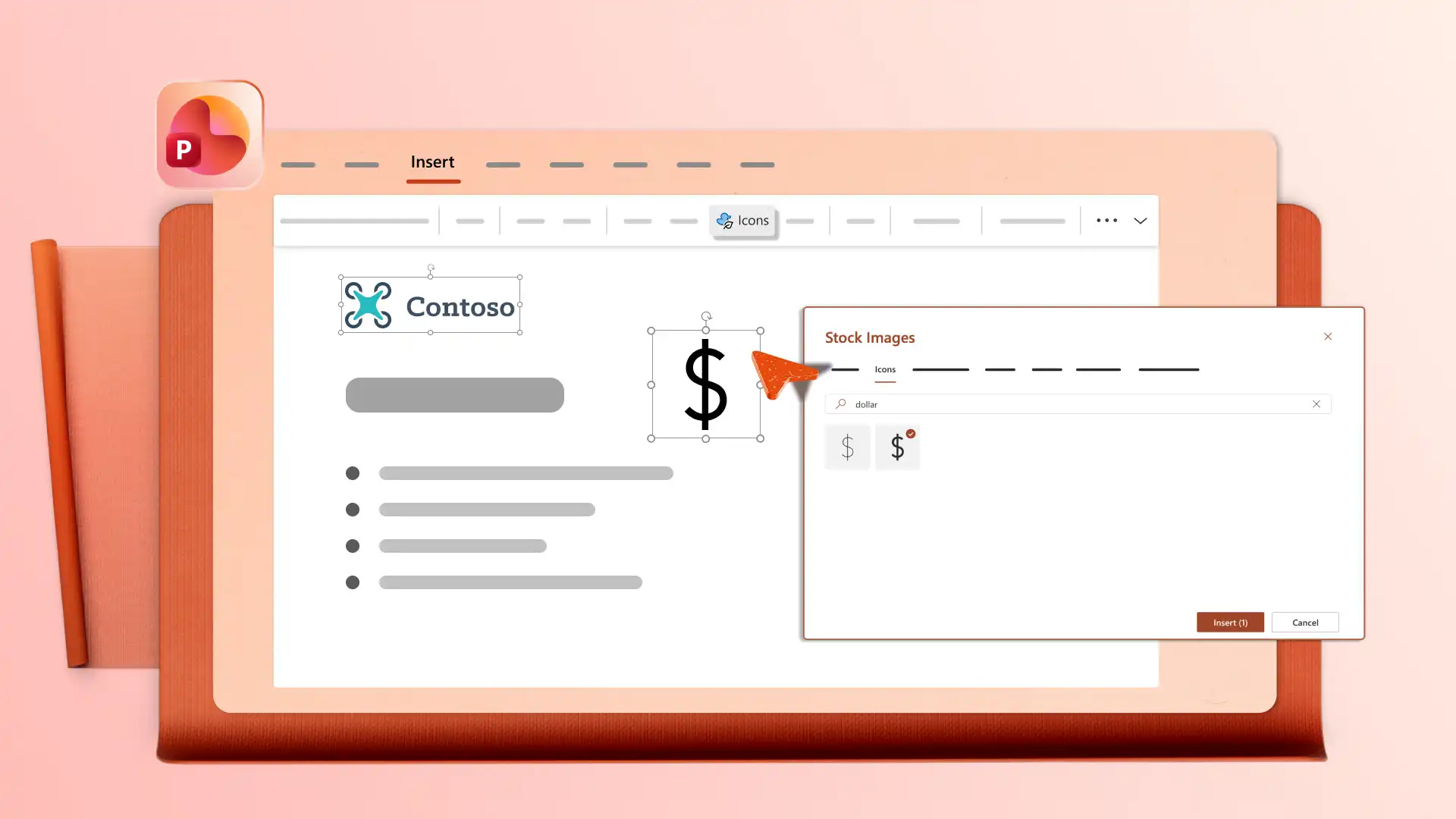
Add a company logo, apply brand colors, and choose fonts that match brand guidelines, so finance presentations look consistent with other company materials. Open the Design tab to review layout suggestions that organize content clearly. Use clean layouts so audiences can read the data and remember key points.
Edit finance presentations with a team using real-time collaboration tools like mentions and comments to review and add ideas. Download a presentation as a PDF or send a secure OneDrive link that always shows the latest version for stakeholders, clients, or board members.

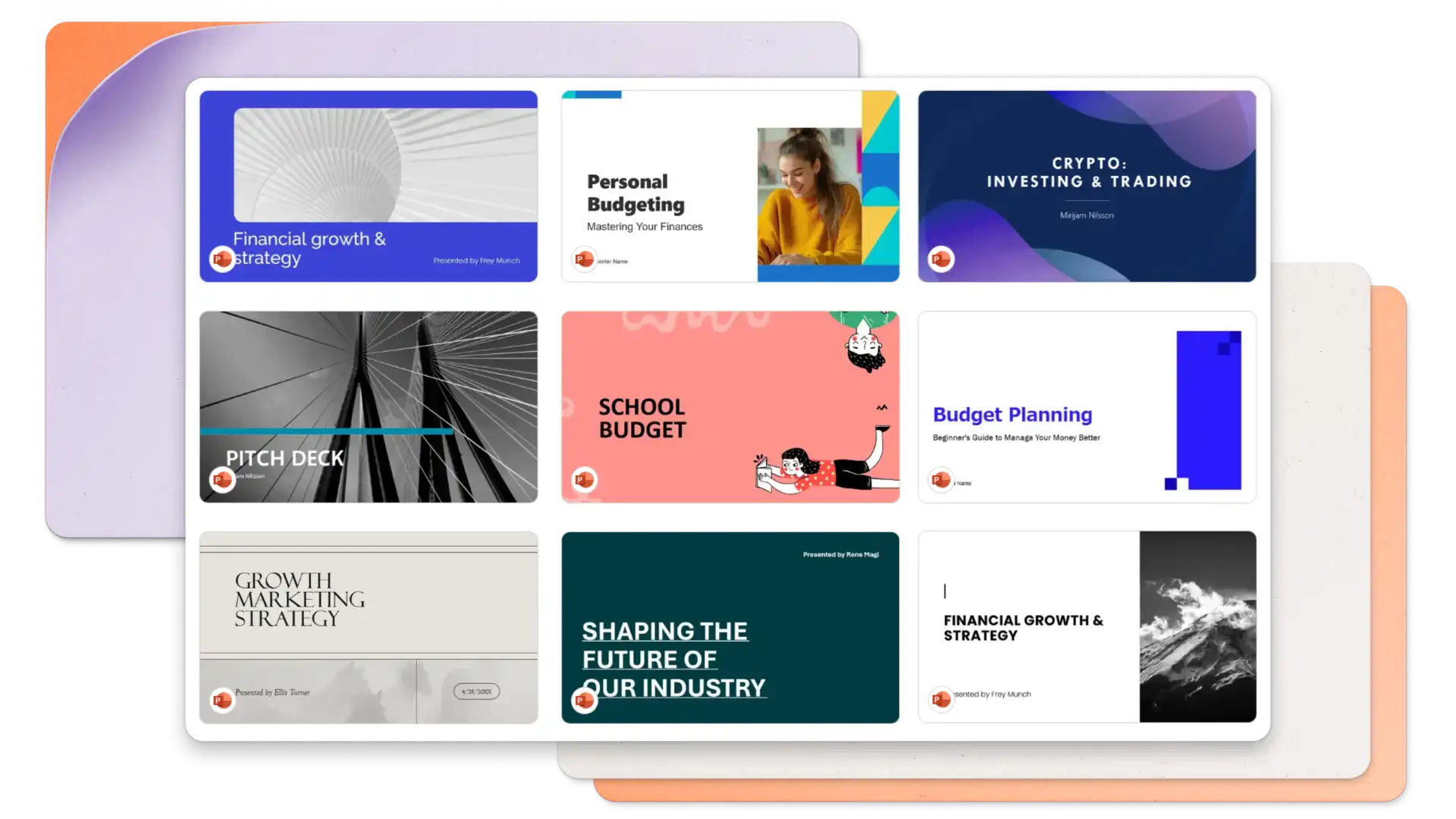
Mở PowerPoint cho web và bắt đầu từ trang trống hoặc duyệt tìm các mẫu bản trình bày tài chính.
Chọn một mẫu và thay thế nội dung chỗ dành sẵn bằng dữ liệu và báo cáo tài chính.
Chèn biểu đồ, bảng và hình ảnh trực quan để hỗ trợ cho các điểm chính trong từng trang chiếu.
Trò chuyện với Copilot trong PowerPoint để tạo dàn ý, tóm tắt hoặc trang chiếu từ các tệp đính kèm.
Lưu và chia sẻ bản trình bày qua liên kết OneDrive hoặc tải xuống dưới dạng PDF.
Finance presentation templates work well for budget reviews, quarterly reports, investment pitches, and financial forecasts. Share these decks with executives, investors, or clients for business purposes. Personal finance presentations can also be shared with family or colleagues. Combine finance templates with sales presentations or business presentations for broader coverage.
Start with an executive summary that covers the main points, then move into detailed sections for revenue, expenses, profit and loss, and forecasts. Use a finance template to follow a ready-made structure and save time on formatting. End with key takeaways and next steps.
Use charts that match the data type, such as line charts for trends, pie charts for proportions, and bar charts for comparisons. Add timeline slides to show progress over time. Keep one main insight per slide so the visuals support the story rather than replace it.
Follow a clear structure using a finance template to cover key areas like summaries, data, and forecasts. Practice delivery with the coach in PowerPoint (opens in a new tab) to review pacing, tone, and filler words. Keep slides focused on one insight each so the audience can follow along.